
Reliable video converter, editor, and compressor for daily tasks.

Open or Closed? 3 Ways to Add Subtitle to Video in 2025

Posted by Paula Pailaga to Edit Video/Audio Dec 01, 2025
From giving access to hearing-impaired viewers to capturing audience attention, adding subtitles and captions to videos increases its reach and engagement. And when you've decided, you face an important choice whether you should use open or closed captions. Therefore, this comprehensive guide breaks down steps to add subtitles to videos in 3 ways, including both open and closed captions. Know which method and type are best for your project!
Guide List
Open vs Closed Captions: The Difference and How to Choose Easiest Method to Add Subtitles to Videos How to Add Subtitles to YouTube Videos How to Add Subtitles to Videos with VLC Media PlayerOpen vs Closed Captions: The Difference and How to Choose
Prior to learning how to add text subtitles to video, it is just nice to understand the crucial difference between the two: Open Captions and Closed Captions. This choice will dictate how your viewers will consume your video and where you can share it.
Here's a quick breakdown of their differences and a guide on when you can use each type. Later, you can make a right decision to merge subtitles with a video permanently.
| Features | Open Captions | Closed Captions |
| Integration | It is permanently burned into the video frames. | It comes with a separate text file that’s uploaded with the video file. |
| Visibility | Always on and cannot be turned off. | Can be turned on or off. |
| Customization | Its font, size, and color can be controlled by the creator. | Its appearance can be controlled in user settings. |
| Editing | Needs re-editing and re-exporting the entire file if changes are required. | Easy to edit without touching the video file. |
Add Open Captions When:
• You will post on social media platforms like TikTok and IG Reels that often play videos on mute by default.
• You are in a noisy environment where audio is difficult to hear.
• The chosen platforms lack CC support; open captions will ensure accessibility.
• Design is very important to match your specific font, color, and style.
Add Closed Captions When:
• You will use major hosting sites like YouTube, Netflix, and others that support CC files.
• Accessibility and control are the keys to customizing the text size, color, and background.
• You will need multiple closed caption files in different languages for the same video.
• You need to boost SEO as it provides indexable text, helping engines to rank your content.
Easiest Method to Add Subtitles to Videos
While using major platforms that offer Closed Captions, the easiest method for creators who need to produce videos with permanent Open Captions guarantees readability on social media feeds. Thus, for a simple, high-quality approach, 4Easysoft Total Video Converter is a powerful and user-friendly software that makes adding subtitles to video incredibly simple. This tool ensures subtitles are merged permanently with your video file. It supports popular subtitle formats, including SRT, SSA, and ASS, and more. So you can use pre-timed captions with minimal fuss. Moreover, you can also adjust the subtitle's position, font, and size to meet your standards.

Burn external subtitle files directly into the video for permanent display.
Supports virtually all video formats like MP4, MOV, MKV, for both input and output.
Adjust the subtitle font, size, color, and position within the video frame.
Includes extra tools for trimming, cropping, and applying effects.
100% Secure
100% Secure
Step 1Launch 4Easysoft Total Video Converter. Click the "Add Files" button. Upload your target video. Click the "Edit" button linked to your loaded video file.

Step 2Now, in the editor window, look for the "Subtitle" tab. There, you'll see the "Add" button beside the Subtitle field; click on it to upload your subtitle file.
Step 3To change the font, size, color, and more, simply click the corresponding menus and sliders for manual adjustments. After all that, you can make other edits for your video within other tabs, and click the "OK" button to save changes.
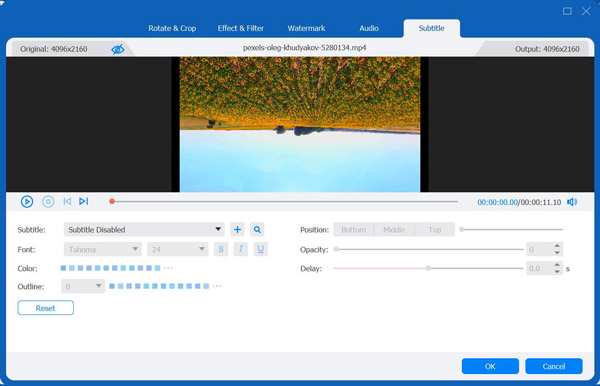
Step 4On the main screen, use the "Format" dropdown menu to select your desired output format. Click the "Convert All" button to export a video with subtitles.

How to Add Subtitles to YouTube Videos
If you're a content creator using YouTube, the platform offers one of the easiest and most powerful ways to put subtitles to a MP4 video, especially Closed Captions. YouTube allows you to upload separate subtitle files such as VTT or SRT, manually type out subtitles, or even add automatic transcription with manual edits. This method is perfect for lengthy videos, ensuring viewers will have the freedom to toggle captions on or off and select different languages.
Step 1Go to the "YouTube Studio". Click on "Subtitles" from the left sidebar. Then choose the video you wish to add subtitles to.
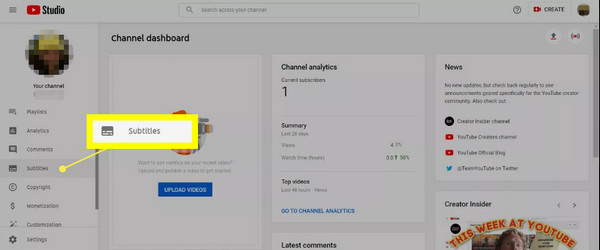
Step 2Select its original language. Click the "Add" button. Later, you can upload file, auto sync, and type manually.
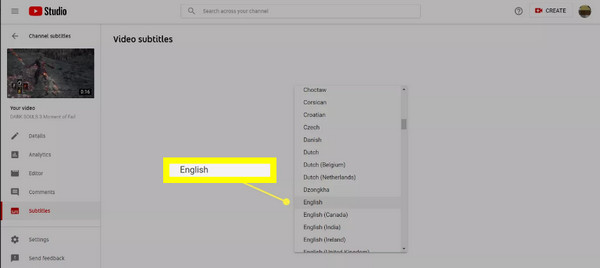
Step 3Review its timing and accuracy. And correct errors if necessary. (for auto sync subtitles to videos only)
Step 4At last, click the "Publish" button. You can add subtitles to a YouTube video and share it successfully.
How to Add Subtitles to Videos with VLC Media Player
VLC Media Player is a free, popular app known for playing almost all files. It is an excellent tool for viewing videos with Closed Captions on your local computer. Adding subtitles to a video using VLC doesn't burn the subtitles into the video; instead, it loads a separate file when the video plays, making it ideal for your personal viewing before publishing.
Step 1Make sure you have the video and the subtitle file saved on your computer; you can place them in the same folder. Then, launch VLC and open your video by clicking the "File", then "Open File".
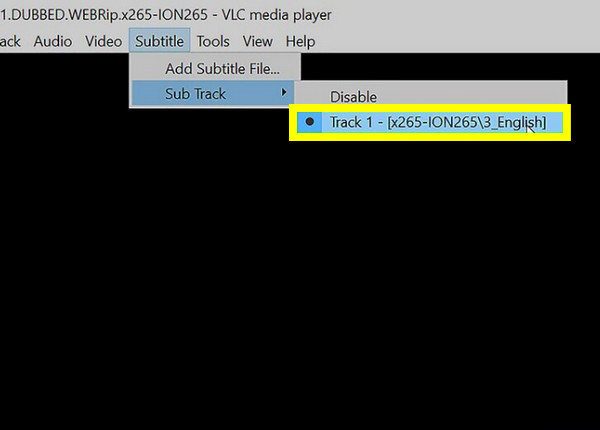
Step 2To load and add subtitles to video, go to the menu bar and select "Subtitle" then "Add Subtitle File", and locate and pick the file you wish to use.
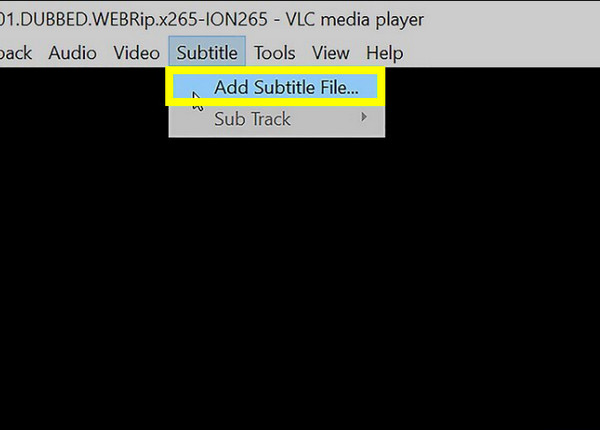
Step 3The subtitles should now appear in the video playback. You can pause the video and adjust the subtitle track, including font, position, and timing from the "Subtitle" menu.
Conclusion
The three ways just covered today offer an easy way to add captions to videos! Whether to use open or closed captions, the right choice is determined by where you will publish your content. You've seen here that open captions dominate social media feeds, while closed ones are the standard for hosting platforms like YouTube. But, if you decide to produce videos with flawless, hard-coded captions, make sure to subtitle a video using 4Easysoft Total Video Converter. With this tool, you will have a powerful, all-in-one editor that ensures precise control over the font, size, and position of the caption, and your content is delivered effectively.
100% Secure
100% Secure
