
Remove screen passcode, Apple ID, MDM and Screen Time from iPhone safely.

Forgot Passcode on iPhone? 5 Ways to Unlock iPhone Safely

Posted by Alvin Cantero to iOS Unlocker Feb 06, 2026
An instant panic: you go to open your iPhone, but the passcode you've remembered is wrong. When you forgot passcode on iPhone, you're locked out of photos, messages, and apps. Luckily, Apple has several solutions to help you regain access. Depending on your iOS version and whether you have a computer, here are 5 ways for you to unlock iPhone if you forgot the passcode, ensuring you can choose the best that suits your situation.
Guide List
The Simplest Way to Unlock an iPhone Screen Passcode Use Previous Passcode to Solve Forgot Passcode Issue Restore and Unlock your iPhone Using iTunes/Finder Backups Use Siri to Unlock iPhone when Forgetting iPhone Passcode Unlock a Forgotten Password iPhone Using “Find My iPhone”The Simplest Way to Unlock an iPhone Screen Passcode
When you need a high success rate to fix a forgotten passcode on iPhone without the complicated iTunes or other manual recovery modes, 4Easysoft iPhone Unlocker stands out as a powerful tool designed to bypass any screen locks, whether digit passcodes, Touch ID, or Face ID. This software is helpful for iPhones that have been disabled after too many incorrect attempts with damaged screens that make entering a code impossible. It streamlines the process into a few clicks, ensuring that anyone, even those who have no technical background, can successfully unlock iPhone screen passcode. With its optimized hardware acceleration, the program ensures the iPhone unlocking process is faster than traditional manual methods.
Easily wipe digit passcodes, Touch ID, Face ID, and other screen locks.
Remove forgotten Apple IDs to regain full control over iCloud services.
Fully supports all iOS versions as well as all iPhone models.
A clean, step-by-step interface needs no technical expertise to work.
100% Secure
100% Secure
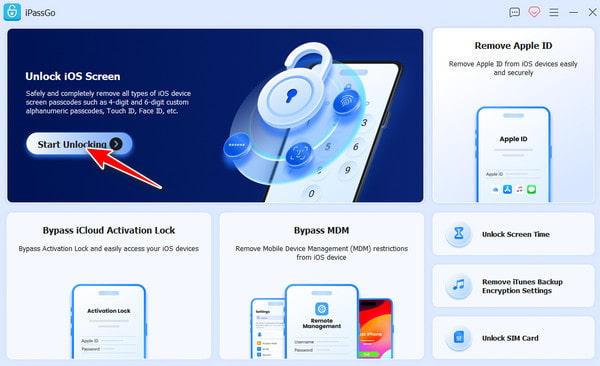
Step 1First, start 4Easysoft iPhone Unlocker on your computer. Choose "Wipe Passcode" from the home screen. Then, grab your USB cable to pair your locked iPhone to the computer. Upon recognizing, click the "Start" button to proceed.
Step 2The software will then display all details. Take a quick second to verify them. If everything is correct, click the "Start" button again, and the tool will start downloading the correct firmware package.
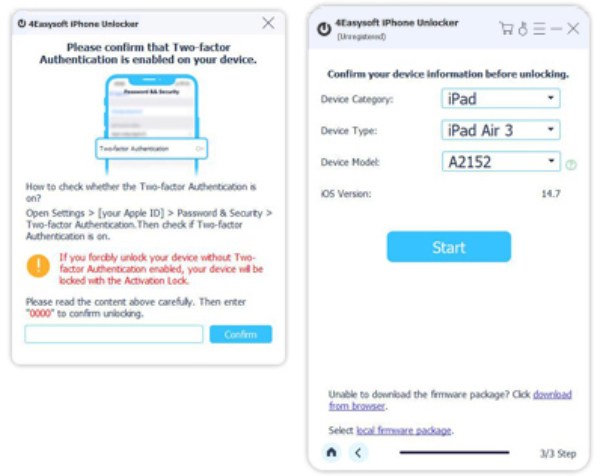
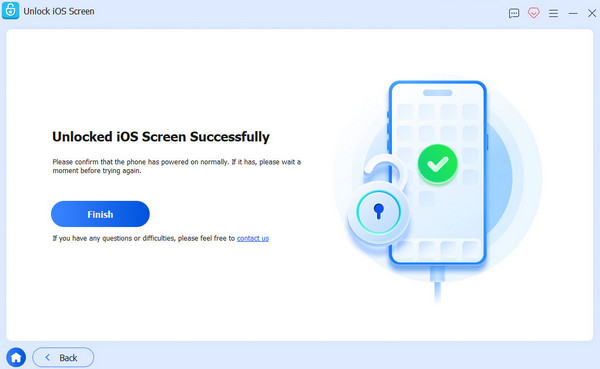
Step 3After a quick look, type "0000" in the field to move on, then click the "Unlock" button. Within just a few minutes, your passcode will be gone, giving you a fresh start with your iPhone. Later, you can unlock iPhone without passcode or Face ID.
100% Secure
100% Secure
Use Previous Passcode to Solve Forgot Passcode Issue
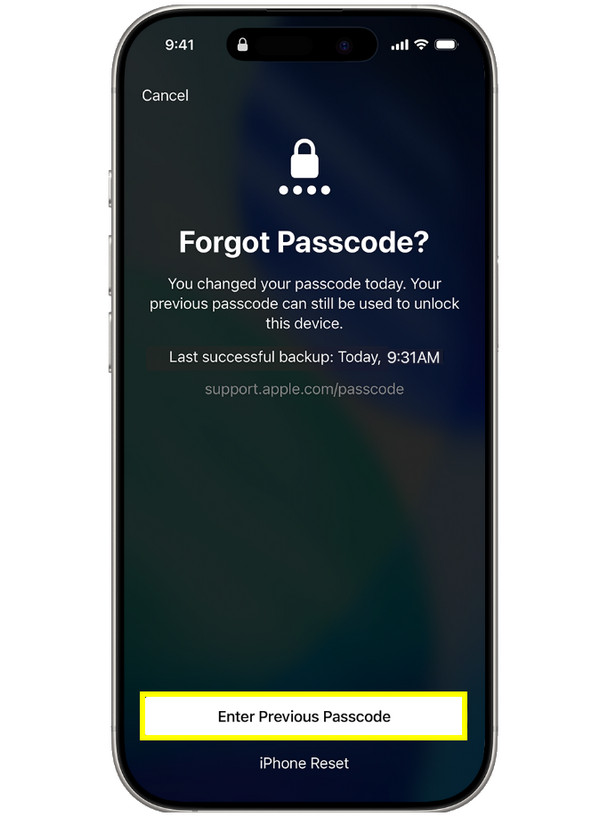
Meanwhile, if you're running iOS 17 or later, Apple has a Passcode Reset period that can be very helpful to get you out of forgot passcode on iPhone issue. For the first 72 hours after you change your passcode, your iPhone still remembers the old one as a secondary way to get back in. With this method, you can unlock iPhone with forgotten passcode safely.
Step 1Trigger the lockout by entering the wrong passcode too many times. Tap the "Forgot Password?" button at the bottom.
Step 2Next, tap the option that lets you use your old password.
Step 3Enter your previous passcode, then follow the prompts to create a new one.
Restore and Unlock your iPhone Using iTunes/Finder Backups
If the 72-hour window has passed, fix 'forgot passcode on iPhone' using a computer with iTunes on Windows or older Macs or Finder for newer macOS versions. This approach needs your device in Recovery Mode to let the computer access the iPhone hardware even when the software is locked. Since this process will fully erase the device's contents, it's better if you have made a backup to be restored later.
Step 1Once you have turned off your iPhone, enter Recovery Mode by holding the "Power" button on your iPhone 8 or later, or the "Home" button for earlier models, while connecting it to your computer.
Step 2Now that you're in the Recovery Mode screen, launch Finder or iTunes and select your device icon from the sidebar. When a prompt appears, choose "Restore" to access your locked iPhone.
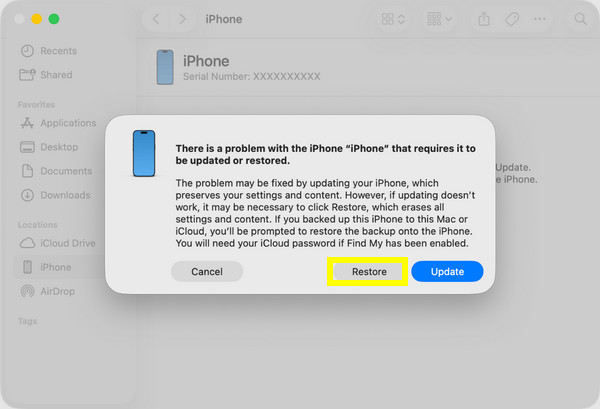
Step 3When done, the "Hello" appears on your iPhone screen, following the setup process to restore your data from your most recent backup.
Use Siri to Unlock iPhone when Forgetting iPhone Passcode
In some cases, when you forgot passcode on iPhone, and you may not have a computer to use, use Siri to unlock your iPhone on very old iOS versions. This solution depends on a bug where Siri can get you into opening the Clock app, allowing you to navigate into the Photos library and eventually the Home screen. While Apple has patched this in all the newest versions, it might still be effective on your old device.
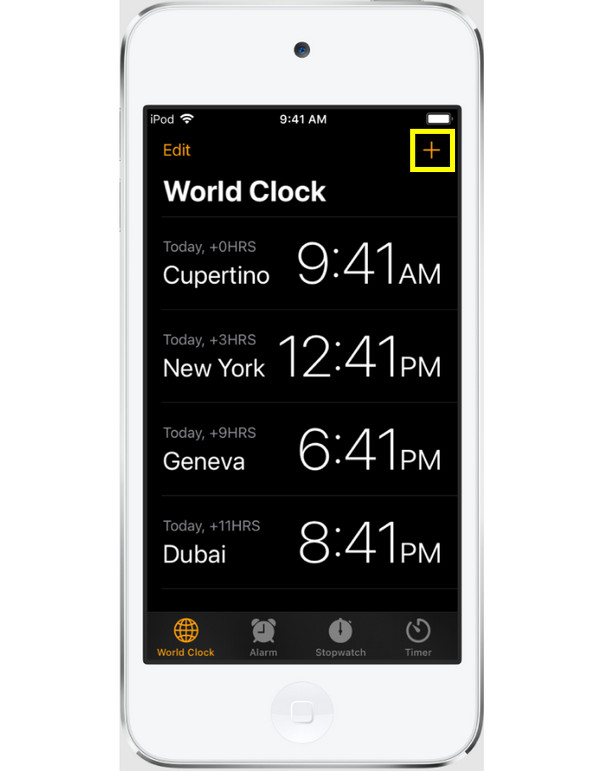
Step 1Activate Siri by holding down the "Home" button or saying "Hey Siri". Then, say "What time is it?" and tap the "Clock" icon to open it.
Step 2Next, tap the "Add" button and type a random text, select it, and tap "Share", then choose the "Message" app. Type anything in the "To" field, tap "Return", then tap "Create New Contact".
Step 3Afterward, tap "Add Photo". If it works, the Photo library will open, and you can press the "Home" button to go to the main screen.
Unlock a Forgotten Password iPhone Using "Find My iPhone"
Your last and best option when you forgot passcode on iPhone is to use Apple's cloud-based security tools. Thanks to the Find My feature, you can remotely manage your phone from any browser. By using your iCloud from another device, you can trigger a remote wipe of your locked iPhone, which is the most convenient method if you need no cables or software. Once done, the passcode is removed, and you can set your device up like a brand new one.
Step 1Go to the official iCloud Find My website on any secondary device, and sign in with your Apple ID and password.
Step 2From there, click on "All Devices" at the top and select the iPhone you're locked out of. Click the "Erase iPhone" button to begin the remote wipe.
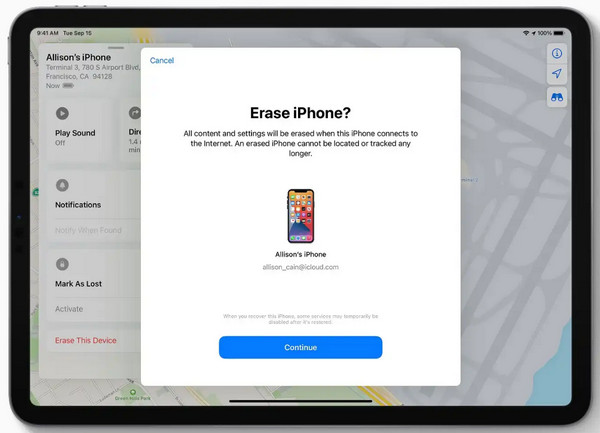
Step 3Enter your Apple ID credentials to confirm. Once your iPhone restarts, the passcode will be gone, and you can set up your device again.
Conclusion
When you have a 'forgot passcode on iPhone' issue, it does not mean the end of your device. This guide has given you five effective solutions, serving for a specific situation, from the Passcode Reset period, Find My feature, to iTunes or Finder. While those Apple tools are powerful, they can sometimes be restrictive or too complicated. So, for a straightforward experience, use 4Easysoft iPhone Unlocker. This tool offers a guided experience that unlocks your iPhone in any model and version easily. Using this, you can bypass any locked screens and reset forgotten passcode on iPhone immediately.
100% Secure
100% Secure
