
Fix 150+ iOS system problems without data loss.

5+ Quick Fixes to Face ID Not Working on Any iPhone

Posted by Alvin Cantero to iOS Recovery Apr 24, 2026
It can be quite frustrating when the Face ID is not working on your iPhone. You may fail to access your iPhone or other features related to it, such as confirming payments and entering passwords quickly. This issue can be ascribed to various reasons. While these factors can perplex new beginners, this guide will explore the possible reasons why Face ID is not working and introduce several quick fixes, from camera and Face ID settings to software or system issues, to help you restore the feature quickly and easily.
Guide List
Possible Reasons Why Your Face ID Is Not Working Quick Fixes to Face ID Not Working on iPhone How to Fix Face ID Not Working in One-ClickPossible Reasons Why Your Face ID Is Not Working
Before getting into solving the issue that Face ID is not working on your iPhone, you can learn about some common reasons that could lead to the problem. This quick info can help you get to the root of the issue and prevent it from happening again. In fact, the problem is not always serious and is often related to settings, environmental factors, or temporary software issues. Here are some possible reasons why your Face ID is not working:
1. Blocked or Dirty TrueDepth Camera
Face ID relies on the TrueDepth camera system to scan and recognize your face. If the camera area is covered by dust, fingerprints, a screen protector, or a phone case, the sensors may not work properly. Even small obstructions can interfere with facial recognition and cause Face ID to fail to work.
2. Incorrect Face ID Settings
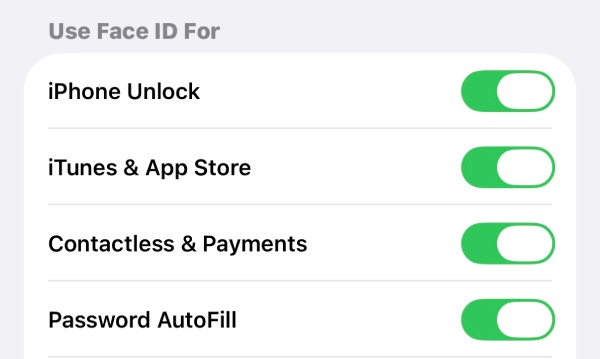
Sometimes Face ID may stop working because certain settings are disabled or changed accidentally. For example, Face ID might not be available on your iPhone or when authenticating apps. If the feature is not properly configured in the Face ID & Passcode settings, your device may not respond to facial recognition.
3. Significant Changes in Your Appearance
If you've recently changed your hairstyle or made some unexpected minor changes to your face, your iPhone might suddenly fail to recognize you. Of course, this does not mean that Face ID doesn't work at all. Rather, it may take longer for it to identify. At this point, simply resetting your Face ID is the most convenient option.
4. iOS System Glitches or Outdated Software
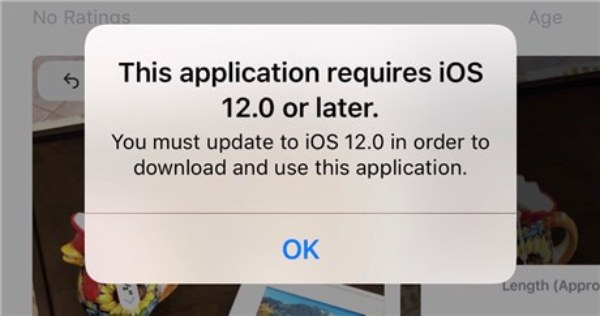
Although Face ID mainly relies on the TrueDepth camera to function, some minor system malfunctions can also cause the problem of Face ID not working. System errors may prevent the TrueDepth camera from working correctly or interfere with the facial recognition process. Updating iOS or fixing system issues can often resolve this type of problem.
5. Hardware Issues with the TrueDepth System
In some cases, Face ID problems may be caused by hardware damage to the TrueDepth camera or related sensors. If your iPhone has been dropped or exposed to water, the internal components responsible for Face ID may malfunction, preventing the feature from working normally.
Quick Fixes to Face ID Not Working on iPhone
If Face ID is not working properly, you can try several quick fixes on your own before considering searching for professional assistance. Below are some practical fixes you can try:
Fix 1. Check the Face ID Settings
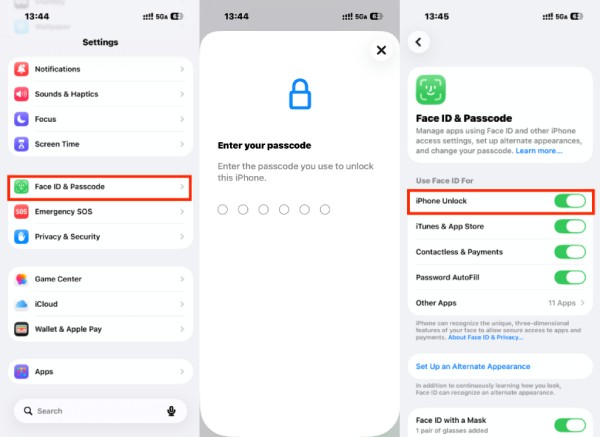
First, make sure Face ID is properly enabled on your iPhone. Go to "Settings" > "Face ID & Passcode" and check whether Face ID is turned on for features such as iPhone Unlock, App Store, Apple Pay, or password autofill. If the feature is disabled, enable it to allow Face ID to function normally.
Fix 2. Reset Face ID
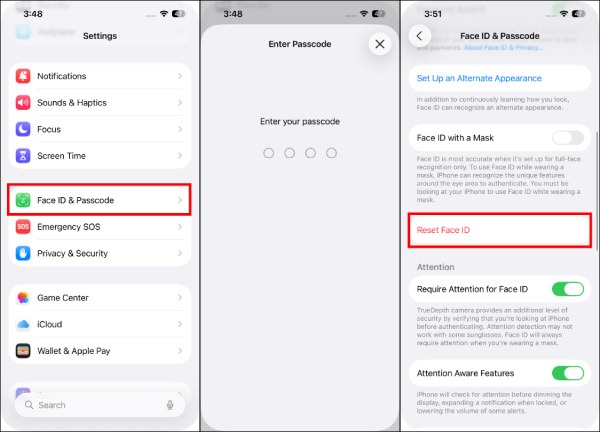
If Face ID stops working and fails to recognize your face consistently, resetting it may help. Go to "Settings" > "Face ID & Passcode", tap the "Reset Face ID" button, and then set it up again. This allows the system to scan your face again and improve recognition accuracy.
Fix 3. Clean the TrueDepth Camera
Dust, fingerprints, or debris on the front camera can interfere with Face ID. Gently clean the area around the TrueDepth camera with a soft, dry cloth to ensure the sensors are unobstructed.
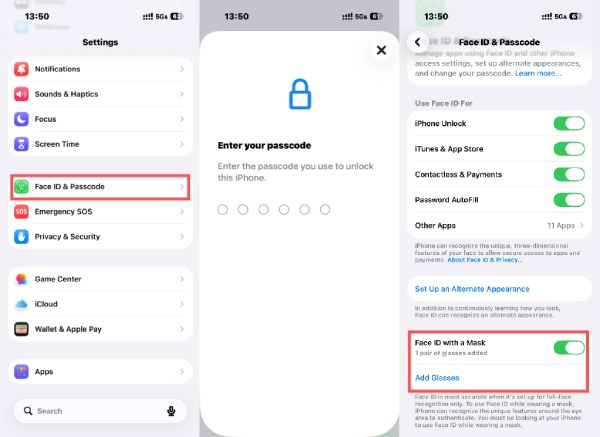
Fix 4. Set up Face ID with a Mask
If you often wear a mask, Face ID cannot work properly as it may struggle to recognize your face. iPhones running newer iOS versions allow you to set up "Face ID with a Mask", which improves recognition while covering part of your face.
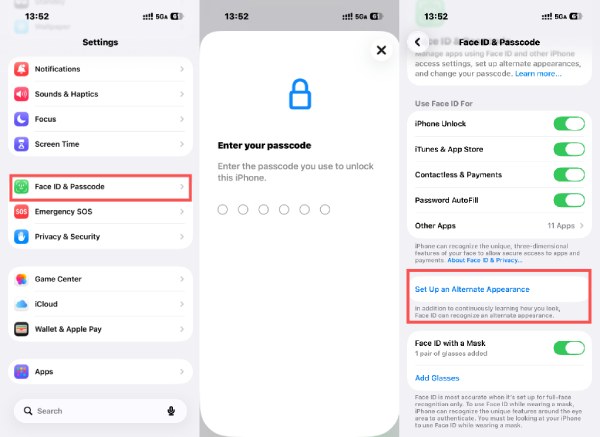
Fix 5. Add an Alternate Appearance
If your appearance changes frequently, for example, wearing glasses or makeup, you can add an alternate appearance in "Settings" > "Face ID & Passcode". This helps the system recognize you under different conditions.
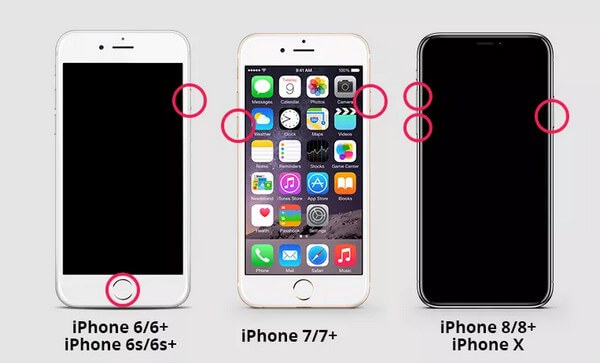
Fix 6. Restart iPhone
Sometimes a simple iPhone restart can fix temporary system glitches that lead to Face ID not working issue. Turn off your iPhone, wait a few seconds, and power it back on to refresh the system. If system glitches are the exact cause, your Face ID should be working again.
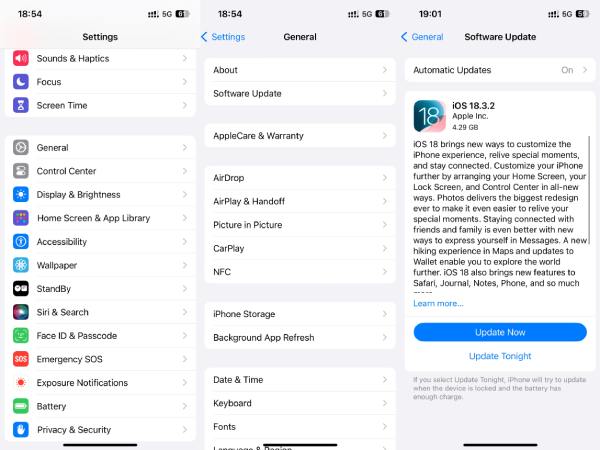
Fix 7. Check for iOS Updates
Running an outdated iOS version may cause certain features, including Face ID, to malfunction. Go to "Settings" > "General" > "Software Update" and install the latest available update to ensure your device runs smoothly.
How to Fix Face ID Not Working in One-Click
If the above solutions do not resolve the issue, the problem may be related to deeper iOS system errors. In this case, using a professional iOS repair tool such as 4Easysoft iOS System Recovery can be an effective solution. This software is designed to fix various iOS system problems, including Face ID not working, without complicated steps.
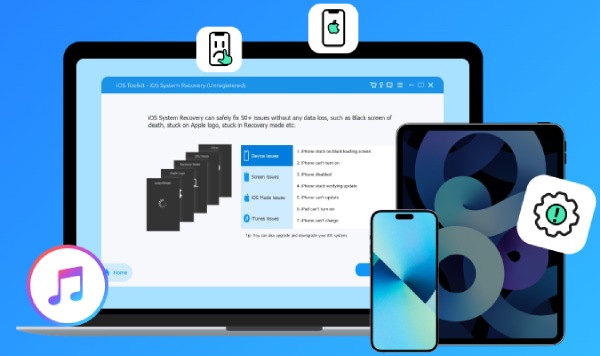
With its one-click repair feature, the tool can scan your iPhone, detect system issues, and repair them automatically while keeping your data safe. By repairing the underlying iOS system, it can help restore Face ID functionality quickly and safely.

Save your iOS device from not working with Face ID.
Enter iPhone without any data loss when you forget the passcode.
Fully support all models and versions of iPhone, iPad, and iPod.
High success rate in restoring your iOS devices to a new one.
100% Secure
100% Secure
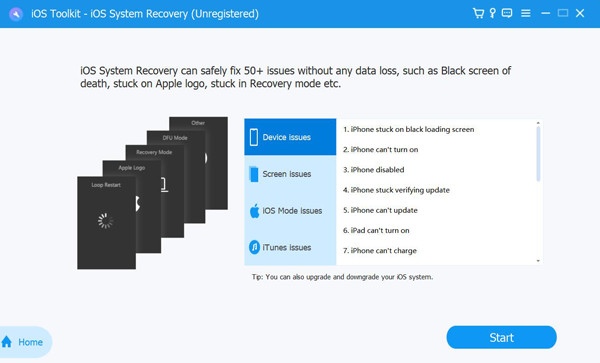
Step 1Launch 4Easysoft iOS System Recovery and connect your iPhone to the computer. Click the "iOS System Recovery" button and then the "Start" button.
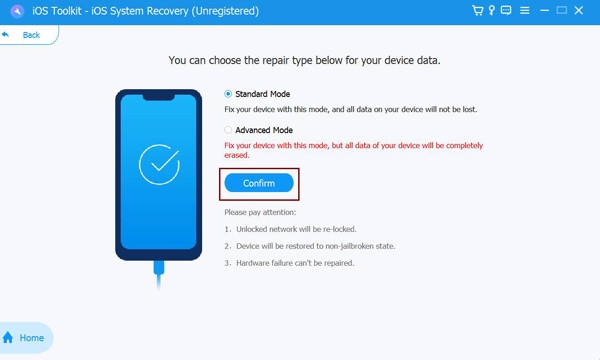
Step 2To fix the Face ID not working issue, click the "Fix" button. In the new page, click the "Standard Mode" button and then the "Start" button.
Tips
The other option has a higher possibility of success, but it will erase all content and settings.
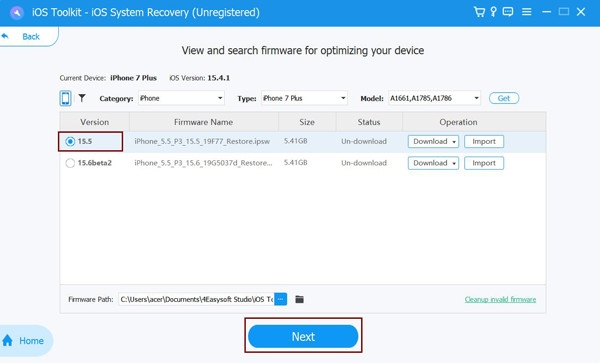
Step 3From the list, click to select the desired firmware to replace the iOS system with a new one. Click the "Download" button and then the "Next" button to fix the issue.
Conclusion
Now you’ve learned how to fix Face ID not working on your iPhone. In most cases, the issue can be resolved with simple troubleshooting. Several quick fixes are introduced in the post; you can follow the detailed instructions to get your iPhone back on track quickly. If basic fixes do not work, using a reliable iOS system repair tool can help resolve deeper software problems. With 4Easysoft iOS System Recovery, you can get Face ID working again and continue enjoying quick and secure access to your iPhone.
100% Secure
100% Secure
