
Delete duplicates and free up storage on iPhone flexibly.

Delete Search History on iPhone - 5 Ways to Do It Easily

Posted by Paula Pailaga to iOS Cleaner Jan 08, 2026
While your iPhone keeps track of your search history to make browsing fast, this data can affect your privacy and slow down apps. Whether you want to share your iPhone with others or simply clean your browser, it is a smart habit to delete browser history. Therefore, this guide here offers five easy ways to delete search history on iPhone step by step. You will explore popular browsers like Safari and Chrome to keep everything private and organized.
Guide List
How to Clear Safari Browsing History on iPhone The Easiest Way to Delete Search History on iPhone Permanently Delete your Chrome Search History on iPhone How to Delete your iPhone Incognito History Easily Prevent Safari from Using All Cookies to Stop Saving Search HistoryHow to Clear Safari Browsing History on iPhone
To begin with, Safari is the default browser on iOS devices, and this browser stores search history, cookies, and cached data that improves browsing speed. So, if you wish to delete Safari web browser history on iPhone, clearing Safari is a good place to start. Here are the steps to follow:
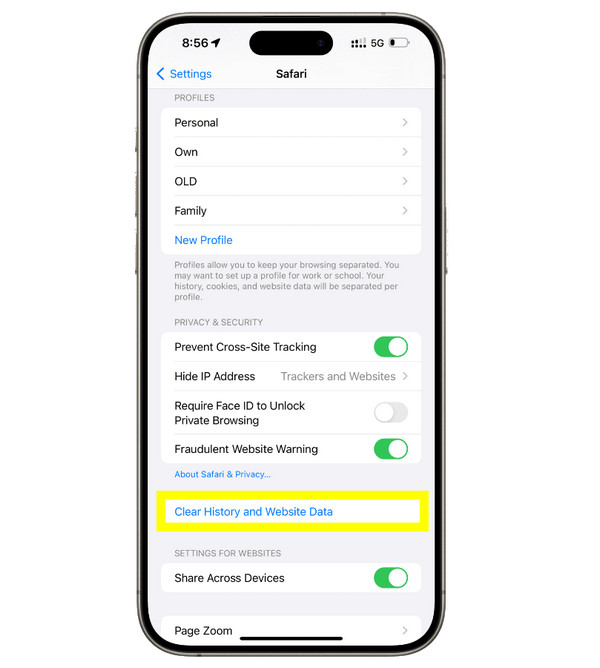
Step 1On the "Settings" app on your iPhone, scroll down to "Apps" then find "Safari" from the list.
Step 2There, select "Clear History and Website Data", then tap "Clear History" again to confirm the action.
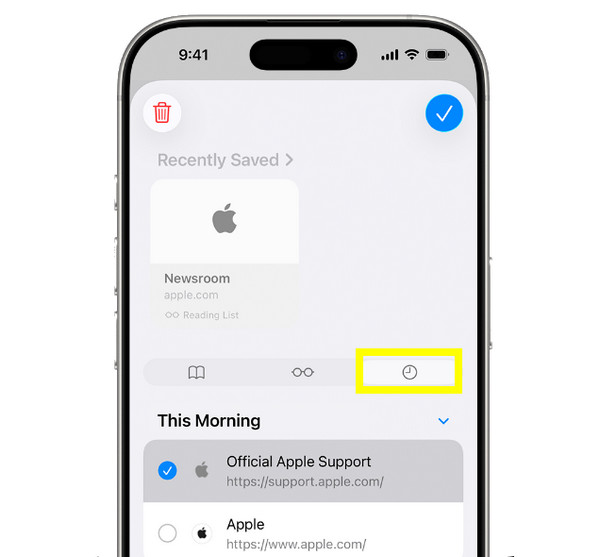
Step 3Otherwise, do it directly via the Safari app. Tap the "Bookmarks" button, then the "Clock" icon in the top-right. To clear everything, tap "Clear", select a time range, and tap "Clear History".
The Easiest Way to Delete Search History on iPhone Permanently
If you want a more thorough and permanent solution, using 4Easysoft iPhone Cleaner is the best option. It is a professional iPhone data cleaner designed to delete iPhone search bar history and other hidden data. Unlike manual deletion methods, this cleaning tool ensures all data types, from browser history, app caches to trash files from browsers, are erased completely. Additionally, it works with most iPhone models and the latest iOS versions, ensuring you have broad compatibility. So, for a fast, secure, and one-click solution to delete search history on Chrome, Safari, Firefox and more browsers permanently, this iPhone cleaning software is a reliable choice.

A deep scan of your iPhone search history, browser cache, etc.
Remove Safari, Chrome, and app search history alongside cached files.
Preview data to review search-related files before permanently deleting them.
Multiple cleaning modes with different levels to choose how data is erased.
100% Secure
100% Secure
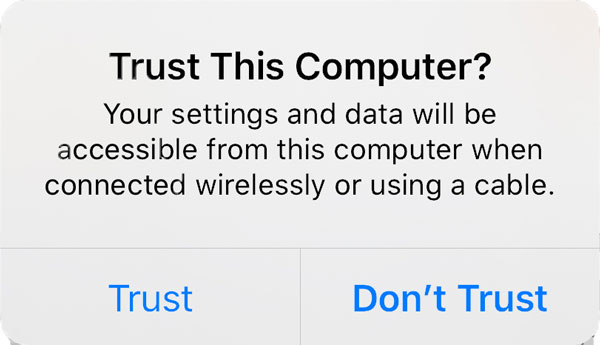
Step 1Launch 4Easysoft iPhone Cleaner on your computer, then connect your iPhone using a Lightning cable. When prompted on your iOS device, tap "Trust" to let the software access your data.
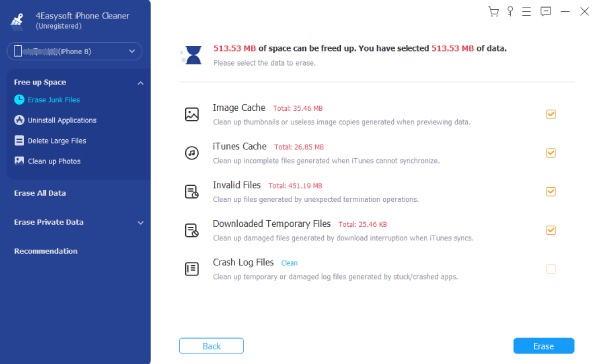
Step 2In the program interface, choose "Erase Junk Files" from the left-hand menu. The tool will start scanning your device for browser search history, cached files, cookies, and more unnecessary data linked to your browsing activity.
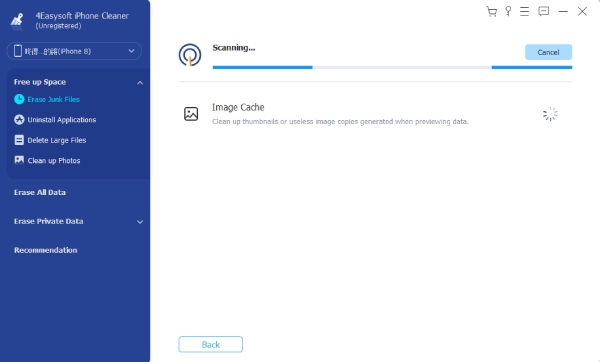
Step 3Once the scan is complete, all search-related data will be shown on screen. Pick the cache and history you wish to remove, then click "Erase" to permanently delete them.
After the process finishes, your search history will be cleared.
100% Secure
100% Secure
Delete your Chrome Search History on iPhone
Moving on to another famous browser used on mobile, Chrome has its own search and browsing history. Deleting search history on iPhone here will require you to do it directly from the Chrome app. Follow the steps below to clear Chrome search history:
Step 1Open Chrome on your device, then tap the "three dots" in the bottom-right corner.
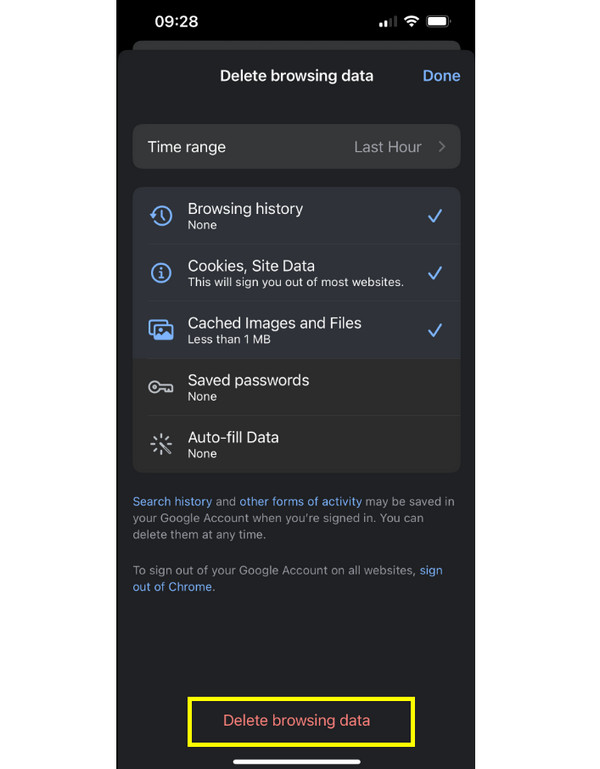
Step 2Tap "History" and select "Delete Browsing Data".
Step 3Select a time range and determine which data types to remove, including cookies, cached data, and autofill.
How to Delete your iPhone Incognito History Easily
At this point, you may wonder about Incognito browsing. While in this mode, browsing history is not saved locally; some data, such as DNS records, downloads, or account activity, may still be saved elsewhere. So, it's nice to clear search or browser history on iPhone in Incognito mode. See the instructions below:
Step 1Simply exit all Incognito tabs in your web browser, in Safari or Chrome.
Step 2Clear all browser cache and cookies from settings or the app.
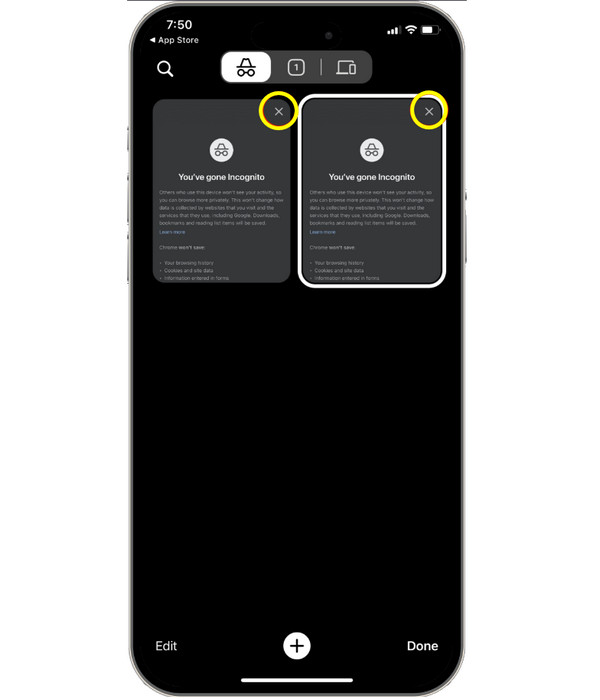
Step 3You can restart your device to clear temporary session data and sign out of accounts used during Incognito mode.
Prevent Safari from Using All Cookies to Stop Saving Search History
Lastly, if you wish to reduce future tracking, you can adjust Safari's privacy settings instead of deleting search history on iPhone to help limit how much data is stored. This solution will not delete history, but it can stop huge data collection moving forward. By the way, you can recover deleted Safari history on iPhone via previous backups or third-party iPhone data recovery software manually.
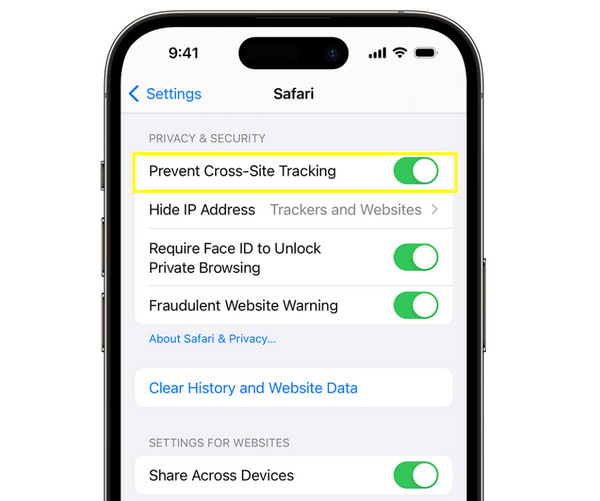
Step 1Launch "Settings" on your iPhone, scroll down to the "Apps" section. There, locate and then tap "Safari".
Step 2Enable the "Prevent Cross-Site Tracking" option, and turn on "Block All Cookies" which is optional.
Step 3Toggle on "Privacy Report" to monitor tracking activity.
Conclusion
A vital step toward protecting your privacy and freeing up storage is regularly deleting search history on iPhone. As covered today, five effective ways to delete search history on iPhone: clearing Safari data, removing Chrome searches, managing Incognito activities, or adjusting settings to limit future tracking. If you want to clear all search history and delete all private data, using 4Easysoft iPhone Cleaner is a wise choice. This tool deeply scans your device and removes hidden cache, cookies, and scan records that manual methods often leave behind. Have a better privacy, cleaner, and faster iPhone here in just clicks!
100% Secure
100% Secure
