
Instagram cache can take a considerable portion of your iPhone. You can learn how to clear the Instagram cache, freeing up storage space.

Step-by-Step Guide to Clear Instagram Cache on iPhone

Posted by Paula Pailaga to iOS Cleaner Mar 18, 2026
Many users are trying to find out how to clear Instagram cache these days. As one of the most frequently used apps on iPhone, the daily usage of Instagram can quietly generate a large amount of cached data. Over time, photos, videos, search records, and browsing history accumulate in the background, taking up valuable storage space. Clearing Instagram cache can help free up space and improve app performance. This guide explains where Instagram cache comes from and introduces several practical ways to clear it effectively on an iPhone.
Guide List
Part 1: Where Does Instagram Cache Come from? Part 2: How to Clear Instagram Cache Completely Part 3: How to Clear Instagram Cache without Deleting App Part 4: The Most Effective Way to Clear Instagram Cache Part 5: FAQs About How to Clear Instagram CachePart 1: Where Does Instagram Cache Come from?
How to clear Instagram cache on your iPhone? Instagram cache is generated automatically as you browse, watch, and interact with content in the app. Whenever you browse certain content, whether it's photos, reels, or other types of content, Instagram will store some temporary data to ensure that it can be opened more quickly the next time. You can simply think of it as each part of the content being compressed and memorized, so that when it is encountered again, it can be quickly recognized as a similar item and loaded with less time.

In addition to media files, Instagram also records other types of textual information, such as search history and profile details. These caches are designed to enable you to quickly access crucial textual information when accessing various content on the interface. Thus, even if images or videos cannot be loaded, you can still obtain the main content through this information. And these related data may be stored locally to speed up future access. This process helps create a smoother and more personalized user experience.
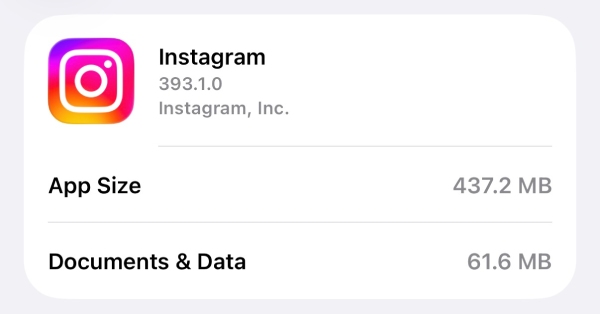
However, as usage increases, the accumulated cache can occupy a significant amount of storage space. No matter how small these caches are when they exist as separate files, when countless caches are piled up together, they will occupy a considerable amount of memory space, affecting the regular operation of your Instagram and even causing your phone to become sluggish.
Part 2: How to Clear Instagram Cache Completely
If you want to clear all the Instagram cache at once, the easiest way is to uninstall the app. Of course, this approach is feasible only if you decide not to use Instagram in the future. It should be noted that although this method can effectively clear the cache on Instagram, the deleted content will be permanently lost and cannot be recovered. If you have made your decision, you can follow the steps below to uninstall the app on your iPhone.
Step 1Open "Settings" and tap the "General" button to open a new page.
Step 2Tap the "iPhone Storage" button. Scroll down to find and tap the "Instagram" button.
Step 3To clear Instagram cache completely, tap the "Delete App" button, and all related data will be removed.
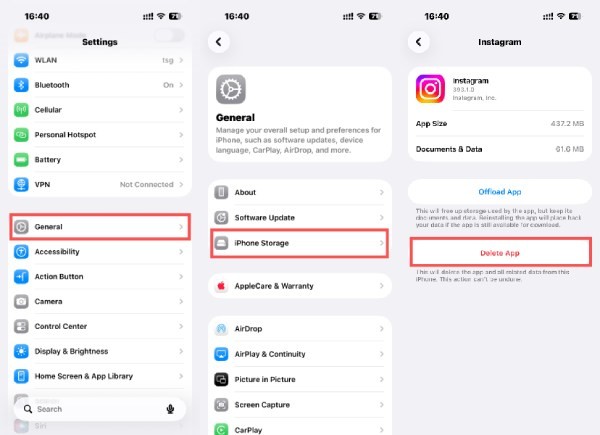
Tips: Deleting the app will clear all the data related to Instagram from your iPhone, and it cannot be undone. All your data will be wiped out, so be careful with this action.
Part 3: How to Clear Instagram Cache without Deleting App
This method can temporarily clear the cache on your iPhone without permanently deleting the app. When you need them, simply reloading will enable them to return to your iPhone again. This method is usually used to free up space on an iPhone for emergencies temporarily and is suitable for regular maintenance.
Step 1Open "Settings" on your iPhone. Scroll down and tap the "General" button.
Step 2In the new page, tap the "iPhone Storage" button. Then, scroll down and tap the "Instagram" button.
Step 3To clear Instagram cache without deleting the app, tap the "Offload App" button.
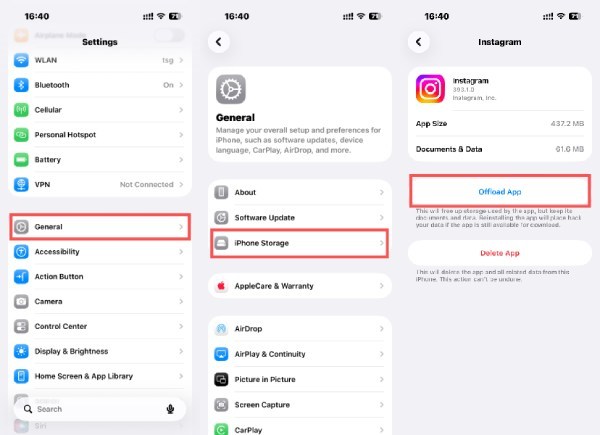
Tips: Data related to your Instagram will be restored once you reinstall the app.
Part 4: The Most Effective Way to Clear Instagram Cache
When manual methods feel limited or time-consuming, a professional iPhone cleaning tool offers a more efficient solution. 4Easysoft iPhone Cleaner is designed to scan hidden app cache, including Instagram data, and remove unnecessary files safely. This approach provides better visibility into storage usage and helps reclaim space by clearing Instagram cache without affecting personal content or account information.

Deep clean your device to clear Instagram cache and free up storage space.
Compatible with all iOS versions and models of iPhone, iPad, and iPod.
Composed of three modes or erasing levels with different cleaning capabilities.
Preview to select the files and folders you wish to delete or remove.
100% Secure
100% Secure
Step 1Launch 4Easysoft iPhone Cleaner on your computer and connect your iPhone to the computer. Follow the instructions to complete the preparation.
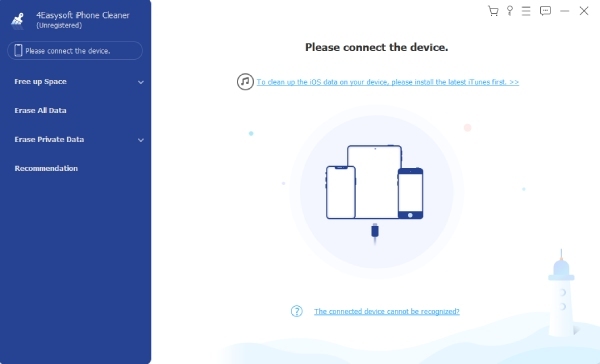
Step 2Under the "Free up Space" tab, click the "Erase Junk Files" button. In the new page, click the "Erase Private Data" button.
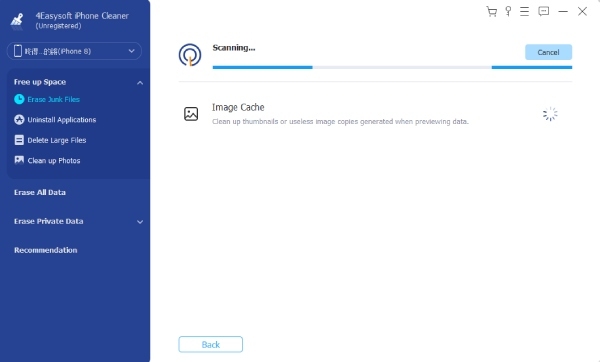
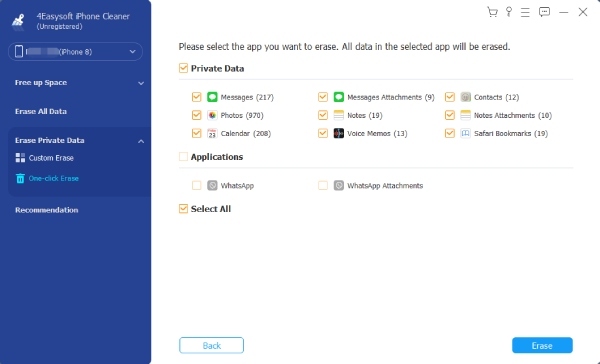
Step 3Once the scanning is done, click the "Instagram" button under the "Applications" tab. Finally, click the "Erase" button to clear Instagram cache.
Part 5: FAQs About How to Clear Instagram Cache
-
Does clearing Instagram cache delete photos or messages?
No. Clearing Instagram cache only removes temporary files such as images, videos, and browsing data stored to speed up loading. Posts, direct messages, saved items, and account information remain unchanged. After clearing the cache, Instagram may take slightly longer to load content the first time, but no personal data will be lost.
-
How often should Instagram cache be cleared on an iPhone?
There is no fixed rule, but clearing Instagram cache every few weeks can help control storage usage, especially for active users. If Instagram starts taking up a considerable amount of space or feels slower than usual, clearing the cache is a practical maintenance step to get more storage space on your iPad or iPhone.
-
Why does Instagram still use storage after clearing cache?
Instagram continues to generate new cache files as soon as the app is used again. This is because Instagram requires specific cached data to maintain its regular operation. At the same time, when you use it, the new cache will also come along with the latest photos, videos, and other content.
Conclusion
Clearing Instagram cache will no longer be a problem after reading this detailed guide. However, as you continue to use this app, new caches will still pile up again fast. Therefore, it is necessary to do regular cleaning from time to time. While basic methods can handle light cleanup, more thorough solutions are helpful when cache files become excessive. In this situation, 4Easysoft iPhone Cleaner makes Instagram management easier and more efficient in your daily use.
100% Secure
100% Secure
