
Reliable video converter, editor, and compressor for daily tasks.

How to Add Music to a Video? 6 Tools for Creators

Posted by Paula Pailaga to Edit Video/Audio Dec 25, 2025
Adding music to a video can make your content more engaging, emotional, and professional. From social media clips, presentations, to personal projects, the right soundtrack can quickly elevate your video's impact. Luckily, today's editing tools make learning how to add music to a video easier than ever. This guide shares six powerful tools that help you merge video and audio on desktop and web. Start creating videos with confidence!
Guide List
The Best Way to Seamlessly Add Music to Videos Adding Music to Videos Using Audacity Adding and Rendering Music in Videos with Premiere Pro Clideo - Online Video and Audio Merger with Fast Uploading VEED.IO - Feature-Rich Online Video Editor Kapwing - Video Maker with Flexible Audio MixingThe Best Way to Seamlessly Add Music to Videos
4Easysoft Total Video Converter lets you create music-enhanced slideshows and visually appealing videos with tons of effects, filters, and customizable themes. Here, you can keep your original audio, add music to a video, or apply effects such as fade-in, fade-out, and loop play for a more professional result. Furthermore, the tool offers a rich collection of editing templates, format options, and creative tools that help you enhance your video instantly.

Can add music to a video, boost its volume, and apply effects quickly.
Has advanced AI enhancements to reduce noise and improve clarity.
Allows you to adjust video and audio output settings in high definition, up to 4K.
Customizable output settings such as format, quality, frame rate, and more.
100% Secure
100% Secure
Step 1Launch the 4Easysoft Total Video Converter, and upload the video you want to edit by clicking the "Add Files" button.

Step 2Once your video is added, look for the "Edit" button (Star Wand icon), and there you will see all editing tabs. You can jump to the "Audio" section right away. There, click the "Add" button to import your music file.
You can then adjust the volume and delay of the audio. Make other edits as needed.
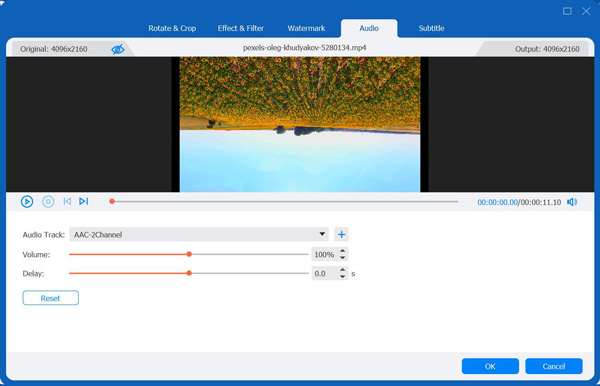
Step 3On the main screen, choose the output format you prefer in the "Format" menu button and customize output settings. Later, click the "Convert All" button to save your video with new background music.

100% Secure
100% Secure
Adding Music to Videos Using Audacity
The next tool here offers more freedom in controlling audio. Audacity is a free, open-source audio editor that creates custom soundtracks for your videos. While it does not assist in adding songs to a video directly, it is perfect for enhancing, cleaning, or editing the audio within Audacity before applying it to your video project.
Step 1Open Audacity on your computer and import your audio file. Use the trimming, fading, and noise-reduction tools to adjust the sound.
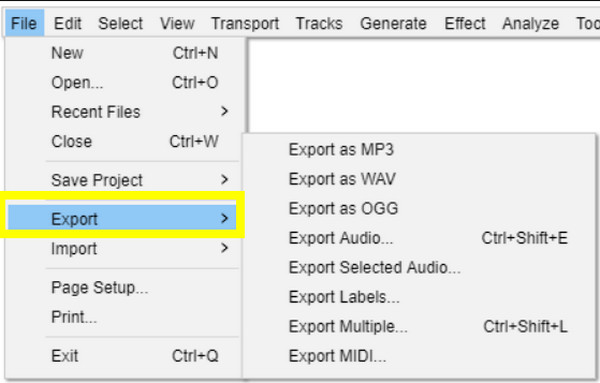
Step 2Then, export the edited audio as MP3 or WAV, or other supported formats in the "File" menu. Now, using another editor, import both the video and the exported audio.
Adding and Rendering Music in Videos with Premiere Pro
Adobe Premiere Pro is widely used by content creators, filmmakers, and editors who wish for complete control over video and audio. Not only does it help you add music to a video, but it also has tools for keyframing, mixing, and balancing audio, making it excellent for cinematic results and detailed audio control.
Step 1Open Premiere Pro and create a new project. Upload your video and audio files into the media bin.
Step 2Drag the video onto the timeline and then place the audio track beneath it. Click the "Audio Clip Mixer" to adjust levels. You can apply fade-ins, fade-outs, or other effects if needed.
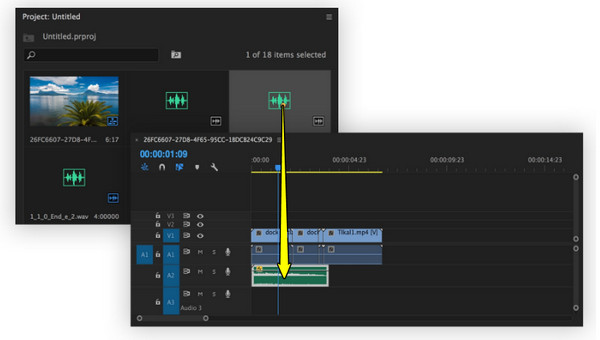
Step 3After all that, go to "Export", then "Media" and insert music to your video.
Clideo - Online Video and Audio Merger with Fast Uploading

Switch to online tools: Clideo. It is a beginner-friendly platform that allows you to make a music video in just a few clicks. Its clean screen makes it great for users who want to quickly add background music, narration, or audio without installing any software. It also has automatic syncing and preview tools. So you can make sure the final merged file stays aligned.
- Pros
- Easy-to-use interface for everyone.
- Supports several audio and video formats.
- Quick upload and simple adjustment tools.
- Cons
- Limited advanced audio editing.
- Export speed can be slow for longer videos.
VEED.IO - Feature-Rich Online Video Editor
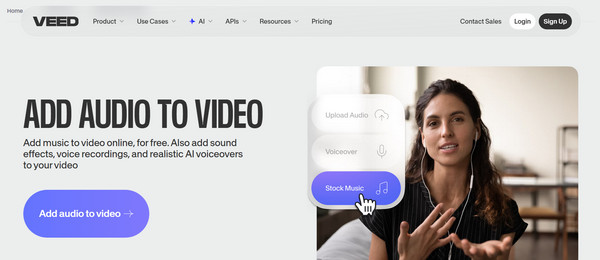
Next is VEED.IO, a powerful online video editor made for anyone who wants more control when merging video and audio files. In addition to help you add music to a video, this tool has advanced editing features like noise reduction, audio enhancements, trimming, and volume adjustments.
- Pros
- Generate custom background music to match your video's tone.
- Supports multiple tracks and advanced effects.
- Cons
- High-resolution video exports may take longer.
- It can be overwhelming for a simple task.
Kapwing - Video Maker with Flexible Audio Mixing

You can use Kapwing to merge audio, adjust volume, trim clips, and sync background music to your video. Furthermore, you can add smart subtitles, automatic transcription, and audio cleanup to get polished content.
- Pros
- Offers a modern interface with smart AI tools.
- Has trimming, volume control, and precise audio syncing.
- A cloud-based platform allows cross-device editing.
- Cons
- Large files slow down the browser.
- The free plan has a watermark and export limitations.
Conclusion
Knowing how to add background music to a video will be easier with the wider range of desktop and online tools available today. From a quick browse-based editor to more feature-rich software, each mentioned here has a unique way to merge your clips with the perfect soundtrack. But for a solution that combines ease of use with powerful editing features, 4Easysoft Total Video Converter is an excellent choice. It not only allows you to add background music effortlessly but also has a full suite of video editing and conversion tools that streamline your entire editing workflow.
100% Secure
100% Secure
