
Reliable video converter, editor, and compressor for daily tasks.
Detailed Steps - How to Rotate a Video on Adobe Premiere Pro

Posted by Paula Pailaga to Edit Video/Audio Jul 25, 2025
Rotating videos on Adobe Premiere Pro is a common task that can help fix orientation issues or add creative effects to your projects. While Premiere Pro offers precise control over rotation, beginners might find the interface overwhelming at first. This guide will introduce you to Adobe Premiere Pro, discuss whether it’s the best tool for rotating videos, provide clear step-by-step instructions to rotate your clips, and suggest an easier alternative for quick edits.
Guide List
A Brief Introduction to Adobe Premiere Pro Is Adobe Premiere Pro Good for Rotating Videos? How to Rotate Videos on Adobe Premiere Pro An Easier Way to Rotate Videos Than Premiere ProA Brief Introduction to Adobe Premiere Pro
Adobe Premiere Pro is a professional-grade video editing software widely recognized for its comprehensive set of tools and capabilities. Used by filmmakers, YouTubers, and video editors worldwide, Adobe Premiere Pro supports everything from basic trimming and color correction to complex effects, multi-camera editing, and audio mixing. Its timeline-based interface offers precise control over every element of your project.

Premiere Pro supports a vast range of video formats and resolutions, including HD, 4K, and even 8K footage, ensuring compatibility with almost any source material. While the software may have a steeper learning curve for beginners, its powerful features and constant updates keep it at the forefront of video editing technology in 2025.
Is Adobe Premiere Pro Good for Rotating Videos?
Adobe Premiere Pro is a powerhouse for video editing, offering precise control over virtually every aspect of your footage—including rotation. But is it the best choice if your primary goal is simply to rotate videos? Read to have a look at the pros and cons to help you decide.
Pros
Professional Precision: For users who are familiar with Adobe Premiere Pro, it always enables you to rotate videos at precise angles with high professionalism, which is often suitable for creative projects or for solving direction-related issues.
Multiple Format Support: It handles almost all video formats and resolutions, ensuring compatibility with your source files.
Non-Destructive Editing: When you rotate videos on Adobe Premiere Pro, the original video is not changed; Unlike rotating videos in VLC media player, it is saved in a new Project format, making it convenient for further modifications.
Cons
Learning Curve: For users unfamiliar with professional editing software, Premiere Pro’s complex interface can be overwhelming just for a simple rotation.
Resource Intensive: When you rotate videos on Adobe Premiere Pro, the original video is not changed; instead, it is saved in a new Project format, making it convenient for further modifications.
Subscription Cost: Premiere Pro’s monthly fee may not justify its use if you only occasionally need to rotate videos or rotate GIFs.
How to Rotate Videos on Adobe Premiere Pro
Rotating videos in Adobe Premiere Pro is a straightforward process once you know where to find the right tools, as Premiere Pro offers precise controls to rotate your video by any angle. This section will walk you through a simple step-by-step tutorial to help you rotate your videos quickly and maintain the highest quality throughout the editing process.
Step 1Launch Adobe Premiere Pro and import your video file to create a new project for rotation. Drag the video into the timeline.

Step 2Click the "Editing" button. Under the "Effect Controls" tab, click the "Rotation" button to rotate the video.

Step 3After rotating the video on Adobe Premiere Pro, click the "Save" button under the "File" tab to save the rotated video file.

An Easier Way to Rotate Videos Than Premiere Pro
While Adobe Premiere Pro offers professional-grade tools for video editing, it can be overwhelming and time-consuming for users who only want to rotate a video quickly. And 4Easysoft Total Video Converter is an excellent alternative.
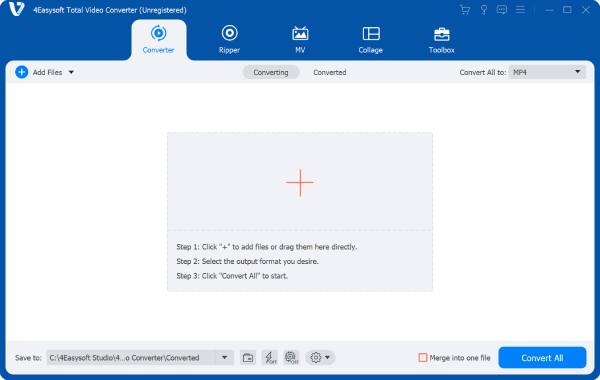
Beyond rotation, 4Easysoft Total Video Converter also offers powerful video conversion, trimming, merging, and editing features. It guarantees zero quality loss and supports batch processing, making it perfect for both beginners and professionals to rotate videos on iPhone, PC, and so on If you’re looking for an easy yet reliable way to rotate videos, 4Easysoft Total Video Converter is a smart choice to save time and effort.

Directly reverse your video without complicated operations like Premiere Pro.
Keep the original quality of your videos during the process of reversing them.
Preview to check if your video file is adjusted to the correct angle you want.
Support video formats that Premiere Pro does not support, like MKV and so on.
100% Secure
100% Secure
Step 1Launch 4Easysoft Total Video Converter and click the "Add Files" button to import video files for rotation.
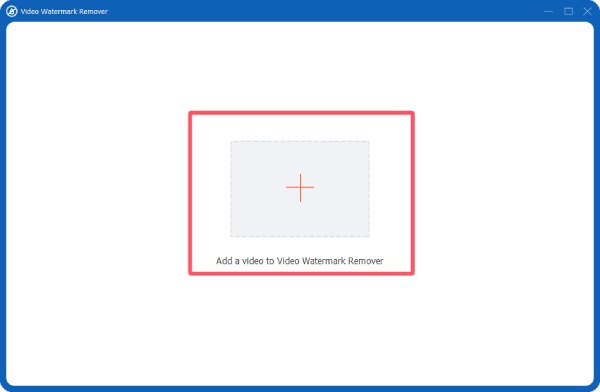
Step 2Click the "Edit" button. Click "Rotation" button under the "Rotate & Crop" tab to rotate the video.

Step 3After rotating the video, click the "Convert All" button to save the rotated video on your device.

Conclusion
Rotating videos on Adobe Premiere Pro is a valuable skill that can enhance your footage only if you're familiar with it. However, its complexity and cost may not be suitable for everyone, especially if a quick and simple solution is needed. In such cases, 4Easysoft Total Video Converter provides an easy-to-use, efficient alternative.
100% Secure
100% Secure
