
Rip DVD to MP4 (H.264/HEVC) and other popular formats with Original Quality
VLC Media Player for Ripping DVDs: A Beginner-Friendly Guide

Posted by Paula Pailaga to Rip DVD Sep 18, 2026
If you want to know how to rip DVDs with VLC media player, you've come to the right place. Many people may be aware that VLC media player lets you play DVD content on their computers. In fact, you can also use it to store DVD content. This post will teach you how to use VLC as a DVD ripper. In addition, an unrestricted professional tool was also introduced. You can read this post to learn more details about the whole process.
Guide List
Things to Know Before Ripping DVDs Using VLC How to Rip DVDs Using VLC on Windows 10/11 How to Rip DVDs Using VLC on MacBook A Limitless Alternative to VLC for DVD RippingThings to Know Before Ripping DVDs Using VLC
Before learning how to rip a DVD with VLC media player, there are a few things you need to know. Although it can help you rip DVDs, it has some limitations that cannot be ignored. After all, VLC is mainly used as a media player. Therefore, regarding DVD ripping, it has the following drawbacks.
1. Possible Conversion Failure
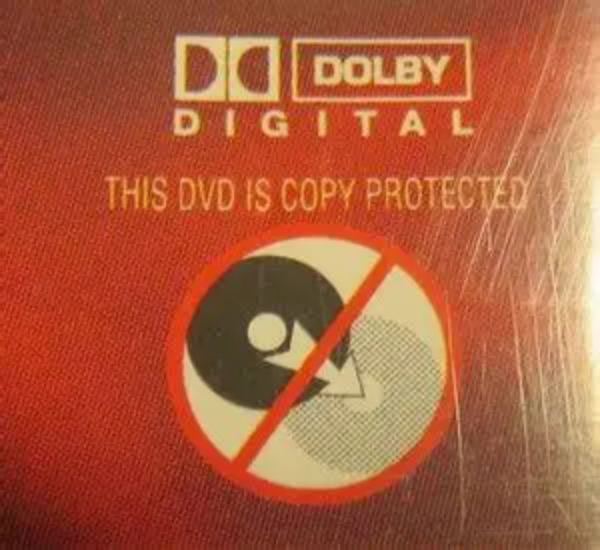
The biggest limitation when using VLC media player to rip DVDs lies in copyright protection. The vast majority of DVDs are protected by copyright. This means that you cannot simply copy the entire DVD. For them, you can only replicate a brief segment. If you want to copy the entire copyrighted DVD, you might need a professional tool.
2. Potential Content Loss
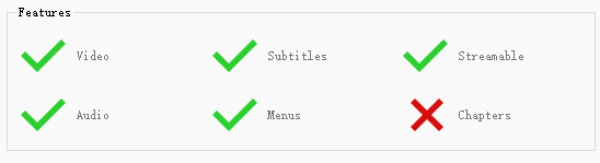
When converting DVDs with VLC, some content may be lost. This is determined by the encapsulation you have chosen. Different formats often result in the loss of different content. For instance, if you choose the MP4/MOV format, the chapters will disappear. The tool cannot help you save all the content unless you select MKV as the output format. However, the compatibility can still be reduced even if you know how to rip DVDs entirely.
3. Limited Output Options
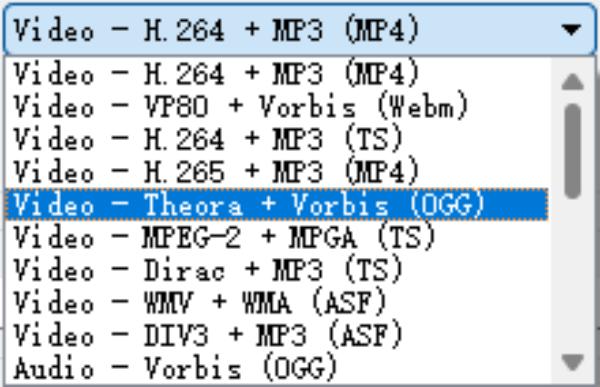
When you use VLC to extract DVDs, you may find that the output format is also a problem, especially when you need a video file in a specific format. You will find that VLC media player offers only a few output options. If you plan to use the output files for uploading, you might encounter some obstacles because different platforms support different formats. You may find that some formats cannot be played in VLC.
How to Rip DVDs Using VLC on Windows 10/11
If you want to learn how to rip DVDs using VLC media player, this section will help you. For beginners, this process can be a little bit complex. Don’t worry. This section has summarized the most straightforward steps for you based on the actual test results. On Windows 10/11, you can follow the steps below to copy unprotected DVDs.
Step 1Launch VLC media player on Windows 10/11. Under the "Media" tab, click the "Convert / Save..." button.
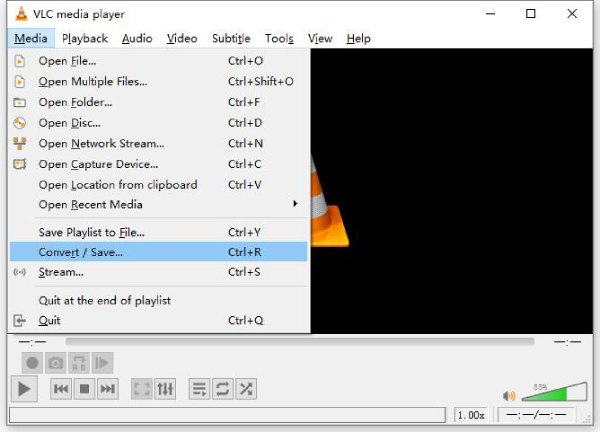
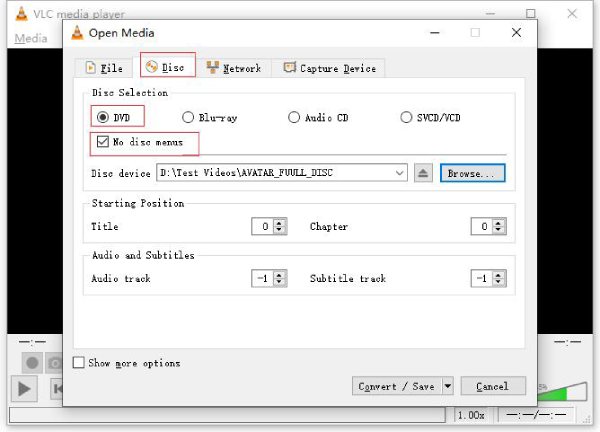
Step 2Under the "Disc" tab, click the "DVD" button. Load the DVD by clicking the "Browse..." button. Then, click the "Convert / Save" button.
Step 3You can select the output format by clicking the "Edit selected profile" button. Once finished, click the "Start" button to rip the DVD with VLC.
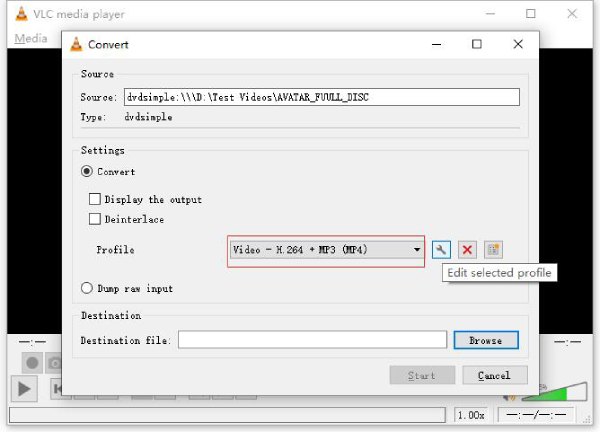
During this process, you may notice a certain loss in video quality. This loss is caused by the presets, which sacrifice some parameters. For high-quality ripping, you may need a more professional tool.
How to Rip DVDs Using VLC on MacBook
For Mac users, VLC media player can also be very helpful. However, the steps on macOS might be a little different. At the same time, this Mac DVD ripper can only help you copy specific parts of the content. For copy-protected DVDs, you still need to look for other specialized tools. If you want to know how to copy DVDs using VLC on your Mac, follow the steps below.
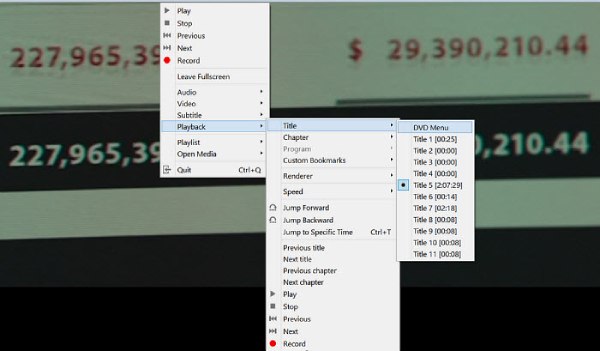
Step 1Launch VLC media player and play the DVD. Right-click the video and click the "Playback" button. Click to select the part under the "Title" tab.
Step 2A new window will pop up. Under the "Disc" tab, click the "Disable DVD menus" button. Now, you can select the title and the chapter.
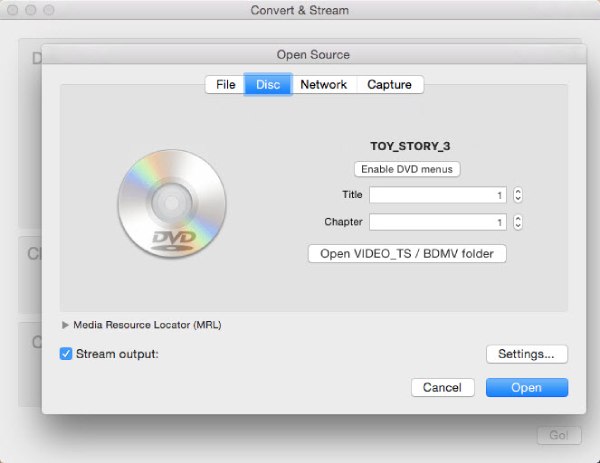
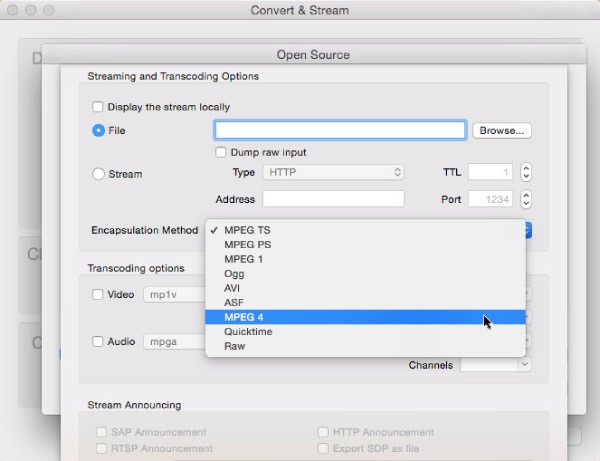
Step 3After clicking the "Open" button, you can select the encapsulation method. Finally, click the "OK" button to rip the DVD using VLC media player.
A Limitless Alternative to VLC for DVD Ripping
As mentioned earlier, the VLC DVD ripper cannot help you copy-protected DVDs. Since most DVDs nowadays have been protected by copyright, you cannot copy the content directly without advanced technologies. This led many people to seek a professional alternative. If you want to duplicate these DVDs at their original quality, 4Easysoft DVD Ripper can assist you. Whether you are a professional or a beginner, you can easily obtain high-quality results.
There are no restrictions on copying protected DVDs.
Obtain the content of your DVD with its original quality.
Support multiple video formats for output files.
Select the desired titles and chapters to rip from DVDs.
100% Secure
100% Secure
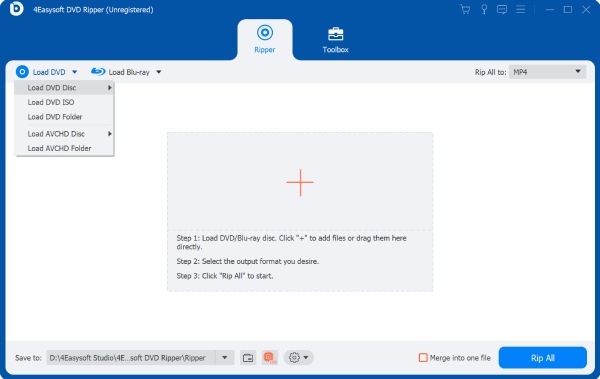
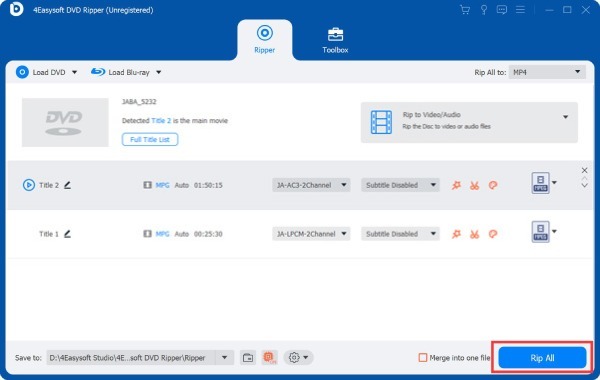
Step 1Launch 4Easysoft DVD Ripper on Windows/Mac. Insert the DVD for ripping. Click the "Load DVD Disc" button.
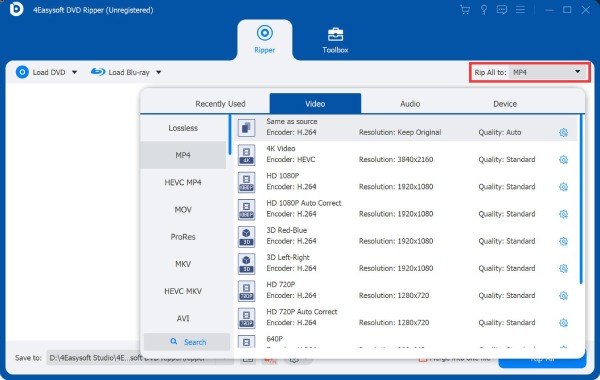
Step 2Click the "Rip All to" button. Click to select the desired output format under the "Video" tab.
Step 3Finally, click the "Rip All" button in the main interface. Your DVD will be ripped without any loss.
Conclusion
This post teaches you how to extract DVDs using VLC. With this convenient method, you can operate directly while watching the DVD. However, VLC media player cannot play protected DVDs. To deal with copy-protected DVDs, you need a more professional tool. 4Easysoft DVD Ripper enables you to copy DVD content without restrictions at the original quality.
100% Secure
100% Secure
