
Delete duplicates and free up storage on iPhone flexibly.

Stop System Data iPhone Storage Full Warning - 5 Ways Here

Posted by Alvin Cantero to iOS Cleaner Feb 06, 2026
iPhones are more powerful than ever, but the System Data iPhone storage being full remains a common headache for many users like you. Once you dive into your settings to check storage space, you can see the System Data category that can consume anywhere. What is this data, and how can you clean it? In this guide, safe methods to clear System Data on iPhone storage are shared alongside tips for managing storage space. Clean it out to get back to what matters most.
Guide List
What is System Data on iPhone and How to Check It Best Way to Reduce High System Data on iPhone Storage 4 Simple and Quick Methods to Clear iPhone System Data Tips for Effectively Managing iPhone Storage SpaceWhat is System Data on iPhone and How to Check It
System Data or the "Other" is a catch-all category that covers essential but temporary files, including caches, logs, and resources used by iOS. It holds everything from Siri voices and keychain data to the small ones left behind by your web browsing and streaming actions.
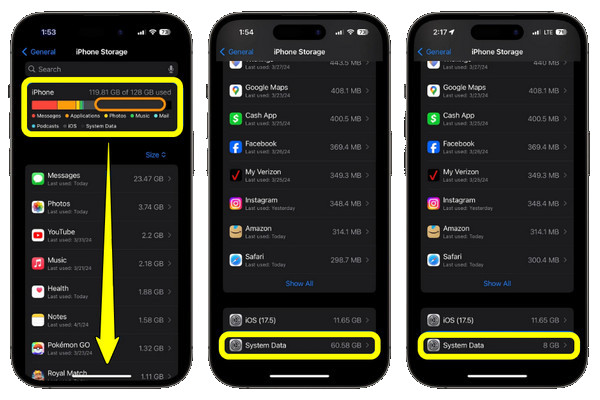
While these files can help your iPhone run smoothly, they can grow over time due to software bugs or app overflows. System data can eat large storage on iPhone. So, it's nice to check.
Step 2Navigate to "General" and tap on "iPhone Storage".
Step 3Wait for a while until the color-coded bar appears, then scroll to the bottom to locate "System Data" and check its specific size in GB.
Best Way to Reduce High System Data on iPhone Storage
When System Data iPhone storage reaches the critical level, the most efficient and simple way to handle it is to use a dedicated cleanup tool. For this, 4Easysoft iPhone Cleaner is always ready to dive deeper into the iOS system, identifying all junk files that the system fails to clear on its own. It safely removes all logs, temporary files, and hidden system caches with precision, without affecting other data. By using this tool, you can avoid the complicated process of hunting through each app's settings to clear system data on iPhone storage.

It can wipe out system logs, temporary files, and image caches instantly.
Scans your device to locate and remove huge files you have forgotten.
Permanently erases all sensitive data so it cannot be recovered.
Offers a preview of all selected files to ensure you only delete the right ones.
100% Secure
100% Secure
Step 1Open the 4Easysoft iPhone Unlocker on your computer, then connect your iPhone to it via a compatible USB cable. Once detected, click the "Free Up Space" tab and select "Erase Junk Files". it is your iPhone storage full fix.
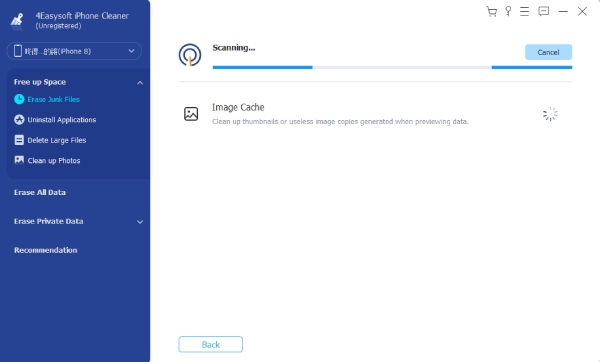
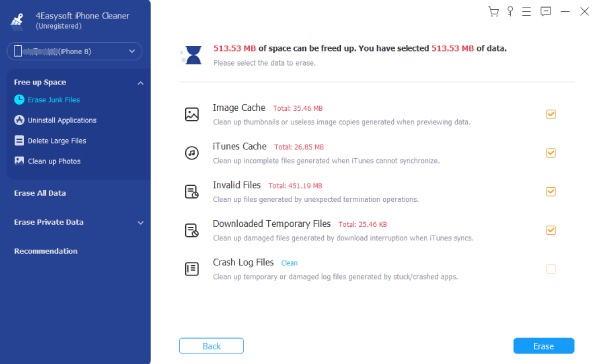
Step 2After the comprehensive scan completes, review the list of the detected caches, logs, and files, and click the checkbox beside each item, like Image Cache, Invalid Files, iTunes Cache, and more. Click the "Erase" button to clear and delete iPhone system data.
100% Secure
100% Secure
4 Simple and Quick Methods to Clear iPhone System Data
While the previous tool offers the deepest clean, several manual methods are also available to target the main source of System Data iPhone storage. The following methods focus on the heavy lifters, such as messages, browsing history, and app caches.
Method 1. Delete Message History
Text conversations, especially those with photos and GIFs, can hugely contribute to System Data. If you want to permanently delete messages on iPhone, you need to empty the "Recently Deleted" folder within 30 days.
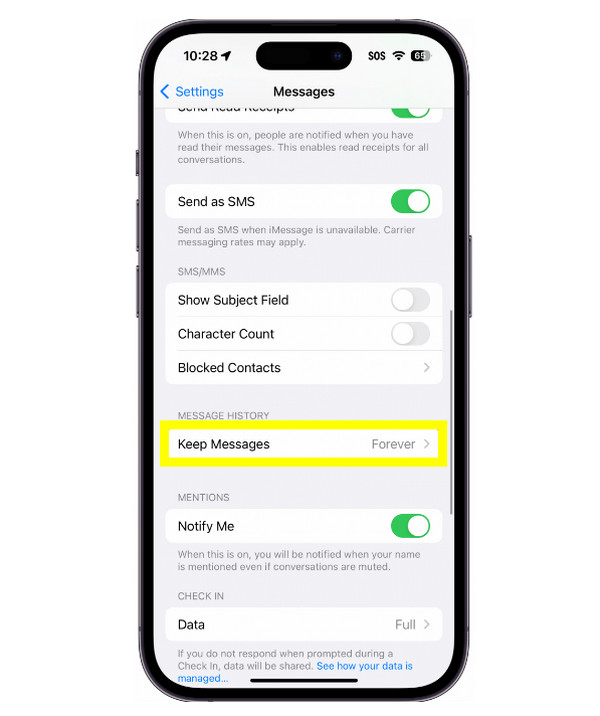
- 1.Go to "Settings", then scroll down to "Apps" and tap on "Messages".
- 2.There, tap "Keep Messages".
- 3.hen change the setting to "30 Days" or "1 Year".
Method 2. Clear System Data and Cache
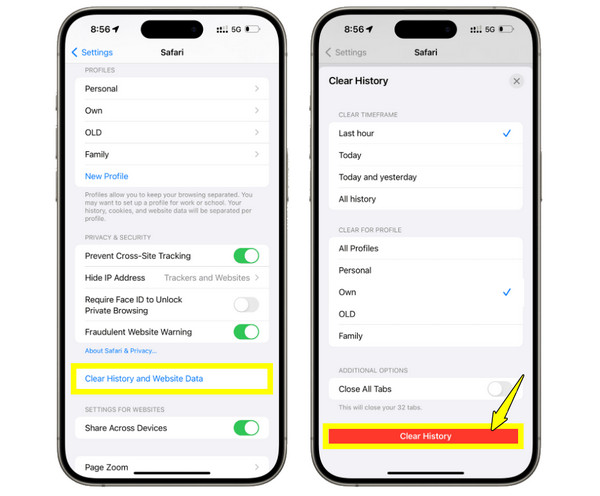
In terms of browsing, you will find Safari stores all sites' cookies and history as System Data. Follow steps below to clear storage on iPhone.
- 1.Inside "Settings", scroll down to "Safari", then tap "Clear History and Website Data".
- 2.Next, choose "All History".
- 3.ap the confirmation button to reduce system data on iPhone.
Method 3. Clear Streaming App Cache
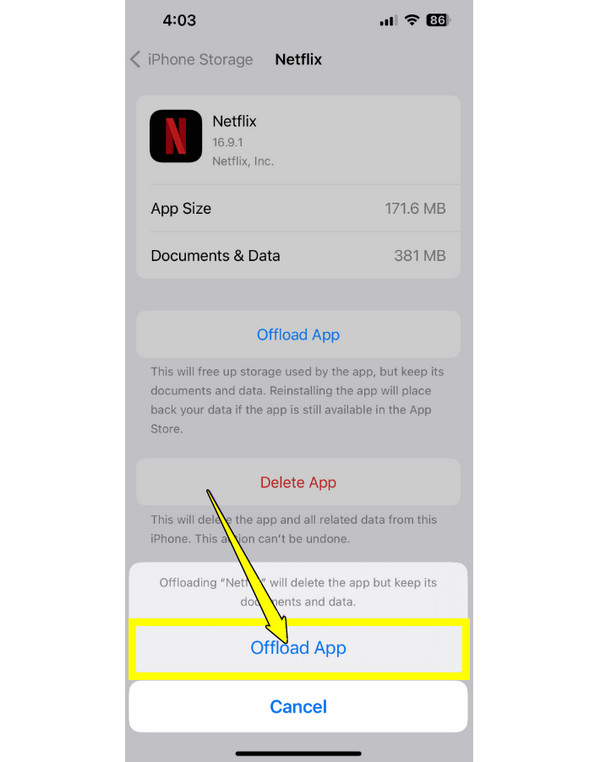
Following that, check on entertainment apps like Spotify, Netflix, or YouTube, which usually store temporary files.
- 1.Open "Settings", then "General" and tap "iPhone Storage".
- 2.There, choose a heavy streaming app and tap the "Offload App" button.
- 3.Reinstall the app from the App Store with an empty cache.
Method 4. Manage Email Sync Settings
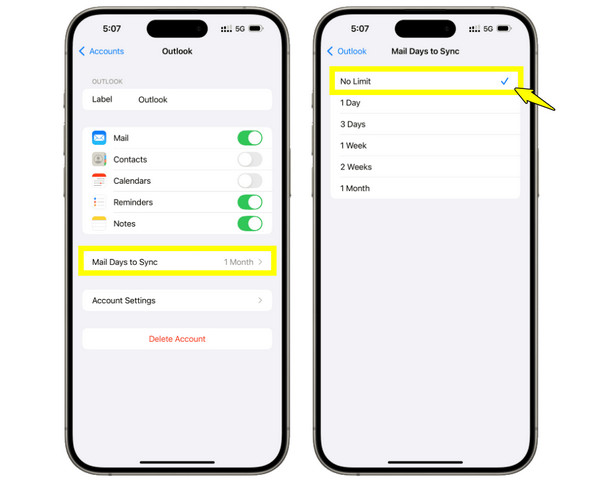
Lastly, you can prevent your inbox from storing thousands of old attachments locally by managing how your email syncs.
- 1.Head over to "Settings" then go to "Apps" and tap "Mail".
- 2.After that, tap "Accounts" and choose your primary email.
- 3.here, ensure to adjust the "Mail Days to Sync" to a shorter period.
Tips for Effectively Managing iPhone Storage Space
Now, to keep your iPhone running smoothly in the long run, it's crucial to adopt proactive tips rather than waiting for the iPhone storage full notification. These tips will help you effectively manage iPhone storage space.
- Automate App Offloading. Activate the Offload Unused Apps option in Settings to automatically remove apps you haven't used in a while.
- Have a Digital Trash day. Visit your Recently Deleted Album monthly and your Trash in the Mail app to empty them manually.
- Optimize Your Photo Library. 4K videos and raw photos can fill your device in days. Make sure Optimize iPhone Storage is checked in Settings.
- Manage Large Attachments. Go to Settings, then General, and head to iPhone Storage. See the Review Large Attachments section to check and delete the heaviest files.
- Reinstall Social Media Apps. Since social media apps like Facebook, TikTok, and Instagram don't have the Clear Cache button, you can delete and reinstall them every few months to remove cache that has been stored over time.
- Limit Offline Content. Check your downloaded sections in streaming apps like Netflix, Disney+, and Spotify. These offline downloads may be the reason storage disappears.
Conclusion
As apps and media files grow larger, keeping the System Data iPhone storage under control ensures your iPhone's health will last for years. By clearing your browser history, managing attachments, and offloading unused apps, managing your storage does not have to be a battle. While they work great, for a deep clean and permanent solution, use 4Easysoft iPhone Cleaner. This is built to identify and minimize system data on iPhone storage in a single click, guaranteeing your iOS device performs as well as the first day you used it.
100% Secure
100% Secure
