
Capture on-screen activities, system sound, microphone, and webcam on Windows and Mac with high quality.

How to Record WhatsApp calls on iPhone, Android, PC, Mac

Posted by Ethan Brooke to Record Audio Feb 06, 2026
WhatsApp has become one of the primary tools for communicating with others globally. However, its no-recording-feature often pushes you to search for workarounds to save important calls. How can you record WhatsApp calls? Whether you're an iPhone or Android user or own a desktop, this guide shares four effective ways to record WhatsApp video and audio calls with ease. Stop your search today and start capturing WhatsApp's video and audio calls.
Guide List
How to Use iPhone/iPad Built-in Tool to Record WhatsApp Calls Useful App on iPhone to Record WhatsApp Calls App to Record WhatsApp Calls on Android How to Record High-Quality WhatsApp Calls on All DevicesHow to Use iPhone/iPad Built-in Tool to Record WhatsApp Calls
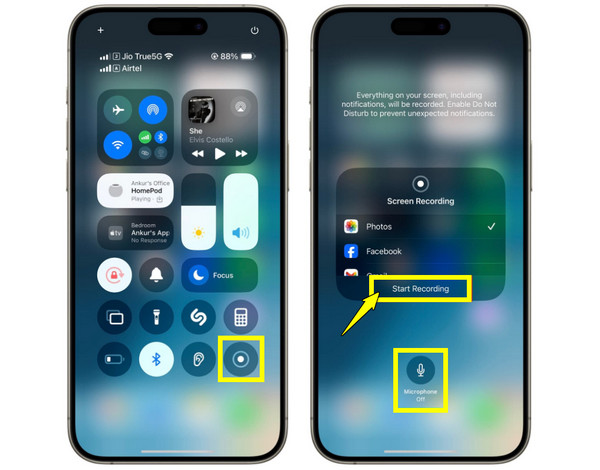
See here the most convenient way to record a WhatsApp call, the built-in Screen Recorder feature on iOS. This feature is integrated directly into the Control Center on both iPhone and iPad, letting you quickly access it during a live conversation. Although it is mainly for screen recording, it can also capture audio if the mic setting is selected.
Step 1To add the Screen Recording feature, head to the "Settings" app, go to "Control Center" then tap the "Add" button next to the recorder.
Step 2Now, launch WhatsApp and start your call. Swipe down from the corner or up from the bottom to open the "Control Center". Long-press the Screen Recorder and tap "Microphone On" to enable it.
Step 3Next, tap "Start Recording", and the countdown will begin. To stop, tap the "Red status bar" at the top or go back to "Control Center" again and choose "Stop".
Useful App on iPhone to Record WhatsApp Calls
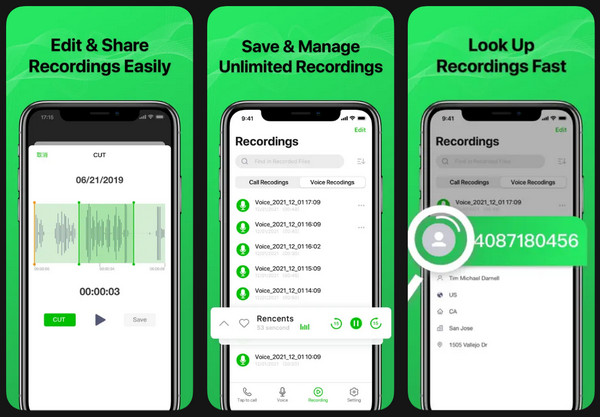
Moving forward to third-party apps for recording WhatsApp voice calls, if the built-in recorder can't record iPhone video with audio clearly, the Phone Call Recorder app on iPhone can bypass some audio limitations. This WhatsApp call recorder app uses a conference call method or overlays to ensure both ends are heard clearly. Plus, it has an organized interface that makes managing recordings so easy with features like cloud syncing and easy sharing.
Step 1Launch the Phone Call Recorder app. Grant any needed permissions for Microphone and Storage. Follow the instructions to set up recording.
Step 2Afterward, start your WhatsApp call and use "Control Center" or the app's overlay to activate the recorder.
Step 3Once the call ends, stop the recording within the app.
App to Record WhatsApp Calls on Android
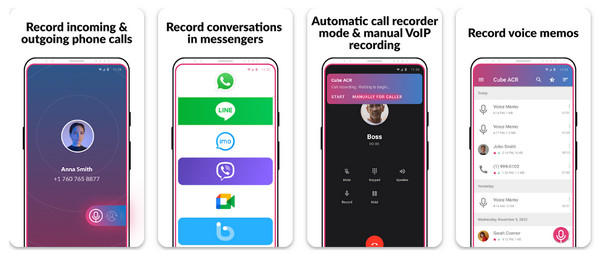
In contrast to the previous method, Android has more tools that can record WhatsApp calls, and one of these is the Call Recorder - Cube ACR app. This app excels as it can automatically detect when a VoIP call starts recording without manual intervention. It also has the Cube ACR App Connector that works with Android settings to capture audio from both sides of the conversation.
Step 1Get the Cube ACR launched on your Android phone.
Step 2Grant all permissions for Accessibility and Overlay to let the app detect calls. Ensure "WhatsApp" is enabled in the recording settings.
Step 3Start a WhatsApp call as usual. Look for the "widget" on your screen, indicating the recording has started.
Step 4Once it is finished, open the app to play, save, or share the recording.
How to Record High-Quality WhatsApp Calls on All Devices
While mobile WhatsApp call recorder apps are great for on-the-go calls, a desktop-based solution helps you achieve professional-grade results across all your devices. For the highest possible quality, record WhatsApp conversations with 4Easysoft Screen Recorder. Since it records calls directly or mirrors your mobile screen to your PC for more stable recording, it works super versatile. With its friendly interface, anyone can enjoy recording with just a few clicks and will not face any bugs found on mobile devices. It supports capturing system sound and mic audio simultaneously, as well as 4K resolution, ensuring every detail of your call is preserved. You can record WhatsApp desktop video calls with audio smoothly.

Multi-mode recording with Video Recorder, Audio Recorder, or Phone Recorder.
Captures both system sound and microphone audio perfectly.
Add drawings, highlights, or take screenshots during a video call recording.
Trim out the silence or extra parts before saving your final file.
100% Secure
100% Secure
Step 1Open 4Easysoft Screen Recorder. In the default "Video Recorder", choose the capture area as "Full" or "Custom" to frame your WhatsApp window. For audio only, you can select Audio Recorder or use Phone Recorder to mirror your phone call.
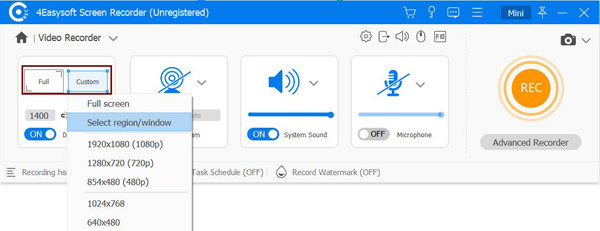
Step 2Before continuing, ensure both "System Sound" and "Microphone" toggles are switched on, allowing the software to capture the person on the other end. Go to the "Settings" menu to adjust the quality to your needs.
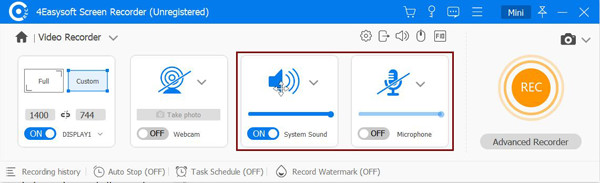
Step 3Click the "REC" button to start WhatsApp call recording after a 3-second countdown. You can add annotations and real-time drawings while recording.
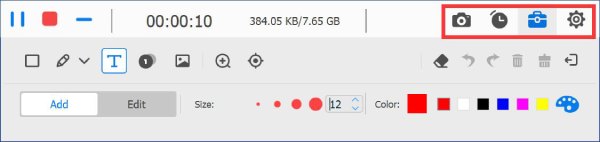
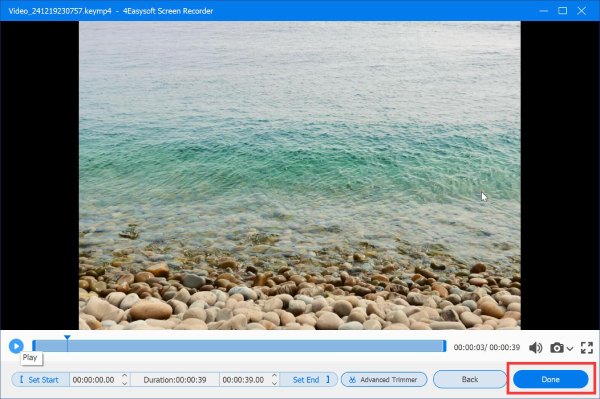
Step 4Once the conversation has ended, click the "Stop" button. A preview window will launch, letting you trim the dead air at the beginning or end. Finally, click the "Save" button to export the file to your computer.
Conclusion
Recording WhatsApp calls has become a vital need for many people, whether for keeping important conversations or saving memorable moments. If you fail to do WhatsApp call recording on iPhone and Android, you can use 4Easysoft Screen Recorder to record your WhatsApp calls straightforwardly, without the hassle of external devices or complicated setups.
100% Secure
100% Secure
