
Reliable video converter, editor, and compressor for daily tasks.
MOV to MPEG: 6 Ways to Convert Videos Online/Offline

Posted by Aira Lesly Escoto to Convert Video Jul 10, 2026
MOV files are the standard for Apple users, but you may encounter a frustrating roadblock when trying to play them on non-Apple devices. This makes MPEG the go-to choice for broader device compatibility. Converting MOV to MPEG won't make you spend hours fixing that playback error anymore. Therefore, this post explores a mix of offline and online MOV to MPEG converters. By the end, you'll have the perfect tool to ensure your MOV videos play on any screen.
Guide List
Powerful Tool to Convert MOV and MPEG with Less Quality Loss 3 Online Tools to Convert MOV and MPEG Convert MOV and MPEG Freely in 2 MethodsPowerful Tool to Convert MOV and MPEG with Less Quality Loss
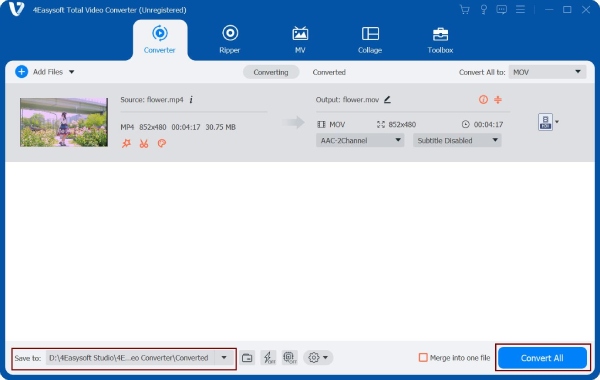
If you need to convert MOV to MPEG format, 4Easysoft Total Video Converter is an easy option. It supports over 600 video and audio formats and handles both small and large files well. Hardware acceleration helps speed up the entire conversion process. You can also adjust the output video settings to keep good video quality.
Keep your videos clear after converting them.
Convert a whole folder of MOV files in one go.
Hardware acceleration helps reduce conversion time.
Change the resolution, bitrate, frame rate, and other settings before exporting.
100% Secure
100% Secure
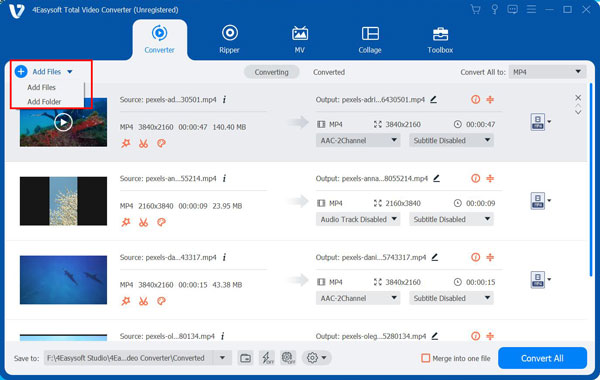
Step 1To begin, launch 4Easysoft Total Video Converter and click the "Add Files" button in the top left corner to import MOV videos. You can drag them directly into the main workspace as well.
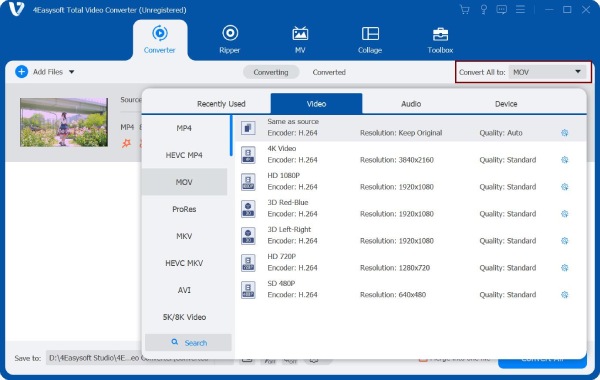
Step 2Once your files are loaded, click the "Output Format" dropdown menu, navigate to the "Video" tab, and select "MPEG" from the list, then choose your desired resolution.
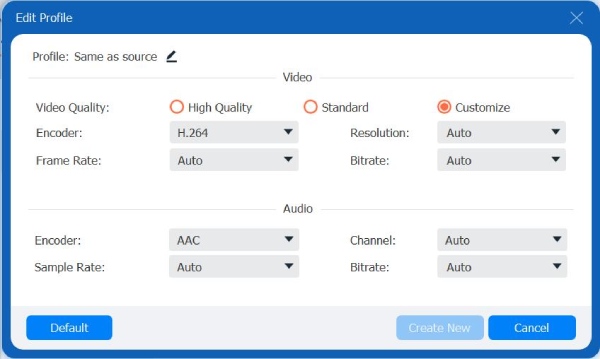
Step 3You can click the "Custom Profile" button to target specific technical settings.
Step 4Finally, select your destination folder below and give your new file a name, then click the "Convert All" button. Within moments, your MOV files will be ready for any MPEG player.
3 Online Tools to Convert MOV and MPEG
On the other hand, using web-based MOV to MPEG converters provides a fast, installation-free solution that works across any system. The following tools are some of the reliable options available for transitioning your files from MOV to MPEG.
1. TheBestPDF MOV to MPEG
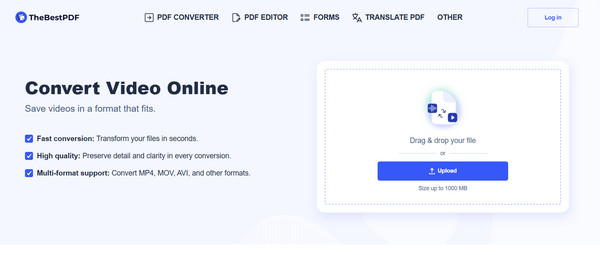
Despite its name, TheBestPDF has a robust suite of media conversion tools that goes beyond document management. The platform also ensures high-quality while keeping a secure environment where all of your files are automatically deleted after MOV to MPEG conversion.
Step 1Browse through folders by clicking the "Upload" button.
Step 2You can drag your MOV file directly if you want to.
Step 3Click the "Convert" button to start the conversion into MPEG.
Step 4After the progress bar finishes, click the "Download" link to save the results.
2. PDFGuru MOV to MPEG
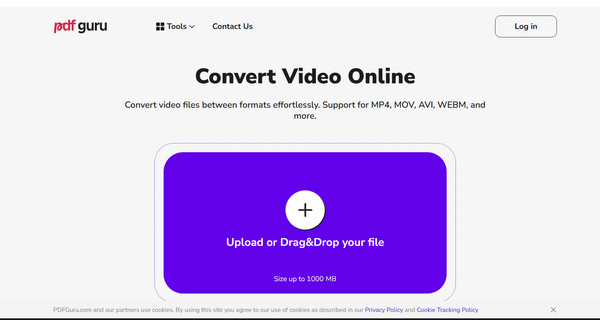
If you don't want to install software, PDFGuru is a good online option. It supports to change MOV to MPEG and a range of other formats. The interface is straightforward, and there are fewer ads than on many free converter websites.
Step 1Drag and drop the MOV file onto the web page or use the "Add" button to upload from your computer.
Step 2Wait for the tool to process and prepare it for the MPEG format.
Step 3Later, once the "Download" button shows up, click on it to get your newly converted video file.
3. Convertio MOV to MPEG
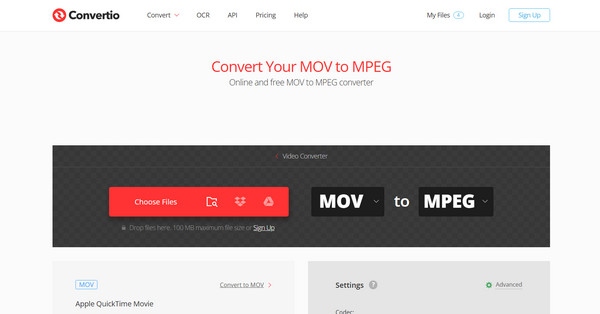
Convertio is a heavyweight in the web-based conversion space, famous for its extensive format support and advanced customization settings. Unlike simpler MOV to MPEG online converters, Convertio lets you adjust technical aspects like quality, aspect ratio, and codec.
Step 1Click the "Choose Files" button or choose Google Drive/Dropbox to upload your MOV video from the cloud.
Step 2Make sure the output dropdown menu is set to "MPEG". At this point, you can adjust the video codec or frame rate, too.
Step 3Click the "Convert" button to complete and wait for the processing to finish.
Convert MOV and MPEG Freely in 2 Methods
While those three web-based MOV to MPEG changers are perfect for quick tasks, you may still want a dedicated desktop software for larger files or offline processing. These two powerhouse apps hold professional-grade features and more control over the final output for free!
1. Handbrake
A premier open-source video transcoder known for its ability to handle almost any video format, Handbrake is the favorite among content creators. Besides allowing you to convert MOV to MPEG, it provides high control over encoding settings, making the output perfect for specific devices or platforms. Moreover, you can compress videos with HandBrake to get smaller file sizes.
Step 1Once you have launched Handbrake, drag your MOV file into the main window, or click the "Open Source" button to browse your files.
Step 2Navigate to the "Summary" tab and select a format.
Step 3Head to the "Video" tab after, and choose a video codec, make sure to select either MPEG-2 or MPEG-4.
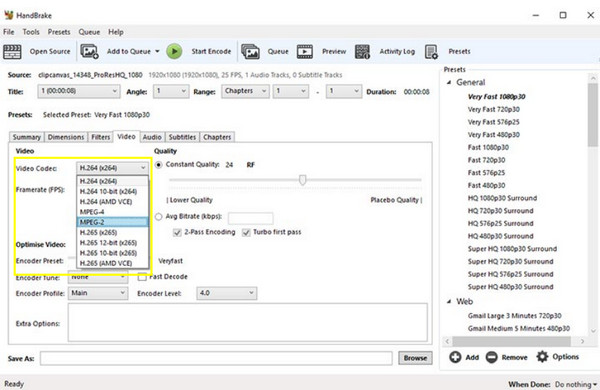
Step 4Then, at the bottom, click "Browse" to choose the location of the new file and give it a name.
Step 5Click the "Start Encode" button above to finalize and wait for the processing queue to finish.
2. VLC
In addition to its role as a media player, VLC has a hidden and powerful conversion engine that can transform MOV to MPEG. There's no need for you to download extra software, and just a quick format change, making it a versatile tool if you already have it installed.
Step 1Run VLC and head to the "Media" menu, then click on "Convert/Save" from the dropdown.
Step 2Click the "Add" button to upload your MOV file, then click the "Convert/Save" button to move forward.
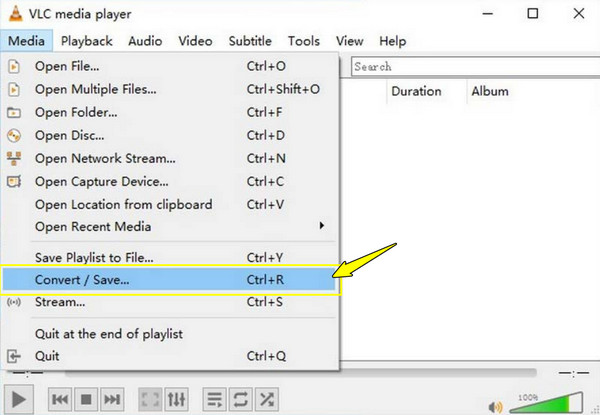
Step 3Afterward, in the Profile menu, look for "MPEG". Otherwise, click the "Edit profile" button to manually choose the MPEG video codec and encapsulation.
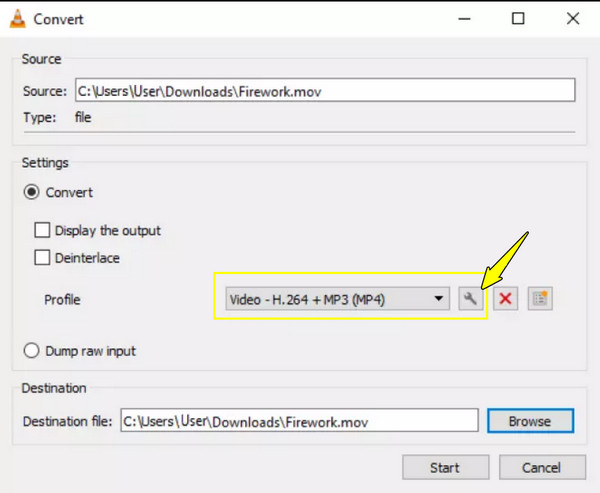
Step 4To complete the process, click the "Browse" button to set your destination file name, click the "Save" button, and then click the "Start" button to export MOV to MP4.
Conclusion
You may need an instant result, or maybe a deep technical control, the six mentioned tools offer capabilities that ensure you can convert QuickTime MOV to MPEG without any headaches. Regardless of the tool, your goal is to enjoy a seamless viewing experience. If you're looking for specifics like speed, simplicity, and high-quality results, 4Easysoft Total Video Converter is the clear winner. This desktop powerhouse handles 4K MOV files with ease, at a lightning-fast speed, without affecting the original quality. So, for a one-and-done solution, try it out today!
100% Secure
100% Secure
