
Fix 150+ iOS system problems without data loss.

Fix iPhone Stuck on Verifying Update (and Why It Happens)

Posted by Aira Lesly Escoto to iOS Recovery Dec 31, 2025
Updating your iPhone to the latest iOS should be quick, but the process might stop suddenly. This iPhone stuck on Verifying Update issue leaves your device frozen and the update unfinished. This problem that many users face can occur due to many reasons, which are usually easy to fix. So, this guide here shares five effective ways to fix iPhone verifying update stuck, helping you get your device update back to normal in no time.
Guide List
What's the Reason for iPhone Stuck on Verifying Update Use a Professional Tool to Fix iPhone Stuck on Verifying Update Lock and Reawaken your iPhone to Fix the Stuck Update iOS Again using iTunes/Finder Put your iPhone into DFU Mode Hard Reset Your iPhone to Fix Stuck on VerifyingWhat's the Reason for iPhone Stuck on Verifying Update
Before jumping into fixes, answer why your iPhone is stuck on Verifying Update in the first place. With this stage, you can choose the most effective fix once you identify the root cause and avoid it later.
- • An unstable Wi-Fi connection interrupts the verification process.
- • Your iPhone does not have enough storage space.
- • Apple servers are currently being overloaded or are unavailable.
- • Minor system glitches or software bugs.
- • Incomplete iOS update files.
Use a Professional Tool to Fix iPhone Stuck on Verifying Update
For a safe, quick, and friendly solution, using a professional iOS repair tool like 4Easysoft iOS System Recovery is highly suggested. This powerful tool is made to fix various iOS system issues, without data loss in most cases, making it great for those who value their photos, messages, and apps. With its intuitive interface, even those non-techy users can start and fix iOS 26 stuck on Verifying Update issue in just a few clicks. Also, this tool has multiple repair modes that handle both minor and serious system problems.
Can fix iOS update problems, frozen screens, black screens, and more.
Smart detection technology scans your device to resolve system errors.
Has Standard Mode for safe repairs and Advanced Mode for serious related issues.
Fully supports the latest iOS versions and works with all new iPhone models.
100% Secure
100% Secure
Step 1Open 4Easysoft iOS System Recovery on your computer, then link your iPhone via a USB cable. Once it gets recognized, select "iOS System Recovery" from the main screen, then click the "Start" button to proceed.
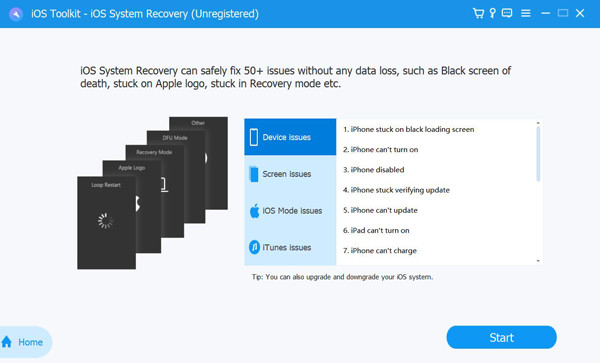
Step 2The program will automatically examine your device to determine what's causing the Verifying Update problem. Click "Fix" to refresh the system and do further fixes.
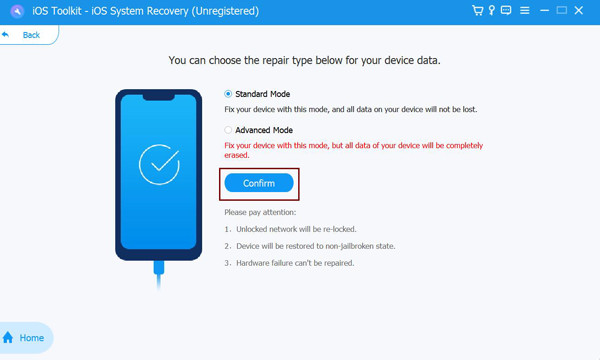
Then, choose "Standard Mode" to fix the problem without losing data, or select "Advanced Mode" for a deeper iPhone system repair that resets the device. Click the "Confirm" button once decided.
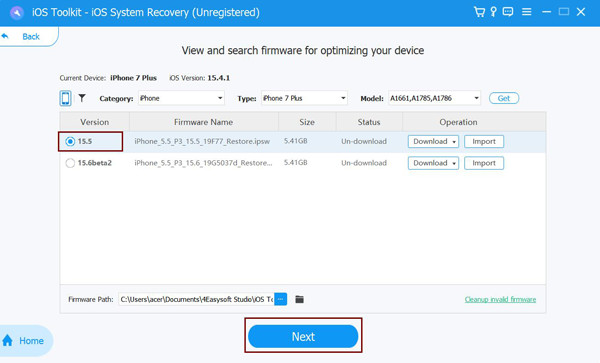
Step 3Make sure the displayed model and iOS version are correct. Then download and install the suggested firmware package. Once it gets complete, click "Next" to start repairing the system and remove iPhone stuck on Verifying Update error.
100% Secure
100% Secure
Lock and Reawaken your iPhone to Fix the Stuck
Sometimes, the iPhone stuck on Verifying Update problem due to a temporary system freeze. In such cases, by simply refreshing your screen, the verification process may resume.
- 1. Press the "Power" button once to lock your iPhone.
- 2. Kindly wait for 30 seconds to a minute.
- 3. Press the "Power" button again and wake your iPhone up.
- 4. Now, check if the Verifying Update screen progresses.
Update iOS Again using iTunes/Finder
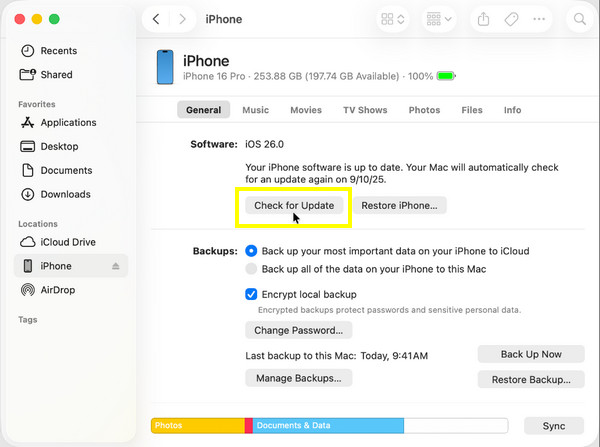
If the iPhone keep update verifying issue keeps happening, try updating your iOS devices through a computer, as it can be more stable and reliable. This solution downloads the firmware directly and avoids connection-related issues.
- 1. Once you’ve connected your device to a computer, open "iTunes/Finder".
- 2. There, select your iPhone icon when it appears.
- 3. Next, click "Check for Update", then select "Update".
- 4. Please wait for it to be downloaded and installed.
Put your iPhone into DFU Mode
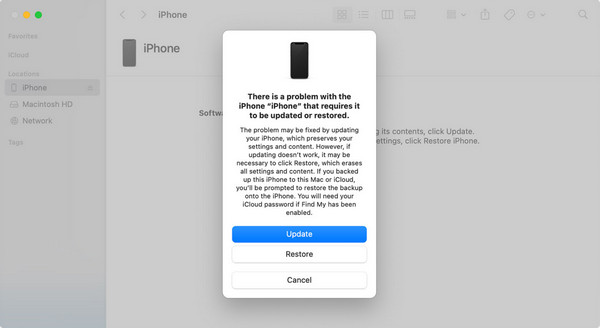
DFU or Device Firmware Update is a more advanced solution that bypasses the current iOS version and reloads the firmware completely. While this method is effective in preventing iPhone stuck on Verifying iOS Update, it may erase your data.
- 1. Connect your iPhone to a computer, then launch either iTunes or Finder.
- 2. On your iPhone, quickly press "Volume Up", then "Volume Down", and hold the "Power" button until your screen goes black.
- 3. While holding the Power button, press and hold the "Volume Down", then release the "Power" button until the iOS device is in DFU mode.
- 4. Later, restore or update your iPhone through iTunes or Finder.
Hard Reset Your iPhone to Fix Stuck on Verifying
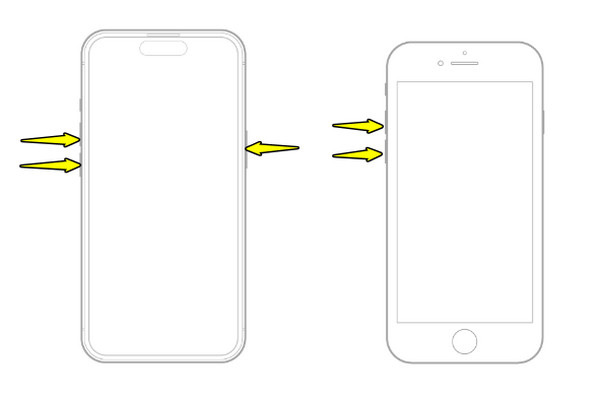
Meanwhile, a hard reset forces your device to reboot and clear temporary glitches that are causing iPhone update stuck on Verifying for hours. This method is often ideal when your screen is unresponsive. So, restart iPhone first when you encounter any problem.
1. iPhone 8 and later models
Quickly press and release the "Volume Up", then "Volume Down". Next, press and hold the "Power" button and wait for the Apple logo to show up.
2. iPhone 7 and 7 Plus
Press and hold the "Volume Up" and the "Volume Down" buttons simultaneously, and once the Apple logo appears on screen, release them.
3. iPhone 6s and earlier models
Press and hold the "Home" and "Power" buttons together. Once the Apple logo shows up on screen, release them.
Conclusion
An iPhone stuck on Verifying Update and won't turn off problem can be frustrating, but thanks to this post, you've seen multiple ways to fix it. From simple actions like restraining your iPhone to more advanced options like using DFU mode, each method addresses the cause of the issue. However, in many cases where the update issue is due to serious system problems, having 4Easysoft iOS System Recovery is essential. This program features a user-friendly interface, a high success rate, and full support for iOS models and versions, making it ideal for fixing system-related iPhone errors.
100% Secure
100% Secure
