
Transfer anything from/to iPhone, iPad, and iPod.

A Comprehensive Guide on iPhone Not Receiving Texts

Posted by Alvin Cantero to iOS Transfer Jun 11, 2026
"Why am I not receiving text messages on my iPhone? Who can tell me?"
If you also encounter the problem that your iPhone is not receiving texts properly, you are not alone. The reasons for this problem are diverse, which makes it seem difficult for users to solve quickly. Don't worry. This post will help you quickly identify the cause and find a solution to stop your iPhone from not receiving texts.
Guide List
Why Are You Not Receiving Text Messages on Your iPhone Quick Fixes for Not Receiving Text Messages on iPhone [Bonus] How to Create a Backup if iPhone Not Receiving TextsWhy Are You Not Receiving Text Messages on Your iPhone
If your iPhone is not receiving text messages, the problem can stem from various reasons, but mainly your settings. Sometimes the issue is minor and can be resolved quickly, while in other cases it may involve carrier restrictions or outdated software. Understanding the possible reasons behind this problem can help you identify the cause and choose the most effective fix.
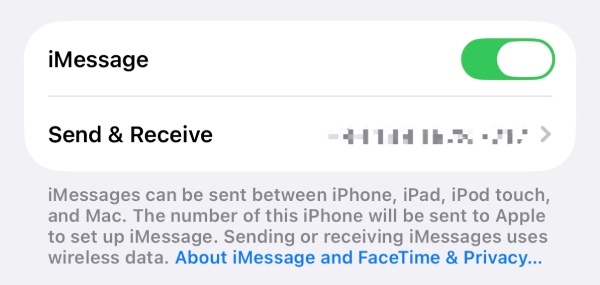
1. Disabled iMessage Settings: If iMessage is turned off or configured incorrectly, your iPhone may fail to receive messages sent through Apple's messaging service. Additionally, if your phone number or Apple ID is not properly linked to iMessage, messages may be delivered to another device instead of your iPhone.
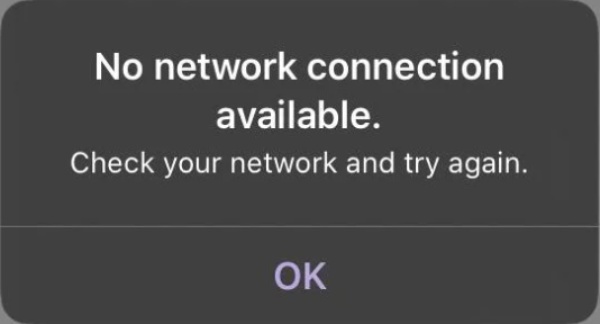
2. Network Connection Issues: Text messaging requires a stable cellular network connection since it works based on the service provided by the carrier. If your device is experiencing weak signal strength, network outages, or incorrect carrier settings, it may prevent incoming SMS or MMS messages from being delivered to your iPhone.
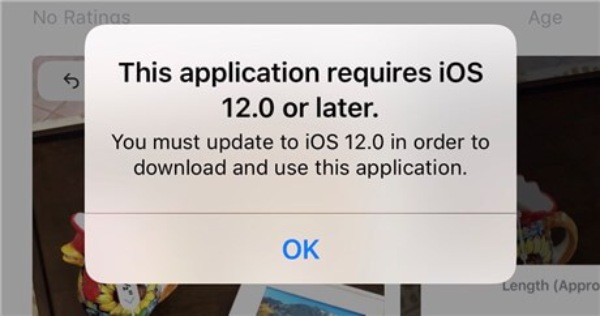
3. Outdated iOS Version: Running an outdated iOS version may sometimes cause message loss due to system bugs or compatibility issues. For instance, there was a report from a user that they find live texts are not working on iOS 15. There often are fixes for network and messaging errors on newer updates. Therefore, failing to update your device may cause your iPhone to stop receiving texts.
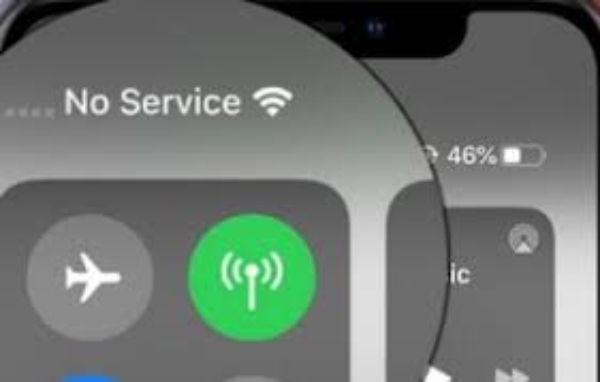
4. Carrier Service Problems: In some cases, the issue may come from your mobile carrier. Temporary service outages, account restrictions, or SIM card problems can interrupt message delivery, causing your iPhone to miss incoming text messages.
Quick Fixes for Not Receiving Text Messages on iPhone
If your iPhone is not receiving text messages, there are several quick troubleshooting steps you can try before considering more complex solutions. Since this, this part has summarized the most recommended quick fixes from the forum to help you get your iPhone back on track. Minor issues often cause such problems. You can follow the steps below one by one to check if the issue is fixed.
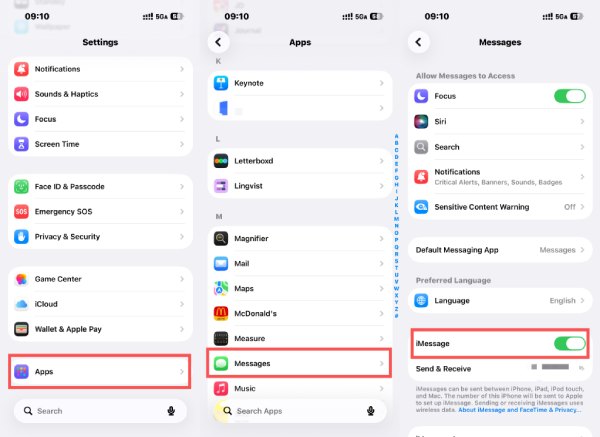
Fix 1. Confirm iMessage Status
Step 1Open "Settings" and scroll down to tap the "Apps" button to access a new page.
Step 2Among apps, find and click the "Messages" button to manage the settings.
Step 3Check iMessage status. If it's not turned on, tap it.
Fix 2. Reset Network Settings
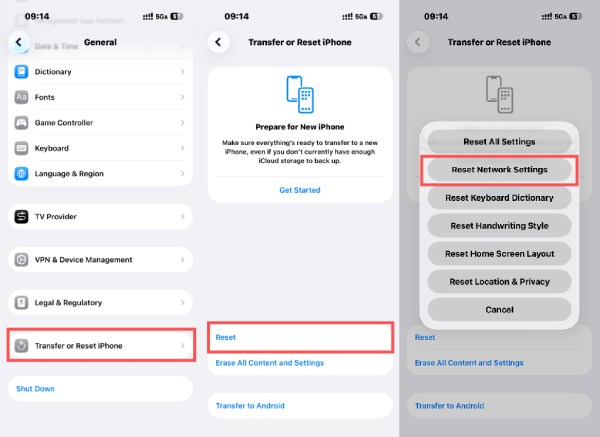
Network-related errors can prevent your iPhone from receiving messages. Resetting network settings can help fix issues related to Wi-Fi, cellular data, and messaging connections. You can do this by following the steps below:
Step 1Open "Settings" and tap the "General" button.
Step 2Tap the "Transfer or Reset iPhone" button at the bottom of this page.
Step 3Tap the "Reset" button. Among the options listed, tap the "Reset Network Settings" button.
Fix 3. Update iOS Version
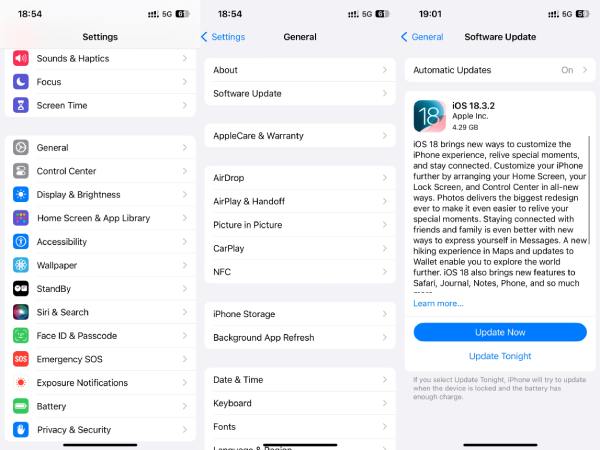
Outdated software can cause system bugs that affect messaging services. Some users find that iMessage may sometimes stops working on iOS 16. To avoid the situation where your iPhone cannot receive texts caused by this issue, check for the latest iOS update by following the detailed steps below:
Step 1Open "Settings" and tap the "General" button.
Step 2If you see the red dot near the "Software Update" button, tap it.
Step 3Tap the "Update Now" button to update the iOS version.
Fix 4. Check Carrier Status
Sometimes the issue may not be related to your device but to your mobile carrier. Service interruptions or account-related restrictions may block message delivery. In such cases, contact your carrier or check their service status to make sure messaging services are functioning properly.
Fix 5. Perform Factory Reset
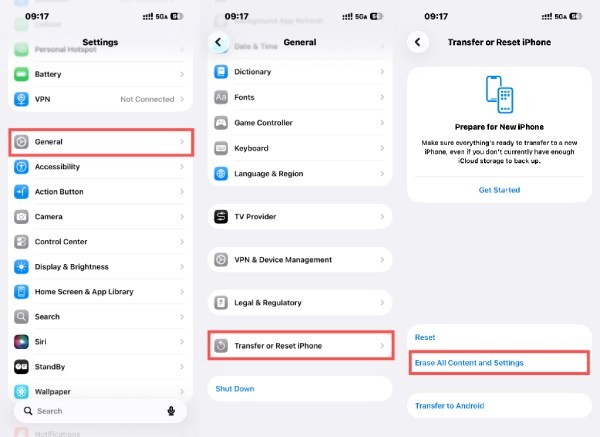
If none of the above methods work, performing a factory reset may help resolve deeper system conflicts that lead to your iPhone not receiving text messages. This process restores your iPhone to its original settings. By doing so, most of the system glitches will be eliminated. However, it is recommended to back up your data before performing this step.
Step 1Open "Settings" and tap the "General" button.
Step 2Tap the "Transfer or Reset iPhone" button at the bottom of this page.
Step 3Tap the "Erase All Content and Settings" button to perform a factory reset.
WARNING: This process will erase all the data from your iPhone. So, make sure a backup is created before you start even if you’re trying to perform a factory reset without a passcode.
[Bonus] How to Create a Backup if iPhone Not Receiving Texts
Before attempting advanced fixes like a factory reset, it is important to back up your iPhone to avoid losing important data. Using a reliable tool such as 4Easysoft iPhone Transfer allows you to quickly back up messages, contacts, photos, and other files to your computer. This method ensures your data remains safe and can be restored easily after fixing iPhone not receiving text messages issue.

Transfer iOS data between computers and iOS devices quickly.
Manage and edit all your text messages with a clear interface.
Sync and backup important text messages to your computer.
Make sure all your data including texts is backed up completely.
100% Secure
100% Secure
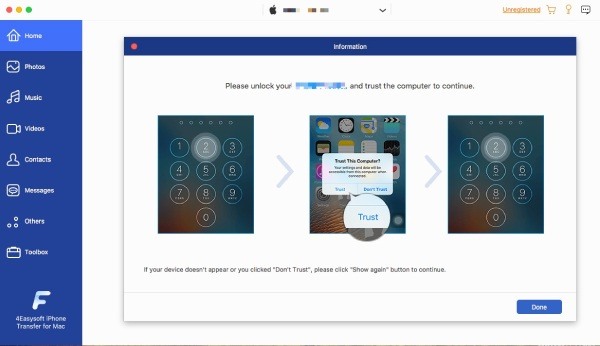
Step 1Launch 4Easysoft iPhone Transfer and connect your iPhone to the computer using a USB cable. Trust the device following the instructions.
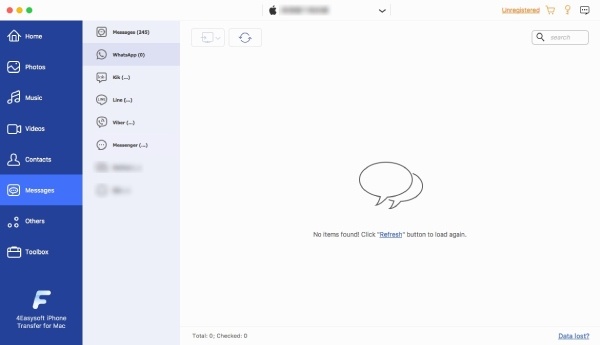
Step 2Click the "Messages" button and all your text messages will be displayed. If not, click the "Refresh" button.
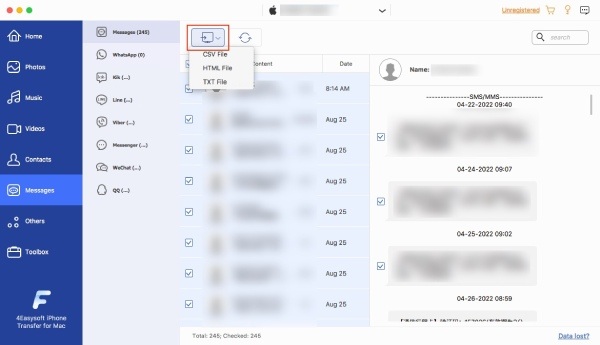
Step 3Click to select the messages you want to transfer and create a backup. Once finished, click the "Export to PC" button.
Conclusion
Why are you not receiving text messages on your iPhone? This issue can be caused by several factors. By checking possible causes and applying the quick fixes mentioned above, you can restore normal message delivery. To avoid potential messages missing in the future, you can download and use 4Easysoft iPhone Transfer to create a backup.
100% Secure
100% Secure
