

Reliable video converter, editor, and compressor for daily tasks.

How to Get the Right Instagram Story Size? Know Here!

Posted by Paula Pailaga to Edit Video/Audio Dec 19, 2025
To avoid stretched images and blurry uploads, you need to figure out the correct Instagram Story size before uploading. So your content can be crisp and free from unwanted cropping. Thus, this guide breaks down everything you must know about Instagram Story size, from the proper settings to the right tools, so that your Stories will upload smoothly every time.
Guide List
Basic File Size Requirements for Instagram Stories How to Adjust Instagram Story Dimensions on Windows and Mac How to Adjust Instagram Story Dimensions on iPhone Kapwing - Online Crop Tool with Instagram Story Presets Clideo - Quick Online Cropper with Automatic 9:16 Output Instagram Story Safety Margins and Text PlacementBasic File Size Requirements for Instagram Stories
Before uploading any content to your Instagram Stories, it is crucial to understand how the platform's file guidelines work. These requirements make sure your photo or video presents correctly, loads quickly, and preserves good visual quality. So, check out below the basic requirements for Instagram Story video size:
• Aspect Ratio: 9:16/Vertical Orientation
• Recommended Resolution: 1080 x 1920 for best clarity
• Minimum Resolution: 720 x 1280 pixels
• Maximum Video Size: Up to 4GB per Instagram Story
• Maximum Video Length: 15 seconds per Story segment
• Supported Video Format: MP4 and MOV
• Supported Photo Format: JPG or PNG
• Recommended Video Codec: H.264 for smooth playback
How to Adjust Instagram Story Dimensions on Windows and Mac
4Easysoft Total Video Converter can adjust Instagram Story size with pre-made presets. Beyond resizing, it offers trimming, rotating, cropping, and effects adjustment. So, your content looks professional and polished. With its intuitive interface, you can guarantee that starters can achieve the tasks without a steep learning curve, while taking advantage of customizable settings. Moreover, it processes video efficiently, so even larger files are resized and exported quickly.
Can resize videos and images to 9:16 Instagram Story size.
Maintains high-quality output throughout the resizing process.
Covers over a hundred formats, including MP4, MOV, AVI, MKV, etc.
Customize other settings, e.g., format, quality, frame rate, and more.
100% Secure
100% Secure
Step 1Launch 4Easysoft Total Video Converter on your computer. Click the "Add Files" to import your video or image.

Step 2Select the "Edit" button to open the editing interface. Now, from the "Rotate & Crop" sections, choose "9:16" for the Aspect Ratio, then adjust the crop frame if needed to position the content perfectly. You can apply any optional edits in the following sections, like adding effects, subtitles, music, and more.
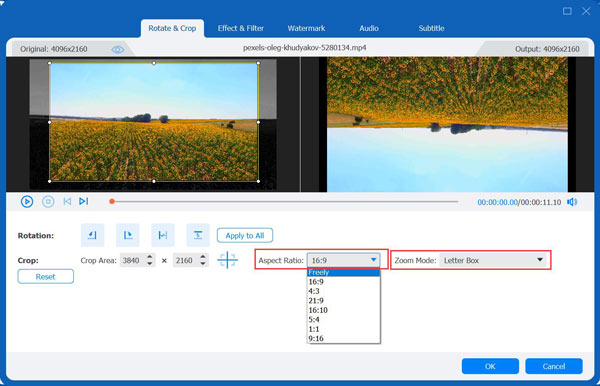
Step 3Going back to the main screen, select your output format from the "Format" dropdown menu. Click the "Convert All" button to save your resized Story-ready video file.

100% Secure
100% Secure
How to Adjust Instagram Story Dimensions on iPhone
Before exploring other ways, fortunately, the iPhone has built-in tools and easy app-based options that help you adjust the Instagram Story size. Whether you want to prepare your vertical clip or change an image, the steps below show you how to change Instagram Story size so your Story uploads perfectly every time.
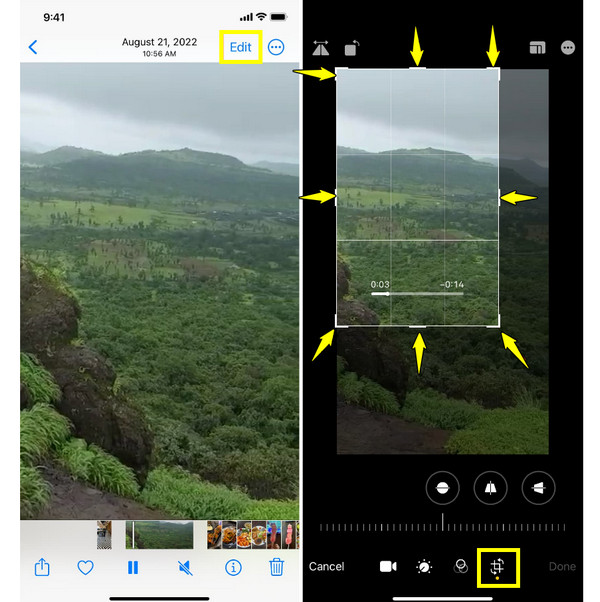
Step 1Open the "Photos" app. Select the video or picture you wish to resize. Tap the "Edit" button in the upper-right corner. Select the "Crop" button, then "Aspect Ratio" and select "9:16".
Step 2Start adjusting the frame by dragging or zooming the video/picture, and tap on the "Done" button to save your desired resized media.
Step 3Upload it to Instagram Stories, and it will fit the frame.
Kapwing - Online Crop Tool with Instagram Story Presets
Meanwhile, Kapwing is an online crop tool that can easily resize your Instagram story size without manually adjusting the dimensions. It works entirely online, so you can crop a video for Instagram, whether you're editing on a desktop or a browser.
Step 1Open Kapwing and go to the "Resize" or "Canvas" tool. Import your photo or video there by clicking the "Click to Upload" button or dragging it into the workspace.
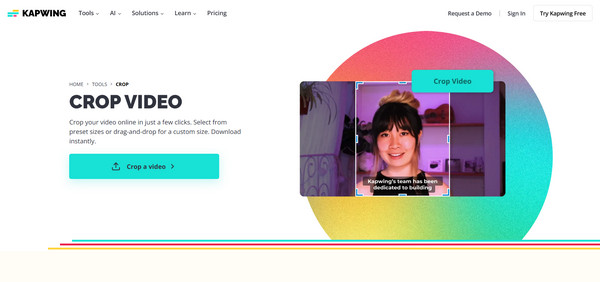
Step 2From the "Canvas" size presets, select the "9:16 Instagram Story" ratio. Reposition the content until it fits the way you want. You can apply optional edits as needed.
Step 3Click the "Export" button, select your quality settings, and download your file.
Clideo - Quick Online Cropper with Automatic 9:16 Output
Note that Clideo is made for fast, simple cropping and automatically offers the right Instagram Story size for a quick setup. It processes your files online, so your device will not lag or slow down, even when working with larger videos.
Step 1Search for Clideo's Crop website in your browser. Once in there, click the "Choose File" button to upload your media from your device or cloud storage.
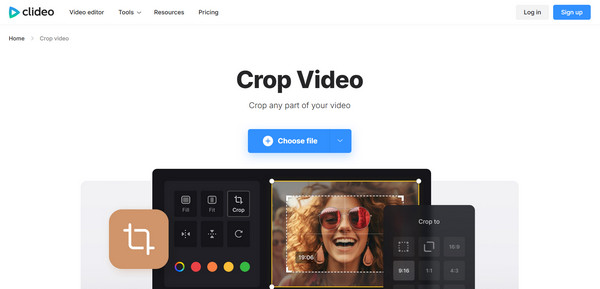
Step 2From the aspect ratio options, select "9:16" for Instagram Stories. Adjust the crop frame to highlight the area you wish to keep, preview the result, and make final edits.
Step 3Now, click the "Export" button to save your cropped Instagram Story video file.
Clideo - Quick Online Cropper with Automatic 9:16 Output
After all that about getting the right Instagram Story size, it is important to understand safety margins and protect text placements, as well. Since Stories are viewed on different screen sizes, placing text or any important elements too close to the side can result in cropping. Here's what to follow to ensure your content remains fully visible and professional-looking across all devices.
• Top Margin. Keep text and elements at least 250 pixels from the top to avoid overlapping.
• Bottom Margin. Leave 250 pixels at the bottom to avoid any interference with the box, reply buttons, or links.
• Side Margin.: Keep at least a minimum of 150 pixels on each size to avoid cropping on different sizes.
• Central Area.: Use the middle part of the screen for main visuals, images, or text that you wish viewers to focus on.
• Text Size & Readability. Select font sizes that remain readable on both small and large screens.
Conclusion
With the right Instagram Story dimensions, you can keep your videos and photos are crisp and free from unwanted cropping. Among the above video croppers and editors today, if you wish for a comprehensive desktop solution that combines resizing, format conversion, and more editing capabilities, 4Easysoft Total Video Converter stands out. It lets you adjust Instagram Story size quickly while preserving high-quality output, giving you full control over your content. It ensures your Stories are visually engaging and ready for upload in no time.
100% Secure
100% Secure
