
Remove screen passcode, Apple ID, MDM and Screen Time from iPhone safely.

How to Unlock Disabled iPhone without Data Loss [5 Ways]

Posted by Paula Pailaga to iOS Unlocker Jan 08, 2026
Getting locked out of your device is stressful, especially when it shows messages like "iPhone Unavailable". This happens after entering the wrong passcode too many times, so how can you unlock disabled iPhone to access your data, apps, or even make urgent calls? In this guide, you will see five practical ways get iPhone out of disabled mode, from official Apple methods to alternative solutions. Regain access with confidence today!
Guide List
Safe Way to Unlock a Disabled iPhone without iTunes or iCloud Use "Erase iPhone" to Unlock a Disabled iPhone Use the Find My iPhone on Another Device to Unlock a Disabled iPhone Unlock a Disabled iPhone with Official iTunes Unlock a Disabled iPhone Using Finder on your MacSafe Way to Unlock a Disabled iPhone without iTunes or iCloud
Being unable to access your disabled iPhone, especially when you do not remember the Apple ID credentials, can be frustrating. So, if you wish to unlock disabled iPhone after too many attempts, a dedicated unlocking tool like 4Easysoft iPhone Unlocker offers a practical alternative. This tool is made to remove Apple ID restrictions and other locks, even when the device is unable or locked out.
Unlock iPhone from forgotten Apple ID, passcodes, and Face ID.
Remove 4/6-digit iPhone screen passcode when disabled.
Capable of unlocking iPhones that are disabled, locked, or showing a blank screen.
Maintains a high unlocking success rate with a secure and stable process.
100% Secure
100% Secure
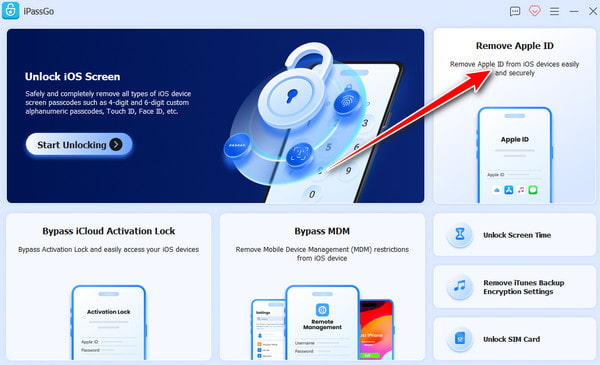
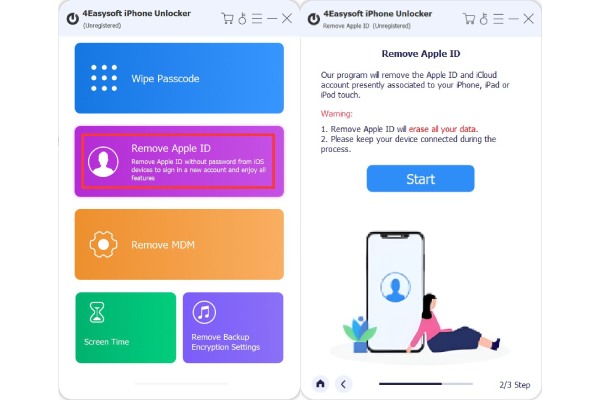
Step 1Launch 4Easysoft iPhone Unlocker on your computer, then connect your disabled iPhone via a USB cable. From the main screen, select the "Remove Apple ID" option. Wait for a few seconds for the tool to detect your device, then click the "Start" button to move on.
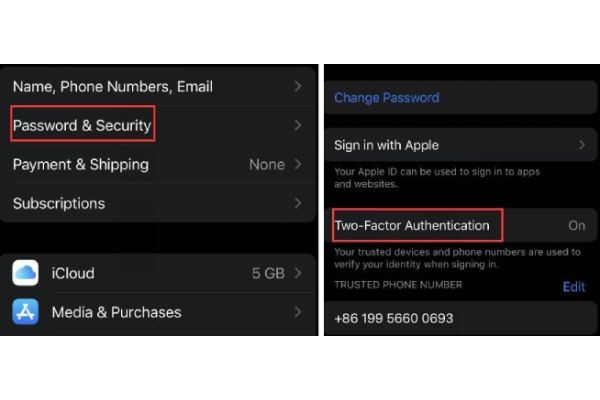
Step 2On your iPhone, ensure the "Two-Factor Authentication" is enabled by heading to "Settings". Once you've confirmed this, check the device information shown on your computer to make sure it is correct. Click the "Start" button again to proceed.
Step 3When prompted, enter "0000" to confirm your action. Click the "Unlock" buttonto remove the Apple ID from your disabled iPhone immediately.
100% Secure
100% Secure
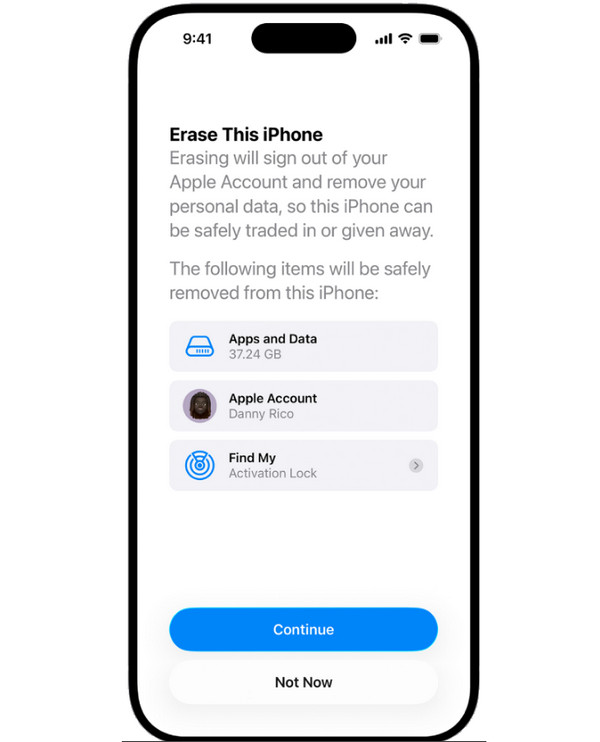
Use "Erase iPhone" to Unlock a Disabled iPhone
Apple gives you a built-in option that lets you unlock a disabled iPhone without a computer from the lock screen on newer versions. You can erase iPhone without password via Apple ID. If you still remember the Apple ID used on the device, this method is very useful to unlock an iPhone when it is disabled.
Step 1After all attempts to open your device, the disabled screen will show the "Erase iPhone" option. Please tap on it and confirm your choice when prompted.
Step 2Enter your Apple ID credentials linked with the device to confirm ownership.
Step 3The iPhone will then remove all data and restart automatically.
Use the Find My iPhone on Another Device to Unlock a Disabled iPhone
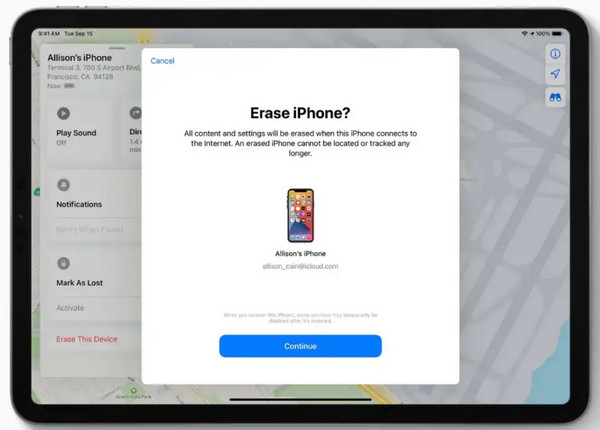
Suppose the Erase iPhone option cannot be found on your device, then try the Find My iPhone to unlock an unavailable iPhone! This approach allows you to erase disabled iPhone remotely with the help of another Apple device or a browser. If you have completely erased it, your device can be set up again normally.
Step 1Open the "Find My" app or head to iCloud.com on another phone or computer.
Step 2There, log in with the same Apple ID linked to the disabled iPhone.
Step 3Choose your disabled iPhone from the list.
Step 4Then, tap "Erase iPhone" and confirm the action, and the device will start erasing it. Later, set up the iPhone again.
Unlock a Disabled iPhone with Official iTunes
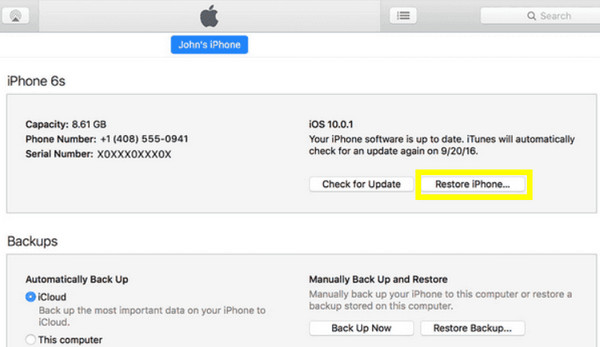
If Find My iPhone does not work, you can fix a disabled iPhone using a computer. Here, you can rely on iTunes, Apple's traditional tool for restoring devices, and it works best if your iPhone was previously synced with iTunes. Once done, the disabled screen will be gone.
Step 1Check if you have updated iTunes to the latest version or not.
Step 2Then, connect your disabled iPhone to the computer via a USB cable.
Step 3Complete the Recovery Mode process by following the correct button combination.
Step 4Once iTunes detects it, select "Restore". Restore and unlock disabled iPhone by connecting to iTunes.
Unlock a Disabled iPhone Using Finder on your Mac
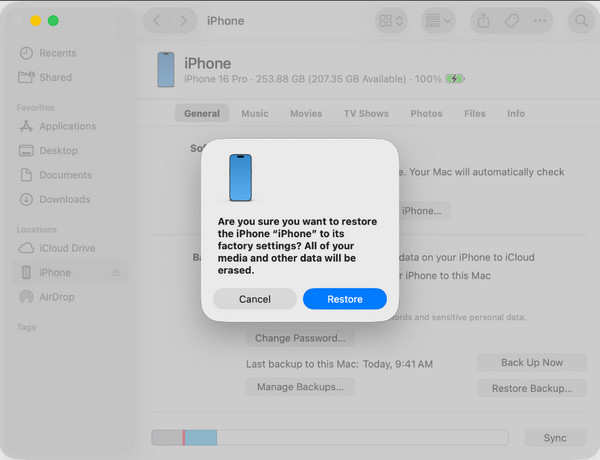
Finally, for Mac users out there, especially those running newer macOS versions, Finder provides the same functionality to erase a disabled iPhones as iTunes. It is built directly into the system, not requiring extra software. This solution uses a USB connection and Recovery Mode.
Step 1Connect your iPhone to Mac via a lightning USB cable.
Step 2Put iPhone into Recovery Mode.
Step 3Launch "Finder" and locate your iPhone in the "Locations" section.
Step 4Click "Restore" when prompted and wait for the process to complete.
Step 5Later, disconnect your iPhone and follow the on-screen setup process.
Conclusion
Dealing with a disabled iPhone is not hopeless. As you have seen, there are several easy and effective ways to unlock disabled iPhone, from iTunes, Finder, to alternative methods that don't even use iCloud. The best option to unlock disabled iPhone without erasing data depends on your situation, whether you have the Apple ID credentials or not. 4Easysoft iPhone Unlocker can get into a disabled or locked iPhone without data loss. If you are looking for a safe iPhone passcode remove tool, click the Free Download button and see how it works now!
100% Secure
100% Secure
