

Reliable video converter, editor, and compressor for daily tasks.

6 Ways to Combine Multiple Videos on Windows/Mac/Online

Posted by Paula Pailaga to Edit Video/Audio Dec 19, 2025
For creating smooth stories, tutorials, reels, and professional projects, knowing how to combine videos is essential. You can put together all travel clips or join short videos for social media, and having the right video combiner tool makes the process much easier. Fortunately, today's tools have more than basic merging, and this post shares six of the best tools to combine 2 videos and more. Pick the best tool here that will make merging effortless and efficient.
Guide List
The Difference Between Splice, Side-by-Side, and Picture-in-Picture Merge Multiple Videos with Powerful Editing Tools How to Merge Multiple Videos Using the Photos App Merge Videos for Free Using the Popular VLC Player Kapwing - Versatile Editor with Timeline Controls Clideo - Fast Online Video Merger VEED.IO - Simple Drag and Drop CombinerThe Difference Between Splice, Side-by-Side, and Picture-in-Picture
Before stitching videos, it's crucial to have an idea of the three main layout options available in video editors. Each creates a different experience and gives a unique purpose in presentation, storytelling, or comparison. Knowing the difference will allow you to select the style that best matches your needs.
• Splice. Splicing simply merges videos in a continuous sequence. Only one clip is presented at a time, and the next one starts when the previous video ends, which is ideal for vlogs, recaps, travel videos, and storytelling.
• Side-by-Side. This side-by-side editing combines two videos or more within the same frame, playing at the same time. The screen is split vertically or horizontally, allowing viewers to compare visuals at once.
• Picture-in-Picture. Lastly, picture-in-picture overlays a smaller video on top of the main full-screen video. It usually highlights the main footage while adding additional content in a corner or some space on the screen, making it great for walkthroughs, demos, commentary, and tutorials.
Merge Multiple Videos with Powerful Editing Tools
One of the most reliable tools today for combining videos, especially if you wish for strong editing capabilities, is the 4Easysoft Total Video Converter. This all-in-one program not only supports hundreds of video formats, but it also blends multiple clips into a single video file. In just a few clicks, you can combine two videos together and more without going through complicated steps. Furthermore, it has an impressive built-in editor, offering trimming, cropping, effects, filters, and more enhancements for a more polished final output.

Can seamlessly merge videos into one even if they are in different formats.
Designed for ultra-fast conversion and merging speeds, making it ideal for long projects.
Keeps high-quality output before, during, and after the merging process.
Offers editing tools for trimming, cropping, applying effects, etc.
100% Secure
100% Secure
Step 1Launch 4Easysoft Total Video Converter on your computer. Add the video clips you wish to merge by clicking the "Add Files" button or by dragging and dropping everything into the upload area.

Step 2Rearrange your clips by dragging each into the correct order, then enhance each by clicking the ""Edit" or "Trim" buttons. After editing, go to the "Format" dropdown menu to pick your preferred formats and adjust any settings as needed.
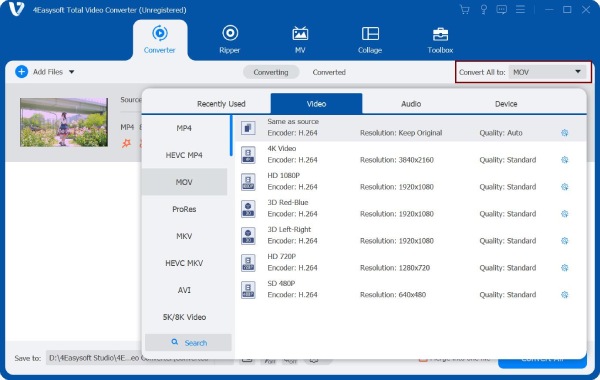
Step 3Before converting, ensure to check the ""Merge into one file"" box at the bottom so all videos will be combined into a single file. Select your destination, name your file, and complete it by clicking the ""Convert All" button.

100% Secure
100% Secure
How to Merge Multiple Videos Using the Photos App
You'll be glad to know that the Photos app on Windows can help you combine two videos. Here, you won't need any extra software, so the Photos app is ideal for quick projects, editing, and merging short videos into one seamless video file. Although it does not have advanced drifting tools, it works more than enough for anyone who just want to merge two videos together into a single video.
Step 1Inside the "Photos" app on your Windows PC, go to the "Video Editor" tab. Click the "New Video Project" option and give your project a name.
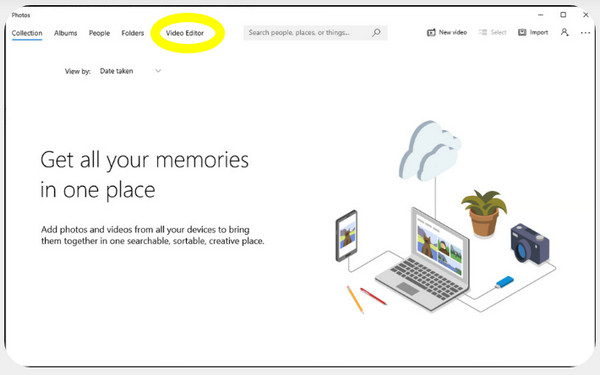
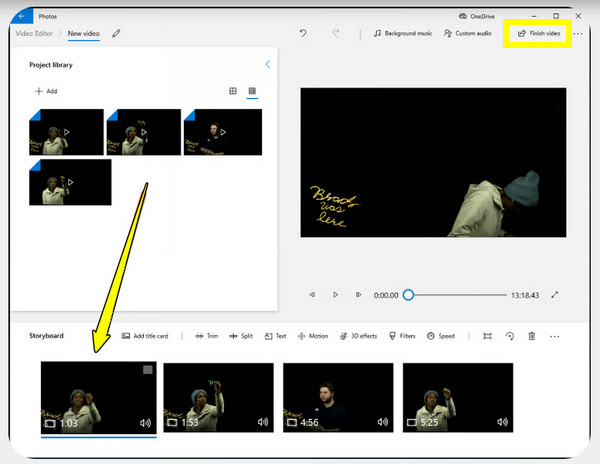
Step 2Select "Add" and import all clips you wish to combine. Drag each clip to the "Storyboard" at the bottom in your desired order.
Step 3You can make optional edits like trimming, adding text, or adjusting the speed.
Step 4Click the "Finish Video" button, choose your output quality, and save the combined files.
Merge Videos for Free Using the Popular VLC Player
VLC Media Player, on the other hand, is widely known as a powerful free video player. But it has built-in editing tools to stitch videos in MOV, MP4, and other formats. This method works very well if the video is shared with the same format and codec, making it a reliable, lightweight alternative to other full-featured editors. While the process is not as appealing as a timeline editor, it is efficient and straightforward to combine multiple video clips.
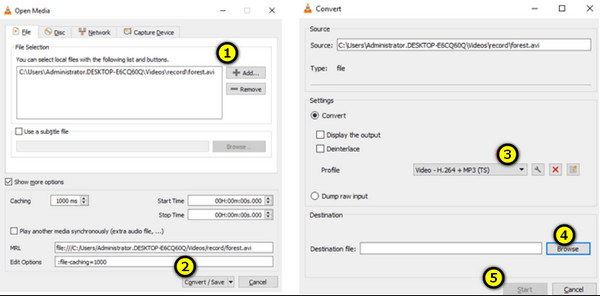
Step 1Open VLC Media Player on your computer. Head to the "Media" menu and choose "Open Multiple Files". Click the "Add" button and import all files you wish to get merged.
Step 2Now, open the "Play" dropdown (if the Convert/Save is not selected) and select "Convert/Save".
Step 3Select a "Profile" like MP4, and click on "Browse" to choose where you can save the combined files.
Step 4After all that, click the "Start" button, and the program will combine more than two videos into a single file.
Kapwing - Versatile Editor with Timeline Controls

Works not only as a video combiner, but Kapwing is also a complete video editor that gives you a precise timeline for combining clips. Here, you can place videos side by side, put them vertically, or combine them in sequence depending on your project. You can also enjoy tools like filters, cropping, subtitles, and audio editing for a more polished result.
Clideo - Fast Online Video Merger

Clideo is a popular online video merger. It covers many video formats, letting you combine videos in MP4, MOV and other popular formats. Later, you can mix video clips in one timeline. It features a beginner-friendly interface, making it easy for you to drag clips into order, trim them, and select your desired resolution.
VEED.IO - Simple Drag and Drop Combiner

Offering a clean and intuitive drag-and-drop main screen, VEED.IO is one of those online video combiners that makes merging videos very straightforward. It also has options for interesting text, music, or overlays to make the video more engaging. Since it works fully online, you can start merging videos quickly without installing any program.
Conclusion
Especially with the wide range of tools mentioned today, learning how to merge videos does not have to be complicated. From a simple online combiner or a feature-paced editor, each option has unique strengths to help you create professional-looking videos. You also get here the difference with splice, side-by-side, and picture-in-picture effects. All these can be done with 4Easysoft Total Video Converter, a powerful all-in-one solution that combines videos smoothly while giving you full editing capabilities. Indeed, an excellent choice to consider for combining videos flawlessly.
100% Secure
100% Secure
