
Burn videos to DVD/ Blu-ray with templates and editors.

How to Burn a DVD on a Mac for Compatibility [3 Fast Ways]

Posted by Paula Pailaga to Burn DVD/Blu-ray Jul 02, 2026
"How do I burn a DVD on a Mac" This might be a question that many users who want to access DVD content on a Mac freely would like to ask. Whether you have found some interesting videos on your Mac or synchronized the videos from your iPhone/iPad to your Mac via iCloud, burning them to DVDs can always provide a more secure physical storage option for playing or viewing them on other devices or in the future. This post provides you with three practical ways to burn DVDs on a Mac quickly. Start reading now to learn about them.
Guide List
How to Burn a DVD on a Mac with Every Detail Maintained Finder: A Built-in Solution to Burning DVDs on Mac A Code-Based Way to Burn a DVD on Mac via the Command LineHow to Burn a DVD on a Mac with Every Detail Maintained
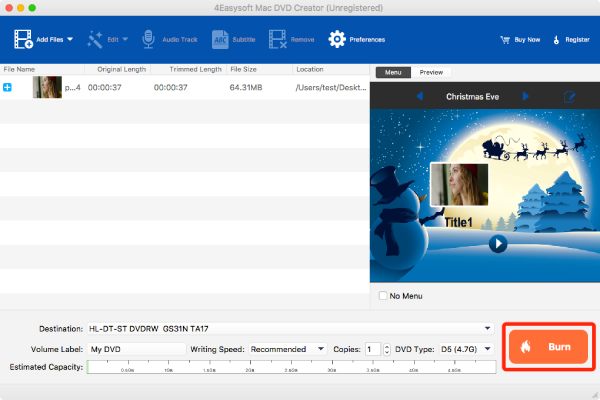
For those users who want to burn DVDs to a Mac without any quality loss, a professional tool is necessary to prevent data loss during the process. 4Easysoft Mac DVD Creator is a reliable option that can help you transfer videos from your Mac to a DVD without any loss of quality. This tool offers a wide range of customizable options, allowing you to create a DVD exactly according to your own ideas. From the title and chapters to the subtitles and audio tracks, even if you are a beginner, you can create a professional-level DVD.
Burn a DVD on your Mac of professional quality, even if you're a beginner.
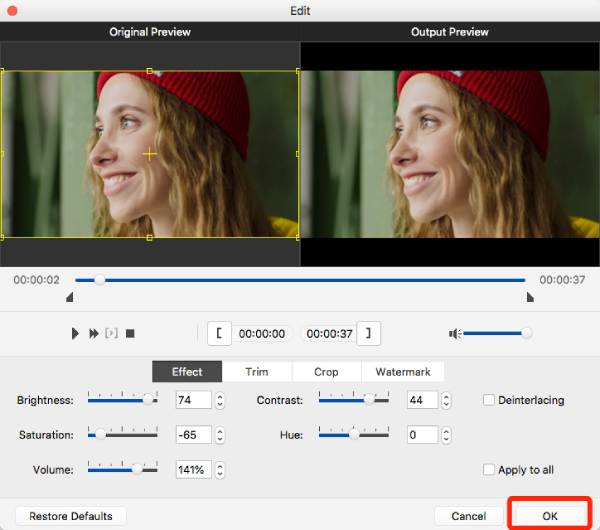
Allow you to trim, crop, adjust effects, and more before burning a DVD on Mac.
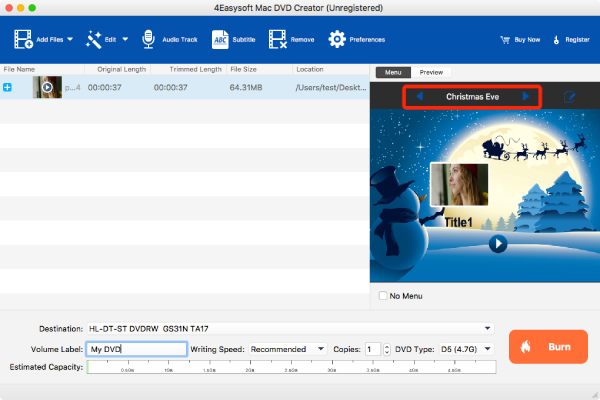
Hold many themed templates for you to choose from: holiday, wedding, travel, etc.
Burn videos of any format on your Mac to a DVD for compatible playback.
100% Secure
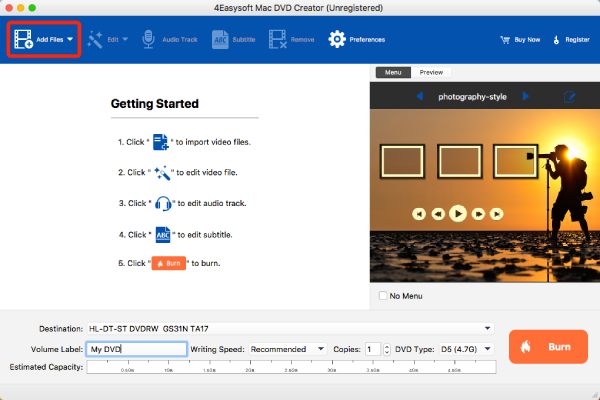
Step 1Insert a blank disc into the DVD drive connected to your Mac. Launch 4Easysoft Mac DVD Creator and click the "Add Files" button to upload the files you want to burn.
Step 2Then, in the pop-up window, you can edit your videos for burning to a DVD. Once done, click the "OK" button.
Step 3You can also create the menu for the DVD. There are many templates available.
Step 4Select the destination at the bottom. Finally, click the "Burn" button to burn a DVD on your Mac.
Finder: A Built-in Solution to Burning DVDs on Mac
If you merely want to complete the most basic DVD burning on your Mac, then in fact macOS provides a built-in solution to assist you in accomplishing this task. This operation provides the functionality offered by Finder, allowing you to simply drag media files onto the blank disc and easily complete the burning process. However, it should be noted that Finder is unable to customize the various parameters of the CD. And as a free DVD burner, Finder also does not support burning high-quality encoded videos.
Step 1Launch Finder after inserting the DVD into the drive. Drag and drop the media files to the blank DVD within the Finder.
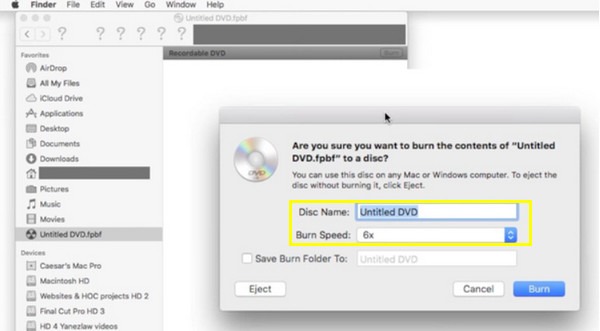
Step 2Right-click the "DVD" button and click the "Burn to Disc" button. After naming your DVD, click the "Burn" button to burn a DVD on your Mac.
A Code-Based Way to Burn a DVD on Mac via the Command Line
Apart from using professional software and built-in tools, the command line can also assist you in burning DVDs on a Mac. Although this method has quite high requirements for coding knowledge, it won't be a problem for advanced users who are familiar with command-line operations. If you don't have the necessary knowledge and skills, then this method is not recommended as it poses risks of damaging video files or even blank discs. You can follow the steps below to learn how to burn a DVD using the command line.
Step 1After installing Homebrew, insert the blank DVD. Launch "Terminal" on your Mac by clicking the "Utilities" button under the "Applications" tab.
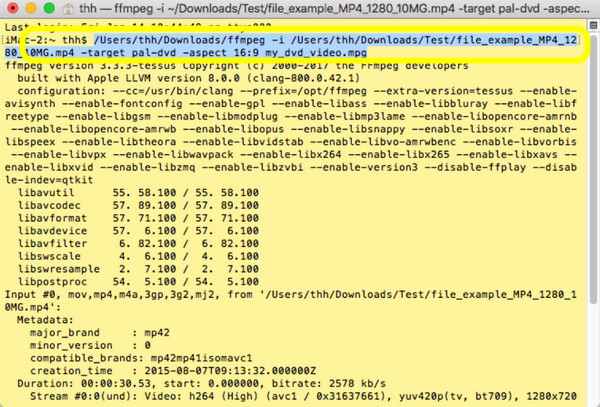
Step 2To transcode your files and burn a DVD on your Mac, type the command ffmpeg -i my-video.mp4 -target pal-dvd -aspect 16:9 my_dvd_video.mpg and press the "Enter" button:
Step 3To create the DVD folder, type the command dvdauthor -o my_dvd/ -t my_dvd_video.mpg. and press the "Enter" button:
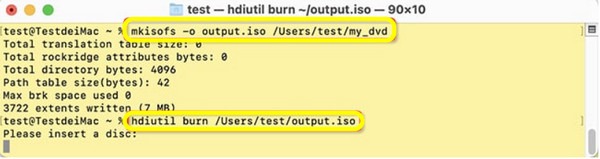
Step 4To create ISO images, type the command mkisofs -o output.iso my_dvd and press the "Enter" button:
Step 5Finally, type the command "hdiutil burn output.iso" to produce an ISO image and burn a DVD on your Mac.
Conclusion
Now you have learned how to burn a DVD on your MacBook. The built-in Finder and Command Line can both assist you in completing the most basic burning tasks. However, both methods lack support for custom options. If you want to burn a professional-level DVD in the simplest and most efficient way without any professional knowledge, then you can choose 4Easysoft Mac DVD Creator to complete the burning task without any loss in quality.
100% Secure
100% Secure
