
Back up and restore iPhone/iPad/iPod data selectively and safely without data loss.
3 Ways to Back Up iPhone to Windows and Mac Computers

Posted by Alvin Cantero to iOS Backup&Restore Mar 13, 2026
It is highly suggested to create a local backup before updating, repairing, resetting, and switching iPhone. Though you can upload some files to iCloud and other cloud storage, you may still encounter data loss or leak issues. No matter whether you want to back up iPhone to your computer selectively or completely, you can get easy steps here. Please continue reading and create a copy of your iPhone files.
Guide List
Back Up iPhone to Computer without iTunes or iCloud [Selective Backup] How to Back Up iPhone to Windows Computer How to Back Up iPhone to Mac Computer FAQsBack Up iPhone to Computer without iTunes or iCloud [Selective Backup]
4Easysoft iOS Data Backup & Restore is capable of creating a full or customizable iPhone backup. Compared with iCloud and iTunes, you can get more control over iPhone data backup and restore. No unexpected data erasing or file size limit. Just preview, edit, select, and then back up the files to make a copy.
Back up media files, contacts, and 20+ data types from iPhone to computers.
Selectively backup and restore iPhone data at superfast speed.
Create an encrypted backup with a passcode to protect privacy.
No data loss during the entire iPhone backup and restore process.
100% Secure
100% Secure
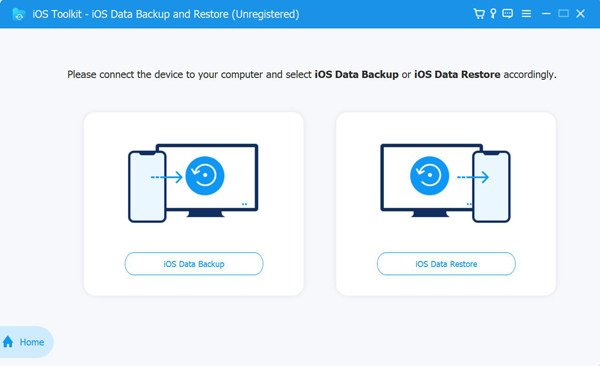
1. Open 4Easysoft iOS Data Backup & Restore after the installation. Use a lightning USB cable to connect your iPhone to this computer.
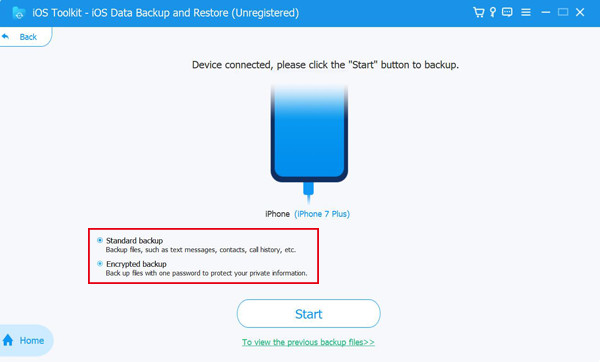
2. Click the "Standard backup" or "Encrypted backup" button. Then click the "Start" button to move on.
3. Choose a destination folder and select the target files to back up iPhone without iTunes or iCloud to your computer.
100% Secure
100% Secure
How to Back Up iPhone to Windows Computer
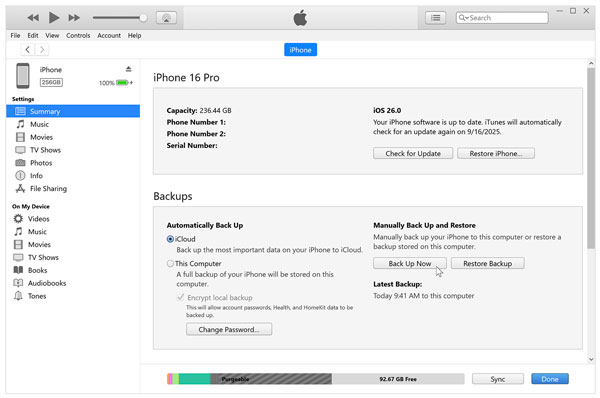
iTunes is a traditional and free tool to back up an iPhone to a Windows PC. You can back up photos, videos, messages, contacts, calendars, notes, voice memos, call histories, app data, and configurations from iPhone to Windows entirely. But be careful if you want to restore iPhone from an iTunes backup. Because this process will erase the current device data and replace it with the iTunes backup content. So, your recently files will be erased too. Now, let's create a local iPhone backup file with iTunes.
- 1.Connect your iPhone to your computer using a USB or USB-C cable. Unlock iPhone and tap the "Trust" button to trust this computer.
- 2.Find the iPhone icon in the top left area of iTunes.
- 3.Under the "General" or "Summary" tab, click the "This computer" button to set it as your iTunes backup location.
- 4.Click the "Back Up Now" button to use iTunes to back up your iPhone to a PC.
How to Back Up iPhone to Mac Computer
Many people prefer to back up their iPhones without iCloud due to its drawbacks. You cannot back up non-Apple music and media files using iCloud. To bypass iCloud backup restrictions, you can use Finder to back up your iPhone to a MacBook or an iMac. It requires macOS Catalina 10.15 or later. Moreover, you can encrypt a local backup of Health/Activity data or passwords.
- 1.Plug your iPhone into the computer via a USB cable. If you are prompted, enter your iPhone passcode or tap the "Trust This Computer" button.
- 2.Open Finder on Mac. Click your iPhone's name in the sidebar.
- 3.Click the "Back up all of the data on your iPhone to this Mac" in the "General" tab.
- 4.Click the "Back Up Now" button to back up your iPhone to your computer without iCloud.
FAQs
-
How long does it take to back up an iPhone to a computer?
It depends on the connection speed, your iPhone storage size, and the backup file size. For example, it takes 30 to 60 minutes to back up a 128GB iPhone. The further incremental backups usually finish in under 3 to 15 minutes.
-
Can I move my iPhone backup to an external hard drive?
Yes. You can copy and move previous iPhone backup files to an external drive. It usually happens when your Windows or Mac hard drive is full. So, you can transfer everything from your iPhone to an external hard drive as a backup.
-
Can I back up my iPhone to a computer wirelessly?
Yes. You can enable Wi-Fi syncing in Finder or iTunes to back up your iPhone over Wi-Fi. Make sure your iPhone and computer connect to the same Wi-Fi network. This is the key point for a cable-free iPhone backup.
Conclusion
Creating a local backup ensures that your iPhone data stays safe even if the iOS device is lost, damaged, or reset. Though iTunes and Finder can handle basic backups, it is still suggested to use 4Easysoft iOS Data Backup & Restore to back up an iPhone to Windows and Mac computers. You can bypass backup takes too long, iPhone not showing up in iTunes, and other backup failed errors. Click the Free Download button below and get a straightforward way to back up iPhone data selectively.
100% Secure
100% Secure
