
Remove screen passcode, Apple ID, MDM and Screen Time from iPhone safely.

Locked Out? 5 Ways to Factory Reset iPad without Passcode

Posted by Paula Pailaga to iOS Unlocker Jan 08, 2026
Forgetting your iPad passcode does not mean you can't access it forever. Luckily, Apple and third-party solutions have several ways to factory reset iPad without passcode. Whether you entered the wrong password several times or bought a second-hand device, this guide shares five effective ways to force iPad to factory reset without a passcode. From using iCloud and iTunes to using professional tools, understand each option and proceed carefully.
Guide List
Professional Way to Factory Reset iPad without Passcode How to Reset Your iPad to Factory Settings Using the iCloud Website Reset iPad to Factory Settings without a Password Using iTunes Mastering Finder Reset Your iPad to Factory Settings Without a Password Steps to Factory Reset iPad without Passcode via Find My iPadProfessional Way to Factory Reset iPad without Passcode
When you need a fast, reliable, and friendly solution to factory reset iPad without passcode, using a professional unlocking tool is always the best choice. For this, use the 4Easysoft iPhone Unlocker. It can help you get into a locked or disabled iPad without needing technical skills. Later, you can factory reset a disabled iPad without passcode successfully.

Removes types of screen locks, like digit passcodes, Touch ID, and Face ID.
Fast unlocking process with a high success rate without affecting the existing files.
Clears the iPad disabled screen caused by incorrect attempts, and more.
Support iPadOS 26 (iPadOS 27 beta) and all iPad models (mini, Air, Pro, etc.).
100% Secure
100% Secure
Step 1Open 4Easysoft iPhone Unlocker on your computer. Ensure that iTunes is updated and that your iPad is properly connected to your computer. Now, from the main interface, select "Wipe Passcode".
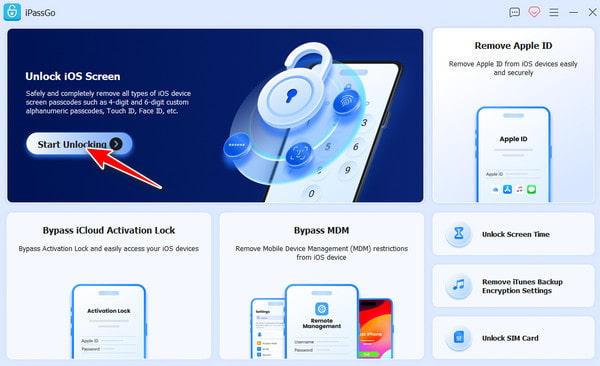
Step 2The program will then detect your device, and then click the "Start" button to continue. Once done, all device information will be displayed. Check them all, then click the "Start" button again to download the required firmware package.
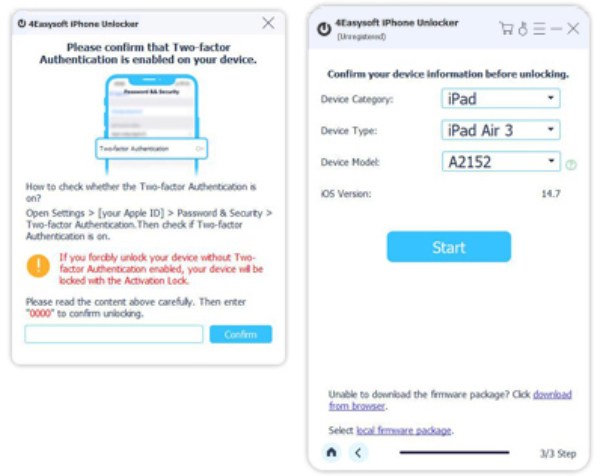
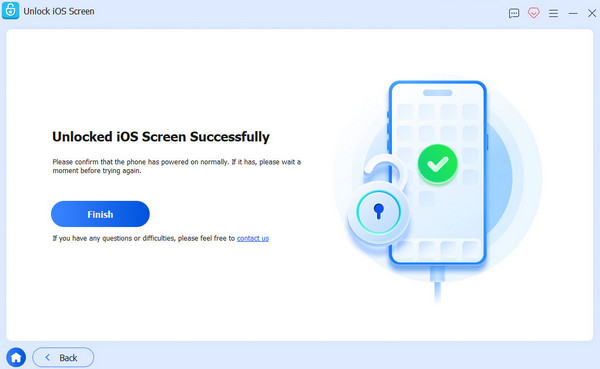
Step 3After that, enter "0000" to confirm the factory reset. Finally, click "Unlock" remove the iPad passcode. Now you can factory reset a passcode locked iPad.
100% Secure
100% Secure
How to Reset Your iPad to Factory Settings Using the iCloud Website
If you have previously turned on Find My iPad, Apple's iCloud website can help you factory reset iPad. As long as the device is linked to the internet and to your Apple ID, you can erase it remotely, but with the help of your Apple ID credentials. So, for those who want a wireless reset option, iCloud works best.
Step 1Search for the iCloud website on your browser and sign in with your Apple ID.
Step 2There, click "Find Devices" and select your iPad from the list.
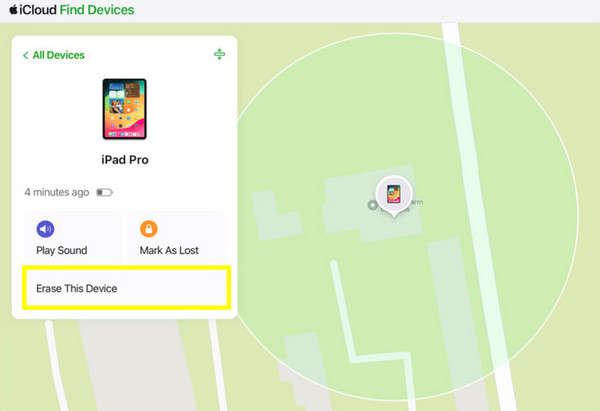
Step 3Next, choose "Erase iPad" from the options.
Step 4Confirm the action to remotely reset your device, and wait for the process to complete.
Reset iPad to Factory Settings without a Password Using iTunes
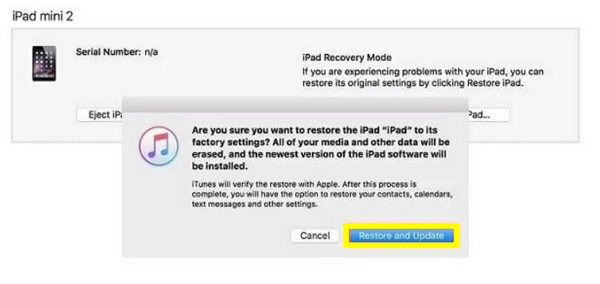
Alternatively, if you aim for a more traditional Apple-supported solution, use iTunes to factory reset iPad without passcode through recovery mode. With this method, you can work on it even when your device is disabled (solutions to fix iPad touch screen not working), but it does need a computer and a USB connection.
Step 1Get the recent version of iTunes on your computer.
Step 2Shut off your iPad completely, and pair it to your PC. Then, put your device into "Recovery Mode" using the correct buttons.
Step 3After it has been detected, select "Restore" in iTunes, and wait for it to download the firmware and reset your iPad.
Mastering Finder Reset Your iPad to Factory Settings Without a Password
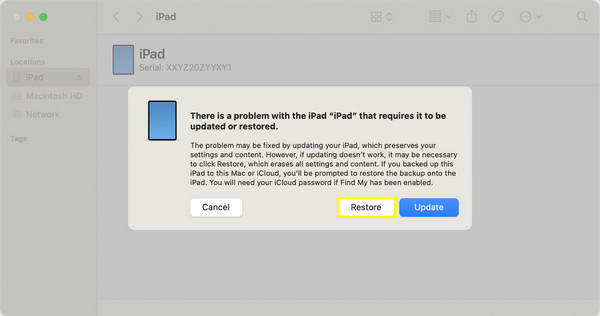
For Mac users running macOS Catalina or later, use Finder as the default device management tool. Using this approach, you can factory reset iPad without passcode, and it works similarly to the previous method but offers a more seamless experience for the Apple ecosystem.
Step 1Turn off your iPad and pair it with your Mac.
Step 2Run "Finder" and find your iPad device under "Locations".
Step 3Next, use the correct buttons to enter "Recovery Mode".
Step 4Once Finder detects it, select "Restore", and allow it to download the firmware and reset your iPad.
Steps to Factory Reset iPad without Passcode via Find My iPad
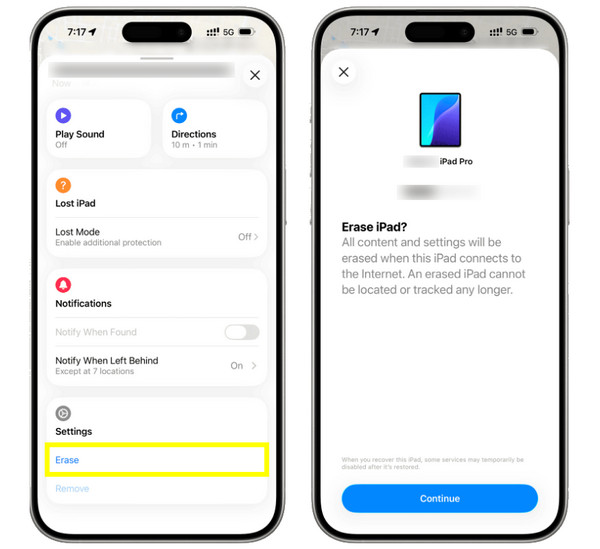
Finally, another effective approach to factory reset iPad is with the Find My app. This solution is simple and effective, especially if you are already familiar with Apple's ecosystem. However, this requires your Apple ID password and will not work if the Find My feature was disabled beforehand. As a result, you can disable restrictions on iPad too.
Step 1Launch the Find My app on another Apple device.
Step 2Head to the "Devices" tab and choose your iPad.
Step 3Next, tap "Erase This Device".
Step 4Then, confirm your decision and enter your Apple ID credentials if prompted. Please wait for the reset to complete.
Conclusion
As shown in this guide, there are five practical ways to reset iPad to factory settings without passcode, from iCloud, iTunes, to a more direct approach. Each way has its own requirements, so choosing the right one depends on your specific scenario and what device you're using. That said, for the fastest, most reliable, and friendliest solution, 4Easysoft iPhone Unlocker is what you need. It lets you factory reset iPad without passcode in just a few steps, supporting nearly all models and versions, so you can remove screen locks safely with broad support and a high success rate.
100% Secure
100% Secure
