

Rip DVD to MKV: 3 Ways and What You Need Before Ripping

Posted by Paula Pailaga to Rip DVD Oct 19, 2026
Is it possible to rip DVD to MKV without losing the movie’s original quality? Absolutely! MKV can store high-quality video, multiple tracks, subtitles, and more in a single file, which is why it is popular for DVD backups and playback. But there are things you’ll need to prepare. And today, you got everything in here! Explore now the 3 ways to convert DVD to MKV, plus things you need to know before ripping. Get your DVDs ready for a smooth MKV conversion.
Guide List
What You Need to Rip DVD to MKV How to Convert DVD to MKV with 4Easysoft DVD Ripper How to Rip DVD to MKV with MakeMKV How to Make MKV from DVD with HandBrake FAQsWhat You Need to Rip DVD to MKV
Before anything else, it will be helpful to have everything ready so you can convert your DVD to an MKV file without any unexpected errors. Here’s what you will need:
- A DVD Drive. Use an internal or external drive that reads your disc properly.
- Disc you want to rip. Insert your DVD into your computer and ensure it can be detected normally.
- Ripping software. Have a reliable DVD ripper that supports MKV output and can handle disc protection.
- Enough storage space. DVD videos can eat several gigabytes, so make sure your hard drive has enough space for your MKV file.
- A computer. A PC or Mac with sufficient processing power and memory will make the DVD to MKV ripping process smoother.
How to Convert DVD to MKV with 4Easysoft DVD Ripper
The best and most convenient place to start is with 4Easysoft DVD Ripper. It loads your DVDs and converts them into MKV and other popular formats you want without going through complicated steps. Beyond basic DVD to MKV ripping, it also provides editing and customization options before exporting the final video. This makes it useful for controlling over your output rather than simply copying just the disc content. Overall, it is your straightforward and best bet to digitize your DVD collection for easier playback.
Features:
- DVD to MKV conversion and other formats like MP4, MOV, AVI, etc.
- Choose available audio tracks and subtitles yourself before conversion.
- Custom output settings to adjust resolution, encoder, frame rate, and more.
- Built-in editor for trimming, cropping, rotating, adding effects, and so on.
Best For: All-in-one DVD ripper with MKV and other formats conversion, editing features, and customizable video and audio settings.
100% Secure
100% Secure
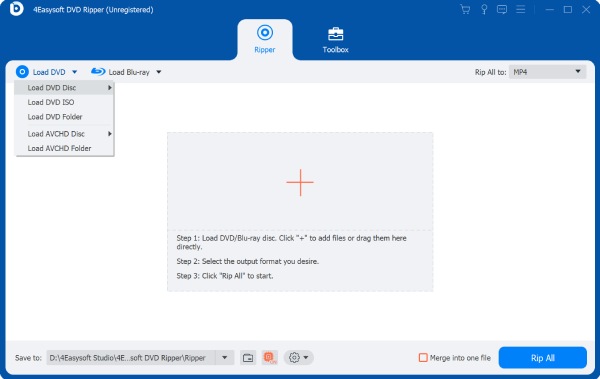
Step 1Once 4Easysoft DVD Ripper is opened on your computer, insert the DVD you want to convert to MKV. Click the "Load DVD" button and choose the disc you just inserted.
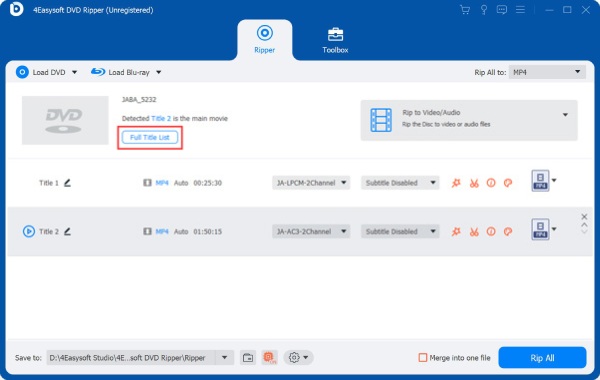
Step 2After your disc is scanned, the movie titles will appear. If you want to include bonus features and other content, click the "Full Title List", select all titles or chapters you need, and click the "OK" button.
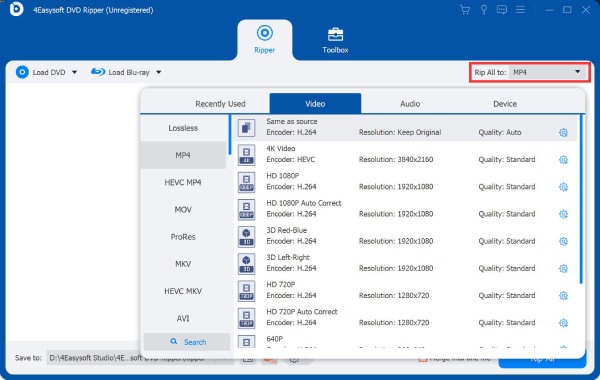
Step 3Then, open the "Rip All" dropdown and choose "MKV" as your output format. To adjust video and audio quality, click the "Custom Profile" and fine-tune the available settings.
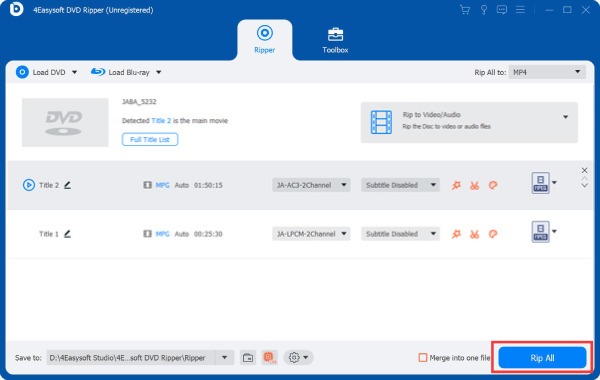
Step 4Select the audio tracks and subtitles you want to keep in your final MKV file. Then, pick a suitable output folder, make sure there’s enough space, and click the "Rip All" button.
How to Rip DVD to MKV with MakeMKV
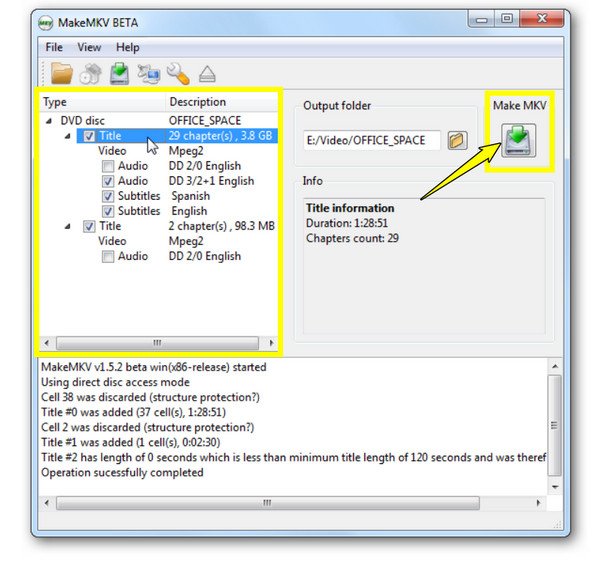
For a simpler method, MakeMKV targets one main job: extracting your DVD to MKV. Instead of re-encoding your video, it remuxes the selected streams into an MKV container, preserving the original video and audio quality. It allows you to pick tiles, audio tracks, subtitles, and other streams.
But you have to consider some limitations too, such as it does not provide normal video re-encoding, no editing tools, it only works with a renewed beta key, and the result can be relatively large. Despite that, it is very much useful if you want a digital copy without huge editing or compression.
Best For: Quickly remuxing a DVD into MKV while preserving the original video and audio streams.
Step 1Launch MakeMKV and place your DVD into the computer’s drive. Once the program scans your disc, expand the main tiles and choose the one you want to rip.
Step 2Keep all tracks and subtitles you want and remove extra streams to reduce clutter.
Step 3Then, choose an output folder and click the "Make MKV" button to start remuxing.
How to Make MKV from DVD with HandBrake
Handbrake takes a different approach when making MKV files from DVDs. It works for free and is open source, which encodes videos into the MKV container. You can regard HandBrake as an MakeMKV alternative. The program re-encodes the video, letting you adjust the quality, codecs, resolution, and other output settings. As a result, it creates smaller MKV files, making it easier for you to store or play them on your different devices. But the catch is that its DVD support and steps can be less straightforward, especially for commercial discs with copy protection.
Best For: If you want to re-encode your DVD into customizable MKV files and are into adjusting encoding settings.
Step 1Open Handbrake and insert your DVD into your computer. Choose your DVD source by clicking the "Open Source" button. Later, select the movie title to convert.
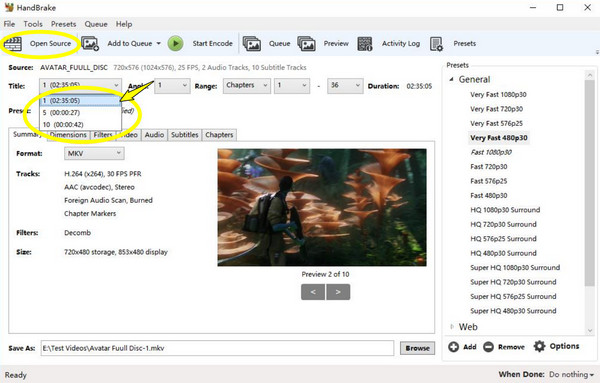
Step 2Proceed to the "Summary" tab and choose "MKV" in the Format menu. Select the desired encoder, quality, resolution, and other settings as needed.
Step 3Choose an output location, and click the "Start Encode" button to finalize your DVD to MKV conversion.
FAQs
-
Can I rip my DVD to MKV without losing quality?
Yes. With the right tools, like MakeMKV, you can remux your DVD content without re-encoding it, which helps preserve the original video and audio quality.
-
Is MKV really a good format for DVD backups?
Yes. Since it stores videos, multiple audio tracks, and subtitles in one file, MKV is a convenient choice for organizing and playing your digital collections.
-
Why are some MKV files larger after the DVD ripping process?
This is due to the fact that when the video is remuxed, rather than compressed. Keeping the original streams results in a larger file but no extra quality loss.
Conclusion
There are many solutions awaiting you to turn your DVD to MKV. Thanks to the mentioned tools, ripping can be easier than you might expect. There’s MakeMKV for preserving original streams, and Handbrake for fine-tuning the output. But for DVD-to-MKV conversion, customizable settings, and editing features in one place, pick 4Easysoft DVD Ripper. Download it today and build your digital DVD collection with just a few simple steps.
100% Secure
100% Secure
