
Burn videos to DVD/ Blu-ray with templates and editors.

10 Best DVD Creator Software for Windows and Mac [Tested]

Posted by Paula Pailaga to Burn DVD/Blu-ray Jun 03, 2026
Not everyone searching for DVD creator software has the same goal. Some people want to take old camcorder footage and finally get it onto a disc. Others want to archive digital files on physical media before a hard drive fails. Some need a proper menu-and-chapters disc for a client presentation or event. And some just want a photo slideshow with music that plays without a Wi-Fi connection. Each of these needs a different tool, or at least different settings. But before any of that, there's one thing worth knowing. Burning a video file to a disc as a data file is not the same as creating a playable DVD. Many factors influence whether a burned disc will actually play, including how it was burned, what software was used, and what disc type was used. The right DVD authoring software handles all of that for you.
Guide List
What DVD Creator Software Actually Does How We Test DVD Creator Software Top 10 Best DVD Creator SoftwareWhat DVD Creator Software Actually Does
Most people think burning a DVD is simple. Just copy the file onto a disc and done. But that is not how it works.
A playable DVD needs three things to happen first.
The DVD burning software has to transcode your video. That means converting your MP4, MKV, or AVI file into MPEG-2 video and AC3 audio. Those are the only formats a DVD player understands.
Then it has to author the disc. This creates the right file structure that your player expects to see. Things like VOB, IFO, and BUP files all have to be in the right place.
Finally, it burns everything as a DVD-Video disc. Not a data disc. There is a difference.
How We Test DVD Creator Software
We installed and used each DVD burning program on Windows 10, Windows 11, and macOS Sequoia. Every program was tested with the same source files: a 1-hour MP4, an MKV, and an AVI. The finished disc was played on a standalone DVD player, not just a computer.
Here is what we scored each DVD creator software on:
| Criteria | What We Checked |
| Disc playback | Does the burned disc actually play on a standalone TV player? |
| Format compatibility | Accepts MP4, MKV, AVI without extra conversion steps. |
| Encoding speed | How long a 1-hour video takes from import to finished disc? |
| Menu creation | Can a beginner build a working menu in under 5 minutes? |
| Output quality | No blurry frames, no broken aspect ratio, no watermarks. |
| Stability | Completes a full burn without crashing or freezing. |
| ISO export | Can save to ISO before committing to a physical disc. |
| Mac parity | Mac version matches Windows in features, not a stripped-down port. |
Playback on a standalone player is the most important test. Any DVD maker software that only produces a disc readable on a computer fails here.
For Mac users, things get trickier. Apple removed native DVD burning support years ago. So when we test DVD authoring software on macOS, we go further. We check whether the Mac version is a full build or just a limited port. We test whether it handles the same formats. We burn a disc and play it on the same standalone player. If the Mac version produces a different result than Windows, we note it clearly.
Not all good DVD creator software treats Mac users equally. We make sure you know which ones do.
Top 10 Best DVD Creator Software
Not every DVD maker program suits every use case. Some are built for speed, some for menu control, and some are only useful as part of a larger workflow. Before reading long paragraphs, you can check the following comparison table. Find which DVD creator you prefer, and then read the target reviews.
| DVD Creator | Burn Speed | Menu | Subtitles | ISO Output | PAL/NTSC | Best For | 4Easysoft DVD Creator | Very fast, GPU acceleration | Yes | Yes | Yes | Yes | First-time users, home videos. | DVDFab DVD Creator | Fast, GPU acceleration | Yes | Yes | Yes | Yes | Fast burns, 200+ formats. | DVDStyler | Moderate, No GPU | Yes (advanced) | Yes | Yes | Yes | Custom menus, free authoring. | WinX DVD Author | Moderate, 4.2GB < 1 hour | Yes | Yes | Yes | Yes | Free Windows burns, no frills. | CyberLink PowerDirector | Fast, GPU acceleration | Yes | Yes | Yes | Yes | Edit then burn in one app. | AVStoDVD | Slow, CPU only | Yes | Yes | Yes | Yes | Advanced encoding control. | Leawo DVD Creator | Fast, Intel QSync | Yes | No | Yes | Yes | Budget paid option, Mac and Win. | Ashampoo Burning Studio | Slow, CPU only | Basic | Basic | Yes | Yes | All-in-one disc suite. | BurnAware | Fast, Low CPU use | No | No | Yes | Yes | Burn ISO and folders to disc. | ConvertXtoDVD | Slow, CPU only | Yes (advanced) | Yes | Yes | Yes | Reliable burns, best menu editor. |
1. 4Easysoft DVD Creator – Best Overall DVD Making Software
Platform: Windows XP/Vista/7/8/8.1/10/11, macOS
Price: Paid, free trial available.
Best for: Home users who want a clean, playable disc without technical steps.
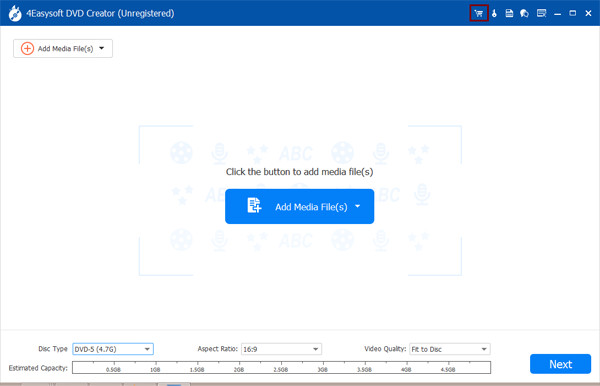
If you have never burned a DVD before, this is probably where you want to start. 4Easysoft DVD Creator does not ask you to understand what MPEG-2 is or manually set your disc structure. You just add your video, pick a menu template, choose your disc type, and hit burn.
The disc we got at the end played on a standalone TV player without any fiddling. That alone puts it ahead of a lot of tools on this list.
100% Secure
100% Secure
Key Features
- Supports MP4, MKV, AVI, MOV, VOB, MTS, and more.
- Outputs to disc, DVD folder, or ISO file.
- DVD-5 and DVD-9 disc types are supported.
- PAL and NTSC are both available.
- Built-in editor: trim, crop, add subtitles, adjust brightness.
- Multiple menu templates with custom background and music options.
- Available on both Windows and Mac as a full build.
- Pros
- Disc plays correctly on a standalone player out of the box.
- The Mac version is not a stripped-down port.
- No watermark on output.
- Beginner-friendly, no learning curve.
- Cons
- Menu customization is limited compared to ConvertXtoDVD.
- No chapter preview before disc burning.
Bottom line: Most people testing DVD creator software just want something that works the first time without a tutorial. 4Easysoft DVD Creator does exactly that. It is not the most feature-rich DVD authoring tool on this list, but it is the one we would hand to a family member and expect them to figure out on their own.
2. DVDFab DVD Creator – Best for Speed and Format Compatibility
Platform: Windows 7/8/10/11, macOS 10.7 or later
Price: $46.99 per year or $59.99 lifetime license. Free trial available.
Best for: People who burn discs regularly and do not want to wait around for slow encoding.
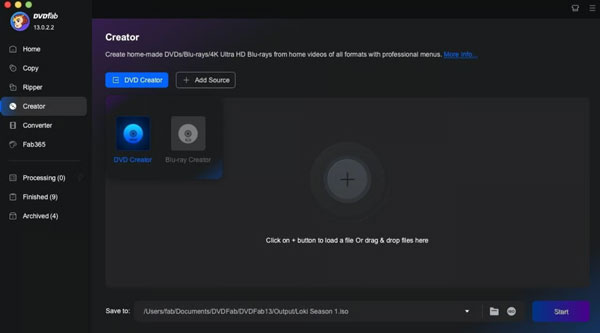
DVDFab DVD Creator is part of the larger DVDFab suite, which has been around since 2003. The DVD Creator module handles video-to-disc burning with GPU acceleration, which makes a noticeable difference on longer files.
It is not the simplest DVD creator software on this list. The interface has a lot going on, and first-time users may need a few minutes to find their way around. But once you do, it moves fast.
In our test, DVDFab DVD Creator handled all source formats cleanly and produced a disc that played on a standalone player without issues. The real-time preview before burning is a genuinely useful feature that most tools skip.
Key Features
- Reads pretty much any video format you throw at it, over 200 in total.
- GPU-accelerated encoding that can run up to 50x faster than standard CPU burning.
- Live disc preview so you can catch menu issues before wasting a blank disc.
- Handles multiple audio tracks and subtitles without extra steps.
- Burns to a physical disc, saves as a DVD folder, or exports to ISO.
- Works with both DVD-5 and DVD-9 disc types.
- PAL and NTSC both supported, useful if you are burning for different regions.
- Pros
- Noticeably faster encoding on longer videos.
- Actively maintained with regular updates.
- Real-time preview catches menu issues before you waste a disc.
- Reliable output quality on standalone players.
- Cons
- No chapter creation feature, which some users find limiting.
- Output file sizes can run larger than expected.
- Pricing is on the higher end compared to alternatives.
- Too many settings for casual users.
Bottom line: DVDFab DVD Creator makes the most sense if you burn discs regularly and want the job done fast. Yes, it costs more than most tools on this list. And yes, it takes a little time to figure out. But once you get comfortable with it, the speed difference is hard to ignore. Casual users who burn once or twice a year will probably find it overkill. For everyone else, it is worth the investment.
3. DVDStyler – Best Free Option for Custom DVD Menus
Platform: Windows, macOS, Linux
Price: Free, open source.
Best for: Anyone who wants real control over their DVD menus and does not want to pay for it.
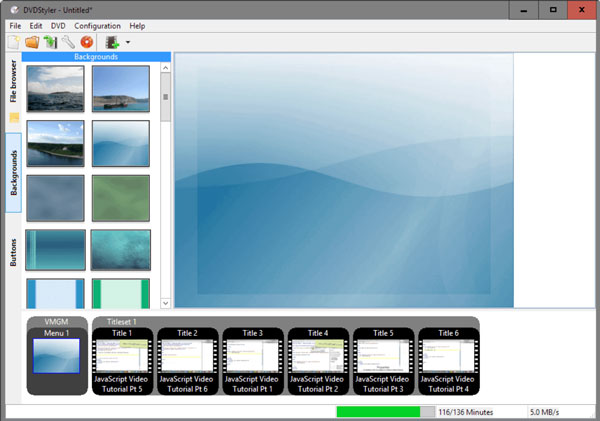
DVDStyler is the go-to free DVD authoring software when menu design matters. You can build menus from scratch, place buttons anywhere on screen, add custom backgrounds, and use your own images. Most free tools do not give you this level of control.
It works on Windows, Mac, and Linux, which is rare for free DVD creation software. The finished disc played correctly on our standalone player.
That said, be honest about one thing: the last stable release was November 2021. Development has slowed down noticeably. A beta version is available, but not recommended for everyday use.
Download it from FossHub or the official site, not SourceForge, to avoid older installer versions that bundled unwanted software.
Key Features
- 20+ customizable menu templates.
- Build menus from scratch with custom backgrounds and buttons.
- Supports AVI, MP4, MOV, WMV, MPEG, and more.
- Photo slideshow creation included.
- Multiple audio tracks and subtitles are supported.
- Outputs to disc or ISO file.
- PAL and NTSC are both available.
- Pros
- Completely free with no watermarks.
- Most menu customization of any free DVD maker on this list.
- Works on Windows, Mac, and Linux.
- No chapter limits.
- Cons
- Last stable update was in 2021, no active development.
- Cannot automatically shrink video to fit a single-layer disc.
- No built-in disc preview before burning.
- It can freeze or crash on larger video files.
Bottom line: If you want free DVD authoring software with real menu control, DVDStyler still delivers. Just go in knowing it is aging software. It does the job, but do not expect polished reliability you would get from a paid tool.
4. WinX DVD Author – Best Free Option for Windows Users
Platform: Windows only (no Mac support).
Price: Completely free, no watermark.
Best for: Windows users who want a no-cost DVD maker with basic menu support.
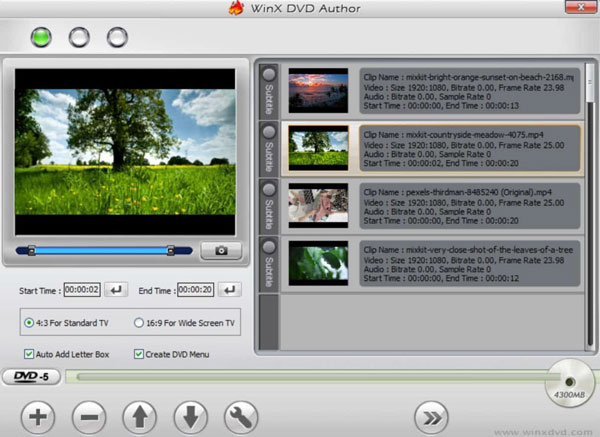
WinX DVD Author has been free since 2011 and people are still using it today. For a simple burn with a basic menu, it holds up fine. You get chapter support, subtitle customization, and PAL/NTSC options without spending a cent. The disc we burned played on a standalone player without any issues.
The honest downside? The free DVD author software has not had a meaningful update since 2019, and the interface looks exactly like it did back in 2006. It works, but it feels dated. Also worth knowing upfront: there is no WinX DVD Author for Mac version.
Key Features
- Supports MP4, AVI, WMV, MPEG, RMVB, and more.
- Built-in menu editor with themed templates.
- Chapter and subtitle customization.
- PAL and NTSC supported.
- ISO output available.
- Completely free with no watermarks.
- Pros
- Genuinely free with no hidden upsell during burning.
- Produces a correctly authored disc that plays on standalone players.
- Lightweight and does not slow down older computers.
- Menu setup is simple enough for first-time users.
- Cons
- Windows only, no Mac version.
- No updates since 2019, development appears abandoned.
- Menu templates are outdated and limited.
- Slow to launch on some systems.
Bottom line: WinX DVD Author is free, burns a disc that plays on a standalone TV player, and has been doing that reliably for years. The interface looks dated and development stopped in 2019, but it still gets the job done on Windows. Do not expect anything polished. Mac users will need to pick a different tool from this list.
5. CyberLink PowerDirector – Best for Users Who Edit Before They Burn
Platform: Windows 7/8/10/11, macOS
Price: Subscription from $80/year. Lifetime licenses available. Free version with watermark.
Best for: People who want to edit their footage before burning it to disc.
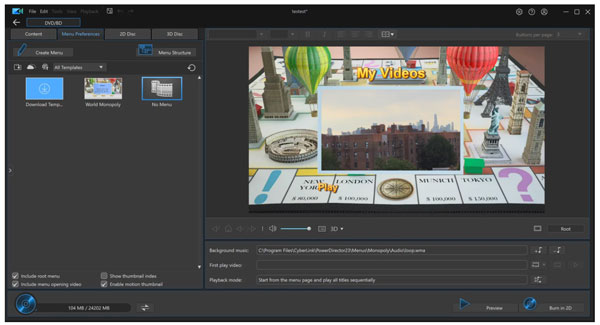
PowerDirector is not a dedicated DVD creator. It is a full video editor that includes disc burning as a final output step.
If you just want to burn a file to a disc, this is overkill. But if you are editing wedding footage, a school event, or a family trip video before burning, PowerDirector makes more sense than any other tool on this list. You edit, add music, build a title sequence, and then burn, all inside one program.
The DVD authoring module lets you create menus, add chapters, and burn to disc or ISO. You can also create a DVD folder to organize your media files on your hard drive before committing to a physical burn.
The Mac version is available but is missing a few features compared to Windows. Worth checking before you buy if you are on a Mac.
Key Features
- Full video editor with timeline, effects, and transitions.
- DVD, Blu-ray, and AVCHD disc authoring.
- Custom menu designer with chapter support.
- Outputs to disc, DVD folder, or ISO.
- PAL and NTSC supported.
- Available on Windows and Mac.
- Pros
- Edit and burn without jumping between two different programs.
- Still actively updated, not a forgotten piece of software.
- Easy enough to pick up even if you have never used a video editor before.
- Menu designer lets you add custom intros and background music, not just basic templates.
- Cons
- Expensive if you only need DVD burning.
- AI-based tools require additional credits on top of the subscription.
- The Mac version has fewer features than Windows.
- Steeper learning curve than dedicated DVD maker programs.
Bottom line: PowerDirector earns a spot on this list for one specific type of user: someone who wants to edit their video and burn it to disc without jumping between two different programs. For pure DVD creation with no editing involved, the other tools on this list will save you money.
6. AVStoDVD – Best Free Option for Advanced Windows Users
Platform: Windows only.
Price: Free, open source.
Best for: Technical users who want maximum control over encoding settings.
AVStoDVD is not for everyone. If you are looking for something you can install and use in five minutes, skip to the next DVD movie creator on this list.
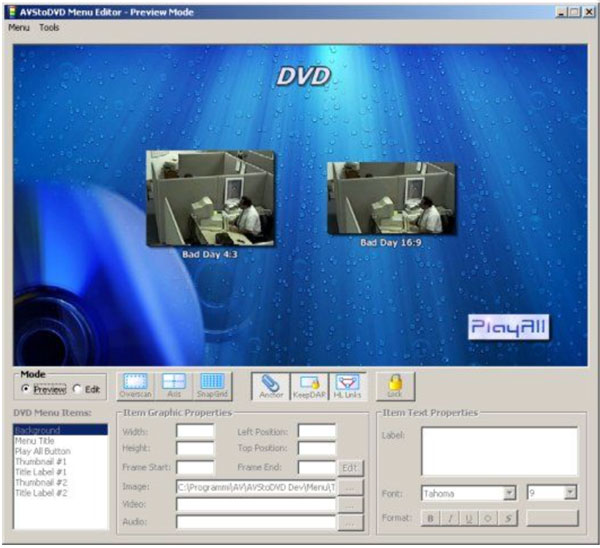
But if you know what you are doing, AVStoDVD gives you more encoding control than almost any other free DVD authoring software out there. You can fine-tune bitrates, deinterlace footage, apply AviSynth filters, handle multiple audio tracks, and build menus with custom static or motion backgrounds.
The latest version is 2.8.9, with the most recent update in October 2025, so it is still being maintained.
One thing to know before you download: ISO creation and DVD burning require ImgBurn, which is not included in the installer and needs to be downloaded separately. AviSynth also needs to be properly installed or the software will throw errors on startup. Users who get it working consistently tend to rate it as one of the best free DVD authoring tools available.
Key Features
- Handles AVI, MP4, MKV, MOV, FLV, and most other formats you will come across.
- Multiple audio tracks and subtitle tracks both work without extra steps.
- Built-in menu editor with options for static or motion menus.
- AviSynth filter support for anyone who wants to get into advanced video processing.
- Batch encoding supported.
- Outputs to DVD folder, ISO, or disc via ImgBurn.
- PAL and NTSC are both available.
- Pros
- More encoding control than any other free tool on this list.
- Actively maintained as of 2025.
- No watermarks, completely free.
- Handles multiple audio and subtitle tracks cleanly.
- Cons
- Windows only, no Mac version.
- Requires ImgBurn installed separately for burning.
- AviSynth errors are common for new users.
- Not beginner-friendly at all.
Bottom line: AVStoDVD rewards users who are willing to spend time on setup. Once it is running correctly, it is hard to beat at this price point. For anyone who wants to just burn and go, this is the wrong DVD creator.
7. Leawo DVD Creator – Best Budget-Friendly Paid Option
Platform: Windows, macOS.
Price: $29.95/year or $39.95 lifetime. Free trial burns up to 5 minutes only.
Best for: Casual users who want a clean paid tool without spending much.
Leawo DVD Creator sits in a comfortable middle ground. It is not as feature-rich as DVDFab, but it costs less and gets the job done for most everyday DVD creation needs.
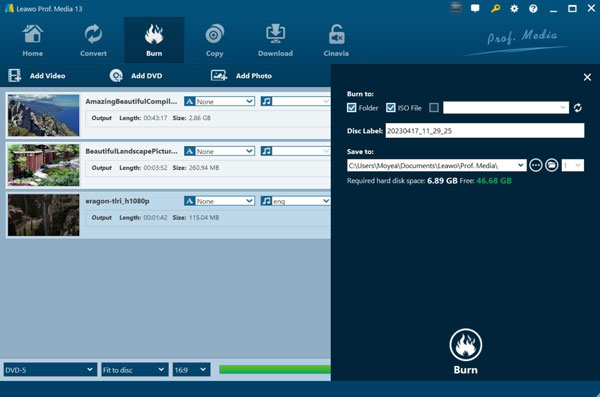
The interface is clean and easy to navigate. Importing a video, picking a menu template, and hitting burn takes just a few minutes. The disc played correctly on our standalone player with no issues.
Leawo DVD Creator uses Intel Quick Sync acceleration, which noticeably speeds up burning on supported hardware. The 40+ menu templates give you decent options without being overwhelming.
One real limitation worth knowing: Leawo DVD Creator does not support adding external subtitle files to discs. If subtitles matter to your project, look at DVDFab or DVDStyler instead.
Key Features
- Takes in 180+ video formats, so you are unlikely to hit a wall with your source files.
- 40+ menu templates to pick from, with room to customize.
- Intel Quick Sync acceleration keeps burn times reasonable on supported hardware.
- Outputs to a physical disc, DVD folder, or ISO file.
- DVD-5 and DVD-9 are supported.
- PAL and NTSC available.
- Available on Windows and Mac.
- Pros
- Affordable lifetime license at $39.95.
- Clean interface, easy to pick up immediately.
- Fast encoding on Intel hardware.
- Mac version available and functional.
- No watermarks on the paid version.
- Cons
- No subtitle support.
- The free trial is very limited, only 5 minutes of content.
- Menu templates are basic compared to ConvertXtoDVD.
- Occasional performance issues are reported on longer files.
Bottom line: Leawo DVD Creator is a solid pick if you want a paid DVD maker program without paying DVDFab prices. It is simple, fast, and works on both Windows and Mac. Just go in knowing the subtitle limitation upfront.
8. Ashampoo Burning Studio – Best Multi-purpose Disc Burning Suite
Platform: Windows 7/8/10/11 only. No Mac version.
Price: Free to register. Paid version originally $30, frequently offered free via promotions on the official site.
Best for: Windows users who need more than just DVD burning in one tool.
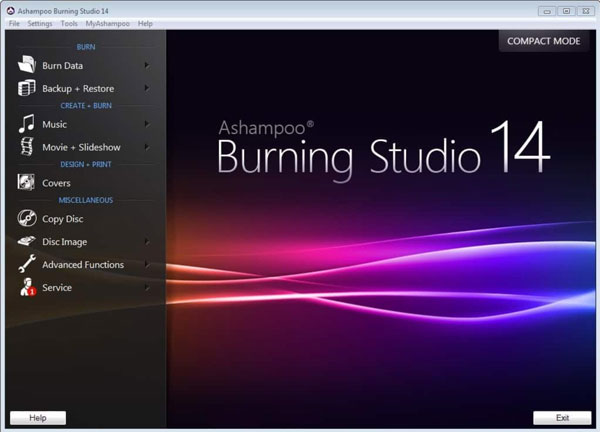
Ashampoo Burning Studio does a lot of things. DVD, CD, Blu-ray, data backup, audio ripping, cover design, and ISO creation. It is a full disc-burning suite rather than a dedicated DVD authoring tool.
That scope is both its strength and its weakness. If you need all of those functions, it is convenient. But if you just want to burn a home video to DVD with a proper menu, you will notice the authoring side feels underdeveloped compared to tools built specifically for that job.
In our test, the disc played correctly on a standalone player. Menu setup was straightforward. But the menu customization options are limited, and previewing menu templates requires a lengthy rendering process that can take several minutes per theme. That gets frustrating quickly when you are just trying to pick a look.
The free version is generous, but the program license requires an internet connection and is verified repeatedly at regular intervals, which some users find intrusive.
Key Features
- Burns DVD, CD, and Blu-ray discs.
- Video DVD authoring with animated menu templates.
- Data backup with scratch protection.
- CD ripping with automatic track identification.
- ISO and CUE/BIN image creation.
- Custom disc cover and case design.
- Disc spanning for large projects across multiple discs.
- PAL and NTSC supported.
- Pros
- Free version covers the most common burning tasks.
- Actively maintained, 2025 version available.
- Handles CD, DVD, and Blu-ray in one program.
- Clean and easy to navigate.
- Cons
- Windows only, no Mac version.
- DVD menu options are limited and take forever to preview.
- Not the right tool if DVD authoring is your main goal.
- Needs an internet connection to activate your license, which some people find annoying.
- More suited to casual burning than structured DVD creation.
Bottom line: Ashampoo Burning Studio is a decent free DVD burner if you burn different types of discs regularly. But as a dedicated DVD creator, it does not compete with the options higher on this list. The menu templates feel basic, and if how your disc looks and navigates actually matters to you, there are better picks above.
9. BurnAware – Best Lightweight Free Burner for Basic DVD Tasks
Platform: Windows only. No Mac version.
Price: Free for personal use. Premium $29.95 lifetime. Professional $39.95 lifetime.
Best for: Users who need a simple, no-frills disc burner for basic tasks.
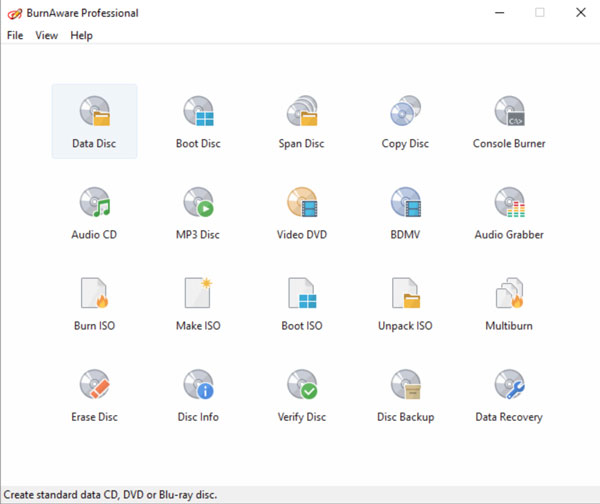
BurnAware wraps up this best DVD creator software list as a lightweight, free option for users who need basic disc burning without any complexity. It handles data discs, audio CDs, video DVDs, ISO images, and Blu-ray, all from a clean and simple interface.
But there is an important limitation to flag upfront. BurnAware does not directly burn video files into a playable DVD. You would need a dedicated DVD authoring tool to prepare the VIDEO_TS structure first, then use BurnAware to write it to disc. That puts it in a similar category to ImgBurn for DVD creation specifically.
The latest version 19.0 was released in January 2026, with lower CPU usage and better compatibility on Windows 11. It is actively maintained, which puts it ahead of several tools on this list.
One thing to watch: the installer has been known to prompt for bundled junkware during setup. Pay attention during installation.
Key Features
- Burns CD, DVD, and Blu-ray without needing separate tools for each.
- Creates and burns ISO images in one place.
- Can make bootable discs if you need them.
- Copies and erases discs without any fuss.
- Has a data recovery option for discs that have become hard to read.
- PAL and NTSC both covered.
- Runs light on system resources, good news if your machine is not brand new.
- Pros
- Actively maintained, updated January 2026.
- Clean and beginner-friendly interface.
- The free version covers most everyday tasks.
- Low system resource usage.
- Cons
- Windows only, no Mac version.
- No DVD editing features, no subtitle support.
- Cannot create a playable DVD from raw video on its own.
- Bundled software prompts during installation.
- The free edition is 32-bit only.
Bottom line: BurnAware is a reliable finishing tool for users who already have their disc content prepared. As a standalone DVD creator, it falls short. But as a lightweight burner that handles everything else cleanly, it earns its place at the end of this list.
10. ConvertXtoDVD – Best for Reliable One-Click DVD Conversion
Platform: Windows XP/Vista/7/8/10/11. Windows only.
Price: $44.99 per year. 7-day trial with watermark on output.
Best for: Users who want a reliable, no-fuss conversion from a video file to a finished disc.
ConvertXtoDVD has been around since 2006 and is still getting updates in 2026. That is not nothing. A lot of people have been using it for years and have no reason to switch.
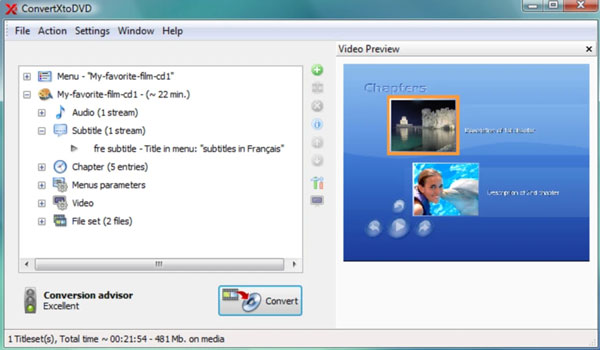
The workflow is pretty easy. Add your video, set your menu, pick your disc type, and burn. Everything happens inside one program. No separate conversion step, no extra tools to install. Subtitles, chapters, PAL and NTSC, widescreen and full-screen, it all works without digging through settings menus.
Menu customization is genuinely one of its strengths. Version 7 added a full template editor where you can build and save your own menu designs. That puts it ahead of most tools on this best DVD creator list for menu control.
The downsides are worth knowing upfront. The interface looks like it has not changed much since 2010, and encoding is slow. If you are burning a 2-hour video on an older machine, go make a coffee, you will be waiting. At $44.99 per year for a tool that only makes DVDs, the price is hard to swallow for casual users.
Key Features
- Handles AVI, MKV, MP4, MOV, WMV, M2TS, and most other formats without complaining.
- Built-in menu editor where you can build and save your own templates from scratch.
- Subtitle support including SRT and SUB/IDX, more flexible than most tools on this list.
- Chapters are created automatically, no manual setup needed.
- PAL and NTSC are both available.
- Outputs to disc, DVD folder, or ISO file.
- No external codecs required.
- Batch conversion supported.
- Pros
- Actively maintained with regular updates.
- Best menu customization of any tool on this list.
- Reliable output, very few failed burns reported by long-term users.
- No external tools needed, fully self-contained.
- Cons
- Windows only, no Mac version.
- Slow encoding speed compared to GPU-accelerated tools.
- The interface has not changed much since 2010 and it shows.
- Expensive for a single-purpose DVD authoring software.
- Trial watermark makes it hard to properly test before buying.
Bottom line: ConvertXtoDVD burns clean and reliable discs for nearly two decades. If menu design matters and you want a DVD creator with a real track record, it is hard to look past this one.
Conclusion
DVD creation does not have to be complicated. The right DVD creator software does the hard work behind the scenes, so you just focus on the result. After going through every option on this list, free and paid, simple and advanced, one DVD authoring software stood out for most everyday users. 4Easysoft DVD Creator is the one we keep coming back to. It handles the full process cleanly. It is straightforward enough for a first-time user and reliable enough to keep using long-term. If you are sitting on a folder of home videos that never made it to disc, this is a good place to start. Download the software, add your footage, and burn one test disc. That is all it takes to see if it works for you.
100% Secure
100% Secure
