
Compress videos from GB to MB and keep its original quality with the AI technology
4 Ways to Change Video Aspect Ratio with/without Cropping

Posted by Aira Lesly Escoto to Edit Video/Audio Apr 03, 2026
When you know how to change the aspect ratio of a video, it will be easier to prevent your video from being cut off or cropped, appearing with black bars, or looking stretched on social media platforms with required ratios. Now, what if you don't know how to do that? Well, continue reading this post, for it can help you! This post features four simple methods to change the video size and aspect ratio on desktop, browser, and mobile! Explore each of them below.
Guide List
Aspect Ratio Application and Platform Specifications Easily Change Video to Any Aspect Ratio for Windows and Mac How to Change Video Aspect Ratio in 2 Online Ways How to Change Video Aspect Ratio on an iPhone/AndroidAspect Ratio Application and Platform Specifications
Before exploring this post's four best methods to resize video s to fit any platform, first, you need to understand why aspect ratios matter. A video's aspect ratio is the relationship between its width and height, such as 16:9, 1:1, 9:16, 4:3 and more. And it determines how your video appears on different platforms.
Each platform has preferred ratios to make videos display correctly, whether on mobile or desktop. Choosing the right aspect ratio ensures your video looks professional and avoids cropping, black bars, or stretched visuals.
| Platform | Recommended Aspect Ratio |
| YouTube | 16:9 (widescreen) |
| TikTok | 9:16 (vertical) |
| Instagram Reels | 9:16 (vertical) |
| Instagram Feed | 1:1 (square) |
| 16:9 or 1:1 |
Easily Change Video to Any Aspect Ratio for Windows and Mac
Now, if your video doesn't match the required aspect ratio, one of the best video aspect ratio changer tools you can use is the professional 4Easysoft Total Video Converter. This desktop-based tool allows you to easily change the aspect ratio of your video. Within just a few clicks, you can change your video's aspect ratio to 16:9, 4:3, 21:9,16:10, 5:4, 1:1, and 9:16. What makes this tool worth trying is that it also supports options that enable you to enhance the quality and appearance of the video. With that, you can definitely get the best version of your video.

Make your video fit any aspect ratio with built-in cropper and presets.
Lets you rotate, crop, add effects, filters, watermark, audio, and subtitles to your video.
Video enhancer that automatically improves the video's resolution, contrast, and more.
Allows you to trim any unwanted parts of your videos.
100% Secure
100% Secure
Step 1Install the 4Easysoft Total Video Converter on your computer and launch it afterward. Next, click "Add Files" to import the video you wish to change the aspect ratio of.

Step 2After that, click the "Edit" button with the "Starwand" symbol. Then, on the "Rotate & Crop" tab, click the "Aspect Ratio" dropdown and choose the appropriate ratio based on the platform you want your video to be optimized for.
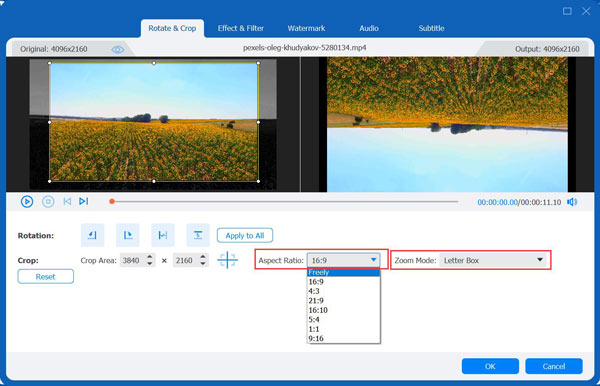
Step 3Once done, click "OK" to save the alterations. Then, to enhance the quality of your video, click "Enhance Video" with the "Paint Palette" icon. After that, choose from the options that you want to enhance and click "Save". You can also preview it to see how it looks.
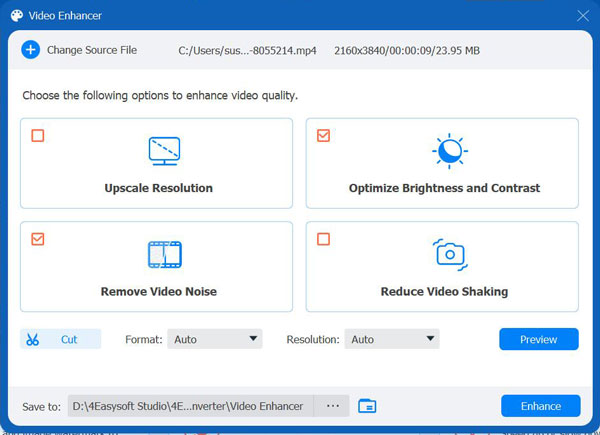
Step 4If you are satisfied, click the "Convert All" button to save the video with a changed aspect ratio. And that's how you use this tool to change the video aspect ratio.

How to Change Video Aspect Ratio in 2 Online Ways
Aside from the desktop-based tools mentioned earlier, there are also online tools that you can use to fit Instagram aspect ratio and more platforms. Explore each of them below.
1. Clideo
Clideo is a web-based tool that lets you easily change aspect ratio of a video online . It provides ready-made presets for different social media platforms, so you can quickly adjust your video to the right size. You can also choose a custom ratio and set the video's width and height manually. However, its free version adds a watermark and may limit export quality.
Step 1Visit Clideo's Video Resizer Online webpage, click "Choose file" and pick the video you wish to change the aspect ratio of to import it.
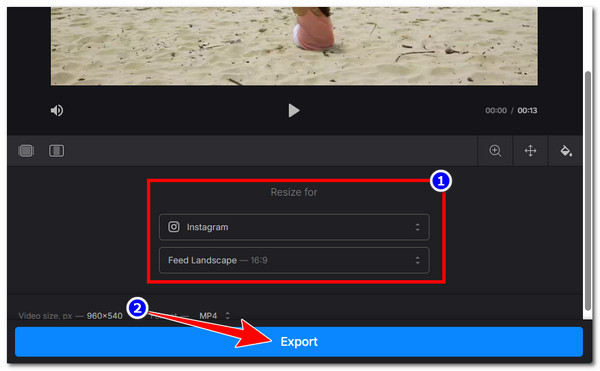
Step 2Next, under the "Resize for" section, choose an aspect ratio based on which platform you wish to post the video. Otherwise, you can also change the aspect manually by choosing a specific option below the platform presets.
Step 3Once done, click "Export" to save the changes and download the video with the changed aspect ratio. That's it! That's those are the simple steps on how to change the aspect ratio of a video using Clideo.
2. VEED
Another online video aspect ratio changer is VEED. This one also offers preset sizes for different platforms, so you can quickly match formats like 16:9, 9:16, or 1:1. You can also adjust how your video fits the frame by stretching it or making it fit the canvas. Unfortunately, the same goes with Clideo; this tool's free version may include a watermark and limited export features. If you want to try this one as an aspect ratio changer for video, here are the simple steps:
Step 1Access VEED's Resize Video webpage. Then, click the "Resize video" button. After that, upload the video you wish to change the aspect ratio of.
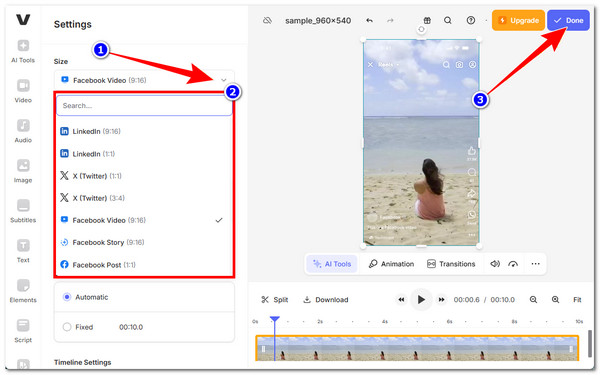
Step 2Next, select the "Settings" option from the left, click the "Size" dropdown, and choose the specific aspect ratio you want your video to have.
Step 3Once done, click the "Done" button and click "Export Video" to export the video and save it on your device. And that's it!
How to Change Video Aspect Ratio on an iPhone/Android
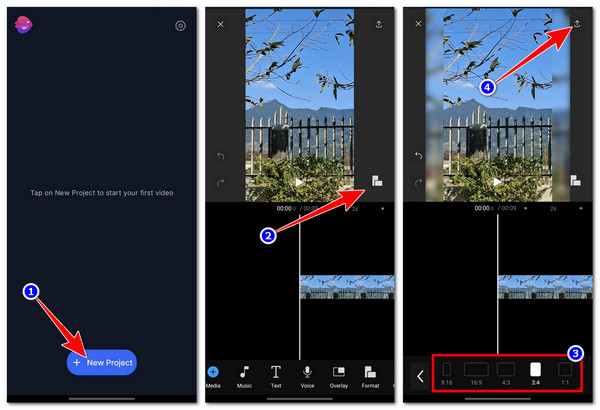
If you prefer to use your mobile phone to change the video aspect ratio, you can use the online tools featured earlier. However, apart from them, there's a mobile-based application that you can also use to change a video's aspect ratio, and that is Filmr, which is made available on both iOS and Android. This user-friendly app is designed to support most of your video editing needs, and that includes changing the size of your video through aspect ratio modification. However, you might find this app a hassle to use for just a simple aspect ratio, as it requires you to register an account first. Here's how you use it:
Step 1Install and launch the app afterwards. Next, tap "+ New Project" and import the video with an inappropriate aspect ratio.
Step 2Then, tap the "Aspect Ratio" icon in the video's preview on the right and choose your preferred aspect ratio.
Step 3Once done, tap the "Export" button with the "Arrow" icon at the top right corner, choose a resolution, FPS, and tap the "Export" button. And that's it!
Conclusion
That's it! Those are the four best ways you can change video aspect ratio on desktop, browser, and mobile. Now that you know how to change a video's aspect ratio, it is easier for you to prevent your video from being cut off or cropped, appearing with black bars, or looking stretched on social media platforms with required ratios. All those tool recommendations are indeed truly workable and effective, but only the 4Easysoft Total Video Converter can give you the best service with high-quality output! Try this tool today and don't forget to share it with your friends.
100% Secure
100% Secure
