
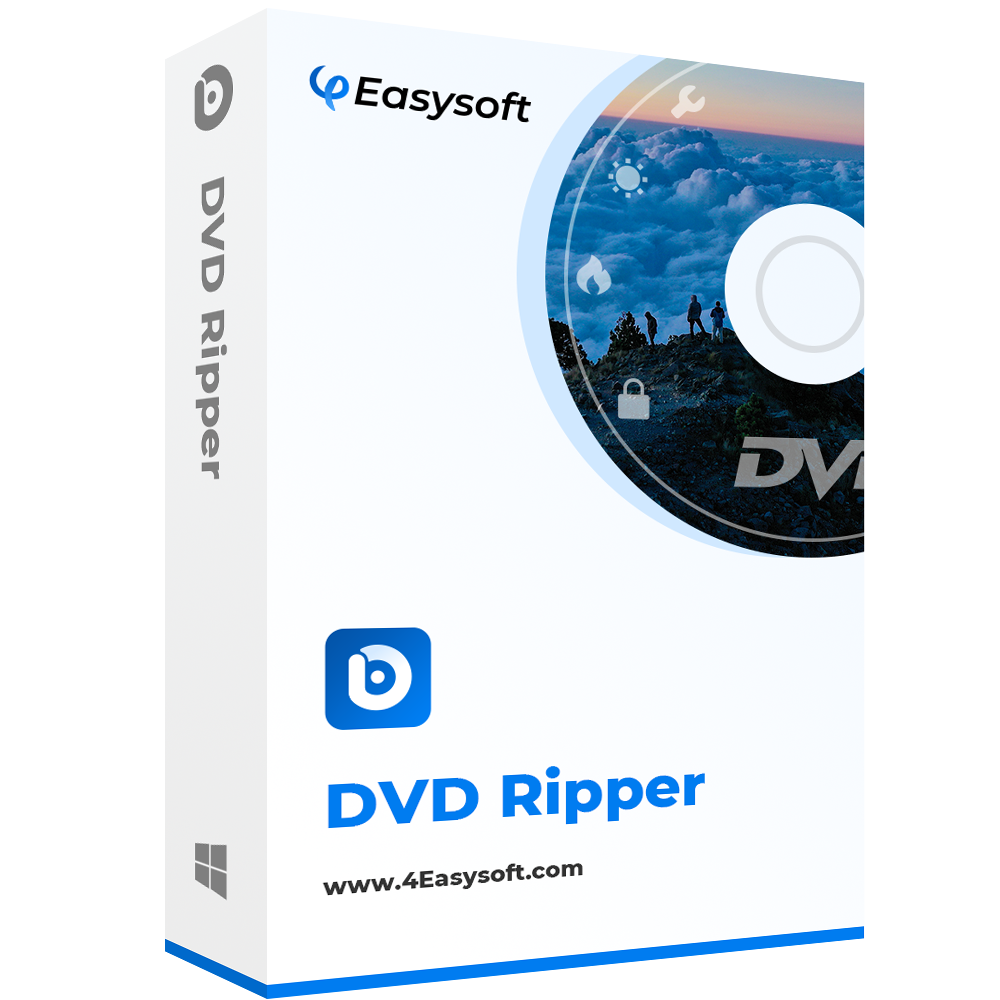
4Easysoft DVD Ripper can decrypt and rip your Blu-ray discs in just one place.
3 Best Ways to Convert Blu-ray to MKV for Any Need

Posted by Paula Pailaga to Rip Blu-ray Sep 04, 2026
You simply want to convert Blu-ray to MKV but aren’t sure whether to keep the original quality with a 20-50 GB file size or save space with a 5-15 GB size. You’re not alone in facing the problem. Blu-ray discs offer excellent quality, but their huge file size can be inconvenient. Which best tool to choose for doing so? Scroll down now to uncover three ways to rip Blu-ray to MKV, so you can choose the method that best matches your storage, quality, and playback needs.
Guide List
Convert Blu-ray to MKV with 4Easysoft DVD Ripper Rip Blu-ray to MKV with MakeMKV Convert Blu-ray to MKV with HandBrake FAQsConvert Blu-ray to MKV with 4Easysoft DVD Ripper
For someone whose goal is to turn Blu-ray to MKV file for everyday playback, a practical choice for you is 4Eaysoft DVD Ripper. Unlike other lossless backup approaches, this approach creates a compressed digital copy by re-encoding your Blu-ray content to formats such as H.264 or H.265. It supports Blu-ray/DVD sources and allows you to pick the output format, resolution, bitrate, codec, and other parameters. You can also choose your desired main titles, audio tracks, and subtitles instead of converting everything, including what you don’t need, on the disc.
It can convert Blu-ray content to MKV and other video formats.
Preview the selected Blu-ray content before starting the conversion.
Create digital copies for playback on TVs, computers, and other devices.
Make edits to your video, such as trimming, adding effects, and more.
100% Secure
100% Secure
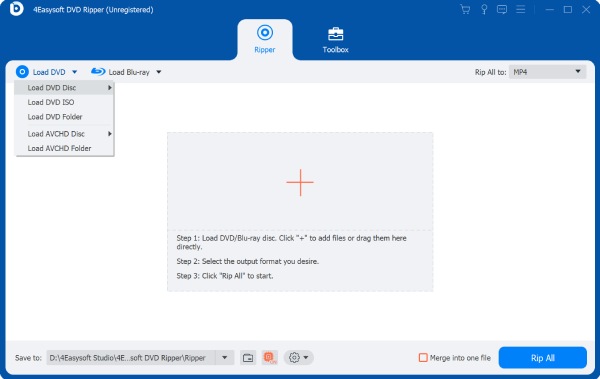
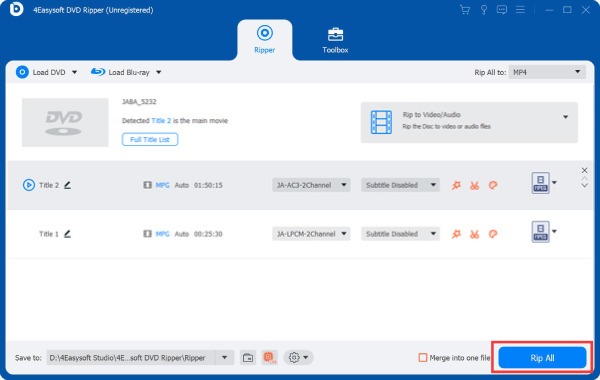
Step 1Insert your Blu-ray disc into the compatible drive, then open 4Easysoft DVD Ripper. On the main interface, click the “Load Blu-ray” dropdown menu and choose the appropriate loading option to import your disc.
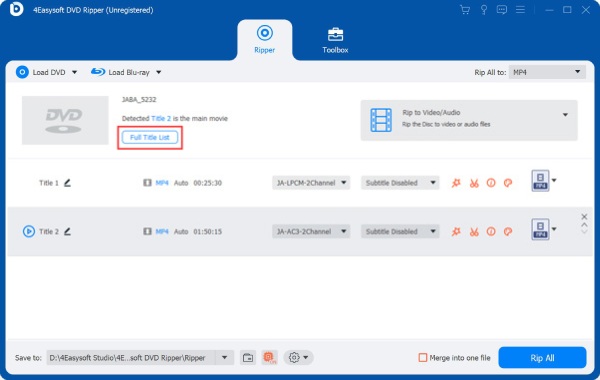
Step 2Once the software finishes scanning your content, it will display the movie titles. To convert bonus content, click “Full Title List” to view everything. Choose the titles/chapters you want to keep, then click the “OK” button to confirm.
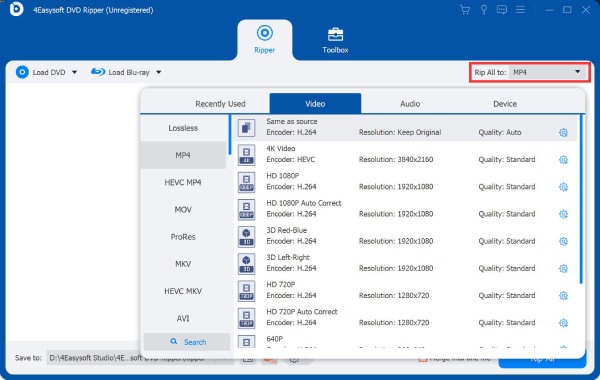
Step 3Click the “Rip All to” menu and choose “MKV” as your format. For more control over your file, click “Custom Profile” beside the format to fine-tune output settings.
Step 4Check the selected audio tracks and subtitles to ensure your MKV file includes everything you need. Next, choose an output folder with enough space, and click the “Rip All” button to start converting your Blu-ray to MKV.
Rip Blu-ray to MKV with MakeMKV
Meanwhile, if your goal is to keep your Blu-ray content as close to the original as you like, use MakeMKV for the Blu-ray to MKV conversion. Instead of re-encoding the video, it extracts the content instead and places the original video, audio, and subtitle into the MKV container. For this, the output can be much larger while maintaining the source quality.
Step 1Place your Blu-ray disc into a compatible drive and launch MakeMKV. Choose your drive, then from the available sources, and let the programs copy your disc.
Step 2After it appears, expand the available titles. Locate the main movie and check its length and chapter to determine the correct title.
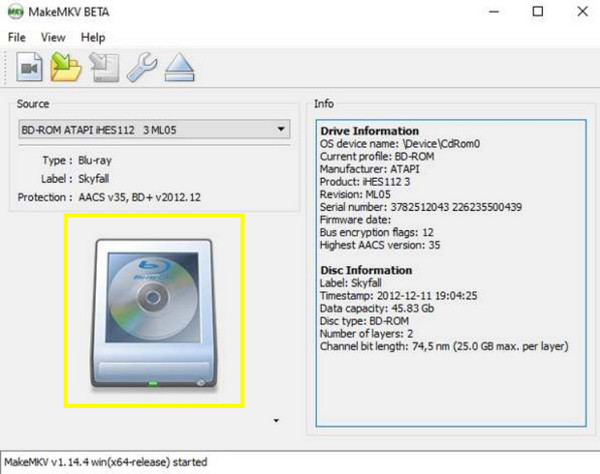
Step 3Decide on the video, audio tracks, and subtitles you wish to keep. If you want a more complete backup, keep the original streams. Choose your output folder and click the “Make MKV” button to start the Blu-ray to MKV ripping process.
What MakeMKV Cannot Handle
- Some recent Blu-ray protection schemes, including specific MKB versions.
- UHD Blu-ray without a compatible drive and correct firmware.
- Physical disc read errors are caused by damage, scratches, or drive issues.
- Video compression extracts source streams rather than reducing file size.
Convert Blu-ray to MKV with HandBrake
Handbrake is another solution option to convert your Blu-ray to MKV. It re-encodes your video, reducing storage requirements while choosing settings that offer a balance between quality and file size. However, HandBrake does not keep every part of your original disc. Anyway, here’s how to digitize Blu-ray to MKV with Handbrake:
Step 1Upon inserting your Blu-ray disc into your drive, open Handbrake. Click “Open Source” and choose your drive or source you wish to convert.
Step 2Once it has been scanned, choose your main movie title from the available titles. Under the “Summary” tab, set your format to “MKV”, and open other tabs to set other settings.
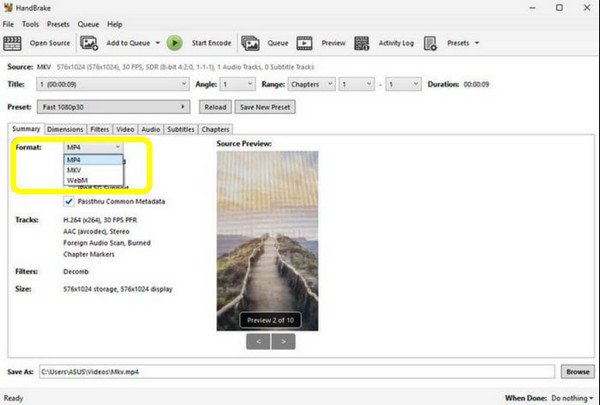
Step 3After everything, choose a destination for your MKV file, review your video, audio, and subtitle settings. Click the “Start Encode” button, and Handbrake will handle your Blu-ray content and save it to your selected folder.
What Handbrake Loses from Blu-ray
- The original video quality, as re-encoding can introduce some quality loss.
- The original audio can be transcoded to AAC or AC3.
- Additional audio tracks; you may need to add them manually.
- PGS subtitles burning permanently removes the option to turn them off.
- Blu-ray menus and other extras are not saved in the MKV result.
FAQs
-
Does converting Blu-ray to MKV affect the quality?
It depends on the method you use. MakeMKV saves the original streams while Handbrake re-encodes the video, which may cause some quality loss for a smaller file.
-
Which is better for Blu-ray to MKV: MakeMKV or Handbrake?
Choose MakeMKV when you want to preserve the original quality. But for a smaller file that is easier to play, go for Handbrake as it re-encodes the video.
-
Why is the converted MKV still so large?
That is usually because your video was encoded at a high bitrate or resolution. If space is your concern, use H.265 and adjust the quality or bitrate of your file.
Conclusion
Now, Blu-ray to MKV conversion comes so easily with the methods discussed. The perfect one depends on whether you prioritize the original quality or smaller file sizes. But among the three, if you wish to enjoy an easier all-around conversion solution, 4Easysoft DVD Ripper offers flexible MKV transformation with customizable video, audio, subtitle, and other settings. Download it now and enjoy your Blu-ray collection in digital formats today!
100% Secure
100% Secure
