
Remove screen passcode, Apple ID, MDM and Screen Time from iPhone safely.

The Reason Apple ID is Greyed Out on iPhone and How to Fix It

Posted by Alvin Cantero to iOS Unlocker Mar 27, 2026
The Apple ID button is suddenly grayed out, especially when attempting to access features like iCloud, FaceTime, or software updates. How can this be resolved? Overall, network and server issues, as well as multiple logins, could cause it to become grayed out. You can identify the relevant causes based on the information in this article and try the suggested solutions.
Guide List
Reasons Why the Apple ID Button Appears Grayed Out Fix Screen Time Passcode Caused Apple ID to Gray Out Use a Professional Tool to Remove Apple ID to Fix Greyed-Out Issue Other 4 Methods to Solve Apple ID Grayed OutReasons Why the Apple ID Button Appears Grayed Out
If your iPhone is experiencing this issue, it may be caused by one of the following reasons.
Screen Time Limits
If Screen Time and Content & Privacy Restrictions are enabled and account modifications are restricted, Apple ID-related options will be locked and appear grayed out.
Device Management
If your iPhone is provided by a company or school, an MDM configuration profile may be installed. Administrators can use policies to prohibit changes to Apple ID or iCloud settings, causing related buttons to be system-locked and appear grayed out.
System or iCloud Synchronization in Progress
When the device is performing certain background tasks (such as iCloud data synchronization, backup, restore, or system updates), the system may temporarily disable Apple ID operations.
Network Connection Issues
Apple ID settings require communication with Apple servers. If Wi-Fi or cellular network connectivity is unstable, the system may temporarily fail to load account information. In such cases, some Apple ID options may appear unavailable, appearing "grayed out".
Apple ID or iCloud Service Issues
Account management features may be restricted if Apple ID encounters verification issues, server maintenance, or service disruptions. For instance, the settings page may limit actions when re-verifying Apple ID, password expiration, or temporary server unavailability occurs.
System Bugs or Version Issues
Certain iOS versions may exhibit UI errors or system anomalies causing Apple ID buttons to appear grayed out. Typically, restarting the device, signing out and back in to Apple ID, or updating the system resolves this.
Fix Screen Time Passcode Caused Apple ID to Gray Out
An invalid Screen Time passcode or one that has recently been changed can easily cause your Apple ID to appear grayed out. If this is the case, you may need to delete the app and set up your device as a new iPhone to log in with the new passcode. After completing this step, you should be able to successfully enter your Apple ID in the corresponding field.
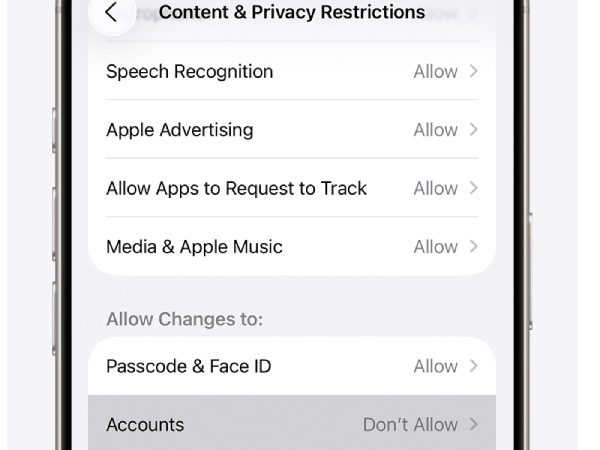
Step 1Tap "Settings" and find "Screen Time". Tap "Content & Privacy" and scroll to "Allow Changes" to see if you're authorized to modify the account.
Step 2If not, enable change permissions and verify that your Apple ID is no longer grayed out.
Use a Professional Tool to Remove Apple ID to Fix Greyed-Out Issue
When you encounter an Apple ID that appears grayed out, you can also resolve the issue by removing the disabled Apple ID. In such cases, you can use the 4Easysoft iOS Unlocker to remove the Apple ID from your iPhone! This tool can reset and remove the Apple ID, thereby fixing the grayed-out Apple ID issue. Additionally, it can remove various Screen Time and Family Sharing restrictions, which can also resolve the grayed-out button problem.

Remove Screen Time restrictions, bypass MDM, and Family Sharing accounts.
Erase screen passcodes, removing 4-digit/6-digit passcodes, Touch ID, and Face ID.
Unlock iPhones with forgotten passcodes, damaged screens, or disabled devices.
Supports nearly all iPhone models and system versions, including iPhone 17 series and iOS 26 and 27.
100% Secure
100% Secure
Step 1Launch the tool, click "Remove Apple ID", then connect your iPhone to your computer. Next, tap the "Trust" button on your iPhone.
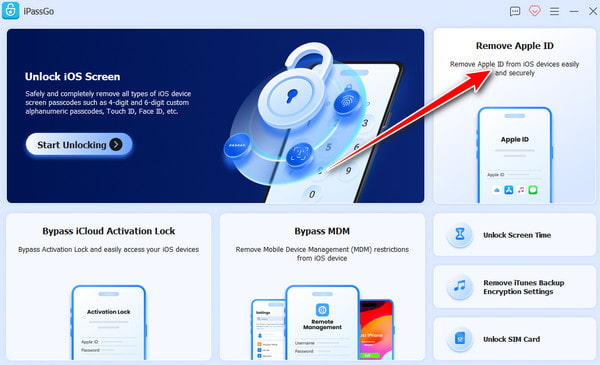
You need to ensure that the "Find My iPhone" feature is turned off on your device.
Step 2Next, enter "0000" in the input field and click "Confirm". Then, check your iPhone device information and click "Start" to download the corresponding firmware package.
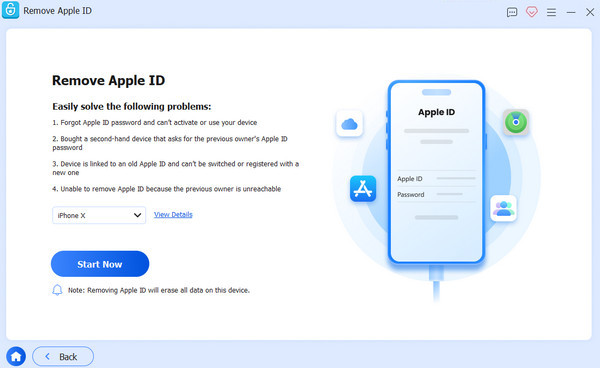
Step 3After the firmware package download completes, re-enter "0000" to confirm the operation, then click "Unlock" to begin the removal process. Subsequently, activate your iOS device normally, following the procedure.
Other 4 Methods to Solve Apple ID Grayed Out
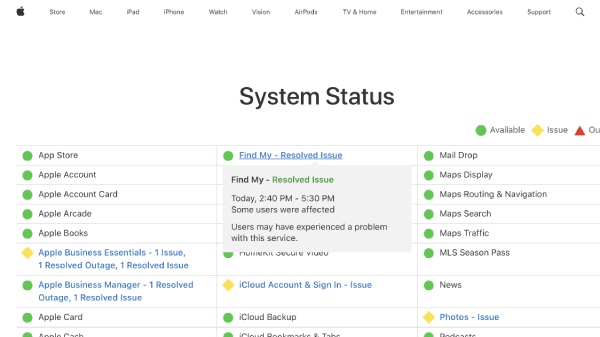
1. Check the Apple System Status Page
To check your iPhone's status and which Apple ID it's using to access cloud services, you can directly visit Apple's official System Status page. Go to the Apple website and select "Support & System Status" from the menu. If the Apple ID server name has a green dot next to it, the server is functioning normally. Otherwise, if you see a yellow diamond button, it indicates server issues, which may also be the reason your Apple ID appears grayed out. Simply wait for the Apple team to resolve the issue.
2. Restart Your iPhone
If the button appears grayed out due to temporary freezes or status anomalies in certain background services, restarting your iPhone will reinitialize system processes and network connections. This action also clears temporary caches and reestablishes connections with Apple servers, resolving many issues caused by system process conflicts, cache errors, or abnormal network states.
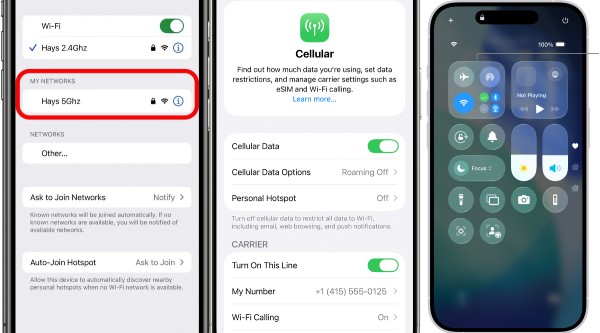
3. Check your Internet Connection Stability
Please ensure your phone maintains a continuous internet connection. Occasionally, network issues can cause system or app problems, such as the Apple ID icon appearing grayed out. You can use Ookla's Speedtest tool to quickly check your internet speed and review the results. If your connection is unstable, switch to a more reliable network.
Step 1Open "Settings" and locate "Wi-Fi Settings". Ensure the Wi-Fi switch is turned on, then select a reliable network from the available options.
Step 2Next, toggle "Airplane Mode" on and off. Turn off your "VPN" and switch to cellular data.
4. Remove Screen Time Restriction
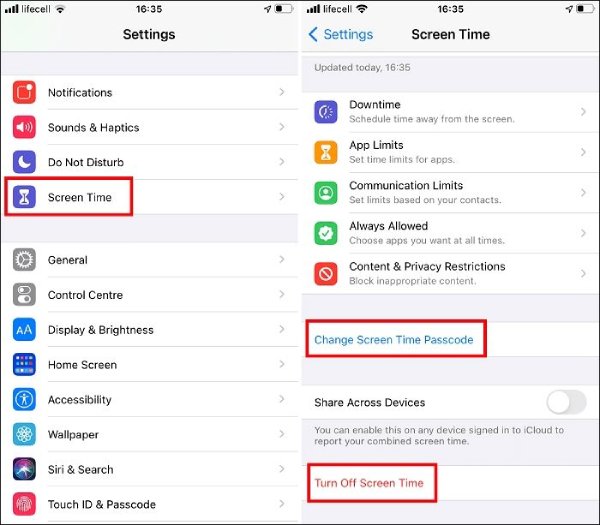
If your Apple ID remains grayed out on your iPhone after attempting or checking the above fixes, another approach is to check and turn off Screen Time restrictions on your iPhone. Enabling this feature limits screen time, tracks your screen activity, and blocks access to certain websites, systems, and apps. You can disable this feature to see if it resolves the issue.
Step 1Open "Settings", scroll down to select the "Screen Time" option, then tap the "Screen Time" button.
Step 2On the next screen, enter your passcode, then tap the "Turn Off Screen Time" button. Afterward, you can check if your Apple ID has been restored to normal.
Conclusion
That's it! These are the 6 effective methods to resolve the grayed-out Apple ID on your iPhone. With these solutions, you can now freely access iCloud, FaceTime, software updates, and other features without being bothered by this problem! If it's difficult to pinpoint the exact cause, try using the 4Easysoft iOS Unlocker to remove the Apple ID and fix the issue! It's safe, reliable, and saves you time.
100% Secure
100% Secure
