
Recover deleted/lost data from PC/Mac, HDD, USB, SD card and more.
How to Safely Troubleshoot Issues with Airdrop Not Working

Posted by Paula Pailaga to iOS Recovery, Solutions/Tips Jan 16, 2026
When you try to share photos with a friend via AirDrop, but the photos just won't transfer. After iOS updates, issues with AirDrop not working often arise. This article will analyze the reasons behind this problem and provide eight reliable solutions. You can try them one by one until the transfer succeeds.
Guide List
Why AirDrop Isn't Working Check 5 AirDrop-related Settings to Fix the Issue of Not Working Use Alternatives to AirDrop for Data TransferWhy AirDrop Isn't Working
You can troubleshoot why AirDrop isn't working by checking the following reasons. Then, based on the issue, follow the corresponding steps to debug and fix the problem more quickly and accurately.
Wi-Fi or Bluetooth is turned off or has connection issues
AirDrop relies on both Wi-Fi and Bluetooth to function. If either is disabled or unstable, transfers will fail.
Devices are too far apart or encounter signal interference
If devices are too distant or exposed to strong wireless interference, they may fail to recognize each other.
Personal Hotspot is enabled
When Personal Hotspot is active on an iPhone or iPad, AirDrop is automatically disabled by the system.
Outdated system version or compatibility issues
Compatibility limitations between different iOS, iPadOS, or macOS versions may affect AirDrop connections.
Do Not Disturb or Focus mode enabled
When these modes are active, devices may not respond to AirDrop requests.
Firewall restrictions (Mac)
Overly restrictive macOS firewall settings may block AirDrop network communications.
Check 5 AirDrop-related Settings to Fix the Issue of Not Working
When encountering issues with AirDrop, the first step is to troubleshoot AirDrop-related settings. While these methods are straightforward, they can resolve most common problems.
Check AirDrop settings
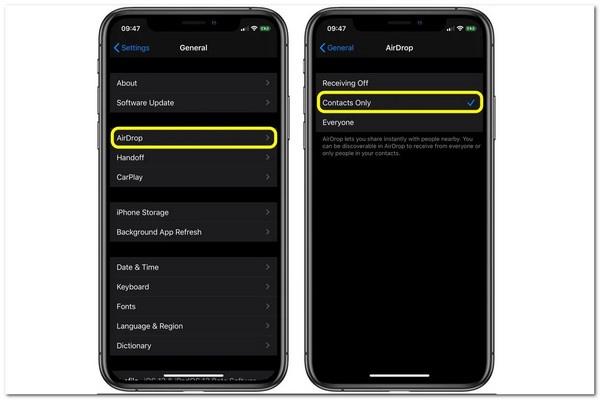
First, ensure that AirDrop is enabled and that both devices support AirDrop. If your device is an iPhone 5/6/7/7 Plus or newer, an iPad 4th generation or newer, an iPad mini, or a fifth-generation iPod touch, you can use this feature. Then follow the steps below to enable AirDrop on your iPhone properly.
Step Go to Settings and find "General". Tap "AirDrop" and choose "Contacts Only" or "Everyone".
Restart your iPhone's Bluetooth and Wi-Fi
After enabling Bluetooth and Wi-Fi, your device may be discoverable by others. We recommend checking your current network connection status, turning off Bluetooth and Wi-Fi, waiting a moment, then turning them back on to refresh the connection and restore normal discoverability.
Turn off Personal Hotspot
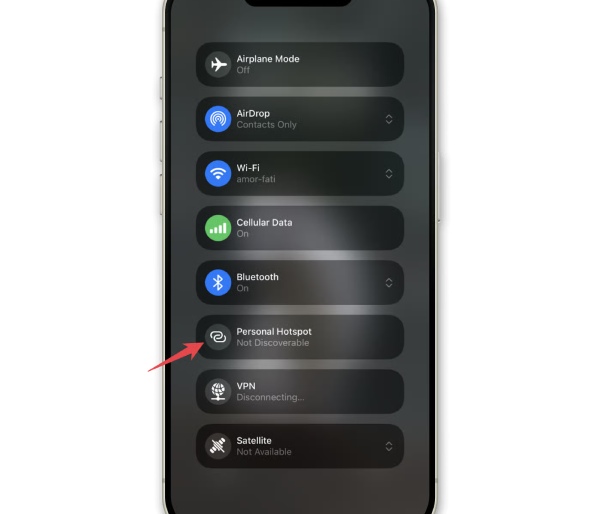
AirDrop may not function properly when Personal Hotspot is enabled. When Personal Hotspot is active, iPhone automatically disables AirDrop's device discovery feature, preventing other devices from locating it and sharing files.
Step Go to "Settings", locate "Personal Hotspot", and toggle it off.
Turn off Focus Mode
If the system displays the message "AirDrop could not find the user", this typically indicates that Focus Mode is enabled on one of the devices. In this mode, the device may restrict external discovery or communication requests, preventing AirDrop from recognizing the other device.
Step 1Swipe down from the top-right corner to access "Control Center", then tap "Focus" or "Do Not Disturb".
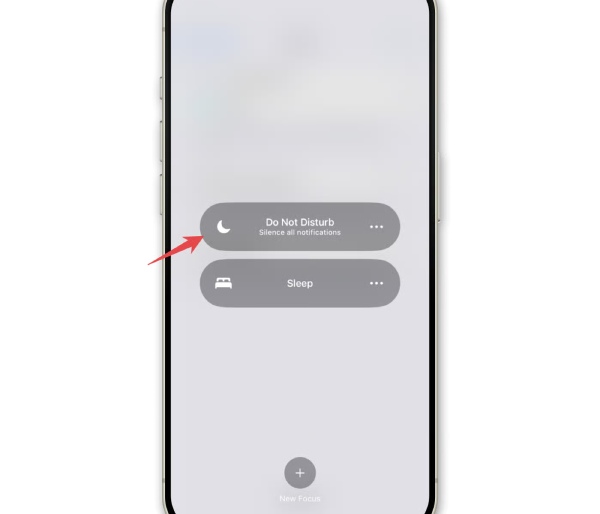
Step 2To turn off Focus mode on your Mac, click "Control Center" in the menu bar, then click "Focus" and "Do Not Disturb".

Check VPN and Firewall Settings
If your Mac or iPhone has a third-party VPN service enabled, it may interfere with AirDrop's normal signal transmission. You can temporarily disable this feature and then try AirDrop again.
How to reconfigure the firewall on a Mac:
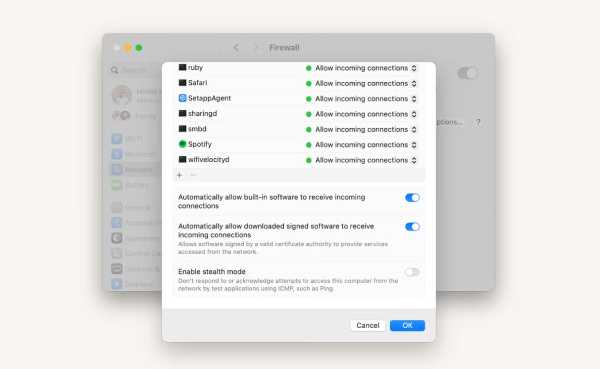
Step 1Click the Apple menu to open System Settings. Go to "Network", locate "Firewall", and click the options.
Step 2Scroll down and enable "Automatically allow built-in software to receive incoming connections".
Use Alternatives to AirDrop for Data Transfer
When AirDrop keeps malfunctioning, and you need to transfer large amounts of files, professional transfer software like 4Easysoft iPhone Transfer offers a reliable alternative. It supports nearly all types of data transfer, including photos, videos, music, contacts, text messages, and even social app data. Compared to AirDrop, it handles a broader range of data types. Plus, it organizes and previews the data to be transferred, further saving transfer time.

Support all iOS devices and system versions, including 17,16 and iOS 26.
Able to resolve over 50 common iPhone issues, including AirDrop not working, and more.
Repairs iPhone system issues with a high success rate without loss or modification.
Equipped with a built-in Free Quick Fix feature to quickly address issues on iPhone.
100% Secure
100% Secure
Step 1Launch the program. Then connect your iPhone to your Mac. Once connected, the main interface will display your iPhone's name, storage capacity, and other device information.
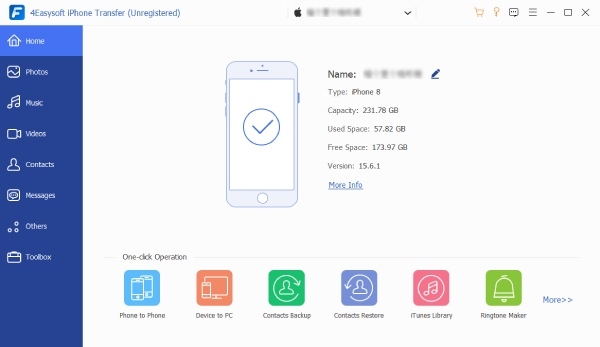
Step 2On the left side of the window, click the "Photos" button. To transfer specific photos to your Mac, click and select them.

Step 3Click the "Export to Computer" button at the top to transfer the photos to your Mac. Next, choose an existing folder or create a new one from the pop-up window to store these photos.
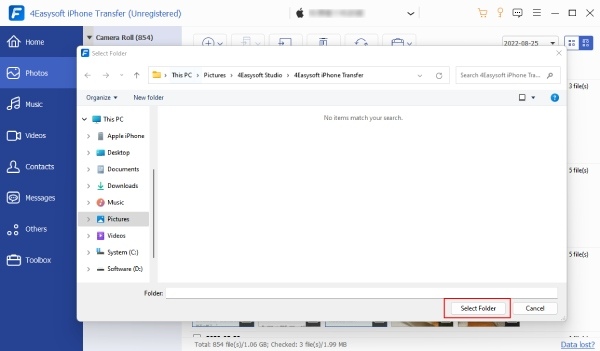
Step 4Once done, click the "Open" button to confirm, and your photos will appear in the selected folder.
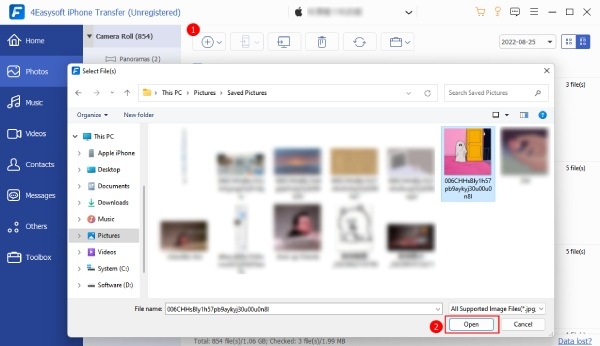
The steps for transferring photos from one iPhone to another iPhone or Android phone are identical. Simply connect the other device to your Mac.
Conclusion
The above methods cover common and effective solutions for resolving AirDrop not working issues. You can try each one to find the most suitable fix for your situation. If your iPhone or AirDrop continues to malfunction, or if you encounter other system-related problems, you can also use 4Easysoft iPhone Transfer as an alternative. It allows you to categorize, manage, and transfer various file types quickly and securely.
