
Record, edit, and share video from all sources.
How to Screen Record on Mac with Audio? Follow 5 Ways Here

Posted by Aira Lesly Escoto to Record Video Dec 10, 2025
To create tutorials, record meetings, and save online content on your Mac, you need to know how to screen record on Mac with audio. Having a clear one is essential for complete recording, whether it is a system sound, a mic input, or both. Fortunately, macOS has built-in tools for quick captures, while there are also desktop and online solutions. Jump in here to learn the five ways to record Mac screen with audio and microphone, helping you find the best tool for capturing your Mac screen with sound.
Guide List
Screen Record on Mac Using the Screenshot toolbar Use QuickTime Player to Screen Record on Mac How to Record High-Definition Videos with Audio on Mac 2 Ways to Record Mac Screen with Audio OnlineScreen Record on Mac Using the Screenshot toolbar
The built-in Screenshot Toolbar (Shift + Command + 5) is preinstalled on every Mac computer running macOS Mojave (10.14) and later. This free Mac screen recorder is perfect for capturing simple calls, tutorials, or short clips.
Step 1Press the "Shift + Command + 5" keys to open the Screenshot Toolbar. Next, choose either "Record Entire Screen" or "Record Selected Portion".
Step 2Click "Options" and select your audio source under "Microphone". You can also set where you want your file to be saved, and enable extra settings if needed.
Step 3Click "Record" to begin. Later, click "Stop" in the menu bar once finished Mac video recording.

Use QuickTime Player to Screen Record on Mac
Next, you can record screen with audio on macOS with QuickTime Player. While it does not directly record system audio without extra extensions, it works very well when you only need to capture your microphone or external voice input.
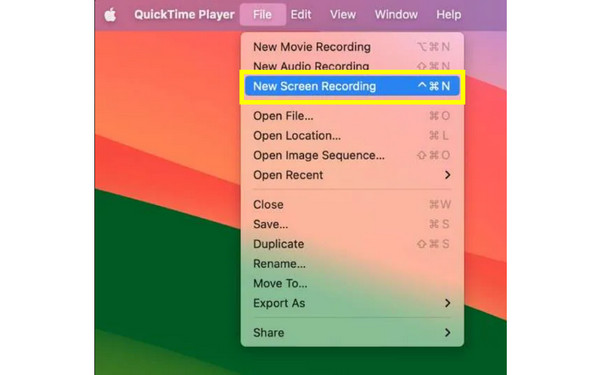
Step 1Launch QuickTime, and head to "File", then select "New Screen Recording".
Step 2In the pop-up window, click the "Arrow" beside the Record button to choose a microphone.
Step 3After that, choose whether to record the entire screen or drag to record a specific portion.
Step 4Click "Record" to begin, and when done, click "Stop" then save your file.
How to Record High-Definition Videos with Audio on Mac
Moving on to anyone who needs high-quality recordings with both system audio and mic sound, a more powerful tool is necessary, like the 4Easysoft Mac Screen Recorder. Unlike other built-in Mac tools, it captures internal audio, external audio, and screen activity at once, without any complex setup. Whether it is a call, gameplay, meetings, or tutorials you wish to record, the program screen records on Mac with audio with sharp and crystal-clear quality. It also offers advanced customization options to acquire the quality level you want.
Can record screen on Mac with audio in high-quality resolution.
Allows you to capture system sound and mic at the same time.
Offers advanced noise reduction to ensure a cleaner, clearer audio.
Customizable output format, frame rates, and more quality settings.
100% Secure
100% Secure
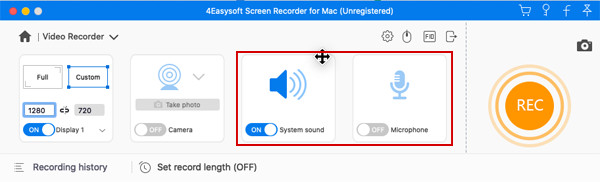
Step 1Start by launching 4Easysoft Mac Screen Recorder on your device. Select "Video Recorder" to begin. Choose "Full" to capture the entire screen or "Custom" if you only want a specific portion. You can freely drag the borders of the selected region.
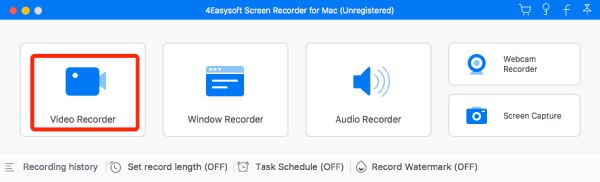
If you wish to fine-tune the output, click the "Settings" button to adjust video quality, frame rate, format, and other preferences.
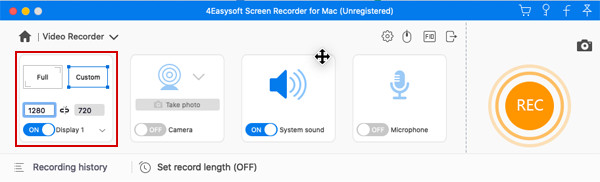
Step 2Next, decide whether you want to record system audio, your mic, or both. Simply toggle the switches for "System Sound" and "Microphone" to activate them. You can adjust the volume levels to make sure the audio is balanced.
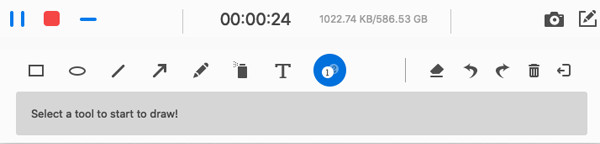
Step 3Once your setup is ready, click the "REC" button to begin capturing your Mac screen with audio. While recording, you can drag shapes, add annotations, highlight areas, or take screenshots in real time.
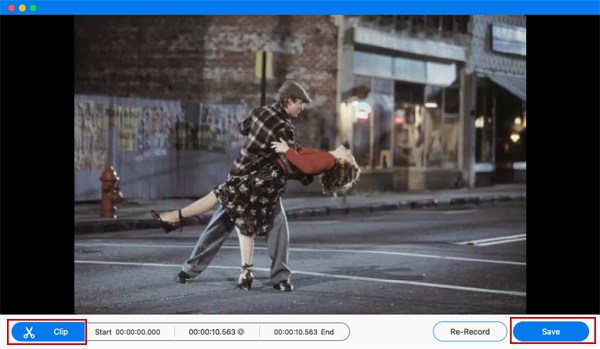
Step 4When you're done, click the "Stop" button to end the session. A preview window will open, giving you the option to trim unwanted parts. Later, click the "Save" button to export your Mac screen recording.
100% Secure
100% Secure
2 Ways to Record Mac Screen with Audio Online
Finally, if you do not want to install anything, several online solutions allow you to screen record on MacBook with audio from your browser. These web-based recorders are helpful for quick, lightweight tasks.
1.WebCamera.io Video Recorder
WebCamera.io is a friendly online screen and webcam recorder that directly works from your browser. It is convenient for users who want basic recording features without downloading any software. While it has fewer advanced settings in contrast with desktop apps, it is to record Mac screen with internal audio.
Step 1Search for WebCamera.io in your web browser.
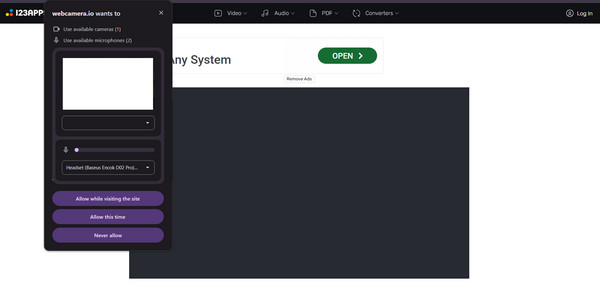
Step 2Then, select whether to record your screen, camera, or both on your Mac. Make sure to allow browser permissions for mic and screen access.
Step 3Click "Start Recording" to begin. When finished, click "Stop" and download your recorded video on Mac.
2.VEED.IO Free Screen Recorder
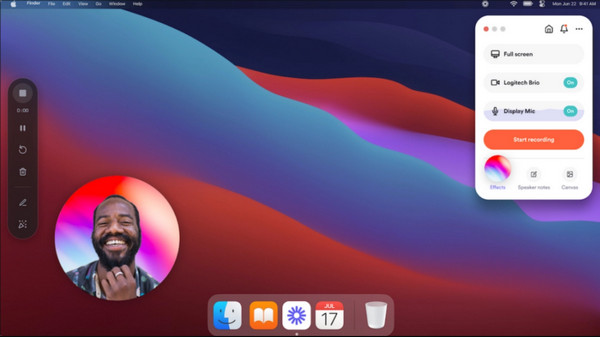
Another online solution to screen record on Mac with audio is VEED.IO Screen Recorder. It gives you options to capture your screen, webcam, or both at the same time. Furthermore, it includes simple editing tools such as trimming, rotating, cropping, and more after recording, making it ideal for quick content creation.
Step 1Visit the VEED.IO Free Screen Recorder main page.
Step 2Select your recording mode, like screen, webcam, or both. Enable mic access to capture audio on Mac.
Step 3Once ready, click "Start Recording" and select the window or screen you wish to capture.
Step 4Stop the recording when done, then export or edit the video if needed.
Conclusion
Each method here suits a different type of workflow to screen record on MacBook Air/Pro with audio, whether you want a built-in tool like Screenshot Toolbar, a browser-based tool for quick tasks, or a more advanced desktop tool for high-quality results. But among the mentioned tools, for the most complete solution, 4Easysoft Mac Screen Recorder is the reliable choice. It delivers crisp video quality, synchronized audio, customizable settings, and built-in editing tools, making it great for any recording situation on Mac.
100% Secure
100% Secure
