
Rip DVD to MP4 (H.264/HEVC) and other popular formats with Original Quality
What DVD Region Is USA: All DVD Region Info Included

Posted by Paula Pailaga to Rip DVD Sep 23, 2026
What region is the US for DVDs? Those who first started buying and playing DVDs would undoubtedly have similar problems. In simple terms, your DVD player only supports playing a DVD with the same DVD region code. This post provides you with all the detailed information related to it. In addition, you can find the methods for playing them smoothly here. What DVD region is the USA in? Read now to find out.
Guide List
What DVD Region is USA [All DVD Regions Included] How to Play a USA-Region DVD with Players of Other Regions How to Change the Region Code of a DVD from the USA Region An Unlimited Way to Play DVDs with the USA RegionWhat DVD Region is USA [All DVD Regions Included]
In simple terms, the DVD code for the US is region 1. Generally, you can find this information on the back of the DVD packaging box. This means you can only use a region 1 DVD player to play this DVD. On DVD players from other regions, it cannot be read properly.
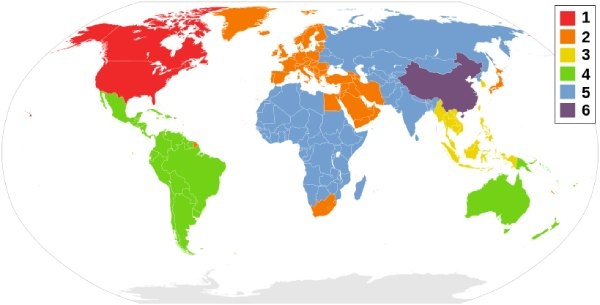
The DVD region code was introduced for copyright protection and distribution purposes. Each region has different policies and time zones. Therefore, distributors use region codes for DVDs from different regions. This makes it easier to manage DVDs for a specific region. Only when the region code of a DVD matches that of a DVD player can you watch the DVD content normally (Unless you are using a region-free DVD player). You can find detailed information below about DVD regions 1, 2, and others.
| Region | Countries / Areas |
| Region 1 | Canada, the United States, and U.S. territories |
| Region 2 | Japan, Europe, South Africa, the Middle East (including Egypt), and Greenland |
| Region 3 | Southeast Asia and East Asia (including Hong Kong) |
| Region 4 | Australia, New Zealand, the Pacific Islands, Central America, Mexico, South America, and the Caribbean |
| Region 5 | Eastern Europe, Russia, the Indian Subcontinent, Africa, North Korea, and Mongolia |
| Region 6 | China |
| Region 7 | Reserved for unspecified special use |
| Region 8 | Special international venues for air and oceanic travel |
How to Play a USA-Region DVD with Players of Other Regions
Can you play a DVD of zone from the USA using a DVD player from another region? Actually, this is possible. You can achieve this by changing the region of your DVD player. Generally, your DVD player will allow you to change the region a limited number of times. Most devices offer 5 chances. DVD players from manufacturers such as Samsung and LG provide this permission. However, for users of Sony DVD players, this is not allowed. If your DVD player allows you to change the region, the operation is basically the same. This section will use the Samsung DVD player as an example.
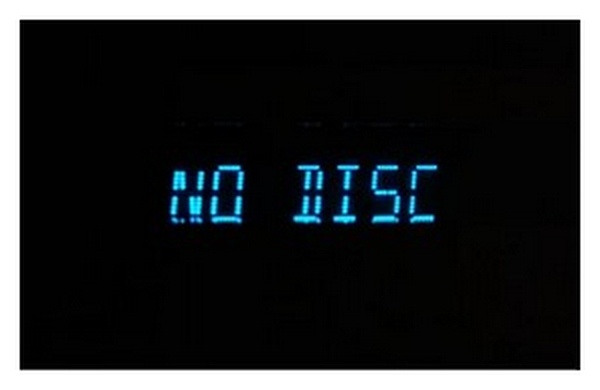
Step 1Launch your HDMI DVD player without inserting the DVD. Wait until the "No Disc" notification pops up.
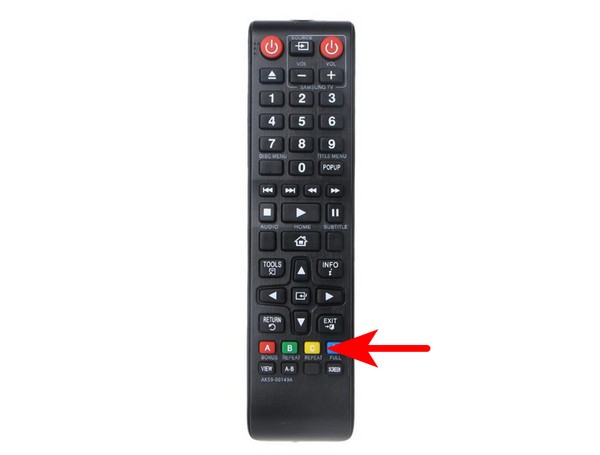
Step 2Now, press the "Repeat" button on your remote quickly. Then, press and enter the code of your region.
- Region 1: 29334
- Region 2: 38767
- Region 3: 56732
- Region 4: 56732
- Region 5: 53814
- Region 6: 24462
Step 3The original region number will be displayed in the top right corner. Press the "1" button on the remote. And you can now enjoy DVDs of Area 1.
How to Change the Region Code of a DVD from the USA Region
The region code of each DVD is determined at the time of production. However, this does not mean that you cannot modify it. For instance, you can convert a DVD from one region to another. This operation can be completed on your computer. However, the same goes for you - you only have five chances. Once the number of attempts is exhausted, your DVD will remain in its last modified state.
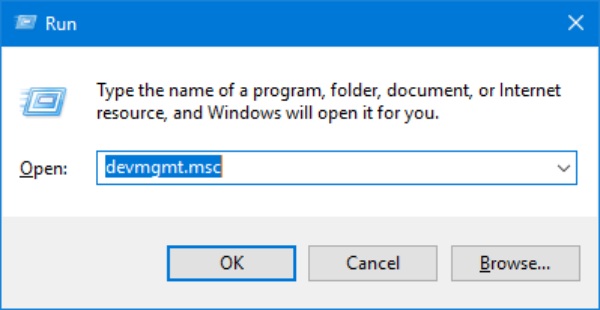
Step 1Press the "Windows + R" buttons to summon the Run box. Type "devmgmt.msc" and press the "Enter" button.
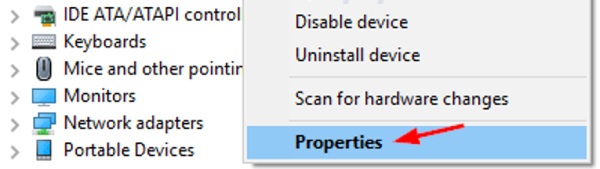
Step 2Under the "DVD/CD-ROM drives" tab, right-click the DVD player. Then, click the "Properties" button.
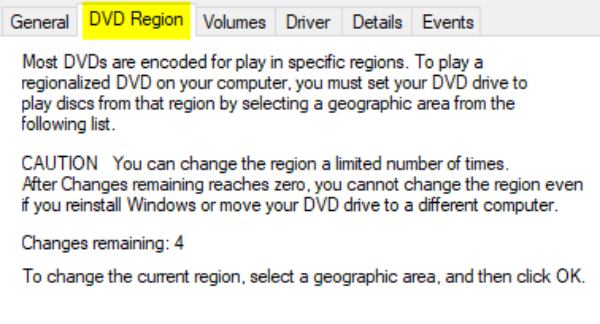
Step 3Under the "DVD Region" tab, click to select the proper region. Now your device can play region 1 DVDs.
An Unlimited Way to Play DVDs with the USA Region
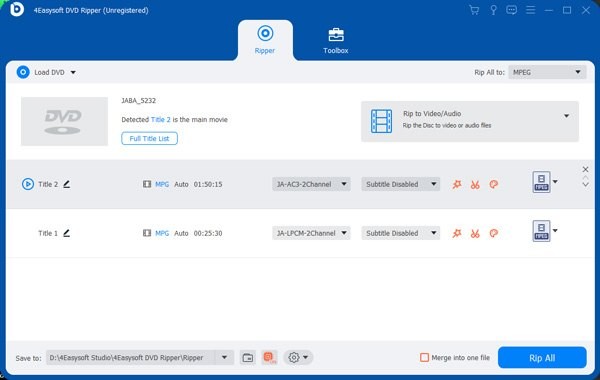
Whether you are changing the region code on the DVD itself or on the DVD player, you have only five chances. So what should be done after the usage limit is reached? Many people are troubled by this issue. However, you can actually solve this problem at its source without any limit on how many times you do so. All you need to do is use 4Easysoft DVD Ripper. This tool allows you to convert DVDs into a digital format. No matter if you have a DVD in region 1 or whatever. You can access them without any restrictions in this way. This process will maintain the original quality of your video.

Convert DVD to MP4 or other formats to remove DVD region restriction.
There is no loss of video quality when removing a DVD region.
Provides high-speed conversion with GPU-accelerated technology.
Supports editing to increase effects when converting DVD content.
100% Secure
100% Secure
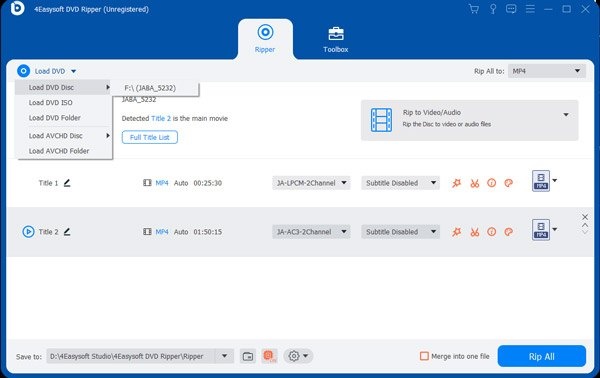
Step 1After inserting the DVD, launch 4Easysoft DVD Ripper. Click the "Load DVD Disc" button.
Step 2Click the "Rip All to" button. It allows you to select the desired format for converting your USA Region 1 DVD.
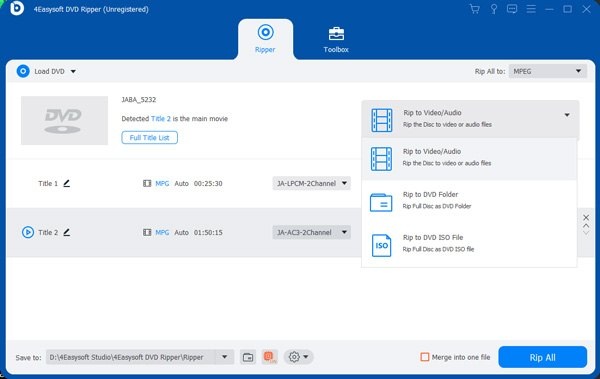
Step 3In the main interface, click the "Rip All" button. And your DVD will be converted to digital formats for compatible playback.
Conclusion
This post provides information about DVDs in region 1 and other regions. Only when the DVD's region code matches the DVD player's can it play normally. Even though you can modify their country codes, this operation is usually limited to 5 attempts. If you want to access DVD content without restrictions, you can use 4Easysoft DVD Ripper to convert the DVD to a digital format.
100% Secure
100% Secure
