
Play Blu-ray/DVD discs, folders, ISO files, and 4K videos with immersive audio-visual experience.

VLC DVD Player: How to Use, Convert DVD to VLC, and More

Posted by Paula Pailaga to DVD/Blu-ray Player Mar 05, 2026
You pop a classic DVD and use VLC Media Player, then you've got nothing. For a player famous for handling every file format with great ease, how can you play DVD with VLC In today's topic, you will learn why VLC cannot play DVDs, how to use the VLC DVD player, and how to convert this disc into digital files. Also, you'll see the best alternative that just works is to play DVDs. Read on here to get your movie night back on track!
Guide List
How to Use VLC to Play DVDs Correctly? The Reason VLC Can't Play DVDs Convert DVD to VLC Compatible Formats Use Professional Alternative to VLC to Play DVDsHow to Use VLC to Play DVDs Correctly?
To help you get the most out of your movie collection, learn here how to play a DVD with VLC Media Player. While it is a versatile powerhouse, it often needs a bit of tweaking to play physical media perfectly. You must correctly point the software to your optical drive and manage the menu settings; here's how:
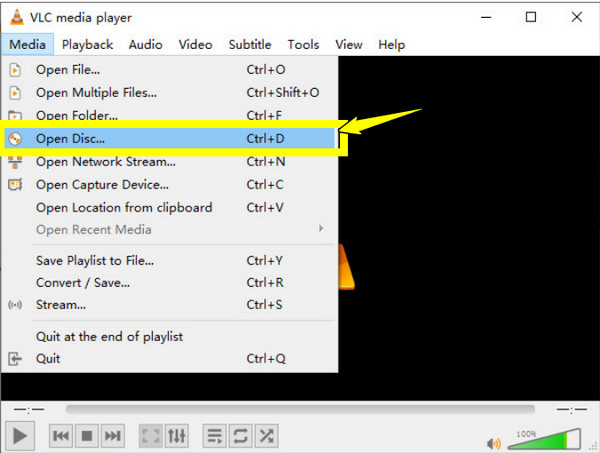
Step 1Put your DVD into the computer's drive, then launch VLC Media Player. Click on the "Media" tab in the upper-left menu and choose "Open Disc…".
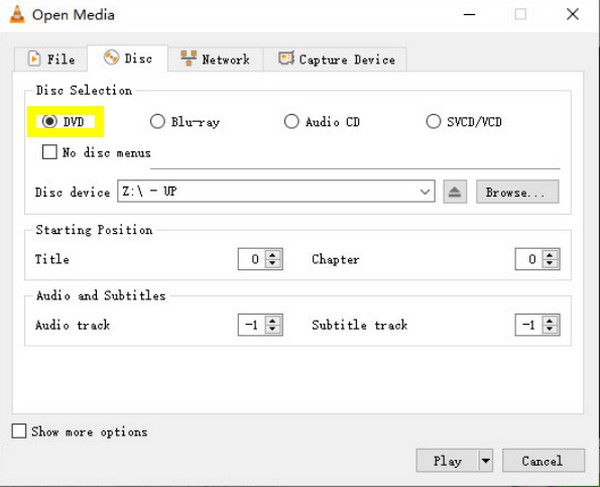
Step 2From the "Disc" tab, check the "DVD" radio button and see if "Disc Device" shows your drive letter. Click the "Play" button; if there are issues, check the "No disc menus" box.
The Reason VLC Can't Play DVDs
Even with the steps above, you might still face errors since VLC is open source and has no specific proprietary licenses. Most commercial DVDs are protected so that the VLC DVD player cannot unlock them. Plus, hardware-related issues or outdated versions can prevent the connection between the disc and the player. Here are the reasons for DVD playback failure:
- Lacks Decryption Libraries. VLC needs libdvdcss to decode encrypted discs, which is not always included by default, which is why VLC can't play DVDs.
- Outdated Drivers. Your computer's drive may be outdated, making it incompatible with the version of VLC or your operating system.
- Corrupted Preferences. Outdated cache files or incorrect settings can cause the VLC DVD playback issues.
- DVD Region Code Mismatches. If your DVD drive and the disc are from different regions, the VLC DVD player may be blocked from reading the data.
Convert DVD to VLC Compatible Formats
Troubleshooting feels too technical for you? You can bypass it entirely by converting DVD to VLC-compatible formats. Doing so will ensure your DVD movies remain accessible even without the drive, and VLC allows you to rip this physical disc as a standard video file. Using its built-in conversion is an effective way to digitize your DVD collection.
Here's how to rip DVD with VLC Media Player:
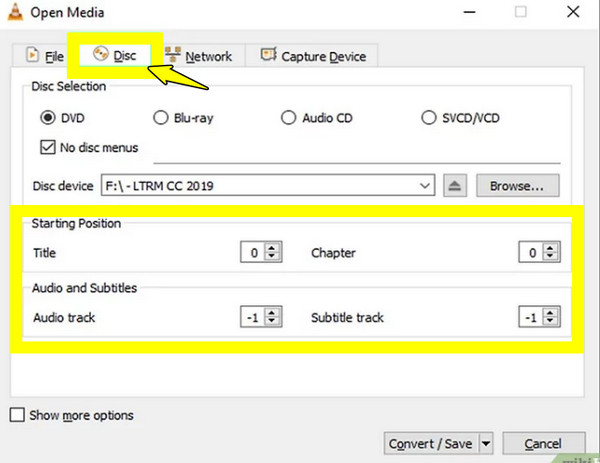
Step 1Once you have inserted the DVD, click on "Media" and then select "Convert/Save" in VLC Media Player. Then, head to the "Disc" tab, select "DVD", and make sure the correct drive and audio track are picked. Click the "Convert/Save" button at the bottom.
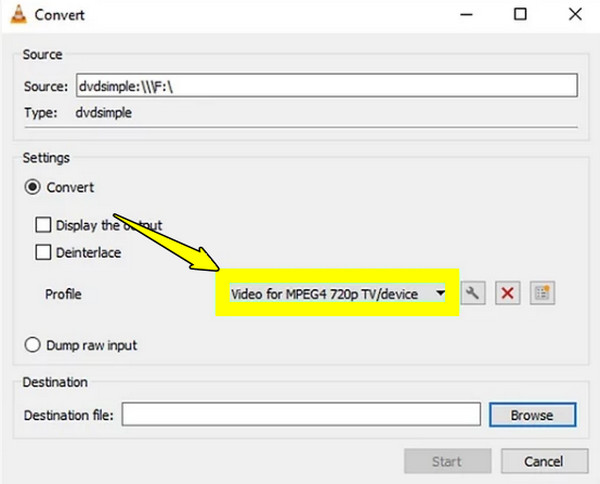
Step 2At this point, choose "Video - H.264 + MP3 (MP4)" in "Profile". Click "Browse" to decide where to land your converted file and name it. Click the "Start" button to complete.
Use Professional Alternative to VLC to Play DVDs
For those who want a dedicated, high-performance experience without the VLC DVD player issues and tweaking, an alternative player to play DVDs is the best path forward. To cut the search, the 4Easysoft Blu-ray Player is specifically designed to bypass complex locks without needing extra plugins or libraries. It offers a much more stable environment than VLC, especially for your high-definition media, where frame drops happen every day. With this player alternative, you can easily transform your PC or Mac into an excellent movie theater experience with zero configuration needed.
Enjoy universal playback for DVD, Blu-rays, ISO files, and other video formats.
Easy navigation of disc menus, subtitles, and audio tracks.
Immersive audio with professional audio codecs such as Dolby and DTS.
Never lose a scene, as it remembers where you stopped watching.
100% Secure
100% Secure
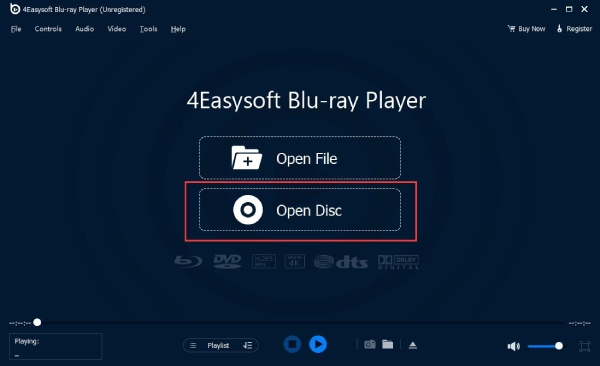
Step 1Launch 4Easysoft Blu-ray Player on your computer and place your DVD disc into the computer's optical drive. On the software's interface, click the "Open Disc" button to start the connection.
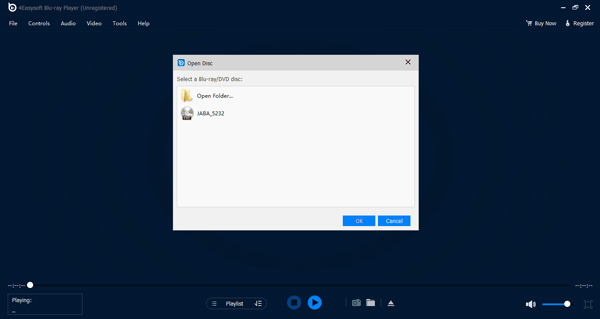
Step 2A selection window will show up; choose the particular disc from the list and click the "OK" button to proceed. The software will import the data right away and begin the DVD movie playback without any delay.
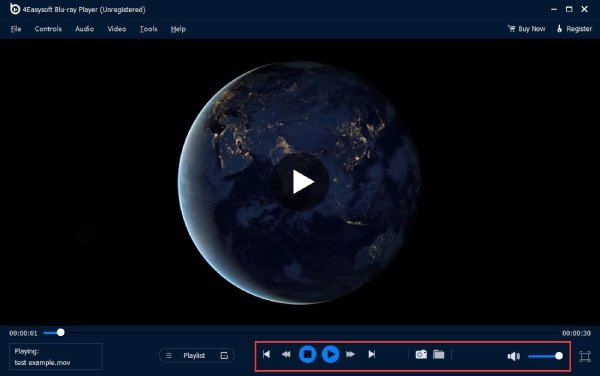
Step 3While the movie is playing on screen, enjoy the control bar below to toggle full-screen mode, adjust audio, or skip chapters. You can also click the "Snapshot" button to save an image of any scene.
100% Secure
100% Secure
Conclusion
While VLC is a legendary tool to use for digital files, it has struggled to play a DVD in VLC. Now that you understand these limitations and steps for using it correctly, you can effectively play your discs. But you can totally skip these hurdles by also digitizing your DVD collection. Plus, using dedicated software like 4Easysoft Blu-ray Player can help. Here, you can play your discs with a lossless audio experience, giving you a theater-like night in the comfort of your home. Invest in this best alternative and enjoy all your DVD collection now!
100% Secure
100% Secure
