
Record video, audio, gameplay, and webcam to record precious moments easily.
A Guide to Screenshot Entire Webpage on Mac and Windows

Posted by Ethan Brooke to Screenshot Feb 13, 2026
Capturing what's on screen is easy, but what happens when you need to go far below the webpage? Whether you wish to save a long-form article or a conversation, taking screenshots of the entire webpage is a must. Fortunately, both Windows and macOS offer various ways to screenshot an entire webpage, avoiding the need to take multiple snapshots and stitching them. Read on here and save every detail in a single seamless file today!
Guide List
Quickly Screenshot Entire Webpage on Both Windows and Mac How to Screenshot Entire Webpage with Google Built-in Extension Use Mac Shortcuts to Take an Entire Webpage Screenshot Screenshot Entire Webpage with Snipping Tool on Windows How to Screenshot Entire Webpage on Safari without ExtensionQuickly Screenshot Entire Webpage on Both Windows and Mac
For anyone who needs to create a full-page screen capture, 4Easysoft Screen Recorder can be your exceptional choice. This program offers a specialized capture mode for Windows, even scrolling one, ensuring no part of the webpage is missed. It works as a lightweight and user-friendly tool, so both professional and casual users will enjoy taking web page screenshots. In addition to that, it maintains the original resolution of the content; no small text will be blurred in the final output. With its cross-platform compatibility, you can enjoy a consistent capturing experience on Windows PC or Mac.

Take a scrolling screenshot on any webpage, including the extended screen content.
Screenshot in full screen or custom region, as well as pop-up menus.
Save your screenshots in formats including JPG, PNG, GIF, and BMP.
Add text, shapes, arrows, and highlights to your image before saving.
100% Secure
100% Secure
Step 1Open 4Easysoft Screen Recorder on your computer and from the main screen, look for the "Snapshot" button, then click the "drop-down arrow" next to it, and select "Scrolling Screenshot" to capture a long screenshot.
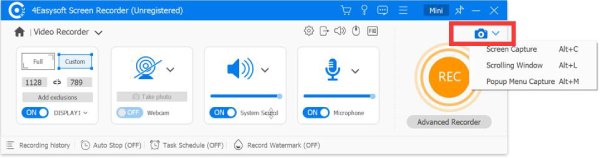
Step 2Now, use your mouse to click on the window page you want to capture. Then, scroll down slowly to stitch the webpage content as you go, and press the "Esc" key to stop.
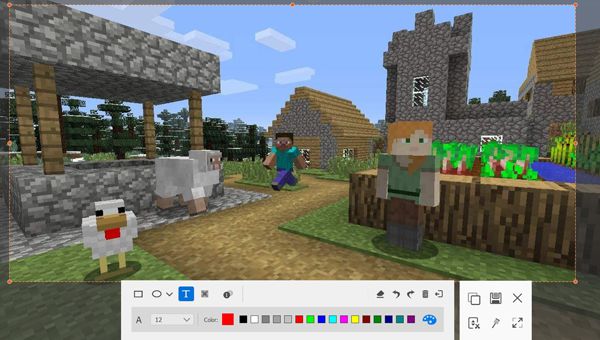
Step 3Afterward, a preview window will appear. Use the built-in tools to annotate on the image, then click the "Save" button to export the entire webpage screenshot to your computer.
How to Screenshot Entire Webpage with Google Built-in Extension
To capture a screenshot of a whole webpage in Chrome, the browser offers a powerful hidden feature in the Developer Tools. This approach is highly precise as it captures the page exactly as the browser sees it. See the steps below on how to use it to take a Chrome full-page screenshot:
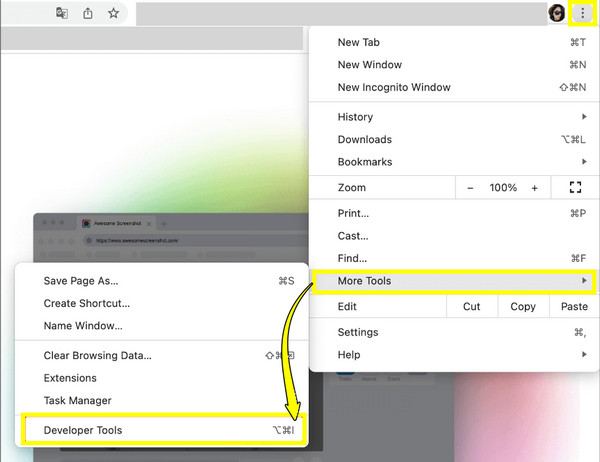
Step 1Open the page you wish to capture in Google Chrome. Then, click the "three-dots" in the corner, choose "More Tools", then click "Developer Tools".
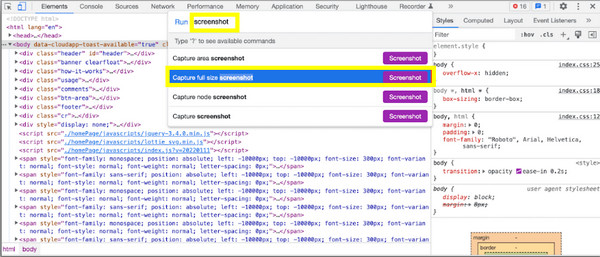
Step 2After that, click the "three-dots" again in the corner and choose "Run command" from the developer tools window.
Step 3In the prompt, type "screenshot", press "Enter", and choose "Capture full-size screenshot", capturing the entire webpage and saving it to your folder.
Use Mac Shortcuts to Take an Entire Webpage Screenshot
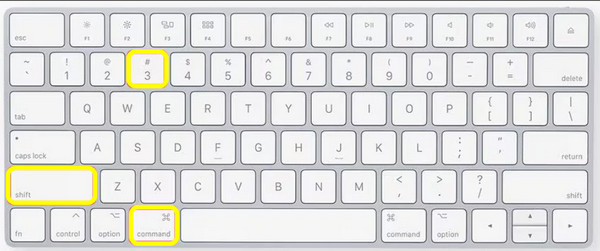
Moving to Mac shortcuts to take a full-size screenshot. While the shortcuts for the Screenshot toolbar can be customized, here's the default way to take a screenshot of a full page on your Mac:
Step 1Inside the desired webpage, hold the "Command + Minus" key to zoom out and see the full page. Zoom it in by holding the "Command + Plus" keys if needed.
Step 2After that, press down "Shift + Command + 3" to capture the webpage screenshot.
Step 3Alternatively, hold "Shift + Command + 4 + Spacebar" keys to include the browser window in the capture. So, you can take a screenshot on Mac.
Screenshot Entire Webpage with Snipping Tool on Windows
If you're using a Windows computer, the latest updates have got you the Snipping Tool evolved to screenshot on Windows. This improved screenshot tool can help you screenshot a whole page and record the screen. While it lacks the one-click solution for images, its Windows Snip mode captures everything seen on a browser's frame. See below to screenshot an entire webpage with it:
Step 1Launch the Snipping Tool overlay by pressing the "Windows + Shift + S" keys. Then, select the "Window Snip" icon in the top bar.
Step 2Click anywhere on your browser window to take a screenshot of what's visible in the frame. You can use the Video Mode if you want to capture a scrolling page.
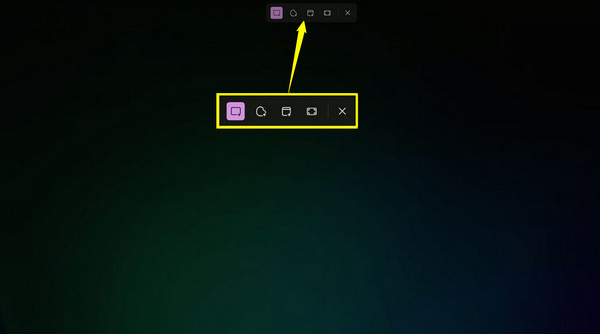
Step 3Later, the image opens in a window where you can edit it using Pen or Highlighter and other editing tools.
How to Screenshot Entire Webpage on Safari without Extension
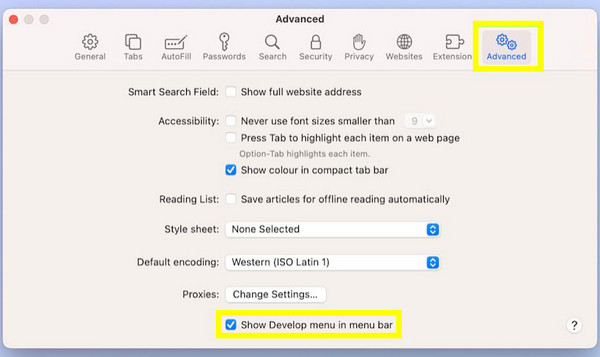
Finally, for Apple users who love the default macOS browser, Safari here features a hidden tool that allows you to screenshot an entire webpage. Safari's Web Inspector lets you interact with the code to snap a picture of the page. It works great if you don't wish for any extensions and just simply capture a webpage exactly as it appears.
Step 1Go to "Safari", then "Settings" and select "Advanced". Then, check "Show features for web developers".
Step 2To start, right-click anywhere on the page and choose "Inspect Element". In the code window, locate the very first line of code and right-click on it and choose "Capture Screenshot".
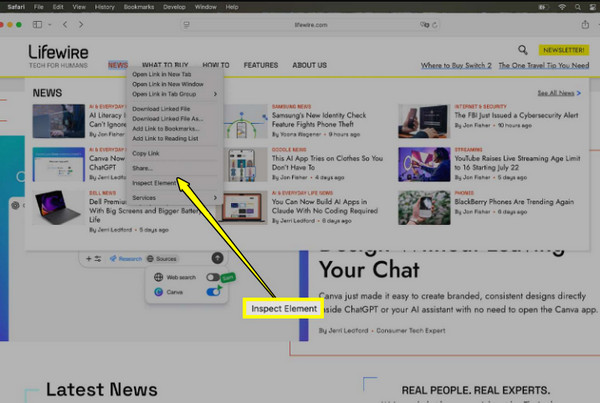
Step 3After that, a prompt will show up asking where you intend to save the entire webpage image.
Conclusion
Depending on your needs, you can take a screenshot of an entire webpage using Developer Tools, the native shortcuts, and more. As you have seen, while the built-in methods are perfect for occasional use, for a one-click solution that handles the scrolling screenshot for you, use 4Easysoft Screen Recorder. Unlike the standard shortcuts and tools, this tool has a Scrolling Window mode that scrolls through the webpage at a steady pace, giving you a single, high-resolution image without any broken margins and text.
100% Secure
100% Secure
