

4 Ways to Rip DVD to Hard Drive [Protected & Homemade]

Posted by Paula Pailaga to Rip DVD Oct 13, 2026
If you have a shelf full of DVDs, ripping them to a hard drive can make your collection much easier to manage. You can keep your movies on a computer, NAS, or Plex server instead of reaching for a disc every time. It also gives you a backup if an old DVD gets scratched or stops reading. Before you start ripping DVD to hard drive, decide what you need. MP4 or MKV is convenient for everyday playback. ISO keeps more of the original disc.
Guide List
How to Rip Protected DVD to Hard Drive How to Rip Unprotected or Homemade DVD to Hard DriveHow to Rip Protected DVD to Hard Drive
Did you even try to rip a DVD and get hit with an error about the disc being "copy protected or unsupported"? You're not alone. See solutions below to digitize DVDs to your computer's hard drive.
4Easysoft DVD Ripper
Best for: Users who want one tool for both protected DVDs and regular discs, especially when ripping a large collection.
4Easysoft DVD Ripper can handle the latest commercial and protected DVDs with original quality and fast speed. You can save the movie as an MP4 or MKV file for everyday playback, or use ISO or DVD folders when you want a more complete disc backup. Before exporting DVDs to a hard drive, you can trim unwanted sections, crop the picture, and select the audio track you need.
Convert protected and homemade DVDs to MP4, MKV, and more.
Use GPU acceleration for ripping speeds up to 30× faster.
Choose individual titles or chapters to export.
Back up DVDs as ISO files or folders.
100% Secure
100% Secure
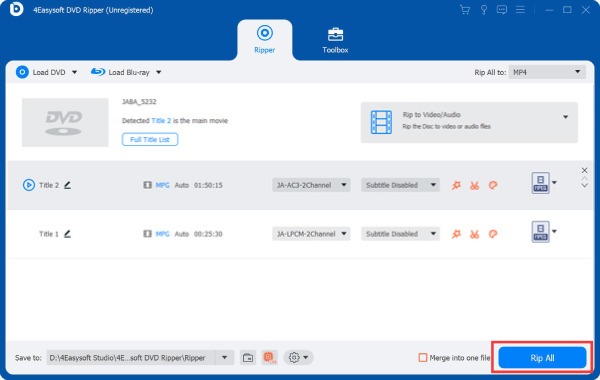
Step 1Launch 4Easysoft DVD Ripper and put the DVD into your drive. Click "Load DVD" to load the movies.
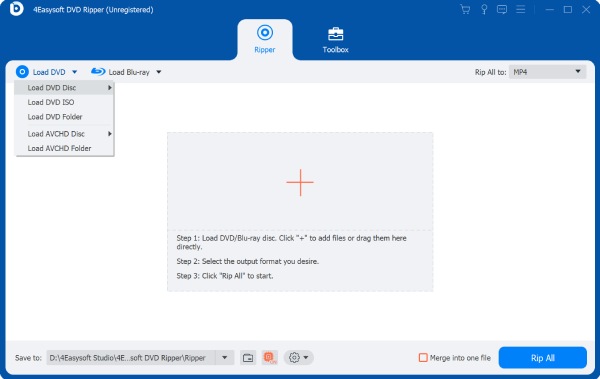
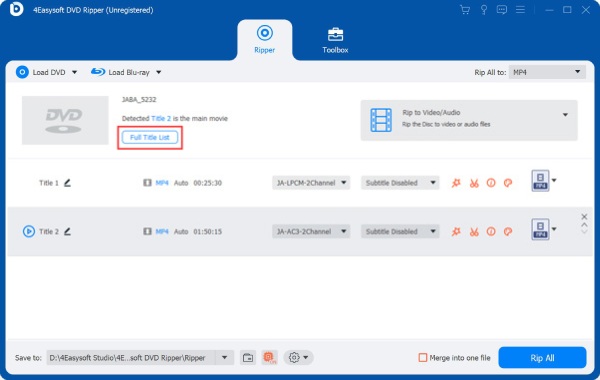
Step 2Click the "Full Title List" button to show not only the main title of your DVD disc, but also other titles.
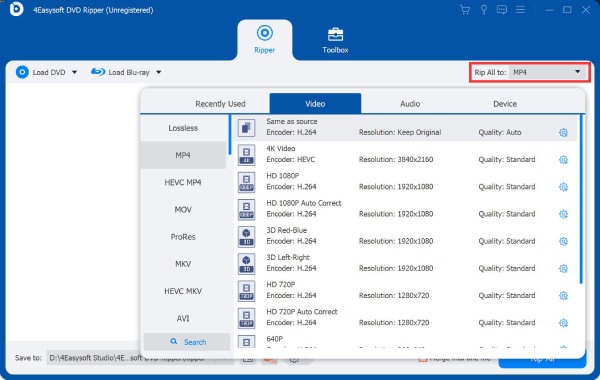
Step 3Select the output video format from the "Rip All to" drop-down list.
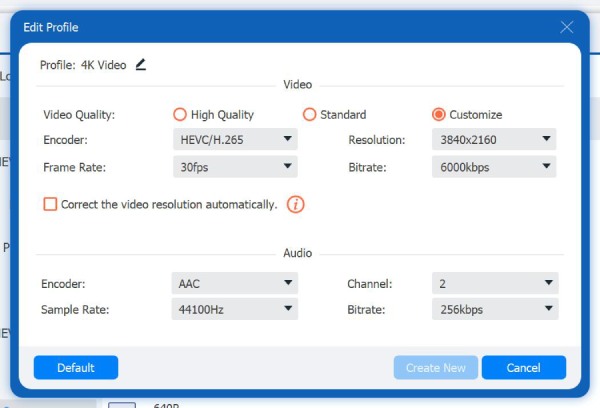
Step 4Click the "Settings" button to adjust video resolution, frame rate, bitrate, and more.
Step 5At last, click the "Rip All" button to convert DVD to MP4 and other formats on your computer.
MakeMKV
Best for: Users who want high-quality MKV copies with minimal processing.
If you want to preserve the original video and audio rather than compress them into a smaller file, you can also choose MakeMKV. It strips the copy protection and pulls the DVD (or Blu-ray) straight into an MKV file without re-encoding anything. However, the compatibility with newer or unusual discs can vary. That's the main reason that people are looking for MakeMKV alternatives.
Step 1Insert the DVD disc into your computer's DVD drive.
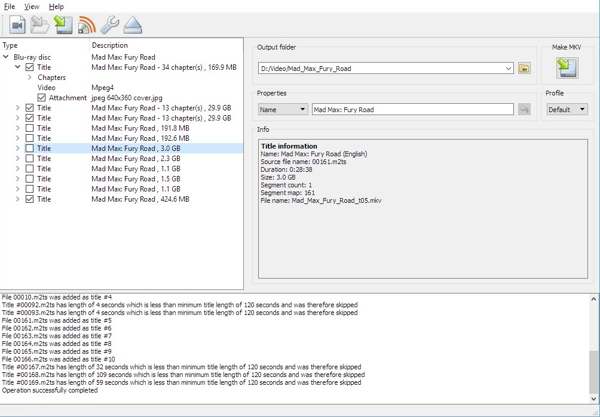
Step 2Open MakeMKV. Click the "Open Disc" button. MakeMKV scans the disc and then shows all content.
Step 3Expand the title list. Check the audio and subtitle tracks that you want to keep.
Step 4Set the output folder. Click the "Make MKV" button to start ripping DVD to your hard drive in MKV format.
HandBrake
Best for: People who don't want to pay and don't mind doing a bit of extra setup.
HandBrake does not directly handle most commercial copy-protected DVDs. But you can use an external decryption library (libdvdcss) to bypass standard CSS protection and rip DVDs to your hard drive successfully. However, some discs may still fail to load or rip correctly with HandBrake.
Step 1Download libdvdcss (via VideoLAN's site, or Homebrew on Mac: brew install libdvdcss).
Step 2Place the libdvdcss file where HandBrake can find it, or let the installer handle it.
Step 3Insert your DVD disc. Open HandBrake. Then select the DVD as the source.
Step 4Wait until HandBrake scans the available titles.
Step 5Select the main movie or other titles you need.
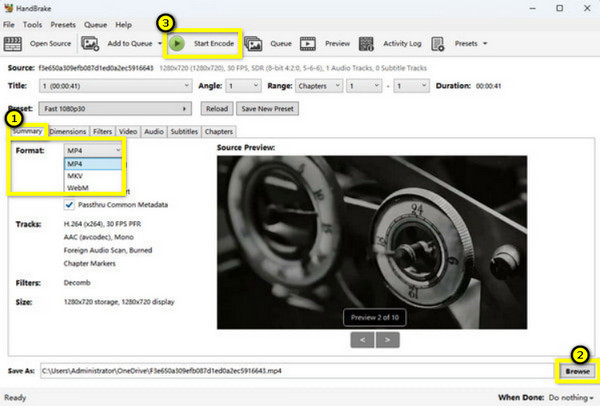
Step 6Choose the output format from MP4 or MKV.
Step 7Adjust the video quality, resolution, audio, and subtitle settings.
Step 8Set the output folder. Then click the "Start Encode" button to rip DVD to MP4 and other formats.
How to Rip Unprotected or Homemade DVD to Hard Drive
Best for: Rip DVDs without copy protection, such as home videos, personal recordings, or burned discs.
Things will be easier to convert unprotected or homemade DVDs to MP4. You don't need to deal with copy protection. If you only need the movie for watching on a computer, TV, phone, or media server, converting a DVD to MP4 or MKV saves space and is easy to manage. If you want an exact backup of the disc, an ISO file or VIDEO_TS folder is a better choice. Because it can retain the original DVD structure, menus, and extras. Here you can use VLC to rip DVD without copy protection for free.
Step 1Put the DVD into your computer's drive.
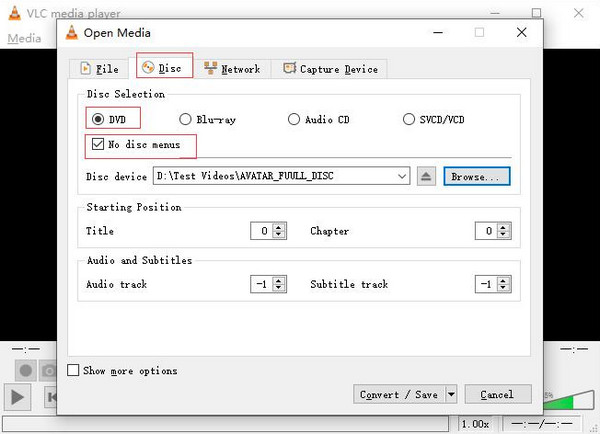
Step 2Open VLC. Click the "Media" button on the top toolbar. Select the "Convert/Save" button. (As for Mac users, you need to click the "Convert/Stream" button from the "File" drop-down list.)
Step 3Go to the "Disc" tab. Select DVD and make sure the correct drive is chosen.
Step 4Check the appropriate title and audio track. Then click the "Convert/Save" button.
Step 5Choose a format like "Video - H.264 + MP3 (MP4)" under the "Profile" drop-down menu.
Step 6Set the destination folder and filename. Click the "Start" button to rip a DVD on hard drive.
Conclusion
Moving your DVD collection to a hard drive does not have to be complicated. Open source DVD rippers can work well for unprotected discs, while protected DVDs may require more professional DVD ripping software. You should also choose the output format based on your needs. For regular playback, MP4 or MKV is usually the easiest option. For a more complete backup, ISO or DVD folders make more sense. 4Easysoft DVD Ripper is a good all-around choice for flexible output and a simpler ripping workflow.
100% Secure
100% Secure
