
Compress videos from GB to MB and keep its original quality with the AI technology
How to Reduce Video File Size? 4 Ways Without Quality Loss

Posted by Aira Lesly Escoto to Compress Video Jan 23, 2026
Since large files can quickly become a problem, compression is a necessary step to upload videos online swiftly and save storage space. How can you reduce video file size without sacrificing visual quality? With the right tools, you can shrink videos while keeping them clear and smooth. And this guide covers four practical ways to make videos smaller, from desktop to mobile apps, fitting different needs and devices for everyday use.
Guide List
Reduce Video File Size with Minimal Quality Loss Use QuickTime on Mac to Reduce Video File Size Compress videos with VLC Media Player How to Reduce Video File Size on MobileReduce Video File Size with Minimal Quality Loss
Looking for a reliable way to reduce the MB size of a video and still keep them clear and smooth? Use the 4Easysoft Total Video Converter then! This versatile software combines a video compressor, converter, and editor in one place, simplifying the entire workflow. With its adjustable settings like resolution, frame rate, bitrate, and more, you can fine-tune compression based on your needs. Aside from that, it covers a vast range of well-known video formats, including MP4, MOV, AVI, MKV, and more, making it easy to play on many devices and platforms. So, whether your goal is to save storage space or ready those videos for sharing online, this tool can compress videos without losing quality.

Minimize video file size by entering target size or percentage.
Make videos smaller by trimming, cropping, lowering quality settings.
GPU acceleration for batch video compression and editing.
Get 20+ tools to edit videos quality for sharing or saving.
100% Secure
100% Secure
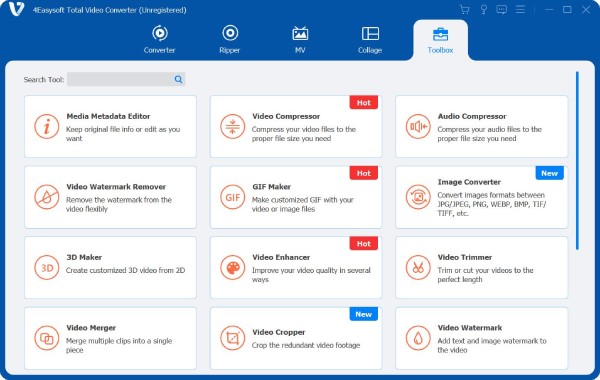
Step 1Launch 4Easysoft Total Video Converter on your computer. From the top menu, click the "Toolbox" tab, and pick "Video Compressor" to start optimizing your video size.
Step 2In the Video Compressor window, click the "Add" button to import your large video file. Use the sliders or arrow controls to adjust the file size and bitrate until you reach the ideal balance between quality and compression.
To ensure the results look right, click on "Preview" and watch the compressed video before proceeding. You can choose the desired output format, too.
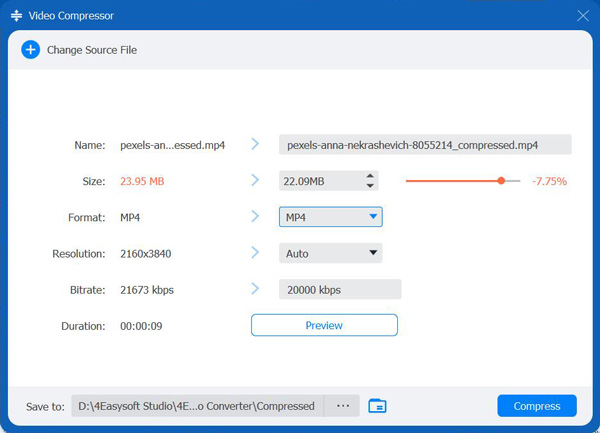
Step 3After finalizing your settings, rename the file and choose where it will be saved on your computer. Click the "Compress" button to complete the process and export a smaller video that maintains visual quality.
100% Secure
100% Secure
Use QuickTime on Mac to Reduce Video File Size
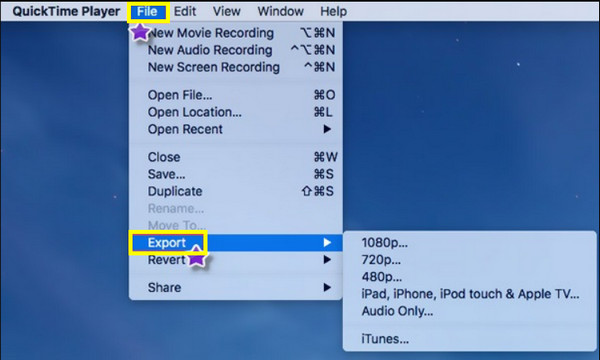
Moving to built-in solutions, Mac users can make use of QuickTime Player for performing basic video compression. For those who prefer a simple option to reduce MP4 file size without extra apps, this tool is a great option. While it does not have any detailed compression controls, it lets you export videos in lower resolutions quickly, making it best for quick edits and simple video sharing.
Step 1Launch QuickTime Player on Mac, then click on "File", select "Open File", and choose your video to be played.
Step 2After that, head to "File" then "Export As", and pick a lower resolution like 720p or 480p.
Step 3Determine a save location, then click the "Save" button to export the compressed video.
Compress videos with VLC Media Player
Now, for a cross-platform option to compress video to a smaller file size, you can use VLC to reduce video file size for free on both Windows and Mac computers. While it is known as a media player, it includes basic conversion and compression features, making it a good choice for anyone who already has it installed and a no-cost solution.
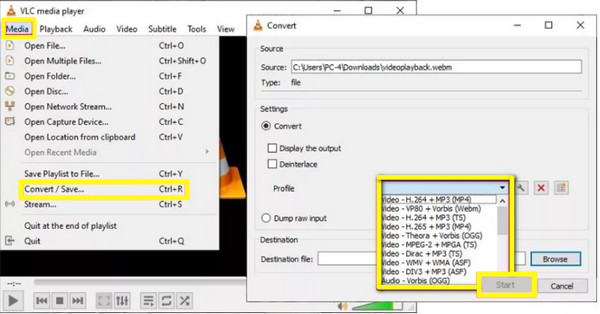
Step 1Run VLC Media Player on your computer. Then, click on "Media", select the "Convert/Save" option, then import your video file by clicking the "Add" button.
Step 2Proceed by clicking the "Convert/Save" button.
Step 3From here, select a format, then click the "Settings" button under Profile to choose a lower quality or smaller resolution profile.
Step 4After picking a destination folder, click the "Start" button to finalize.
How to Reduce Video File Size on Mobile
Finally, if you prefer handling video compression from your smartphone, here's one reliable app for iPhone and one for Android users. While they don't have the same level of control as the previous methods, they are ideal for everyday use for reducing video file size.
Video Compress - Shrink Vids for iPhone
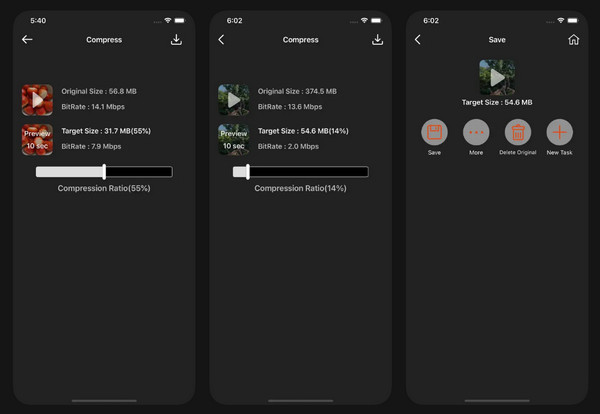
This video file size reducer iOS app allows you to resize the video to a smaller size to iPhone without complicated settings. It has preset compression levels, which is excellent for beginners to choose the right balance between file size and quality.
Step 1Launch Video Compress-Shrink Vids. Choose the video you wish to compress from your "Photos" library.
Step 2Select a compression level or target resolution, then preview the file size and quality.
Step 3Tap the "Compress" button and save it to your device.
Video Compressor - Reduce Size for Android
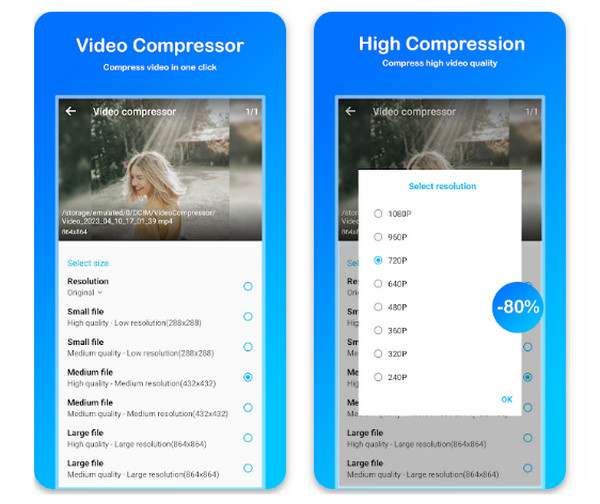
On the Android side, this app is widely used for making video size smaller. It lets you compress videos by adjusting the resolution, bitrate, or file size. Also, this video file size reducer supports multiple formats and offers a preview of the output quality.
Step 1Open the Video Compressor-Reduce Size app.
Step 2Tap "Compress Video", and select a video from your gallery.
Step 3Select your desired compression method or preset.
Step 4Adjust the resolution and quality if needed, then start the compression and save it to your device.
Conclusion
Now that you know which methods to use, reducing video file size is no longer a complicated task. From desktop software to media players and mobile apps, each approach here is ideal depending on your situation. But for the best balance of speed, flexibility, and slight quality loss, 4Easysoft Total Video Converter is suggested. Its built-in Video Compressor customizable settings and broad format support; this all-in-one solution shrinks video file size while keeping excellent visual quality.
100% Secure
100% Secure
