
Recover deleted/lost data from PC/Mac, HDD, USB, SD card and more.

How to Recover Recently Deleted Photos on iPhone [4 Ways]

Posted by Paula Pailaga to iOS Recovery Jan 09, 2026
When those important moments captured on iPhone are accidentally gone, it can be stressful as they cannot be replaced. Is there a way to recover recently deleted photos on iPhone? The good news is that Apple has built-in recovery options, and also a way to restore photos with extra help. So, from checking the Recently Deleted folder to three more easier ways, scroll down to the following parts to get deleted photos back on iPhone.
Guide List
Where are Recently Deleted Photos Stored on an iPhone? How to Recover Recently Deleted Photos from Photos App Recover Permanently and Recently Deleted Photos on iPhone [Suggested] Restore Permanently Deleted Photos from iPhone via iCloud Recover Permanently Deleted Photos from iPhone Using iTunesWhere are Recently Deleted Photos Stored on an iPhone?
Prior to the methods to recover photos deleted recently on iPhone, understand what actually happens when you delete photos. When you delete photos from your library, they are not gone immediately. Instead, Apple stores them in a Recently Deleted album that gives you a chance to restore them.
All photos inside the album remain for up to 30 days. Once this limit expires or you manually delete photos inside this album, the photos will be considered permanently deleted, and you will need more advanced recovery methods to get them back.
How to Recover Recently Deleted Photos from Photos App
Now that you know where recently deleted photos on iPhone are stored initially, here's the easiest recovery method for you. This approach works best if the images are still within the 30-day limit and have not been removed from the Recently Deleted album.
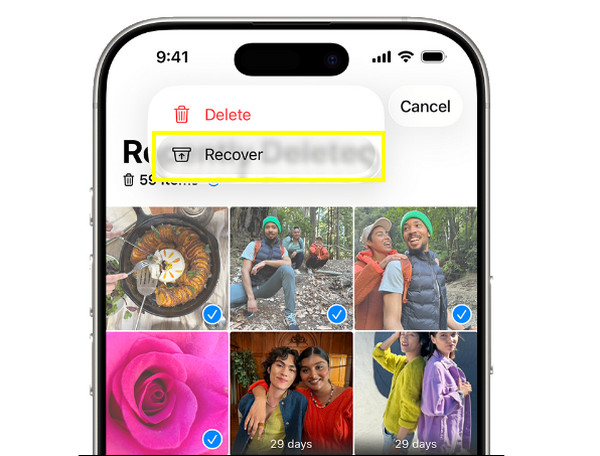
Step 1Inside the "Photos" app, tap "Albums" at the bottom, and scroll down to find the "Recently Deleted" album.
Step 2Unlock it using Face ID, Touch ID, or passcode.
Step 3Once in there, tap "Select" and determine the deleted photos you wish to recover.
Step 4Tap "Recover" to restore deleted pictures on iPhone with the Recently Deleted folder.
Recover Permanently and Recently Deleted Photos on iPhone [Suggested]
Once your photos are permanently deleted from the album, iOS built-in options may not work. At this point, use a dedicated recovery tool like 4Easysoft iPhone Data Recovery that scans storage and backups deeply to locate deleted photos, and other data, including contacts, messages, call history, and more. This program supports multiple recovery modes, making it excellent for your lost photos due to accidental deletion, failed updates, crashes, or resets. Unlike basic recovery solutions, you can preview pictures before restoring, so you only acquire what you actually need.

Easily recover recently deleted photos on iPhone alongside other data.
Fully compatible with all iPhone models and works smoothly with the latest versions.
Has a fast and reliable scan technology to locate lost photos without affecting other data.
Preview deleted photos before restoring to recover only what you need.
100% Secure
100% Secure
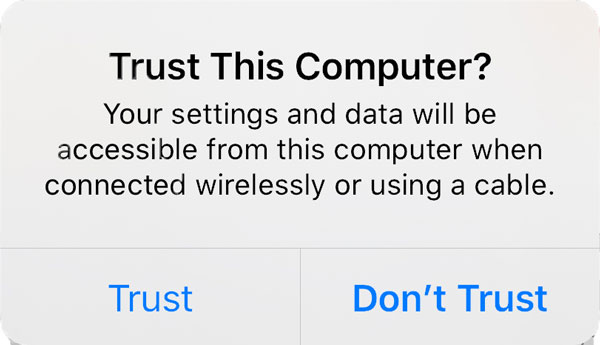
Step 1Launch 4Easysoft iPhone Data Recovery on your computer, and pair your iPhone with it using a USB cable. When a prompt appears on your iOS device, make sure to tap "Trust" to allow the software to access your device.
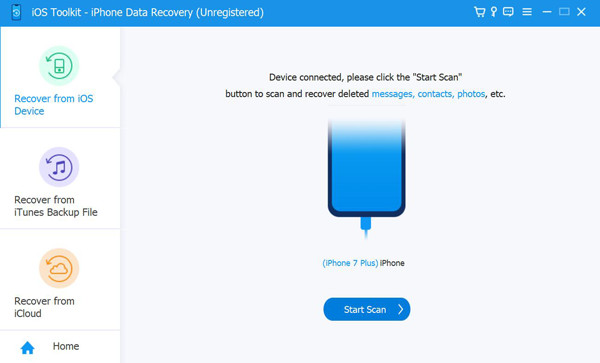
Step 2On the main interface, select "iPhone Data Recovery", then choose "Recover from iOS Device". Click the "Start Scan" button to perform a deep scan that goes through your iPhone for recently deleted photos and other lost data.
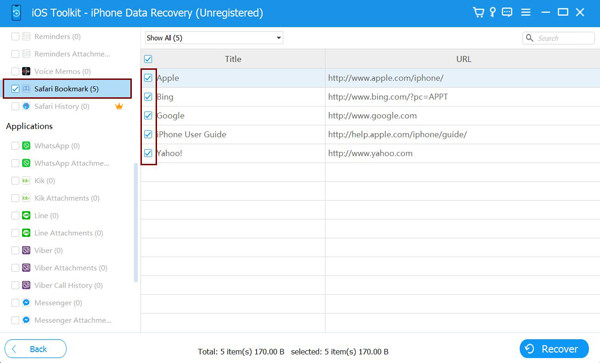
Step 3Once the scan is finished, all recoverable files will be cleanly categorized for easy browsing. There, navigate to "Photos", preview all deleted images. Click the "Recover" button to recover the permanently deleted iPhone photos selectively and successfully.
100% Secure
100% Secure
Restore Permanently Deleted Photos from iPhone via iCloud
Another reliable option to recover recently deleted photos on iPhone is through iCloud. This method works very smoothly if your photos were synced automatically before they got deleted. But keep in mind that doing so will replace your existing data on your iPhone with the data from the backup. (Steps to back up iPhone photos.)
Step 1On your iPhone, open "Settings", tap on "General", and navigate to the "Transfer or Reset iPhone" section. Next, tap "Erase All Content and Settings".
Step 2Complete the setup process, and once you're in the "Apps & Data" screen, select "Restore from iCloud Backup".
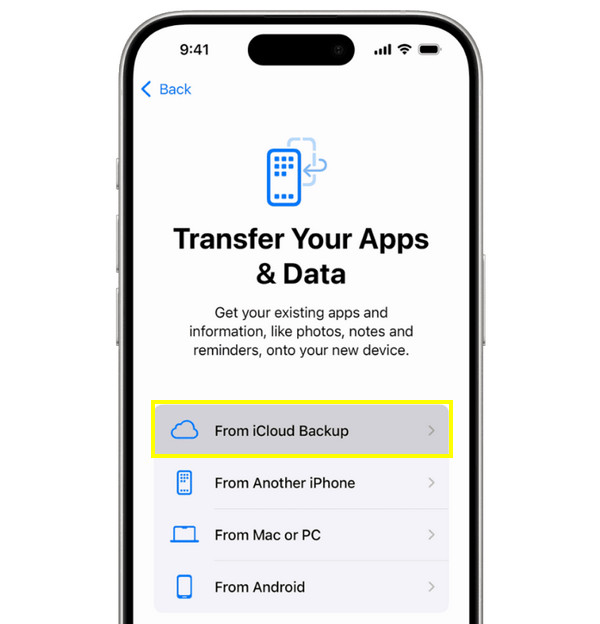
Step 3Next, sign in with the right Apple ID, then pick the backup made before the photos were deleted and wait for it to complete.
Recover Permanently Deleted Photos from iPhone Using iTunes
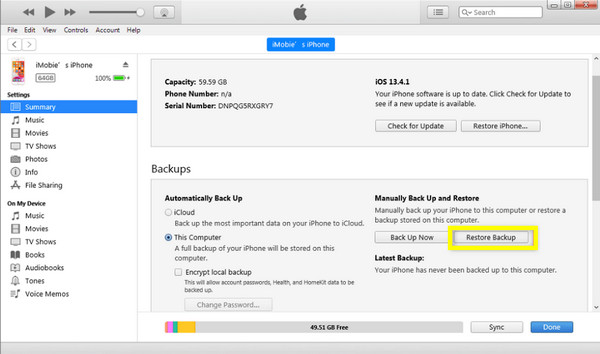
Finally, if you have been regularly backing up your iOS device to a computer, you can recover recently deleted photos on iPhone through iTunes or Finder on macOS. Similar to the previous recovery method, using iTunes will sacrifice the current data, so it's nice if you save important files before proceeding.
Step 1Pair your iOS device with your computer. Open iTunes, and select your device icon once it gets detected.
Step 2There, click "Restore Backup".
Step 3Select the backup created before the photos were lost, then click the "Restore" button and wait for the process to finish.
Conclusion
As shown today, deleting photos on iPhone does not mean losing them forever right away. Four reliable ways here can help you recover deleted photos on iPhone with or without backup, from the Recently Deleted album to using backups. However, when you make no backup, don't forget the most effective choice: 4Easysoft iPhone Data Recovery. This tool safely and deeply scans your iPhone, previews deleted photos, and does more, without overwriting your existing data. For a high success rate to recover deleted photos on iPhone after 30 days, get this smart tool as your friend.
100% Secure
100% Secure
