
Recover deleted/lost data from PC/Mac, HDD, USB, SD card and more.

iPhone Not Receiving Calls: 10+ Reasons & 12 Solutions

Posted by Alvin Cantero to iOS Recovery Feb 09, 2026
When your iPhone does not alert you, especially with important calls, it can be frustrating. Before rushing to a service center, it is worth knowing that iPhone not receiving calls can be fixed at home using a few troubleshooting methods. Therefore, this post has got you not one but 12 effective fixes to try first for an iPhone can't make or receive calls. Each solution addresses a different possible cause, from Airplane Mode to even iOS malfunctions.
Guide List
Why is My Phone Not Allowing Me to Make Calls iPhone 1. Restart iPhone 2. Disable Do Not Disturb 3. Repair with 4Easysoft iOS System Recovery 4. Toggle On and Off Airplane Mode 5. Update iOS 6. Check the SIM Card 7. Reset Network Settings 8. Verify Blocked Numbers 9. Check Call Forwarding 10. Unmute the Volume 11. Disconnect Other Devices 12. Turn Off Silence Unknown CallersWhy is My Phone Not Allowing Me to Make Calls iPhone
It can be frustrating when your iPhone refuses to make calls, especially when you need to reach someone immediately. This iPhone not receiving incoming calls issue can stem from a variety of reasons, ranging from minor settings to deeper software problems. Before assuming the worst, it's a good idea to check the following cases that might be preventing you from receiving calls.
• Poor Signal. A weak network can stop outgoing calls from connecting properly.
• DND Mode is Active. This feature can block calls unintentionally.
• Airplane Mode is Enabled. If Airplane Mode is turned on, it disables all cellular services.
• SIM Card Problems. A damaged SIM card can stop your device from making calls.
• Carrier Restrictions. Your carrier might be facing network issues.
• Network Settings Issues. Corrupted network configurations may stop with call functions.
• iOS Bugs or Software Glitches. A temporary error in iOS can affect call functions.
• Blocked Numbers. If the number you're calling is blocked, the call will not go through.
• Hardware Damage. A damaged component could cause call issues.
1. Restart iPhone
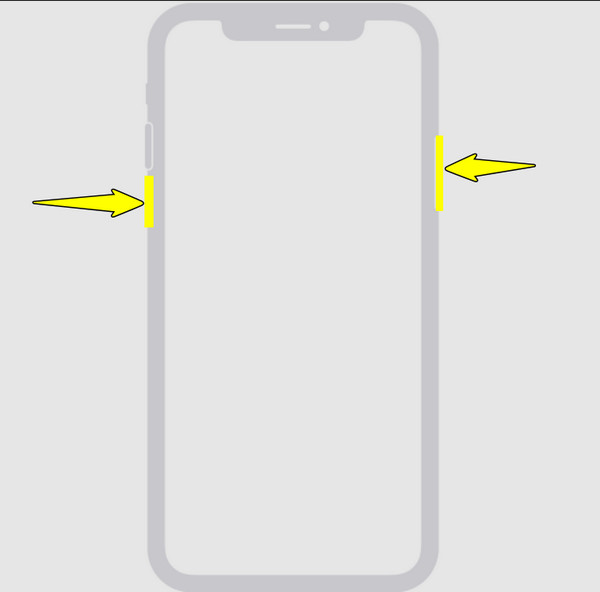
Rebooting iPhone can fix can't receive calls on iPhone issues is to restart your device. This clears out bugs and refreshes your phone's connection.
Step 1Press and hold the "Side" button and either "Volume" button until the slider appears.
Step 2Drag it to shut off your iPhone.
Step 3After about 30 seconds, press the "Power" button again and wait for the Apple logo to appear.
2. Disable Do Not Disturb
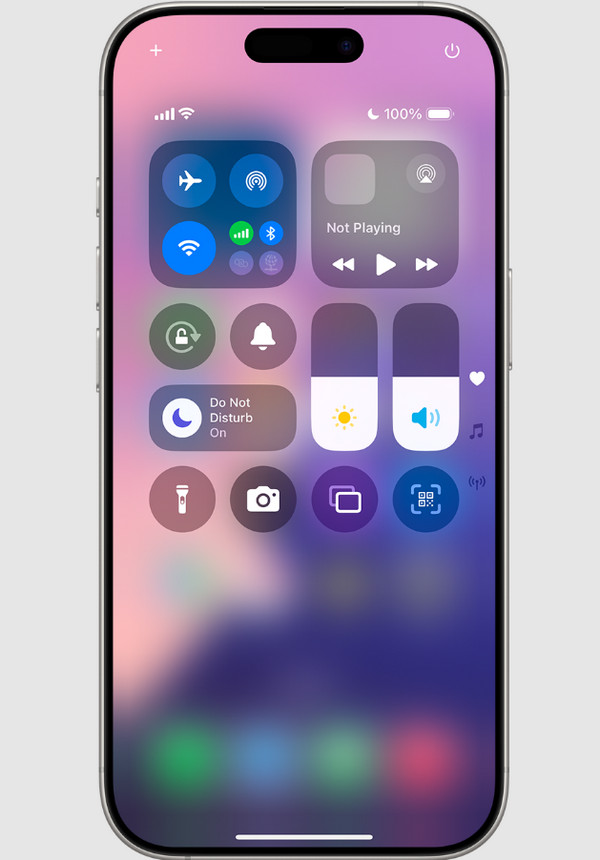
If your iPhone does not ring in incoming calls, it might be due to Do Not Disturb being enabled. This feature silences all incoming calls and notifications.
Step 1In the "Control Center" (swipe down from the top-right corner or swipe up from the bottom), tap the "Focus" icon to turn it on.
Step 2Otherwise, go to "Settings", tap "Focus".
Step 3Then select "Do Not Disturb" and toggle it off.
3. Repair with 4Easysoft iOS System Recovery
After trying the basic fixes and still not receiving calls on iPhone, there could be a deeper system error. In this case, use a dedicated tool like 4Easysoft iOS System Recovery. This professional program is made to fix over 50 types of iOS issues, including network errors, call malfunctions, or system crashes, without erasing your existing data. Unlike manual troubleshooting, this tool automatically detects the root cause of the issue and gives you repair modes perfect for your issues.
Can fix more than 50+ iOS system issues, including not calling issues.
Supports both Standard and Advanced repair modes depending on the issue.
Compatible with all iPhone, iPad, and iPod models, including the latest version.
Offers safe and reliable system restoration without data loss.
100% Secure
100% Secure
Step 1Open 4Easysoft iOS System Recovery on your computer and link your device using a USB cable. Once your iPhone is detected, choose "iOS System Recovery" from the main screen, then click the "Start" button.
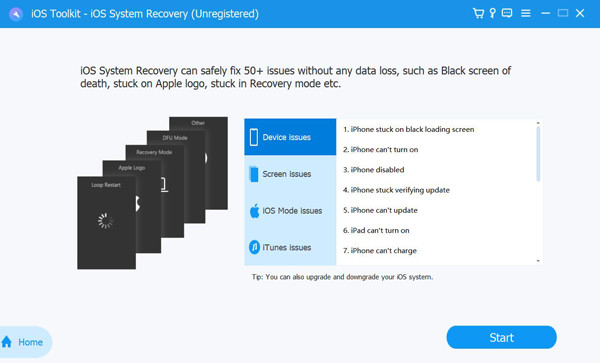
Step 2The program will automatically scan and analyze your system condition to determine why the iPhone is not receiving calls. Next, click the "Quick Fix" option to move on or the "Fix" option to fix further.
Next, choose either "Standard Mode" to repair your iPhone without data loss, or "Advanced Mode" for a more severe system refresh that resets your device. Click the "Confirm" button to move forward.
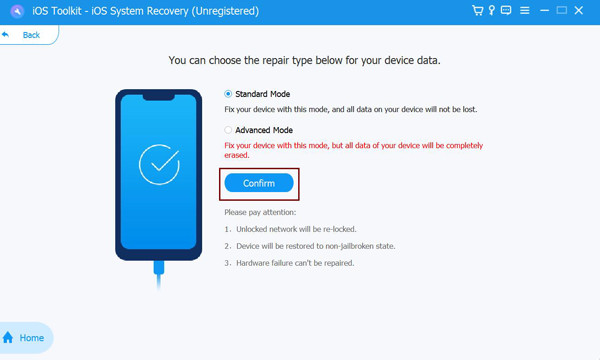
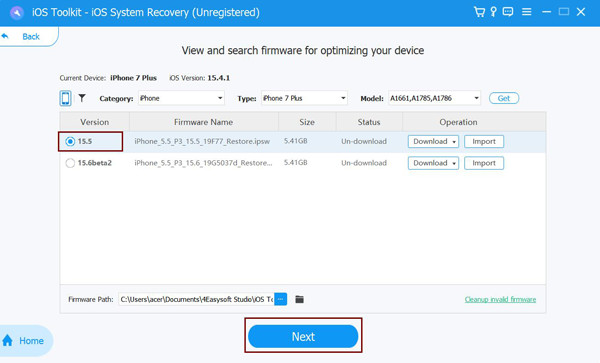
Step 3Ensure your iPhone model and version are displayed correctly on the screen. Then, download the correct firmware package for your device. Once it gets complete, click the "Next" button to begin repairing your system.
4. Toggle On and Off Airplane Mode
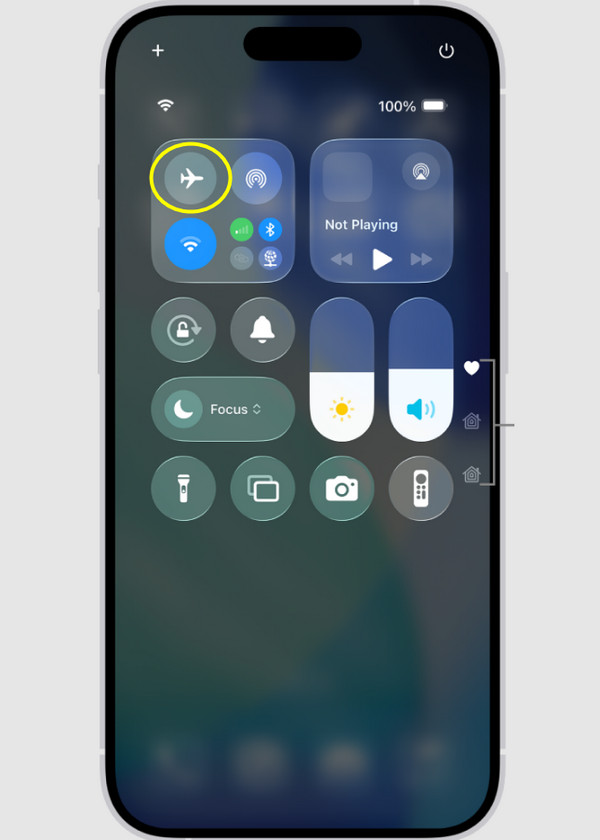
Sometimes, simply toggling the Airplane Mode on and off refreshes your device's connection to the cellular network. This action forces your device to reconnect to nearby towers, which may fix can't receive calls or call failed on iPhone.
Step 1Open the "Control Center" on your iPhone
Step 2Tap the "Airplane Mode" button to activate it, then wait for 10 seconds.
Step 3Tap the "Airplane Mode" icon again to turn it off and get back your cellular connection.
5. Update iOS
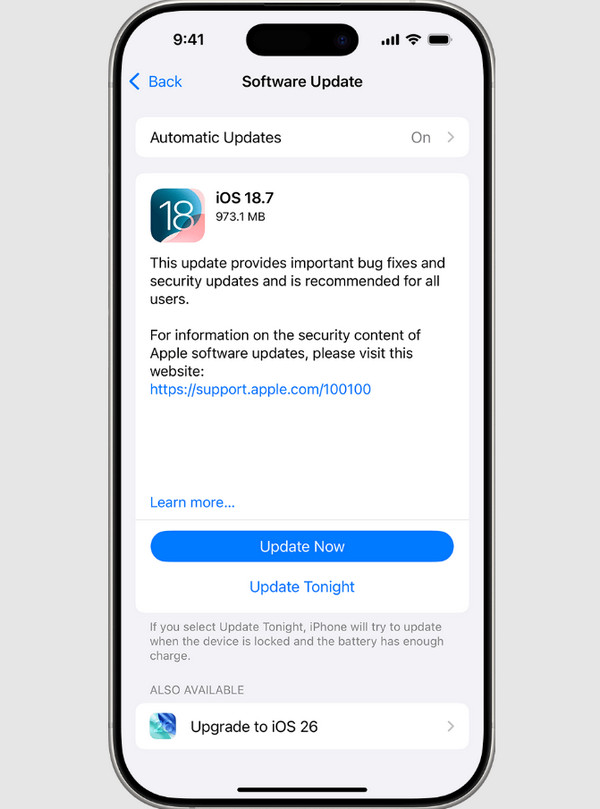
Outdated iOS versions cause bugs that affect phone calls, leading to the iPhone not receiving calls. Try to update your system to ensure your iPhone runs smoothly.
Step 1Go to "Settings", then "General" and tap on "Software Update".
Step 2If an update is available, tap the "Update Now" button.
Step 3Please wait for it to complete.
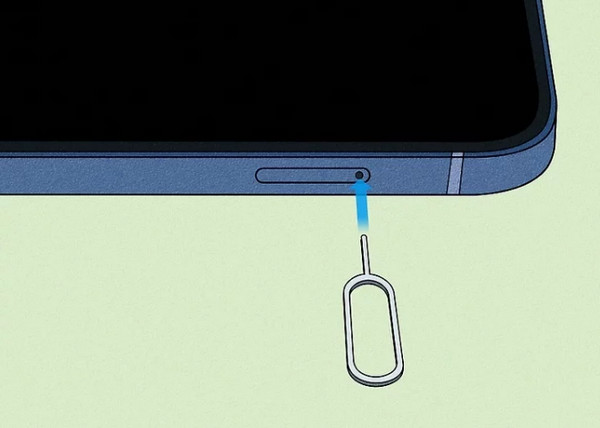
6. Check the SIM Card
A damaged inserted SIM card can also prevent your iPhone from receiving calls. Check and reseat the SIM card to ensure it is aligned.
Step 1Power off your iPhone first, and use the "SIM ejector tool" to open the SIM tray.
Step 2Remove the SIM card.
Step 3Inspect for any dirt or damage, then reinsert it carefully.
7. Reset Network Settings
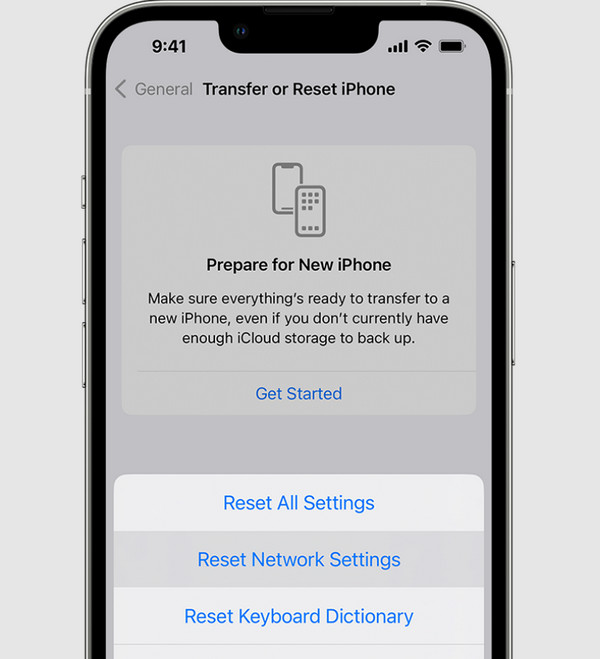
Resetting your network settings can remove all saved networks and connections. By doing so, you can fix iPhone not receiving calls afterwards.
Step 1Open the "Settings" app. Head to "General" and tap on "Transfer or Reset iPhone".
Step 2Tap "Reset" then select "Reset Network Settings" from the options.
Step 3Enter your passcode and confirm the action.
8. Verify Blocked Numbers
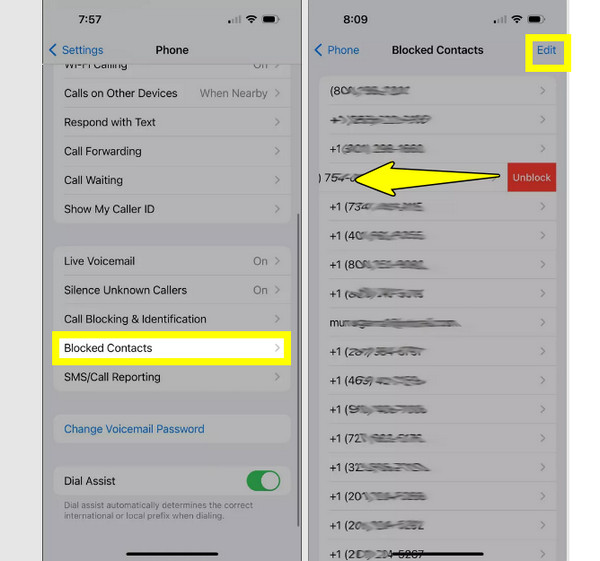
You might not realize it, but you may accidentally block someone's number, which stops them from contacting you. Check your iPhone blocked numbers to ensure you're not missing calls from someone important. After that, you can fix iPhone not receiving calls or texts effectively.
Step 1Head to "Settings", then "Phone".
Step 2Go to "Blocked Contacts".
Step 3Check the list and tap the "Edit" button to delete any numbers you want to unblock.
9. Check Call Forwarding
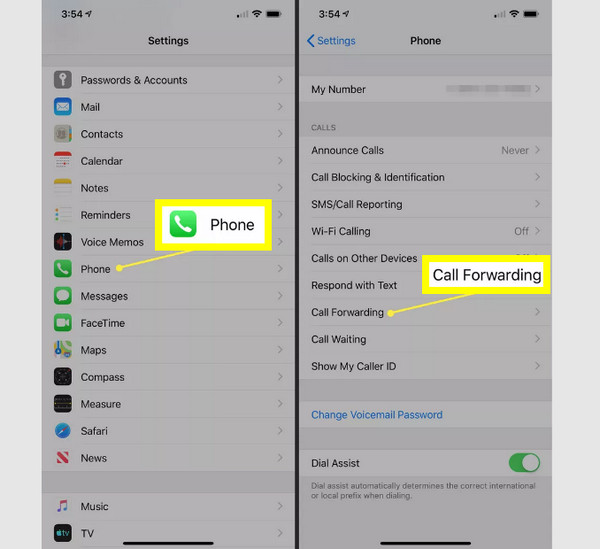
Your incoming calls may be redirected to another number or voicemail if this feature is enabled. Try turning it off to ensure you can receive calls directly, avoiding iPhone not receiving calls issues.
Step 1Head to "Settings".
Step 2Go to "Phone" and locate "Call Forwarding".
Step 3Turn the switch button off if it is enabled.
10. Unmute the Volume
Suppose you cannot hear calls at all. Your phone's volume might be the culprit, so check if your device is not muted. This method works to fix iPhone not receiving calls but can make them.
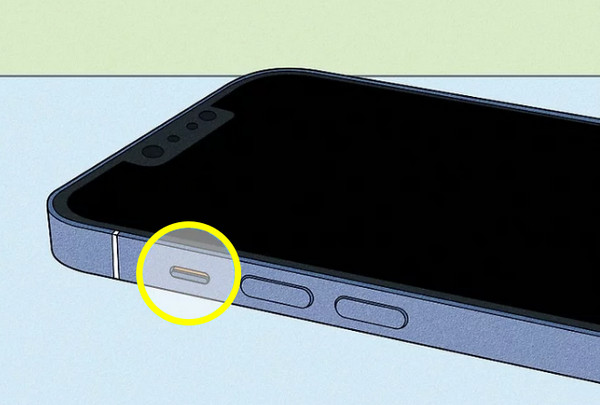
Step 1Use the "Volume Up" buttons to raise the volume for the ring.
Step 2Check the "Ring/Silent" switch on the side, too.
Step 3If it is orange, your device is silent, so switch it back to turn the ring on.
11. Disconnect Other Devices
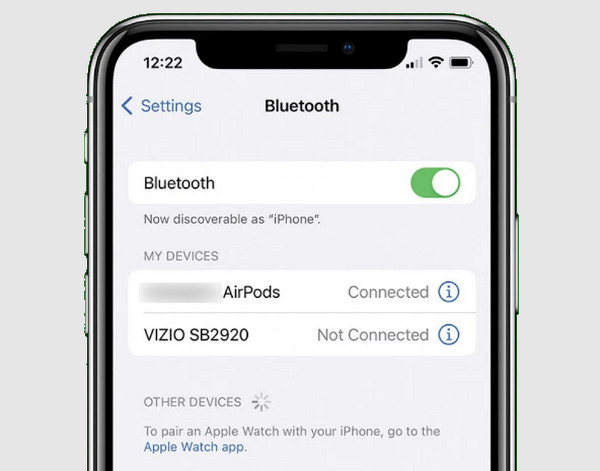
If your iPhone is connected to a headset, AirPods, or other Bluetooth devices, your audio might be heard elsewhere. Try turning off the Bluetooth or disconnecting these devices to fix iPhone won't receiving calls but showing missed.
Step 1In "Settings", head to "Bluetooth".
Step 2There, toggle the switch button to off, or manually disconnect all devices.
Step 3Try making a call to check if you can hear the audio output.
12. Turn Off Silence Unknown Callers
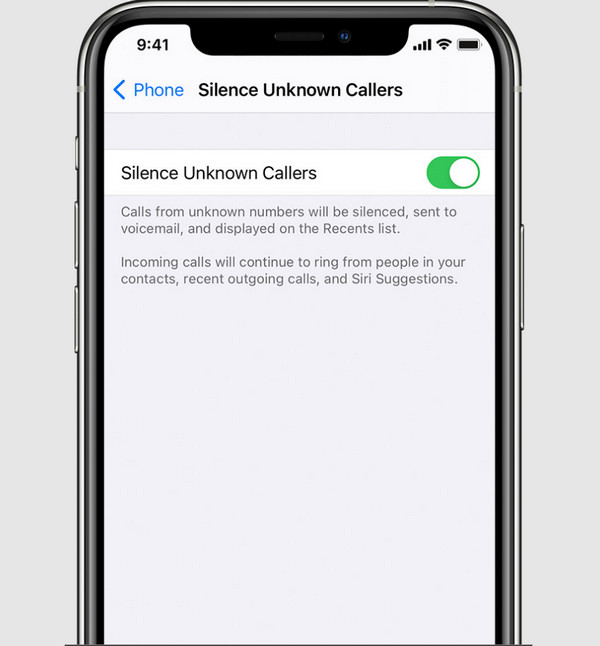
This feature mutes numbers that are not in your contact list. While it is useful, it might also block other important calls from reaching you. So iPhone calls go straight to voicemails.
Step 1Open the "Settings" app.
Step 2Head to "Phone" and look for "Silence Unknown Callers".
Step 3Turn the switch off to disable the feature and check if you can receive calls.
Conclusion
No doubt, when your iPhone is not receiving calls from one person or unknow numbers, it can quickly disrupt your day. But as you have seen here, most possible causes are easy to fix. Whether it is from simple settings (like Do Not Disturb) or deeper problems (like outdated iOS software), you can receive phone calls again with the above solutions. 4Easysoft iOS System Recovery is made to resolve all iOS system related issues without data loss. Using this tool, you can ensure that even complex call problems are fixed safely, giving your iPhone a fresh start.
100% Secure
100% Secure
