
Fix 150+ iOS system problems without data loss.

Why Does My iPhone Keep Restarting? 6 Fixes You Can Try

Posted by Alvin Cantero to iOS Recovery Mar 13, 2026
Have you ever been frustrated by your iPhone keeping shutting down and restarting over and over again? It's quite annoying, right? This common issue can be caused by various factors, but don't worry! In this guide, we will explore the main causes of iPhone restart loops and share practical solutions to help you resolve this problem quickly! Let's take a closer look at how to get your iPhone running smoothly again!
Guide List
Part 1: Why Does My iPhone Keep Restarting Part 2: 6 Fixes You Can Try When iPhone Keeps Restarting Part 3: iPhone Still Keeps Restarting? This Solution Can Help You Part 4: FAQs About iPhone Keeps Restarting ItselfPart 1: Why Does My iPhone Keep Restarting
To fix the issue, we should understand why your iPhone keeps restarting. Here are some common reasons that cause your iPhone to get stuck in a restart loop.
iOS Updates
Many users find that their iPhone continues restarting after an iOS update. If the update process gets interrupted or incomplete, it can lead to bugs or errors that cause system instability, resulting in continuous restarts.
Malware
Although iOS has many security restrictions, it's still possible for your iPhone to be jailbroken by malware, allowing unauthorized software to run. Some third-party apps may carry various issues that cause your iPhone to restart repeatedly.
Software Glitches
Software bugs, corrupted apps, or frozen processes can sometimes trigger an iPhone to restart frequently. These glitches may happen due to outdated apps, incomplete app installations, or conflicts between apps and the system.
Insufficient Storage
Storing too many apps, photos, videos, and files on your iPhone can fill up its storage or memory. This can make iOS struggle to run smoothly, causing your iPhone to keep restarting.
Hardware Issues
Sometimes, the issue might be more severe, such as hardware issues. This could include problems with your iPhone's battery, internal components, or physical damage. Water damage, overheating, or other environmental factors can also affect system performance, causing your iPhone to keep restarting.
Part 2: 6 Fixes You Can Try When iPhone Keeps Restarting
Knowing the reasons why your iPhone keeps shutting down and restarting, you can try the following 6 fixes to resolve the problem.
Force Restart Your iPhone
A force restart is the quickest and most effective way. If your iPhone gets stuck in a restart loop, follow the steps below to force restart it:
For iPhone 8 and later models:
Press and release the Volume Up button, then the Volume Down button. Next, press and hold the Side button until the Apple logo appears.
For iPhone 7/7 Plus:
Press and hold both the Volume Down and Side buttons until you see the Apple logo.
For iPhone 6 and older models:
Press and hold the Home button and the Sleep/Wake button together until the Apple logo appears.
Update iOS and Apps
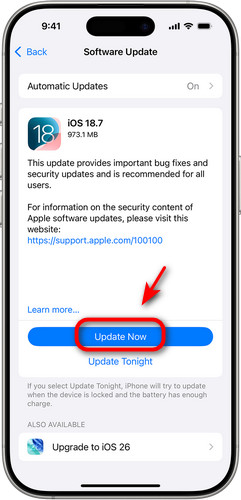
Running outdated iOS versions or apps can cause system glitches and software bugs. If your iPhone keeps restarting, check if your iOS version or apps are updated to the latest version.
Update iOS:
Open Settings > General, tap Software Update, and tap Download and Install.
Update apps:
Go to App Store > Updates and tap Update All. Alternatively, you can choose the apps you want to update one by one.
Clean Up Storage Space
If your iPhone is running low on storage, it can cause performance issues like freezing or restarting. To resolve this, it's important to check how much storage is available and free up space if necessary. Go to Settings > General > iPhone Storage. You can view the list of apps and their storage usage. Delete unused apps, old downloads, and large files you no longer need to clear storage space on your iPhone.
Remove SIM Card
If your iPhone is having trouble connecting to the wireless carrier, it may also get stuck in a restart loop. In this case, you can try turning off your iPhone, pulling out the SIM card, and reinserting it to resolve the issue.
Reset All Settings
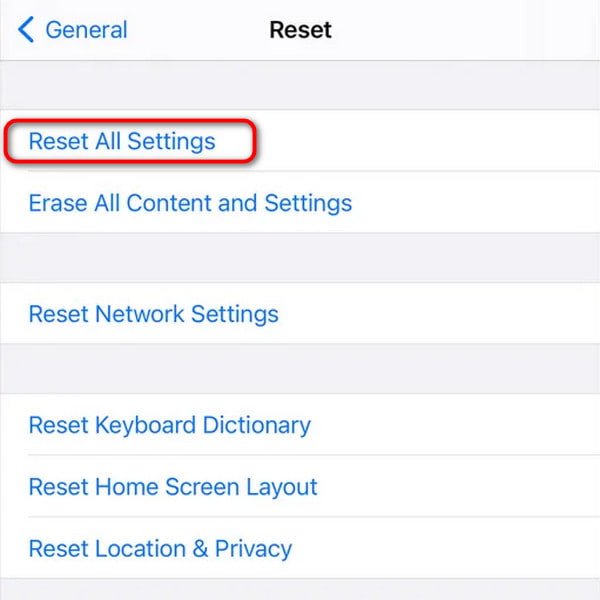
Resetting your iPhone's settings can resolve software glitches without erasing your data. This solution will restore settings like Wi-Fi passwords, wallpaper, display settings, and privacy preferences, but it won't delete photos, apps, or other data on your iPhone.
To fix the iPhone restarting issue, go to Settings > General > Transfer or Reset iPhone > Reset > Reset All Settings.
Factory Reset Your iPhone
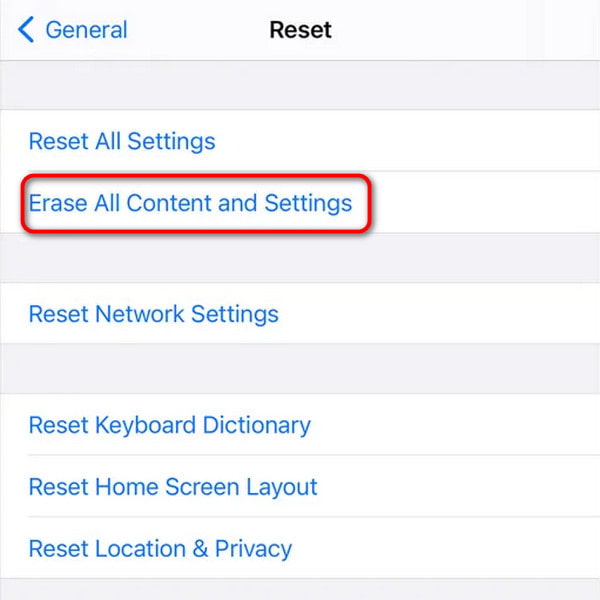
If the fixes above all failed to resolve the issue, you can try resetting your iPhone to factory settings. This solution will erase all your data on your iPhone, so it's recommended to back up your important data before proceeding. After the reset, you can restore your iPhone from backup.
To perform a factory reset, go to Settings > General > Transfer or Reset iPhone > Erase All Content and Settings, then tap Continue and follow the on-screen instructions.
Part 3: iPhone Still Keeps Restarting? This Solution Can Help You
Is your iPhone still restarting after trying all the fixes? Don't worry! This software can help you resolve the issue! 4Easysoft iOS System Recovery can fix all kinds of iOS problems in various scenarios. Whether your iPhone keeps restarting itself, gets stuck on the Apple logo, freezes during an update, or experiences screen glitches, it can repair your system safely and quickly.
Resolve device issues, screen issues, iOS mode issues, and iTunes issues.
Upgrade or downgrade iOS 26 and 27 without jailbreaking.
Enter or Exit Recovery Mode and DFU mode for free.
Factory reset your iPhone without a passcode.
100% Secure
100% Secure
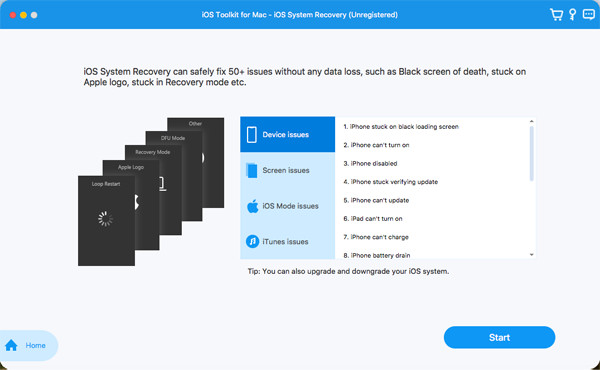
Step 1Launch the software and select "iOS System Recovery" from the main interface. Connect your iPhone to the computer via a USB cable, then click the "Start" button to proceed.
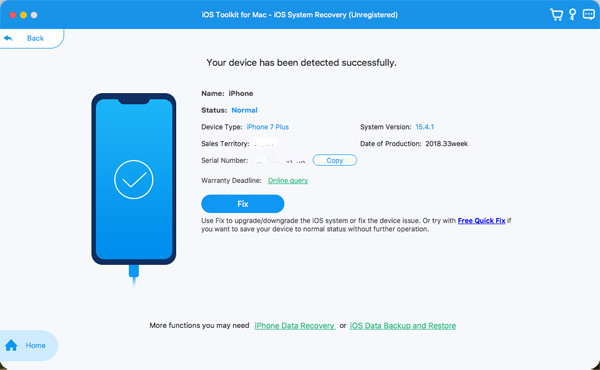
Step 2Click "Free Quick Fix" to fix some simple issues. If this doesn't resolve the problem, you need to click the "Fix" button to do further fixes.
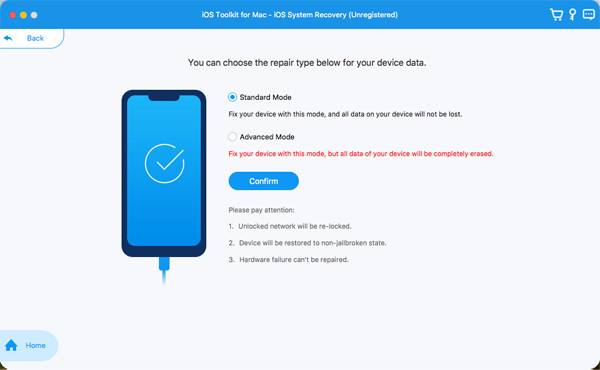
Step 3Choose "Standard Mode" to fix simple iOS system issues without data loss.
Choose "Advanced Mode" to fix serious system issues. This mode will delete all the data on your device, but it offers a higher success rate than the standard one.
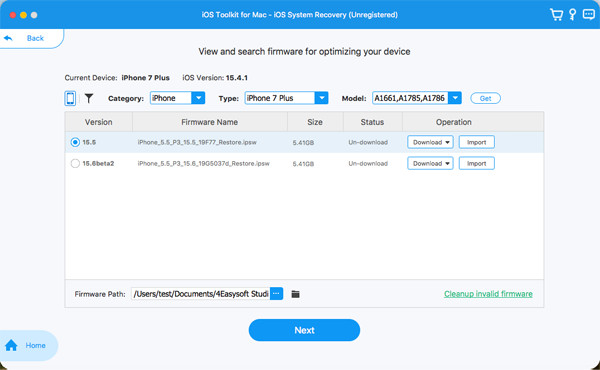
Step 4Select the category, type, and model of your device. Choose the firmware that matches your iOS version and click "Download". Once the download is complete, click the "Next" button to initiate the repair process.
Part 4: FAQs About iPhone Keeps Restarting Itself
-
Why does my iPhone keep restarting over and over?
This means your iPhone is getting stuck in a restart loop. The common reasons include bad iOS updates, malware, insufficient storage, software glitches, or hardware damage.
-
How do I stop a restart loop on iPhone 14?
You can try these fixes: (1) Force restart your iPhone. (2) Update iOS and apps. (3) Clean up storage space. (4) Remove the SIM card. (5) Reset all settings. (6) Factory reset your iPhone. If all the fixes don't work, try using a professional tool like 4Easysoft iOS System Recovery.
-
What to do if my iPhone keeps restarting after water damage?
If your iPhone is still on, turn it off immediately to prevent short circuits. Use a dry cloth to wipe away any visible water, then wait until your iPhone has completely dried before turning it on.
Conclusion
Conclusion To sum up, if your iPhone keeps restarting, there are several fixes you can try to restore it. If none of these fixes work, you might consider using professional tools like 4Easysoft iOS System Recovery to stop the restart loop. If the problem persists, you can visit an Apple Store or contact Apple Support for expert assistance!
100% Secure
100% Secure
