
Remove screen passcode, Apple ID, MDM and Screen Time from iPhone safely.
Locked Out? 3 Ways to Fix iPad is Disabled Connect to iTunes

Posted by Alvin Cantero to iOS Unlocker Mar 11, 2026
Seeing the message, "iPad is disabled connect to iTunes."? It may be an alarming experience, as this has been triggered after ten consecutive incorrect passcode attempts. While it may seem like your iPad stuck, there are several ways to get it back. In this article, three effective solutions are shared to fix a disabled iPad, alongside reasons why it happens. By the end, you'll know how to bypass the disabled screen and restore it to working order.
Guide List
Why is My iPad Disabled to Connect to iTunes Erase iPad Data to Resolve Disabled Connect to iTunes without Computer The Best Tool to Unlock an iPad for Disabled Connection to iTunes Use "Find My iPhone" to Connect iPad to iTunesWhy is My iPad Disabled to Connect to iTunes
The main reason an iPad is disabled is due to Apple's built-in security protocol, which protects your data from unauthorized access. If there are too many passcode attempts, the system assumes an authorized person is trying to break into your locked device.
Here are possible reasons:
- Many Failed Passcode Attempts. The most common cause of the 'iPad is disabled to connect to iTunes' error. For the first 6 attempts, your iPad is disabled for 1 minute, and 10 attempts will get your iPad permanently disabled.
- Outdated System Software. Usually, the bug in an older version can cause the security system to glitch.
- Ghost Touching Issues. Suppose your iPad screen is damaged. This can cause the device to enter random passcodes while it is in your bag or pocket.
- Software Corruption. Once an iOS update is interrupted, the security partition can be corrupted, forcing the device into "Connect to iTunes" mode.
- Forgotten Passcode. If a user forgets their passcode after a long period, the wrong attempts will trigger the security lockout.
Erase iPad Data to Resolve Disabled Connect to iTunes without Computer
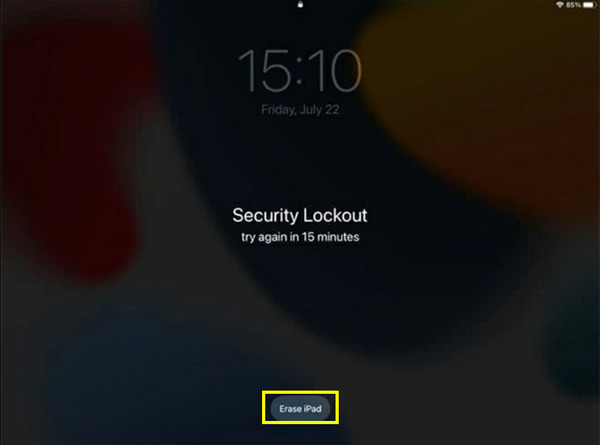
While the reasons above explain the reasons behind the 'iPad is disabled connect to iTunes' issue, the quickest way to resolve it without a PC is by using Security Lockout in iPadOS 15.2. This lets you reset the device directly from the screen as long as you have an active internet connection.
Step 1Trigger the lockout by entering the wrong passcode.
Step 2Then look for the "Erase iPad" button at the bottom of your screen, and tap the "Erase iPad" again to confirm the reset.
Step 3Next, enter your Apple ID password to remove the lock.
Step 4After that, tap "Erase iPad" one last time; your device will then restart and start the iPad factory reset process automatically.
The Best Tool to Unlock an iPad for Disabled Connection to iTunes
When standard Apple solutions fail to unlock an iPad that is disabled and says connect to iTunes, try this robust and highly effective 4Easysoft iPhone Unlocker. This professional tool is designed to bypass several iOS locks with a high success rate, even when your iPad is completely unresponsive to iTunes. It has a straightforward interface and is compatible with nearly all iPad models and the latest iPadOS versions, ensuring no compatibility issues will happen. Also, it provides a straightforward interface that eliminates the complicated settings, so anyone can fix iPad system errors right away!

Effortlessly bypasses digit passcodes, Touch ID, and Face ID locks.
Fix Pads that are completely disabled, locked out, or stuck on a black screen.
A wide range of iPad models is supported, including recent OS versions.
High success rate through a stable connection without data loss.
100% Secure
100% Secure
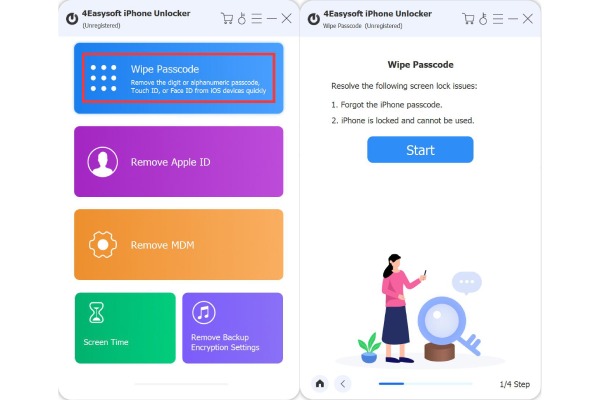
Step 1Open 4Easysoft iPhone Unlocker on your computer and pair your disabled iPad to the system via a high-quality USB cable. On the main dashboard, select "Wipe Passcode" mode. Click the "Start" button.
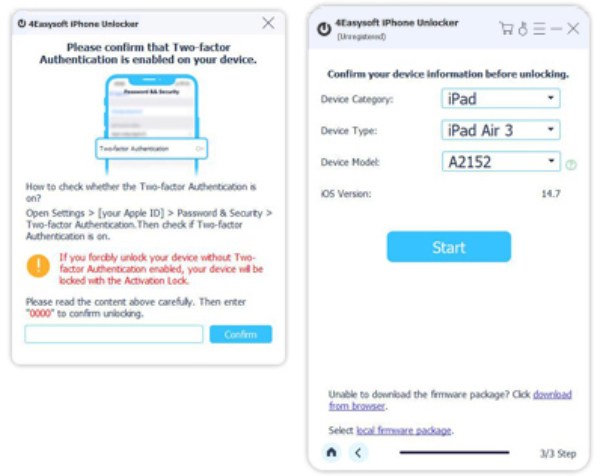
Step 2The program will display your device's model and system version; check all these details if correct, and click the "Start" button to begin the firmware download.
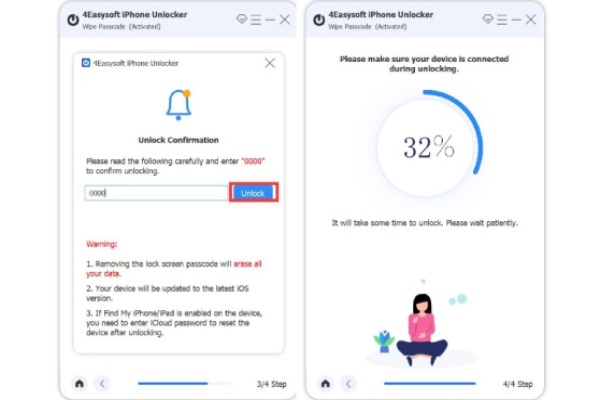
Step 3Once finished, enter "0000" in the "Passcode" field and click the "Unlock" button to confirm the action. Please keep your device connected until it finishes.
100% Secure
100% Secure
Use "Find My iPhone" to Connect iPad to iTunes
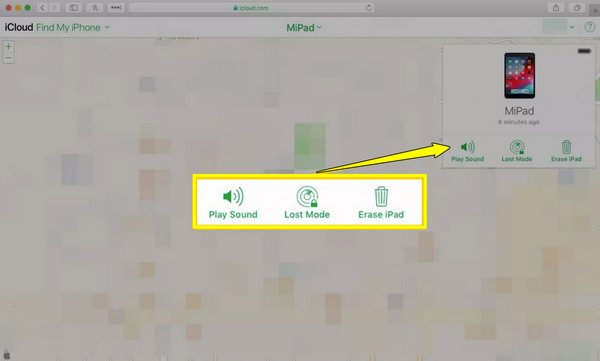
Perhaps you don't have the iPad in your hands right now, but there's still a way to fix the 'iPad is disabled connect to iTunes' remotely with the Find My feature. This approach is effective since it directly talks to Apple servers to send a wipe command to unlock a disabled iPad. Here's how it works:
Step 1Search for the official iCloud.com page or open the "Find My" app on another Apple device. Log in using your Apple ID and password that is used on your iPad.
Step 2There, select "Find iPhone" ("Devices" in the app) and pick your disabled iPad from the list. Then select "Erase iPad".
Step 3When prompted, enter your Apple ID or password to confirm the remote wipe. Once your iPad receives it, your data will be wiped. Start setting it up as new or restore it from backup.
Conclusion
While the 'iPad is disabled connect to iTunes' screen can be a major inconvenience, it is not an unsolvable problem. You can rely on the built-in Security Lockout feature or the Find My cloud service for remote wiping, and both can help you reset the iPad and start fresh. But if the standard method fails, turn your attention to 4Easysoft iPhone Unlocker. This tool handles forgotten passcodes or unresponsive iPad and other Apple devices' screens without needing advanced technical knowledge. By using this tool, you can wipe security locks with a high success rate, making it ideal to fix an iPad that says disabled, even it won’t connect to iTunes.
100% Secure
100% Secure
