
Reliable video converter, editor, and compressor for daily tasks.

4 Practical Ways to Cut and Trim a Video on Any Device

Posted by Paula Pailaga to Edit Video/Audio Dec 10, 2025
Knowing how to trim a video is one of the quickest ways to polish your footage, whether you want to eliminate long pauses, cut out extra sections, or shorten a clip. Thankfully, today's tools offer simple solutions and flexible trimming options that work across different devices. This guide shares four easy and reliable ways to cut and trim a video, from desktop to online tools. By the end, you will be able to trim videos quickly and without losing quality.
Guide List
How to Trim a Video on Windows and Mac (Entirely or Part of a Video) Trim a Video on Mac with Useful iMovie How to Trim a Video on iPhone and AndroidHow to Trim a Video on Windows and Mac (Entirely or Part of a Video)
If you are working with a long clip and need to shorten it to the perfect length, trimming can sometimes feel limiting, depending on what tool you use. That is why using a reliable and feature-rich editor like 4Easysoft Total Video Converter can make the entire process smoother. This software has a built-in video trimmer, allowing you to cut down a long video into smaller clips while maintaining the original video quality. Beyond trimming, it also supports cropping, rotating, adding subtitles, applying effects, and more. Plus, its built-in preview helps you monitor edits in real-time, ensuring every adjustment looks exactly as you expect it.

Easily trims videos of any length with accurate and friendly controls.
Allows you to adjust the brightness, contrast, saturation, and more effects.
Supports a wide range of preset formats for all major devices and platforms.
Provides fast processing while keeping the original quality of your footage.
100% Secure
100% Secure
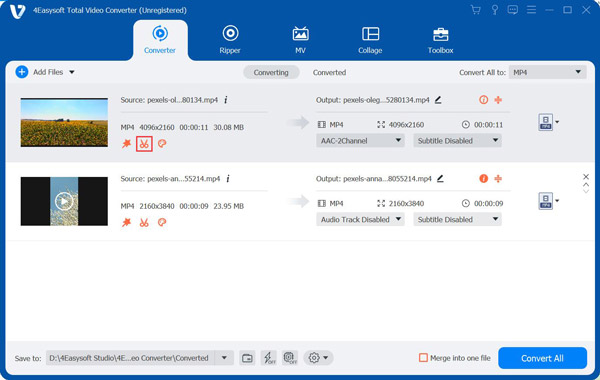
Step 1Open 4Easysoft Total Video Converter and import the video you want to trim by clicking the "Add Files" button. Once it appears in the list, select the "Trim" button under the video.
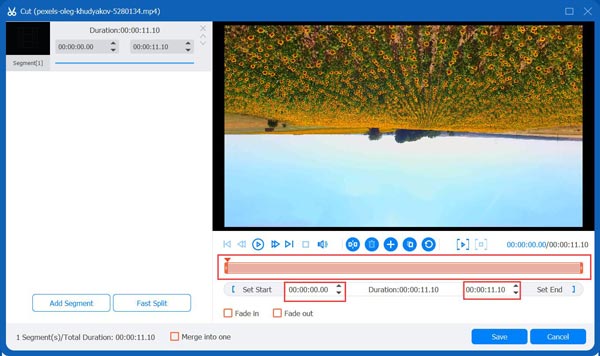
Step 2Inside the trimming window, drag the handles on the timeline to remove the extra beginning or ending sections. Everything inside the highlighted red box will remain in your final video.
Step 3You may also want to manually input exact "Start" and "End" times for precision. If you wish to add multiple sections, click the "Add Segment" button to add extra clips.
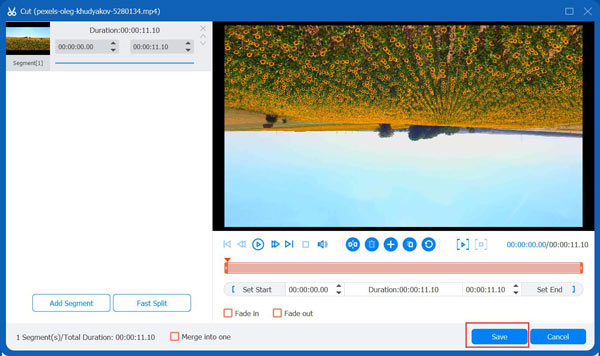
Step 4A preview window on the right allows you to check your edits before finalizing. Play back the trimmed version to make sure it matches what you want. Click the "Save" button to trim video length.
Step 5Back on the main screen, select your output format, name your file, pick a destination folder, and click the "Convert All" button.
100% Secure
100% Secure
Trim a Video on Mac with Useful iMovie
Meanwhile, for Mac users, one of the most reliable built-in editors is iMovie. This free tool features a clean interface where you can trim MP4 videos, cut, and rearrange clips effortlessly. Since it is made for macOS, you get a smooth editing performance and high-quality exports without extra software. So, whether you are creating a short clip or trimming a long video, iMovie has all the important tools you need. See below to split a video into multiple parts using iMovie on Mac:
Step 1Once iMovie is launched on your Mac, click the "Create New" option, then select "Movie". Next, drag the video into the timeline.
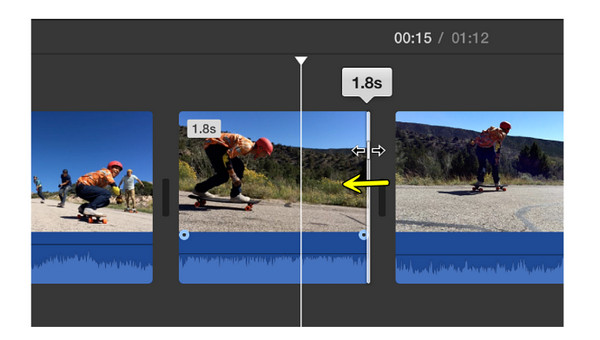
Step 2Click the video clip to highlight it. Then, drag the "Left/Right" edge of the video inward to trim the start or end. Press the "Spacebar" to preview it.
Step 3Edit your video as needed. When satisfied, click the "Share" icon and export your final trimmed video.
How to Trim a Video on iPhone and Android
After learning how to trim an entire or part of a video on Mac, the next step is working with mobile apps that have powerful yet friendly trimming tools. Both iOS and Android offer a bunch of apps that provide more flexibility, precision, and options for enhancing your clips. Below are two of the best mobile trimmers available today.
1. InShot - All-Rounder Video Trimmer on iPhone
InShot mixes powerful trimming tools with an accessible layout, making it ideal for starters and experienced editors. Using it, you can trim a video on iPhone, add effects, apply transitions, and even adjust the size for specific platforms like TikTok and Instagram.
Step 1Run the InShot app on your mobile device. Tap "Video", then choose the clip you want to trim.

Step 2Next, select "Trim" and start dragging the handles to cut the start or end of the video.
Step 3Tap the "Check" icon to apply the changes. Edit your video as needed before tapping the "Save" button to export the final output.
2. CapCut - Easy Video Trimmer on Android
Next is CapCut, an editing app that is ideal for those who want an accurate and smooth trimming process. It provides frame-by-frame control, giving you the freedom to fine-tune your edits with exceptional precision. Aside from helping you trim a video on Android, it includes a full suite of tools like filters, text, transitions, audio, and more.
Step 1Launch CapCut on your mobile device. Tap "New Project" and select the video you wish to trim from your library.

Step 2In the timeline, tap on your clip to see the editing tools.
Step 3Then, drag the "Start/End" handles inward to trim the video. You can use other editing features like effects, filters, crop, rotate, etc.
Step 4Tap the "Export" button when finished, then save your video to your device.
Conclusion
You've seen here that there's always a method that fits your device and editing style. With the four ways discussed, you now have reliable tools to trim a video and reduce video length, removing unwanted sections, cleaning up your footage, and preparing your videos for sharing. But, for a powerful all-in-one solution that delivers precise trimming along with other tools, 4Easysoft Total Video Converter is an excellent choice. It provides a smooth trimming control, high-quality output, real-time preview, and a range of existing features, perfect for anyone who wants a faster, smoother trimming experience.
100% Secure
100% Secure
