
Record, edit, and share video from all sources.

How to Screen Record on Android with Internal Audio [4 Ways]

Posted by Ethan Brooke to Record Video Apr 24, 2026
It may be a gaming win, or a bug you need to show, or a quick how-to tutorial on your Android phone. These 'you had to be there' moments could be shared by knowing how to screen record on Android. Luckily, today's methods are fast, sleek, and work remarkably well in high definition. Don't miss the following parts to record screen video with audio on Android using the four best tools, ensuring you have the perfect method for your situation.
Guide List
How to Screen Record Using Android's Built-in Methods Record High-Definition Android Screens Using a Computer Screen Recording Android Screens with Other Apps FAQs with Android Screen RecordingHow to Screen Record Using Android's Built-in Methods
Capturing high-quality video from your Android device has never been easier, thanks to its built-in methods. Whether you want to document that high-score gaming run or create a quick tutorial, most modern Android smartphones come with a native recording tool that won't need any extra downloads. By following the simple steps, you can do Android screen recording with total ease.
Step 1Swipe down twice from the top of your screen to access the "Quick Settings" menu. There, locate the "Screen Record" icon, and if you don't see it, tap the "Edit" button and drag the recorder icon into your active files.
Step 2Next, tap on the "Screen Record" icon, then decide whether to capture microphone, device audio, or both. Tap on the "Start" button to begin the brief countdown.
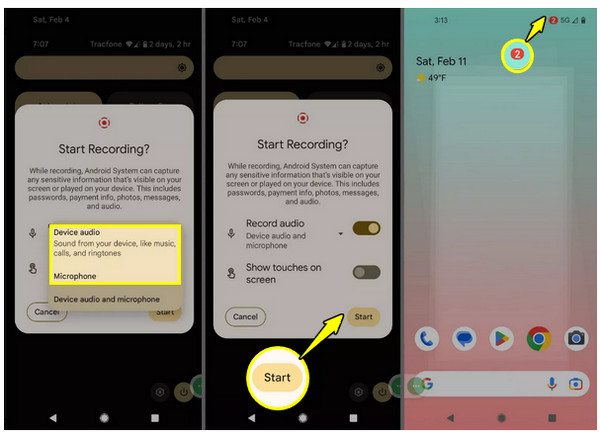
Step 3Record your on-screen activity with ease. Once finished, swipe down the notification shade, tap on the "Stop" button, and the video will be saved to your gallery.
Record High-Definition Android Screens Using a Computer
While convenient, you may look for more control, stability, and advanced editing options that only a desktop tool can provide. One of the powerhouse solutions to record screen on Android is the 4Easysoft Screen Recorder, connecting your Android device and your computer for professional-grade results. With its Phone Recorder, you can mirror your phone screen to a monitor, letting you record in real-time without straining your eyes. Aside from capturing video, it has robust tools for scheduled recordings and real-time annotations that make your content stand out. Thus, for a way to produce polish, high-definition Android videos, this tool is the ultimate desktop companion.
Cast your Android display to your computer to record activities in stunning quality.
Adjust audio settings to prioritize system audio or mic, ensuring everything is captured.
Set keyboard shortcuts to start, pause, resume, and stop recording instantly.
Export your Android recordings in formats like MP4, MOV, AVI, and more.
100% Secure
100% Secure
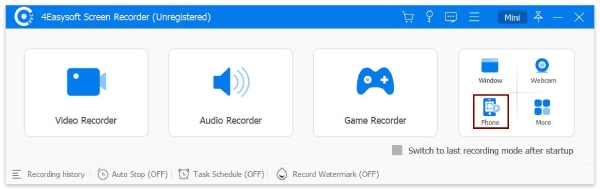
Step 1Launch 4Easysoft Screen Recorder on your desktop. From the available options in the main interface, select the "Phone Recorder" mode to start.
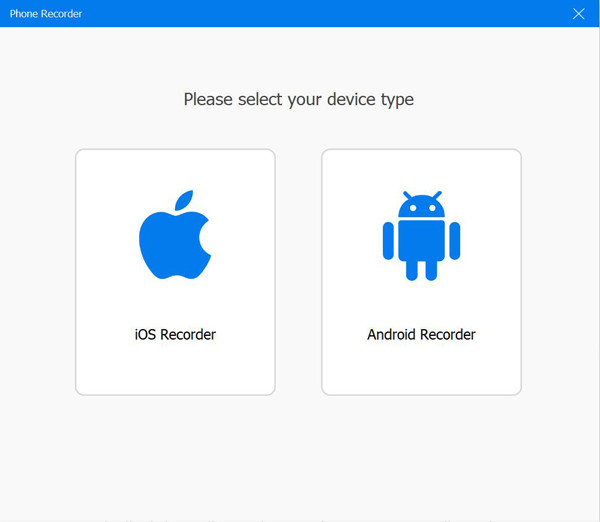
Once the device selection window shows up, click on "Android Recorder" to ready the software for your specific Android smartphone.
Step 2To start screen sharing, download and install the "FoneLab Mirror" app first from the Google Play Store onto your device. Next, use the PIN code, QR code, or auto-detection feature to mirror your mobile screen directly onto your monitor.
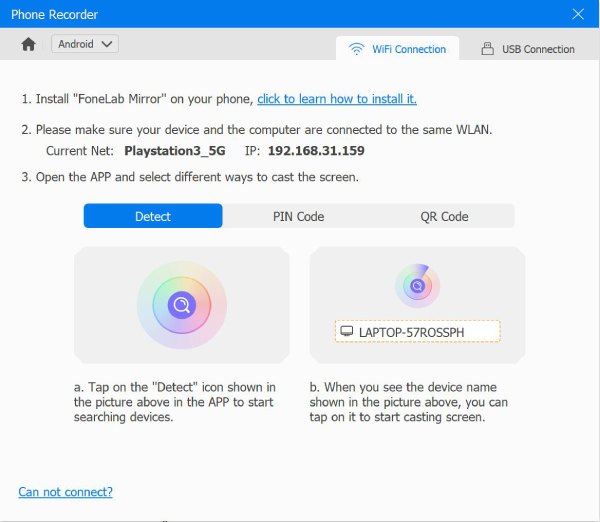
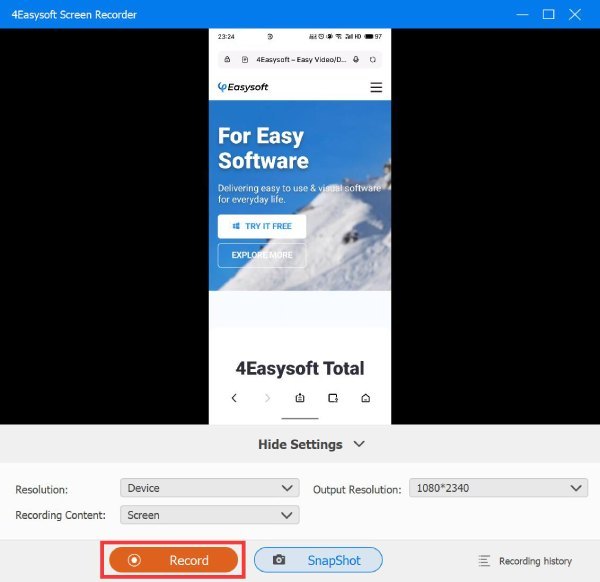
Step 3With your Android screen now visible, navigate to the audio settings to pick your preferred sound source. Once ready to capture the action, click the "Record" button. After you finish, review the footage, make any necessary edits, and save the high-definition file.
100% Secure
100% Secure
Screen Recording Android Screens with Other Apps
Sometimes the standard system tools just don't have the specific customization you need for your project. Besides the desktop app, mobile apps also offer specialized settings such as bitrate control, overlay cameras, and custom watermarks. Here are the top two apps for screen recording on Android:
1. AZ Screen Recorder
AZ Screen Recorder is considered the gold standard for screen record on Android phones due to its high-end features without needing root access. It works very well, giving you everything from the magic button that controls recording with a clean screen to an integrated video editor.
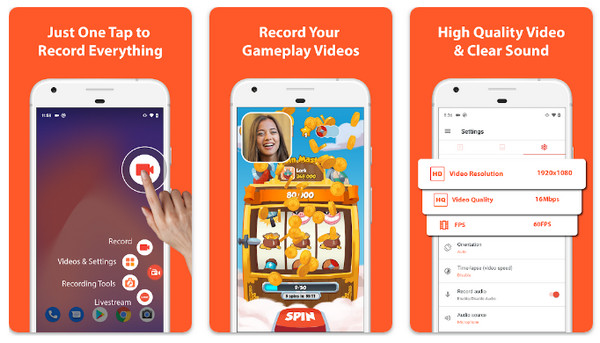
Step 1Open AZ Screen Recorder to access the floating controller overlay.
Step 2From there, tap the "Settings" button to set your preferred resolution, frame rate, and bit rate.
Step 3Start the capture by tapping the "Camera" button on the overlay. Pull down the notification once done and tap the "Stop" button.
2. ADV Screen Recorder
If you want a straightforward Android screen recorder app, ADV Screen Recorder is a fantastic option. It utilizes two engines that ensure compatibility across different Android versions, yet remains lightweight.
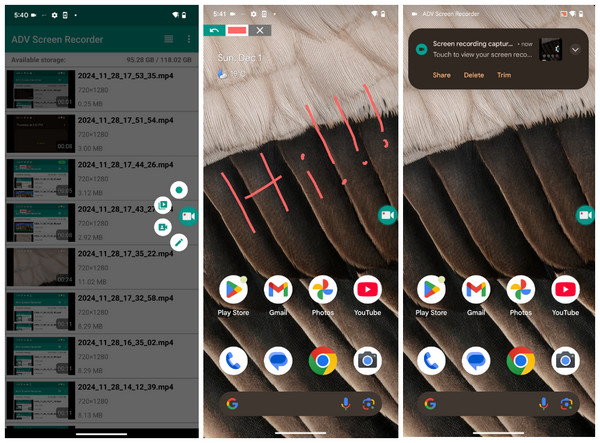
Step 1Launch ADV Screen Recorder, and tap the "Add" button to activate the floating button. .
Step 2Head to the app settings to toggle the "Show touches" or "Use camera" options as needed.
Step 3Tap the floating icon and then the "Play" button to start the session.
Step 4You can use the overlay pen tool to draw on the screen, then tap the "Stop" button to save the file.
FAQs with Android Screen Recording
-
Where are my Android screen recordings saved by default?
On most Android devices, your recordings are sent to a folder named Screen Recordings within your local storage. You can find them in the Google Photos app and look in the Library app, or directly in the Gallery app.
-
Is there a limit to how long I can screen record on Android?
The primary limits are the available storage space and battery life. If you're recording high-definition files, a 10-minute recording can take up several gigabytes of space. And if your storage is full, the recording will be stopped automatically.
-
Can I draw on my Android screen while recording?
While basic Android tools are minimal, some manufacturers like Samsung have a Pencil tool that allows you to doodle in real-time. For Pixel devices, you may need to use third-party mobile recording apps.
Conclusion
As you have seen, you aren't just stuck with one way to screen record on Android. There's the phone's built-in recorder for quick clips or third-party apps for extra creative touches. By choosing the method that best fits your needs, you can capture every frame with clarity and polish. But just a pro tip, if you want to take your Android screen recordings to the next level, use 4Easysoft Screen Recorder. Here, you can mirror your mobile screen directly to your computer, giving you a huge view and professional-grade controls.
100% Secure
100% Secure
