
Recover all data from your iOS devices, iTunes and iCloud backup.

4 Ways to Recover WhatsApp Messages with or without Backup

Posted by Alvin Cantero to iOS Recovery Feb 06, 2026
Losing WhatsApp conversations can feel like losing a part of your digital history. Whether you accidentally deleted a chat or faced a device issue, you can recover WhatsApp messages with the following solutions. Fortunately, many recovery tools and built-in systems have several ways to recover those lost messages. With or without backup, read on here to recover old chats on WhatsApp on your iPhone and Android devices.
Guide List
How to Recover All Kinds of WhatsApp Messages Without Backup How to Recover WhatsApp Messages from iCloud for Free Android Restore WhatsApp Messages from Google Drive Restore WhatsApp Messages Using Android Local BackupHow to Recover All Kinds of WhatsApp Messages Without Backup
When you just realize there's no cloud backup to lean on to recover deleted WhatsApp chats and messages, specialized software becomes your trusted friend. One of the best allies for scanning ghost data is 4Easysoft iPhone Data Recovery. This software offers a deep-scan technology, bypassing the need for backup by communicating directly with your iPhone's database to detect deleted chats as well as photos, videos, contacts, and more. Throughout the process, your existing data remains untouched, and no quality is compromised. Whether your device was damaged, or you accidentally hit the delete button quickly, you can recover lost WhatsApp messages with high success rate.
Recover WhatsApp messages, photos, and attachments from the device.
Latest iOS versions and iPhone models are supported.
Preview specific chats before finalizing the recovery process.
Offers three flexible modes: no backup, iTunes backup, and iCloud backup.
100% Secure
100% Secure
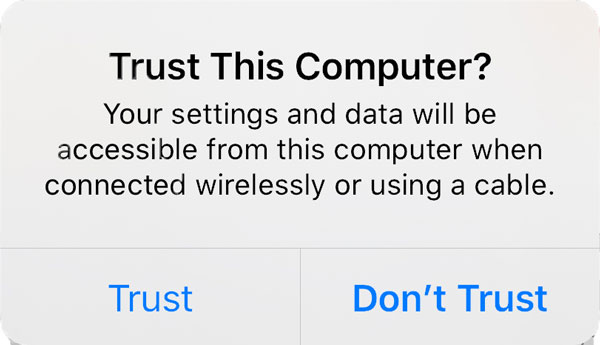
Step 1Open 4Easysoft iPhone Data Recovery on your desktop computer. Plug your iPhone into the computer using a USB cable and, when prompted on your phone screen, tap on "Trust" to allow access.
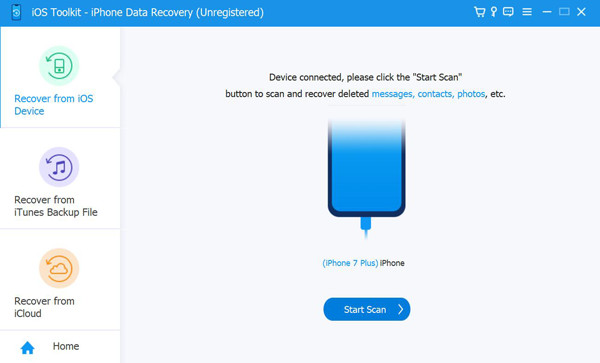
Step 2Once the software identifies your iOS device, choose "iPhone Data Recovery" from the module. Select "Recover from iOS Device" mode. Click the "Start Scan" button to search for your missing WhatsApp message.
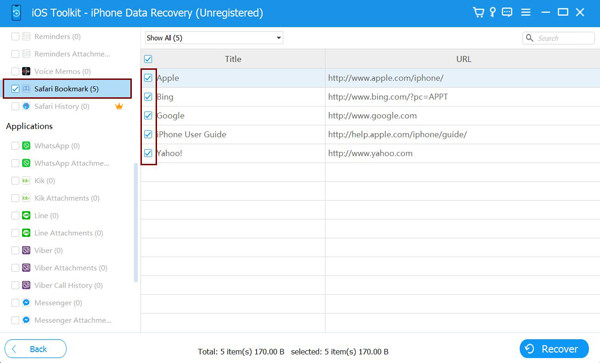
Step 3After the scanning process finishes, browse the categories on the left and click on "WhatsApp". Preview the messages or media you need to recover, check the boxes. At last, click the "Recover" button to export WhatsApp chat history to your computer.
100% Secure
100% Secure
How to Recover WhatsApp Messages from iCloud for Free
Moving to built-in cloud services, iPhone finds a safety net within Apple's own iCloud. Apple has seamless integration between WhatsApp and iCloud, assisting you in WhatsApp deleted messages recovery easily. Here, your entire messages are mirrored back onto your phone during a fresh installation. Since the process happens on the cloud, make sure you have a stable network to avoid data corruption. Also, prepare your latest WhatsApp backup.
Step 1Go to WhatsApp settings on your phone, then head to "Chats", then "Chat Backup" to make sure a backup is there. Then, uninstall the app, then reinstall it from the App Store.
Step 2After some time, launch WhatsApp and confirm the phone number used for the backup.
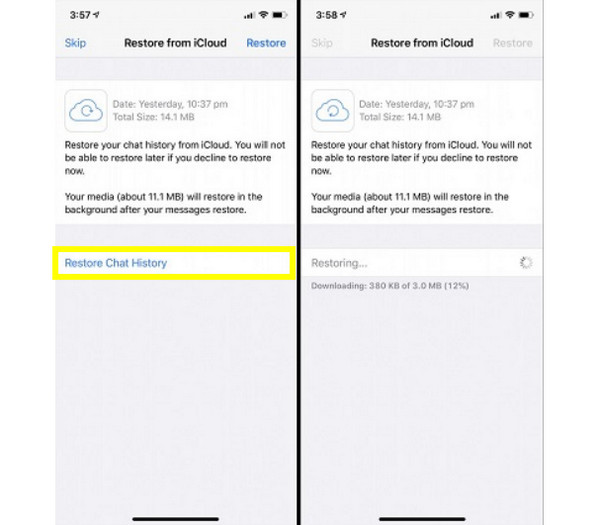
Step 3Once the prompt appears, tap "Restore Chat History" to start downloading from iCloud.
Android Restore WhatsApp Messages from Google Drive
Android users can rely on Google Drive to retrieve WhatsApp messages. You can transfer WhatsApp chats to from Android to iPhone, or get them back after a factory reset on Android. Using Google Drive, it automatically detects the backup connected to your Gmail account as soon as you log in. Here are the steps on how to recover lost WhatsApp messages on Android:
Step 1Uninstall WhatsApp first in your device's "Settings", then "Apps". Make sure your Android device is signed into a specific Google Account where the backup is made.
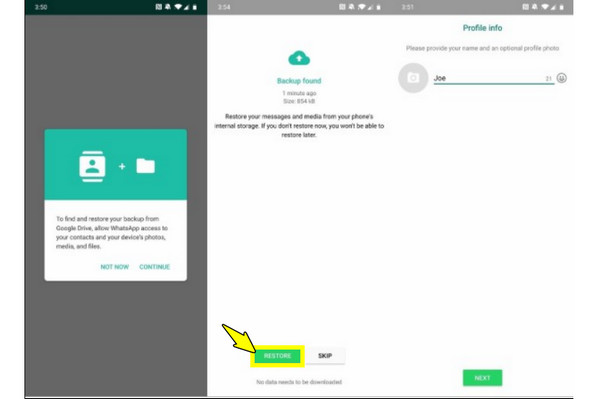
Step 2Reinstall WhatsApp, then launch it. Verify your number and allow all permissions to access your Google Drive.
Step 3After finding the backup, tap "Restore" and wait for the process to finish before tapping "Next".
Restore WhatsApp Messages Using Android Local Backup
Android devices automatically create a local backup file every day, storing your data directly in your phone's memory. With this file, you can easily recover WhatsApp messages that have been deleted earlier that day. Since these files are kept as encrypted databases, you can actually pick the ones to restore from a particular date by renaming the files manually. Here's how it works to recover WhatsApp messages:
Step 1Open your File Manager and head to "Internal Storage", then "Android" to "media", select "com.whatsapp", then "WhatsApp" to"Databases".
Step 2Locate the backup you wish to restore and rename it to "msgstore.db.crypt14". After that, uninstall the app and reinstall it from the Play Store.
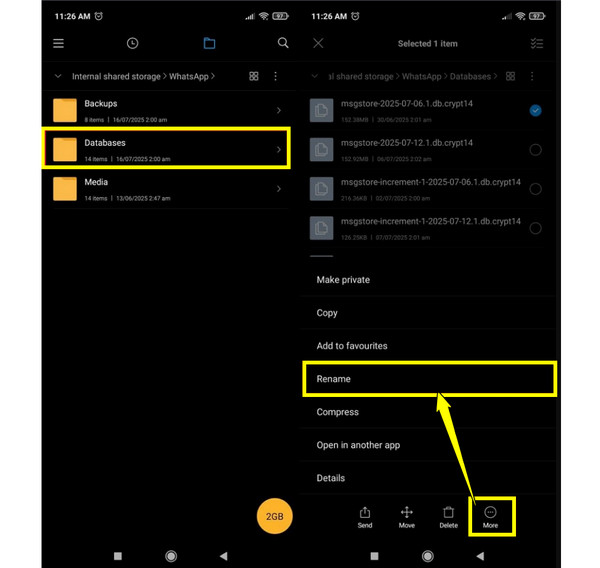
Step 3Next, launch the app and double-check your number; when it asks to restore, it'll automatically detect the local file instead of the cloud, tap "Restore".
Conclusion
In summary, losing WhatsApp messages is not a permanent setback. Whether you're an iPhone or Android user, using the mentioned tools will help you recover WhatsApp messages. While effective, the best defense is having a regular backup to make sure your chats are stored in the cloud. But if no backup exists on your iPhone, or the standard methods won't help, restore lost WhatsApp messages and other data with 4Easysoft iPhone Data Recovery. This WhatsApp recovery software is made to handle a bunch of data loss scenarios on iOS devices. With its high success rate and support for all iOS versions, it is an excellent addition to your tools to get your data back quickly and safely.
100% Secure
100% Secure
