
Recover deleted/lost data from PC/Mac, HDD, USB, SD card and more.

Recover Deleted iPhone Contacts with/without Backup [4 Ways]

Posted by Paula Pailaga to iOS Recovery Dec 31, 2025
When contacts aren't backed up on iPhone, and you've accidentally deleted them, it can be very frustrating. It disrupts both personal and professional communication. Luckily, Apple provides built-in ways to recover deleted contacts on iPhone, and there are extra solutions available if no backups are involved. Today's guide will share four practical ways to restore deleted iPhone contacts, alongside practical tips to keep your contacts secure and prevent future data loss.
Guide List
Best Way to Recover Deleted Contacts on iPhone with No Backup How to Find Deleted iPhone Contacts Using a Mac Use iCloud to Recover Deleted Contacts on iPhone Recover Deleted Contacts on iPhone by Gmail without Computer Tips for Keeping Your iPhone Contacts SecureBest Way to Recover Deleted Contacts on iPhone with No Backup
Don't have an iCloud or iTunes backup for your deleted contacts on iPhone? No need to panic. You still have a solid chance to get deleted contacts back on iPhone with 4Easysoft iPhone Data Recovery. This program is made to recover permanently deleted data even when no backup is involved. It scans your iPhone to locate lost contacts alongside other vital data such as photos, messages, videos, call history, and more. One of its most significant advantages is that it lets you preview contacts before recovering them, so you only get those numbers you actually need.
Can restore deleted contacts, photos, messages, call logs, and more from the iPhone.
It performs fast, secure, and accurate deep scanning of lost data.
Allows you to preview data before recovery to restore the correct files only.
Works compatible with all iPhone models and the latest iOS versions.
100% Secure
100% Secure
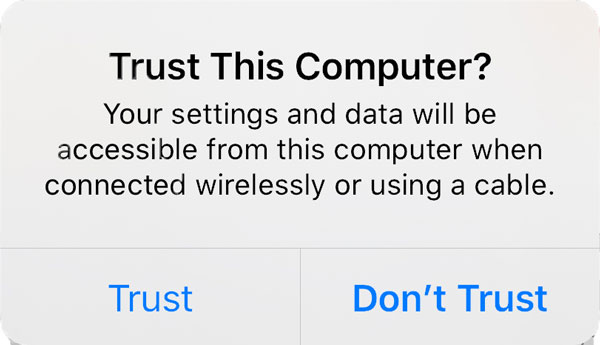
Step 1Start 4Easysoft iPhone Data Recovery on your computer and pair your iPhone using a USB cable. When prompted, tap "Trust" on your iPhone to allow access.
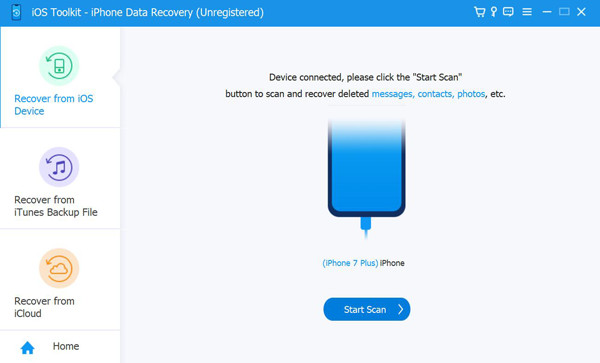
Step 2Choose "iPhone Data Recovery", then aim for the "Recover from iOS Device". Click "Start Scan" to begin a deep scan that searches for deleted contacts and other lost data on your iPhone.
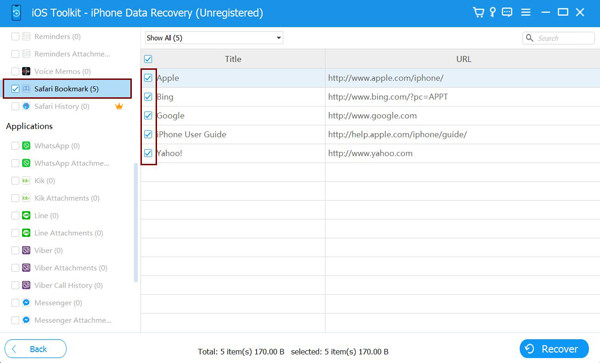
Step 3After the scan finishes, the data will be neatly organized by category. Scroll down to "Contacts", preview the entries, and pick the ones you want to restore. Finally, click the "Recover" button to retrieve your deleted contacts successfully.
100% Secure
100% Secure
How to Find Deleted iPhone Contacts Using a Mac
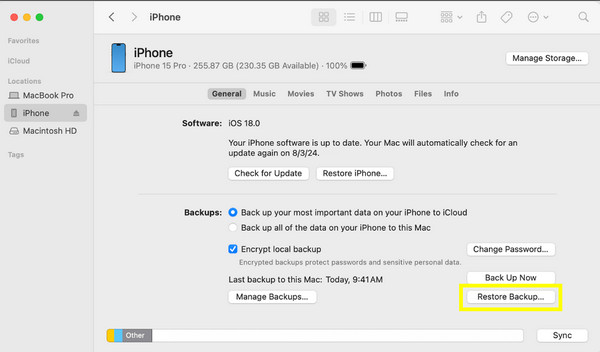
If you have regularly synced contacts from iPhone to a Mac, recovering deleted contacts on iPhone can be so simple. macOS lets you restore contacts through Finder or iTunes backups, which can be especially helpful if the contacts were deleted just recently. Here's how to retrieve deleted contacts on iPhone via Mac:
Step 1Link your iOS device to your Mac. Then, open "Finder", choose your device icon from the sidebar. There, click the "Restore Backup" button.
Step 2Select the backup date before the contacts are lost, then click "Restore", and wait for the process to finish.
Step 3Once done, check the list on the Contacts app on your iPhone.
Use iCloud to Recover Deleted Contacts on iPhone
Maybe you prefer a wireless solution, then here's iCloud for you to recover missing contacts on iPhone without even connecting it to your computer. Apple saves contact changes for a limited time, letting you get back to an earlier version when your contacts were still kept.
Step 1Open iCloud.com and sign in with your Apple ID.
Step 2There, click on "Account Settings", scroll down, and select "Data Recovery".
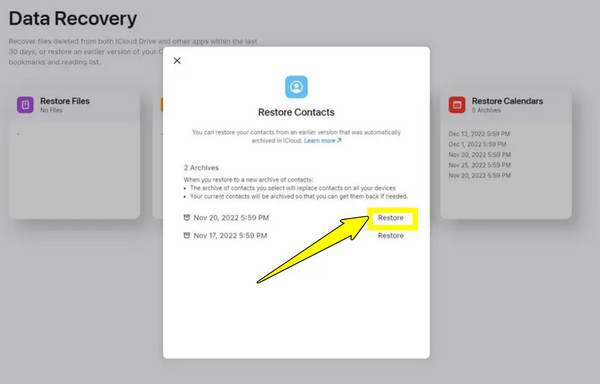
Step 3Next, choose "Restore Contacts".
Step 4Determine an archive dated before the contacts were lost, then click "Restore" and confirm the action to start the process.
Recover Deleted Contacts on iPhone by Gmail without Computer
On the other hand, if you have synced iPhone contacts with Gmail before, you can use Gmail as your free iPhone contacts recovery. This approach is especially useful for anyone who depends on Google services for contact management and backups.
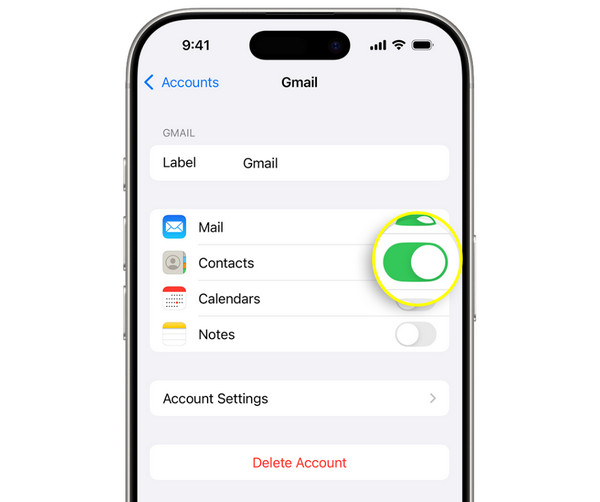
Step 1On your iPhone, open "Settings" and then tap "Contacts".
Step 2Select "Accounts", then tap on "Gmail". From there, ensure "Contacts" syncing is enabled.
Step 3Now, using Safari, visit contacts.google.com, then sign in to your Google account.
Step 4Tap "Fix & manage" (Settings), then select "Undo changes" and pick the time before the contacts were deleted.
Step 5Confirm the restoration and wait for the syncing process to finish.
Tips for Keeping Your iPhone Contacts Secure
Finally, after you have recovered deleted contacts on iPhone, it's essential to take the following tips to prevent future data loss. Simple habits and backup tips can go a long way in keeping your contacts safe on your iPhone. See the list below:
- • Enable iCloud Contacts Syncing. Enabling this option is among the easiest ways to ensure everything is backed up automatically. If your contacts are synced with iCloud, accidental loss may be easier to restore from versions kept by Apple. So you can restore contacts from iCloud for free.
- • Back Up Contacts to Your Mac Frequently. Also, consider making regular backups of your Mac with Finder or iTunes. Having backups means you have a higher chance of recovering contacts if they go missing. Just take note that this approach restores your device to the backup state.
- • Manage iCloud Storage Wisely. iCloud backups happen regularly, but need enough storage space. Remove duplicated contacts to free up more storage space.
Conclusion
This guide shows you multiple ways to recover deleted contacts on iPhone after 30 days or even years ago, depending on how your contacts were synced or backed up. From Mac backup, Gmail syncing, or a recovery tool, each of the mentioned ways here is made perfectly for different situations. Beyond iPhone contact recovery, the prevention tips will keep your contacts safe. And if you ever find yourself recovering contacts without backup, use 4Easysoft iPhone Data Recovery. It is your dependable recovery program that scans your iPhone directly and helps you restore deleted contacts and other data securely and efficiently.
100% Secure
100% Secure
