
Delete duplicates and free up storage on iPhone flexibly.

Delete All Kinds of Snap Stories Thoroughly in 3 Ways

Posted by Aira Lesly Escoto to iOS Cleaner Dec 18, 2025
Have you ever posted a Snapchat story and immediately regretted it? Whether it's a blurry photo, a personal moment you decided to keep private, or a story shared with the wrong audience, the need to delete a Snapchat story can be urgent. This guide will walk you through the standard deletion process directly within the Snapchat app and introduce an alternative method using specialized software for more comprehensive management. Keep reading to learn the specific steps.
Guide List
How to Delete a Published Snap Story Set the Audience of Snap Story without Deleting It Using Powerful Cleaner to Delete Snap Story What Happens When You Delete a Snap StoryHow to Delete a Published Snap Story
This is the most common and immediate way to remove a story. The exact steps vary slightly depending on the type of story you've posted, as each has different privacy and contributor settings. Before you begin, the following list helps you know what kind of story you're dealing with.
• My Story (Friends Only): Visible to all your Snapchat friends.
• Private Story: Only visible to a custom list of friends you select.
• Shared Story: A collaborative story where multiple friends can add snaps. You can only delete your own contributions.
• Public Story/Spotlight: Visible to the wider Snapchat community.
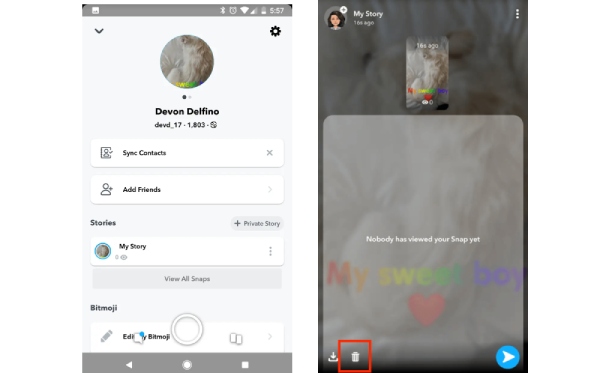
For single Snap Story:
Step 1On your device, open Snapchat. In the bottom-right corner, tap the "Stories", or you can swipe left on the camera screen.
Step 2Next, on the Stories screen, select the story containing the snap you want to delete. Then swipe up from the bottom of the screen.
Step 3In the bottom-left corner, tap the trash can. Finally, tap "Delete", and you are successful now.
For Snaps posted in a Custom Story
Step 1Locate the custom story you wish to delete in the "Stories" screen, then tap the "Settings" next to it.
Step 2Tap the "Settings" again, and finally, tap "Delete Story" to remove it.
Set the Audience of Snap Story without Deleting Ite
If you simply don't want specific groups to view your Snapchat Story, you can also avoid deleting the entire Snap Story by setting the audience range for who can view it.
Step 1Launch the Snapchat app and swipe down from the camera screen to access its main interface.
Step 2Tap the "Settings" button in the top-right corner to enter Snapchat's settings menu. Under "Who can…", select the "View My Story" option.
Step 3Finally, in the window displaying "Everyone", "My Friends", and "Custom", choose who you want to view your Snap Story.
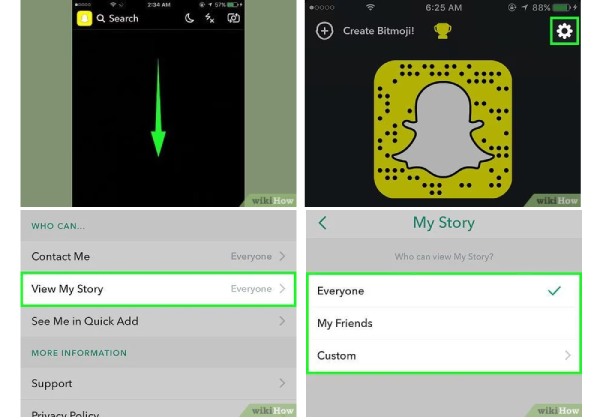
Note: To allow specific friends to see your Snaps, select the "Custom" option. This lets you block certain friends from viewing your Snaps, though they can still see Snapchat messages you send them.
Using Powerful Cleaner to Delete Snap Story
If you want more control over their Snapchat data, including cached files, login data, and other app remnants that can clutter your phone. You need a dedicated cleaner, like 4Easysoft iPhone Cleaner, as an excellent option. It scans and categorizes files and data on your phone, allowing you to permanently delete specific data as needed without risking privacy leaks.
Scan and clear Snapchat's temporary cache, residual files, and system junk.
Offer three cleaning modes with up to 3 cleanings per session for varying cleanup needs.
Compatible with all iOS device models and systems, including iPhone 17 and iOS 26.
Intuitive and simple operation with preview support to prevent accidental deletion of meaningful content.
100% Secure
100% Secure
Step 1Connect your iPhone to your computer and launch 4Easysoft iPhone Cleaner. Turn off "Find My iPhone" on your iPhone first.
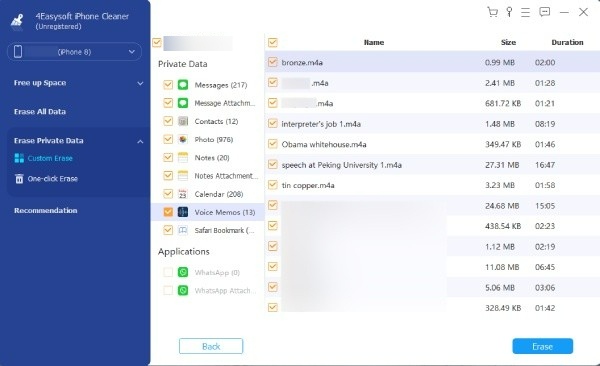
Step 2Then click "Erase Private Data". On the main interface, you can see two buttons. Click "Custom Erase", and it will start scanning your iPhone.
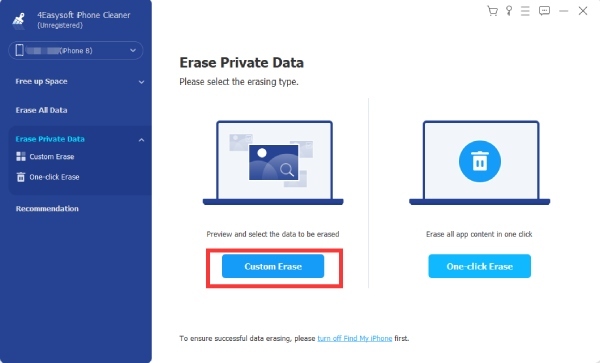
Step 3Select the data you want to delete, then click the checkbox next to the data. Finally, click "Erase" to delete Snap Story data on your iPhone.
What Happens When You Delete a Snap Story
When you delete a Snap Story, the content is immediately removed from your account, and other users will no longer be able to view it. The system will remove the content from your public Snaps, Friends-only Snaps, or Spotlight. Even if someone is currently viewing it, they will no longer be able to see it.
At the same time, Snapchat will begin clearing copies of the Snap from its servers. However, for legal purposes, abuse investigations, or backup security, the platform may temporarily retain a copy in the background for a short period. If someone takes a screenshot or screen recording, you cannot delete the copy from their device.
Conclusion
By understanding these methods and tips to delete Snap Stories, you can share your moments on Snapchat with confidence. For comprehensive device cleanup and privacy management related to the app, Snapchat's built-in deletion feature can also clear data thoroughly, but for a more secure and complete solution, 4Easysoft iPhone Cleaner is an indispensable choice for device cleanup. Download it now to clean up your Snap Story.
100% Secure
100% Secure
