
Reliable video converter, editor, and compressor for daily tasks.

How to Extract Audio from Video? 5 Tools for All Devices

Posted by Paula Pailaga to Edit Video/Audio Dec 10, 2025
Extracting audio from video has become a common need for saving your favorite music from a film, isolating a dialogue, or saving sound for your social media content. Happily, there are a bunch of tools available across desktop, online, and mobile that can convert a video into just audio easily. This guide gives you five of the best options for every situation. Take a look at how each works and which one suits your project best.
Guide List
Differences in Audio Format Output Across Scenarios The Fastest and Professional Way to Extract Audio from Videos Quickly Extract Audio from Videos with Audacity Extract Audio From iPhone Videos Using InShot Use Audio Extractor to Extract Audio from Videos on Android Online Extract Audio from Videos Using CloudConvertDifferences in Audio Format Output Across Scenarios
Before going deeper into save audio out of video as file, understand first that the best audio format depends on where and how you will use the extracted sound. Different file types are for various situations, so here are some differences in audio format outputs across everyday situations:
• High-quality editing. If you plan to edit for professional projects, uncompressed formats like WAV and AIFF give you the best results.
• Every day listening or sharing. Pick the MP3 format as it is the most widely supported and ideal for casual playback on devices and platforms.
• Apple ecosystem devices. M4A or AAC formats are perfect for the Apple environment. They deliver better quality and are optimized for iPhone, iPad, and Mac.
• Online upload and web use. Many platforms love OGG for its efficient compression while retaining audio quality. You can also aim for the MP3 format since it is widely accepted.
• Save storage space on mobile. If storage space is a concern, aim for formats like AAC and OGG since they compress more efficiently than others.
• Wider compatibility across devices and players. Some players, especially older ones, work with formats like MP3 or WMA to ensure smooth playback.
The Fastest and Professional Way to Extract Audio from Videos
It is crucial to retain the same clarity as the original when you wish to seperate audio from video; luckily, you have here the 4Easysoft Total Video Converter. This program is built with advanced processing technology, ensuring that even after separating the audio from your clip, no quality loss occurs. Besides audio extraction, it allows you to fine-tune the audio by adjusting parameters such as sample rate, channels, and encoder, giving you full over the final sound.

Effortlessly extract audio from videos and save it in formats like MP3.
Trim out unwanted sections of your audio before exporting it.
Customize audio output settings to achieve the sound quality you want.
Hardware-accelerated for fast processing without quality loss.
100% Secure
100% Secure
Step 1Launch 4Easysoft Total Video Converter on your computer. Once the main interface opens, load the video by selecting the "Add Files" button.

Step 2Next, open the "Format" dropdown menu to browse available output formats. Navigate to the "Audio" category and select "MP3" or other audio formats you prefer.
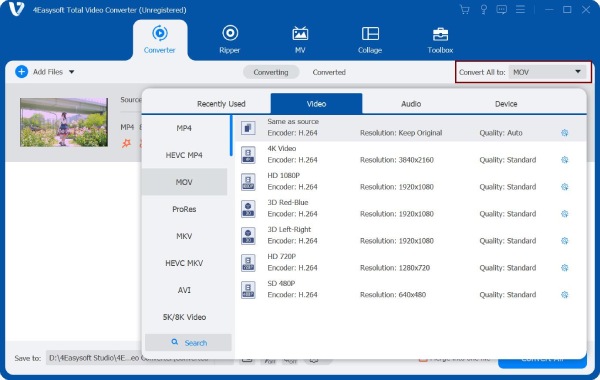
If you wish to fine-tune the output quality, click the "Custom Profile" button beside the format to adjust the sample rate, channel settings, or encoder.
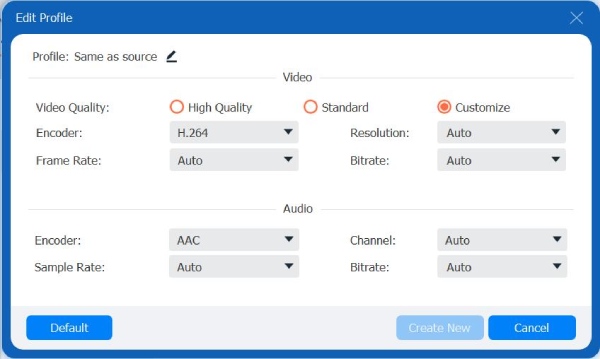
Step 3After deciding on the format and quality, select the output folder. To end the process, click the "Convert All" button and allow the program to extract sound from your video.

100% Secure
100% Secure
Quickly Extract Audio from Videos with Audacity
If you want a free but powerful way at the same time to extract audio from video, then Audacity is a solid choice. It is widely popular for its audio editing capabilities, but it also handles audio extraction from video files. Plus, it is beneficial for editing and enhancing audio after extraction, giving you the freedom to control the final result.
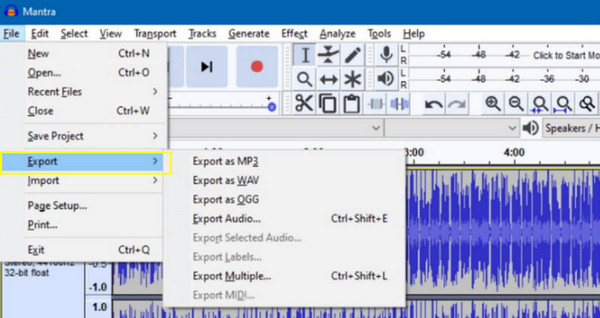
Step 1Run Audacity on your computer. To upload your video file, just go to the "File" menu, select "Import", then "Audio". The audio extraction starts automatically.
Step 2Following that, you can make necessary edits to the audio.
Step 3Once finished, export the audio by selecting the "File" menu, then "Export" and choosing "Export as MP3" or other formats.
Extract Audio From iPhone Videos Using InShot
Meanwhile, for iPhone users, InShot is available as a versatile video editor to extract audio from video straightforwardly. Here, you can separate audio from videos without needing a computer or any technical experience. Also, you can edit or enhance the audio after audio trimming.
Step 1Launch the InShot app on your iPhone. Tap the "Video" option to import your video from your library.
Step 2After that, tap "Music" and then select "Extract Audio" to pull the audio from the clip. Adjust audio settings as needed, e.g., volume or fade effects.
Step 3Tap the "Save" button to export the audio to your device.

Use Audio Audio to Extract Audio from Videos on Android
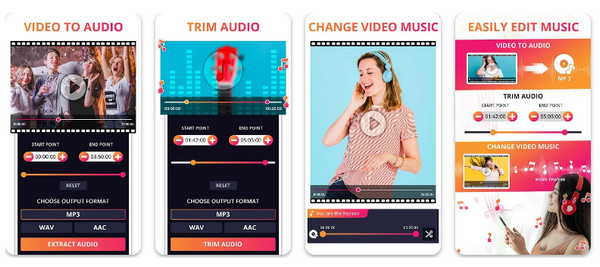
Audio Extractor is a friendly Android app made specifically for extracting audio from videos. It lets you convert video clips into audio files with minimal effort. Additionally, it features a simple interface that ensures that anyone can extract audio from video easily, and it supports multiple formats like MP3, WAV, and AAC.
Step 1Open the Audio Extractor app on your Android phone.
Step 2There, tap "Select Video" and select the video from which you wish to extract audio.
Step 3Next, select your desired audio format like MP3, AAC, etc, and tap the "Extract" button.
Step 4Once it is completed, save the audio to your device or share it directly.
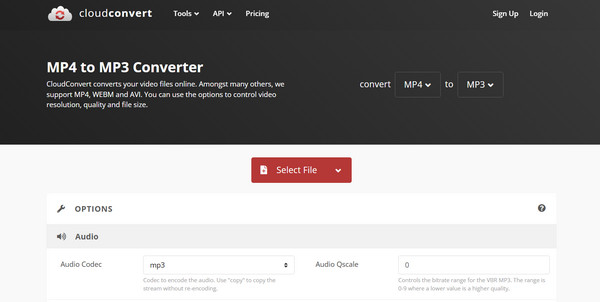
Online Extract Audio from Videos Using CloudConvert
The last one here is an online solution to extract only audio from a video, CloudConvert. It covers a wide range of video and audio formats, making it very efficient for different projects. And since it works fully online, you won't install anything and can upload videos from cloud storage like Google Drive or Dropbox.
Step 1Search for the CloudConvert website and choose "Convert" then "Video to Audio".
Step 2Now, upload your video file from your computer or cloud storage.
Step 3After that, select your desired audio format in the following field, and then click the "Convert" button.
Step 4Download the extracted video once the process finishes.
Conclusion
Thanks to the vast choices of tools across desktop, online, and mobile, it has never been easier to separate audio from video. Whether you prefer the precision of software, the fast solution of online tools, or portability or mobile apps, each method here can help pull audio from any video file. Out of them, use 4Easysoft Total Video Converter first. If you want the balance between quality, speed, and flexibility, your search ends with this powerful converter.
100% Secure
100% Secure
