

DVD to iPad - How to Play DVD on iPad with High Quality

Posted by Paula Pailaga to Rip DVD Jun 16, 2026
Ripping DVDs to an iPad enables you to watch high-quality video content more conveniently, anytime and anywhere. However, this operation sounds quite complicated and may deter many beginners. Since there is no quick way to read DVDs on the iPad directly, this task involves using a computer to read and convert the DVD format before transferring it to the iPad. This post has prepared several very easy-to-follow solutions for you to quickly save the content of the DVD onto your iPad.
Guide List
How to Convert DVD to iPad Formats for Playback A Free Way to Rip DVD to iPad Using HandBrake [Bonus] How to Transfer Ripped DVD to iPad QuicklyHow to Convert DVD to iPad Formats for Playback
For beginners, converting from DVD to iPad is a rather complicated operation. However, with the help of 4Easysoft DVD Ripper, you can easily and quickly complete this task even if you don't have the relevant expertise. By following the intuitive instructions, you can save the original quality DVD content for viewing on the iPad. Now, follow the steps below to quickly start this procedure and enjoy the DVD content as you wish:
GPU Acceleration that allows you to convert DVDs to iPad at a 60x faster speed.
Compress the video size using multiple settings but still preserving the original quality.
Make a quality lossless MP4 or MOV Video for iPad with customized settings.
Allow you to decrypt restrictions for encryptions, burned DVDs, unplayable files, etc.
100% Secure
100% Secure
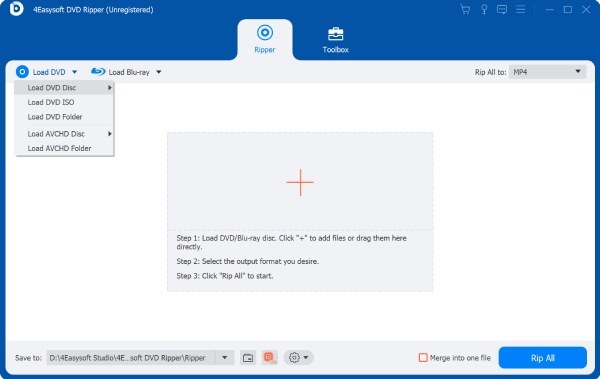
Step 1Insert your DVD into your device. Launch 4Easysoft DVD Ripper and click the "Load DVD" button to proceed.
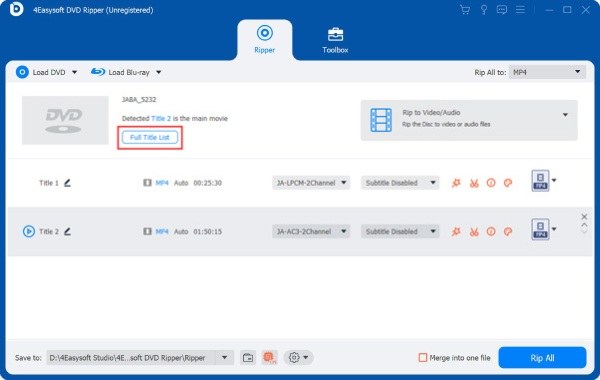
Step 2To select the content within your DVD, click the "Full Title List" button to display all the parts and select the desired ones.
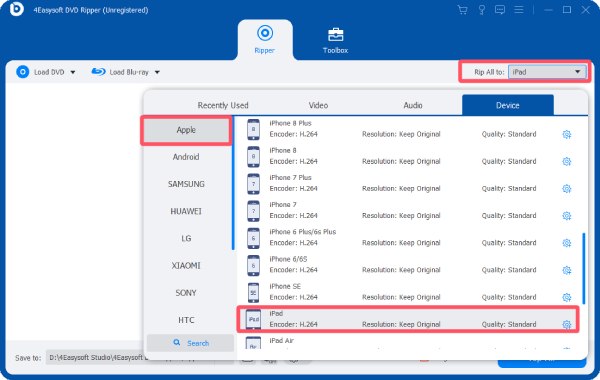
Step 3Click the "Rip All to" button and then click the "iPad" button under the "Device" tab. Finally, click the "Rip All" button to rip the DVD to iPad format.
A Free Way to Rip DVD to iPad Using HandBrake
If you are looking for a free way to convert a DVD to a format supported by iPad, then an open-source tool would be the most suitable choice. As a video processing tool that has long been trusted by users, HandBrake is fully capable of handling this task. Although its operation might be relatively complex, as long as you follow the detailed steps below, you will be able to complete the conversion from DVD to iPad using this open-source DVD ripper.
Step 1Insert the DVD into the disc drive of your computer. Launch HandBrake and click the "DVD/VIDEO_TS Folder" under the "Source" tab.
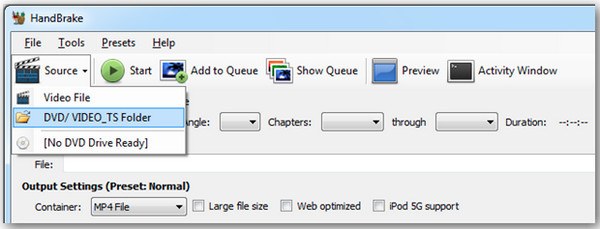
Step 2Click to choose the title that matches the length of the DVD movie. Then, click the "MP4 File" button under the "Container" tab.

Step 3Finally, click the "Start" button to start the process of ripping DVDs to iPad formats.

[Bonus] How to Transfer Ripped DVD to iPad Quickly
Now, you have learned how to convert DVDs into file formats supported by iPads. Then the last remaining question is how to transfer the output file to the iPad. This doesn't involve very complicated operations, as iTunes, provided by Apple, can help you complete this task. After you complete the transmission, you can enjoy the high-quality video content of DVDs anytime and anywhere using your iPad. If you still don't know how to operate, you can follow the following steps to complete the transfer after converting the DVD to iPad quickly.
Step 1Launch iTunes and connect your iPad to the device. Click the "Add File to Library" button under the "File" tab.
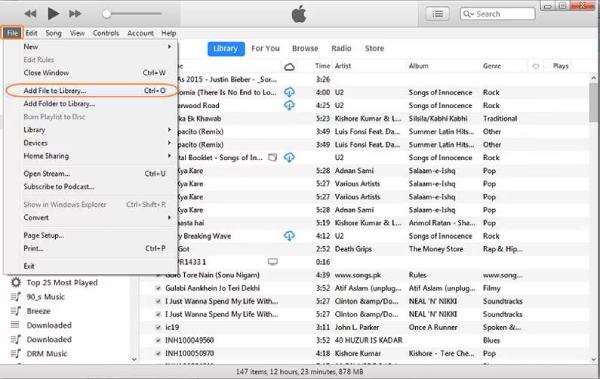
Step 2You need to transfer the converted DVD to iTunes in advance. To do so, click to select the converted DVD file that you want to transfer to your iPad.
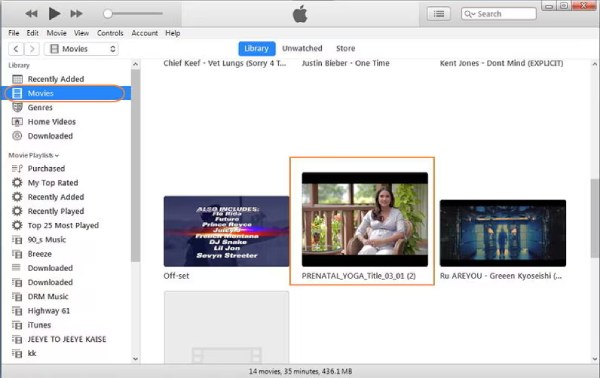
Step 3Finally, navigate to the converted DVD files for iPad under the "Movies" tab. Click to sync it to your iPad.
Tips
To ensure that the transferred DVD files maintain their original quality, you can use 4Easysoft iPhone Transfer to guarantee a stable transmission process.
Transfer iOS data between computers and iOS devices quickly.
Manage and edit all data, such as contacts, photos, music, etc.
Sync and backup important files to your computer or iTunes.
More tools to make ringtones, convert HEIC, and restore iOS.
100% Secure
100% Secure
Conclusion
With a suitable DVD to iPad converter, you will find that transferring the content of a DVD to your iPad for viewing has become incredibly convenient. Even if you are not very familiar with the specific process, after reading this post, you should be able to complete this task through your own operations. To ensure that the original quality DVD content can be preserved and played normally on the iPad, 4Easysoft DVD Ripper is recommended, as it possesses both high-quality and high-efficiency features. If you need it, you can download and use it for free right now.
100% Secure
100% Secure
