
Compress videos from GB to MB and keep its original quality with the AI technology
Compress MP4 Video: 6 Ways to Shrink Your Video Files

Posted by Aira Lesly Escoto to Compress Video Feb 13, 2026
With 4K and even 8K content being common, massive file sizes that come with them are challenging to manage. You could be sending content via email or simply trying to share a presentation; knowing how to compress an MP4 video will be helpful. Compression is not just about making the file size smaller, but it is also about keeping the crispness of the original footage. So, here are the best tools that can help you make MP4 videos smaller and more that you need to manage your video file size today!
Guide List
Various Methods to Reduce MP4 File Size 1. 4Easysoft Total Video Converter: 60x High-Speed MP4 Compression 2. VLC Media Player: Free Multi-Platform MP4 Compressor 3. Handbrake: Open-Source Batch MP4 Compression 4. FreeConvert Video Compressor: Online Secure MP4 Compressor 5. Compress2Go: Browser-Based MP4 Compressor with Cloud Sync 6. Clideo Compress Video: MP4 Compressor with Social Media PresetsVarious Methods to Reduce MP4 File Size
Compression is essentially the art of eliminating extra data without significantly damaging the viewing experience. So, to achieve a smaller MP4 video, you can use several strategies depending on how much quality you're willing to swap for space.
- Lowering Resolution. Trying to downscale from 4K to 1080p resolution can drop the total pixel count, which helps reduce MP4 video file size.
- Cropping and Changing Aspect Ratio. Deleting extra borders or adjusting the aspect ratio can lessen the dimensions of the video being encoded.
- Adjusting Bitrate. Since bitrate determines the amount of data per second, lowering it can reduce video file size.
- Trimming Video Length. Trimming the clip removes data entirely, which is helpful, especially for long recordings, making it one of the ideal methods to compress MP4 files.
- Switching Codecs. Changing from H.264 to H.265 codec can reduce file size by up to 50% while keeping the same quality.
- Lowering Frame Rate. Reducing a video from 60fps to 30fps chops the number of images being processed per second.
1. 4Easysoft Total Video Converter: 60x High-Speed MP4 Compression
To reduce MP4 size without degrading the quality, 4Easysoft Total Video Converter is a tool you need to look for. The software holds a dedicated Video Compressor in its toolbox that lets you set the target file size or percentage via a slider. Besides that, it uses advanced GPU acceleration to compress videos up to 60x faster than any standard converters. Plus, with its real-time preview, you can guarantee you get the quality you wish for before committing to the compression process.
Pros: Lossless compression options; target size slider for precise control; fast processing speed.
Cons: Needs a paid license for the complete features.

Easily shrink file sizes to fit email or social media requirements.
Massive support of over 600 video and audio formats, like MP4, MOV, AVI, etc.
Built-in editor to polish your media with filters, effects, trimmer, and more.
An AI-powered process to enjoy no loss in video/audio quality during compression.
100% Secure
100% Secure
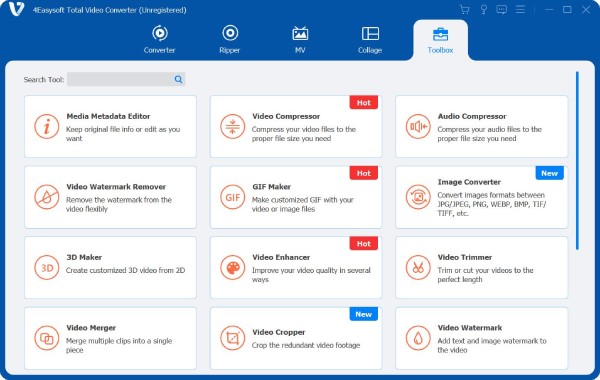
Step 1Upon starting 4Easysoft Total Video Converter, go to the "Toolbox" widget tab. There, see all available toolkits, and find the "Video Compressor" tool.
Step 2Import your MP4 video file to start. At this part, adjust the "Size" slider or manually enter your desired megabytes. You can change other settings, too, like Resolution if needed.
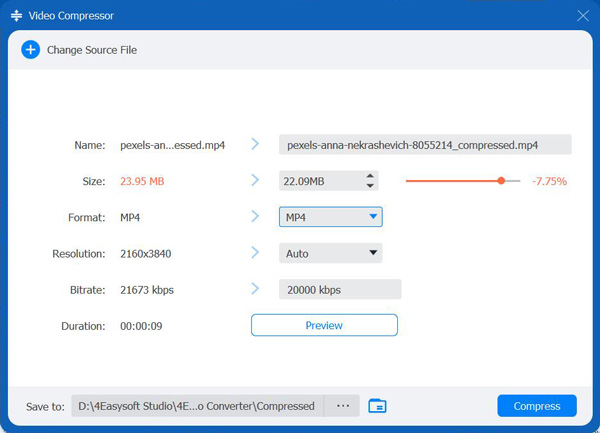
Step 3Click the "Preview" button to watch the compressed video. If it looks great, click the "Compress" button to compress large MP4 files.
100% Secure
100% Secure
2. VLC Media Player: Free Multi-Platform MP4 Compressor
Next is a surprisingly powerful tool to compress MP4 videos: VLC Media Player. While it is primarily known as a media player, it has a feature to re-encode MP4s into more efficient formats. The compression is done by manually choosing a lower-bitrate profile or adjusting the settings in the profile editor. Due to being lightweight, it makes it an excellent choice for anyone who doesn't wish to install additional software.
Pros: Works entirely free with no watermarks or ads; available on almost any operating system.
Cons: Slow compression speeds; no target size slider.
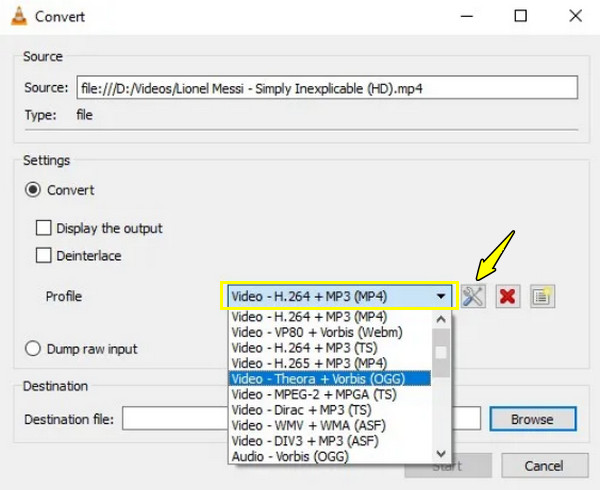
Step 1Run VLC, and head towards "Media", then select "Convert/Save". Load your MP4 video file by clicking the "Add" button, then click "Convert/Save".
Step 2From the "Profile" dropdown menu, choose "Video - H.264 + MP3 (MP4)". Then, click the "Settings" button next to it to lower the bitrate and resolution.
Step 3Later, choose a location folder and click "Start" to make a MP4 file smaller.
3. Handbrake: Open-Source Batch MP4 Compression
For anyone who opts for professional control with no higher price tag, Handbrake is among the standards for compressing MP4 videos. It excels at batch processing, letting you make a lineup of your entire folder of MP4s and compress them at once. Besides helping you reduce video file size, it has specialized web-optimization toggles that sync data for faster streaming.
Pros: Batch queuing for large collections; high-quality presets are supported; deep customization of encoding settings.
Cons: No editing or merging features; steep learning curve for first-time users.
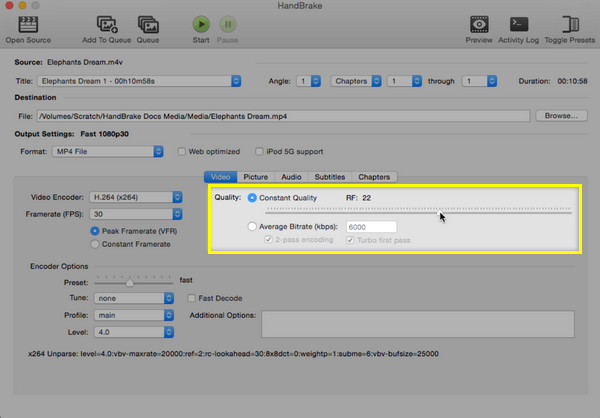
Step 1Launch Handbrake on your computer, then drag your MP4 video file into the window. Afterwards, select a "Preset" from the right-hand panel.
Step 2Slide to the "Video" tab and adjust the slider of "Constant Quality" to a higher number, e.g., 22-25. Then, ensure to check the "Web Optimized" box in the "Summary" tab.
Step 3Choose your location folder and click "Start Encode" to start your MP4 compression.
4. FreeConvert Video Compressor: Online Secure MP4 Compressor
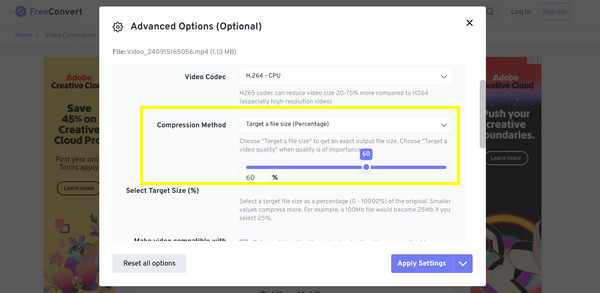
Heading to web options, the first one here is FreeConvert. It is one of the leading choices for users who want to compress MP4 files without installing anything. It prioritizes your privacy with 256-bit SSL encryption, ensuring all uploaded files remain private during the session. Further, it integrates with cloud services to enjoy seamless transfers.
Pros: Direct cloud linking for easy file handling; has auto-deletion of files.
Cons: Rely on internet connection speed; the free version limit is 1GB.
Step 1Search for the FreeConvert Video Compressor official page. Click "Choose Files" to upload your MP4 video.
Step 2Then, click the "Settings" button and enter your desired limit in "Target a file size".
Step 3Once done, click "Apply Settings" and then "Compress Now".
5. Compress2Go: Browser-Based MP4 Compressor with Cloud Sync
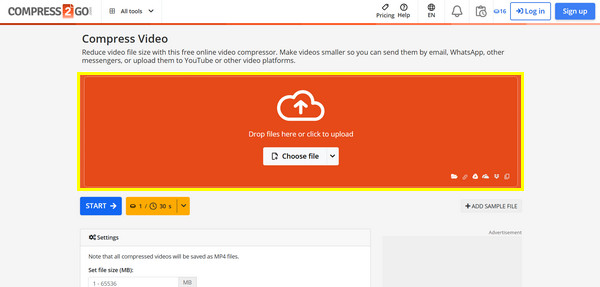
Another tool for online convenience, Compress2Go has a minimalist platform to resize MP4 videos online. Its strength lies in its Cloud Sync capabilities, letting you process a video and store it back to the cloud storage. Also, it has three simple presets, such as Small File, Medium, and High Quality, making it the fastest choice for non-techy individuals.
Pros: Great mobile browser compatibility; saves videos directly to cloud storage.
Cons: Ad-supported interface; minimal advanced settings.
Step 1Head to Compress2Go.com and choose "Compress Video" then upload your file from your computer or cloud.
Step 2Pick a preset like "Small File" for huge space-saving. Optionally, you can change the resolution as well.
Step 3Click "Start" and save the compressed MP4 file.
6. Clideo Compress Video: MP4 Compressor with Social Media Presets
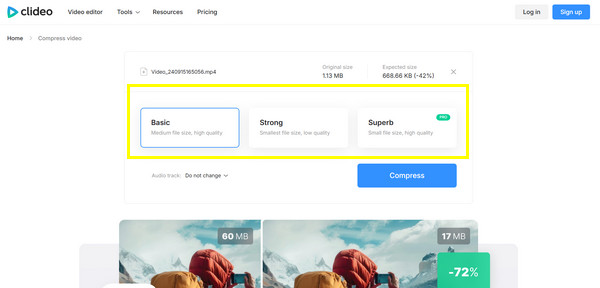
Finally, Clideo online video compressor can shrink the file size of your MP4 videos, primarily for social media creators. It features modes like basic, strong, and superb, which are optimized to meet the upload limits of social media platforms like Instagram, TikTok, and WhatsApp. It also comes with a preview to watch the video first to check if the quality has not dropped too low.
Pros: Reliable compression modes for social media clips; best UI for desktop and mobile.
Cons: File size limit for free is 500MB; it includes a watermark in the free version.
Step 1Inside the Clideo Compress website, click "Choose File" or drag and drop your MP4 video directly.
Step 2Choose your desired compression level, e.g., "Strong". Wait for the process to finish, and check the preview.
Step 3Later, click "Download" to get your MP4 video in smaller file size.
Conclusion
By mastering the various methods mentioned, from downscaling resolution to switching codecs, you can ensure your MP4 videos are optimized for any platform. As for the tools that can help you reduce MP4 video file size, such as Handbrake, VLC, or online tools, there's a compression solution available for you. Ultimately, the best way to shrink your media without quality loss is offered by 4Easysoft Total Video Converter. While others can resize as well, this tool compresses MP4 files at super-fast speed while keeping your videos sharp, making it the premier choice for all your multimedia needs.
100% Secure
100% Secure
