
Compress videos from GB to MB and keep its original quality with the AI technology
Change Video Resolution: 4 Tools for Desktop and Online Use

Posted by Paula Pailaga to Edit Video/Audio Dec 31, 2025
When preparing videos for different devices, platforms, or storage limits, changing video resolution is often necessary. Whether you need to upscale a video for better playback or downscale it to lessen file size, you need the correct method. Thus, this post explores four reliable ways to change video resolution, from desktop to online solutions. Also, you'll see the different resolution requirements for other platforms. Know today when you see which option works best for you.
Guide List
Video Resolution Requirements for Different Media Platforms How to Change Video Resolution on Windows and Mac [4K, 1080P, 720P and More] Change Resolution and Resize Video Using HandBrake Change Video Resolution with Sony Vegas Pro Increase or Decrease Video Resolution with FreeConvert Online for FreeVideo Resolution Requirements for Different Media Platforms
With the correct video resolution, your videos will be displayed correctly, load faster, and keep the best possible quality for viewers. So, see below the standard video resolution requirements for different platforms first.
• YouTube: 720p, 1080p, 1440p, 2K, 4K, and more. But for most creators, 1080p offers the best balance.
• Facebook: 720p and 1080p with a 16:9 or 1:1 aspect ratio.
• Instagram: 1080 x 1080 square or 1080 x 1350 portrait.
• X (Twitter): 720p or 1080p.
• TikTok: 1080 x 1920 in vertical.
• Streaming Platforms: 1080p, 4K or higher.
• Mobile Devices: 1080p or 720p.
• Email and Messaging Apps: 480p or 720p.
How to Change Video Resolution on Windows and Mac [4K, 1080P, 720P and More]
Adjusting resolution is not just about resizing; it is also about maintaining clarity, sharpness, and compatibility across platforms. So, for complete control over changing a video resolution while preserving the quality, 4Easysoft Total Video Converter is highly recommended. It utilizes advanced video processing technology to lessen quality loss during resolution changes. Moreover, you can change video size, aspect ratio, format, output settings, and more details within the program.

Easily downscale videos from 1080p, 720p to 4K while maintaining clear quality.
Change video dimensions with premade or customizable width and height.
Compress, rotate, trim, merge, remove watermark, and apply more effects to videos.
Convert videos to MP4, MOV, AVI, MKV, and 600+ formats.
100% Secure
100% Secure
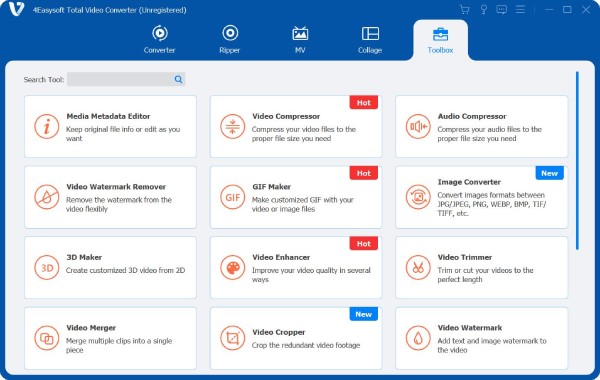
Step 1Launch 4Easysoft Total Video Converter on your computer and navigate to the "Toolbox" tab at the top. From the list of tools, select "Video Compressor" which allows you to change video resolution alongside other output settings.
Step 2Click the "Add" button in the center of the screen to add the video you wish to resize. Once the file is loaded, use the slider or arrow controls to adjust the output size. Make sure to change video resolution as needed, fine-tune the format, and bitrate. Preview it before export.
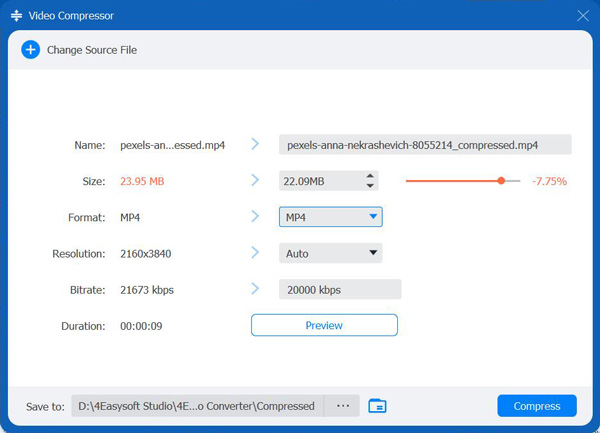
Step 3Click the "Compress" button to apply the new resolution and save the adjusted video.
100% Secure
100% Secure
Change Resolution and Resize Video Using HandBrake
Meanwhile, Handbrake here is a popular open-source tool for users who want a free way to change video resolution. While it is known for video compression, it also allows you to do basic resolution adjustments, such as 720p to 1080p. It is perfect for reducing resolution to save space or optimize playback performance.
Step 1Once you open Handbrake, click on "Open Source" to load your video.
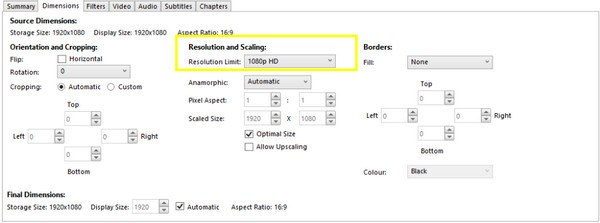
Step 2Head to the "Dimensions" tab in the settings panel. Change the "Width" and "Height", or choose a preset resolution.
Step 3Then, select your format from the "Summary" tab.
Step 4Set the destination before clicking the "Start Encode" button to process the video.
Change Video Resolution with Sony Vegas Pro
Next is Sony Vegas Pro, a professional video editing software made for advanced users who need detailed control over their video projects. Changing video resolution is great for YouTube, films, or other commercial content. It works best for those who have edited videos and want to change video resolution and upscale video to 4K as part of a larger workflow.
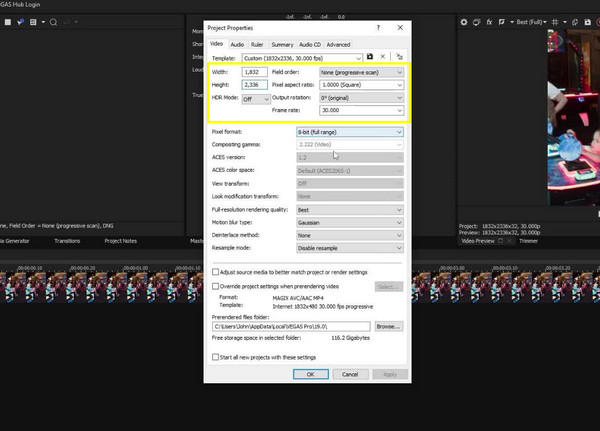
Step 1Open the Sony Vegas Pro and add your video to the timeline. Click on the "File" menu and select "Properties" to open project settings.
Step 2Set your desired "Frame Size (Resolution)", then edit your video as needed on the timeline.
Step 3Later, click on "File", then select "Render As", and choose a format, then confirm.
Increase or Decrease Video Resolution with FreeConvert Online for Free
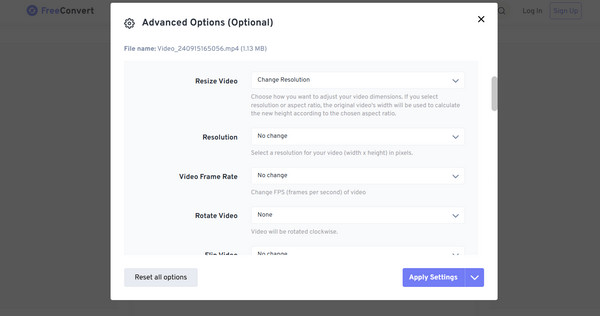
FreeConvert is an online solution to change video resolution online. It is perfect for quick edits and small files, especially when handling them on shared computers. While it does not have advanced enhancements, it is convenient for simple resolution changes.
Step 1Open FreeConvert on your browser. There, upload your video file from your computer or cloud storage.
Step 2Click the "Settings" button to select a target video resolution.
Step 3Adjust everything if needed, then click the "Convert" button to finalize.
Conclusion
As discussed today, each of the four methods has unique advantages for changing video resolution. From free and open-source tools like Handbrake to online solutions like FreeConvert, there's a tool perfect for your workflow. However, if you wish for friendliness, powerful customization, and high-quality in one place, use 4Easysoft Total Video Converter. This program lets you precisely adjust video resolution while maintaining clarity, gives you a wide range of format support, and fast performance; it is a reliable and efficient solution to handle all your video resolution needs.
100% Secure
100% Secure
