
Completely scan your iOS devices and delete all junk files on your iPhone, iPad, and iPod

7 Methods to Get More iPhone Storage without Buying

Posted by Alvin Cantero to iOS Cleaner Jan 16, 2026
Running out of storage space on your iPhone is a common issue many users face, especially when you need to take photos or download new apps. Instead of deleting old photos or spending extra money on a pricier model, you can use some of iOS's built-in features and lesser-known tricks to clean up hidden clutter and get more iPhone storage space, without deleting the content you truly care about. Here's how to do it.
Guide List
Clear Browser Cache to Get Free iPhone Storage Clear Apps' Cache to Get More iPhone Storage Organize Media Files with a Powerful Tool to Reduce Duplicate Usage Copy Files to External Devices to Free Up iPhone Space Offload Infrequently Used Apps on iPhone to Get More StorageClear Browser Cache to Get Free iPhone Storage
When clearing the iPhone to get more storage, the browser cache is more often overlooked. Files like webpages, images, and tables you've viewed are stored invisibly in your browser's cache. So to clear them correctly, you can follow these steps to clear Safari and other browsers' cache to get more space on your iPhone.
For Safari:
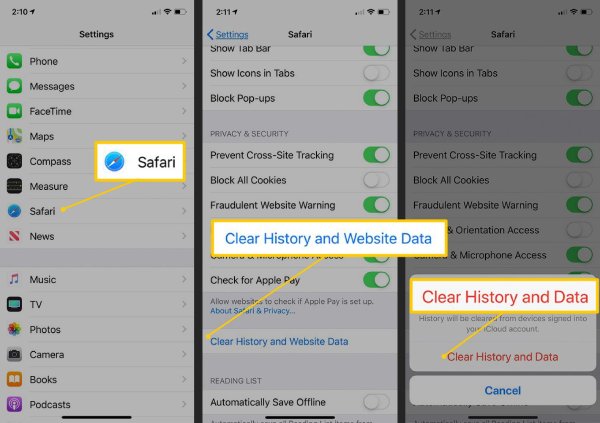
Step 1Open Settings, slide down to find "App", and tap "Safari". Tap "Clear History and Data". Choose the date range you want to clear.
Step 2Tap "Clear History" to confirm. You will find this button is grayed out until you use Safari again.
For Chrome:
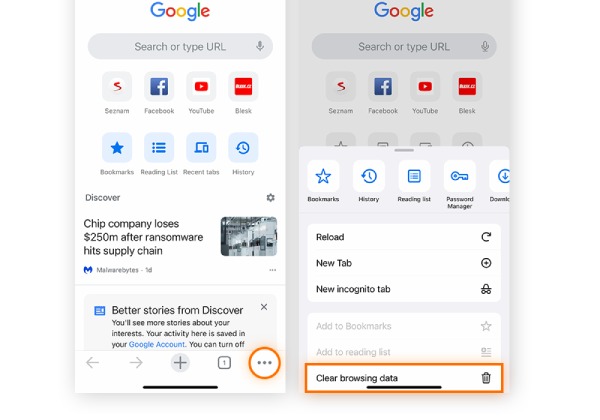
Step 1Open the Chrome app, tap the three dots in the bottom-right corner of the screen.
Step 2Tap "Settings", then select "Clear browsing data". Then choose the desired date range and file types. Chrome will start to clear the cache.
Clear Apps' Cache to Get More iPhone Storage
The system, after iOS 16, has a new feature, "Merge Duplicates". It can help you organize your photos faster. But for other types of data, you need a more professional tool to help you manage and get more storage on your iPhone. 4Easysoft iPhone Cleaner can perfectly achieve this goal. It will automatically classify all file types on your iPhone, such as old and oversized files, duplicate photos, and long-time no used apps. And supports all iPhone models, including iPhone 17 and iOS 18/26. Moreover, its clearing speed is fast; you don't have to wait for a long time to clear the data.
Customized delete photos, videos, or other files, and also support preview before you delete them.
Support 3 clear modes for you, including Low, Medium, and High, targeting different clearing needs.
Effectively delete the app with all data; batch deleting can save more time.
Automatically classify files, identify and compress large ones precisely.
100% Secure
100% Secure
Step 1If you want to erase junk files, you can choose and click "Quick Scan". It will quickly scan your iPhone and then click "Erase" to clear the junk files.
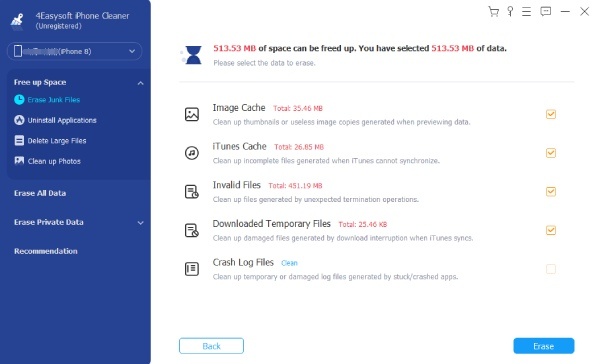
Step 2If you need to uninstall the app, connect your iPhone to a PC, and click "Uninstall Applications".
Step 3All your apps will appear; click "Uninstall" next to the application. Then click "Confirm" to finally delete the applications.
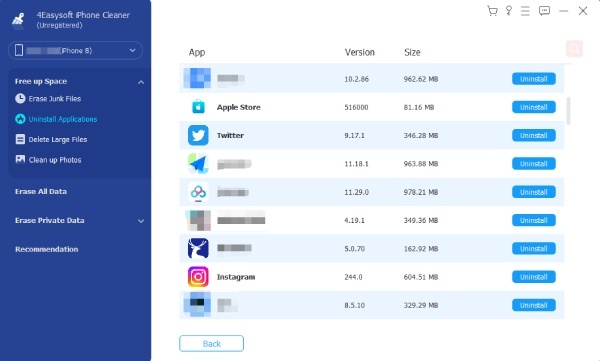
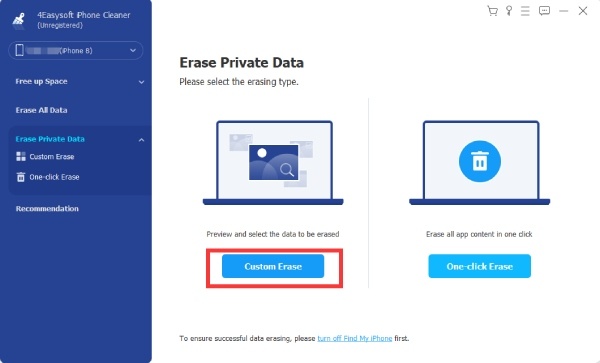
Step 4You can click "Erase Private Data" to customize erasing. Click "Custom Erase" and wait for the scanning.
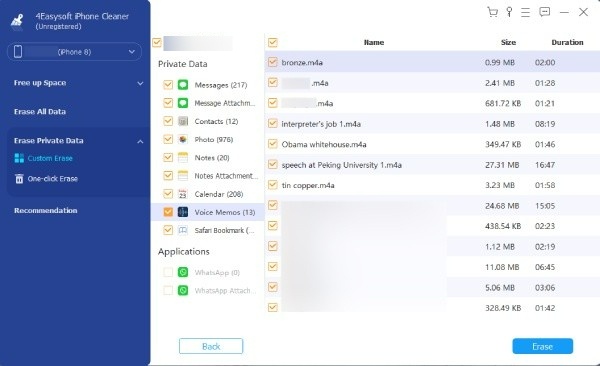
Step 5Then the file will automatically be divided, and you can choose the desired one to delete now.
Organize Media Files with a Powerful Tool to Reduce Duplicate Usage
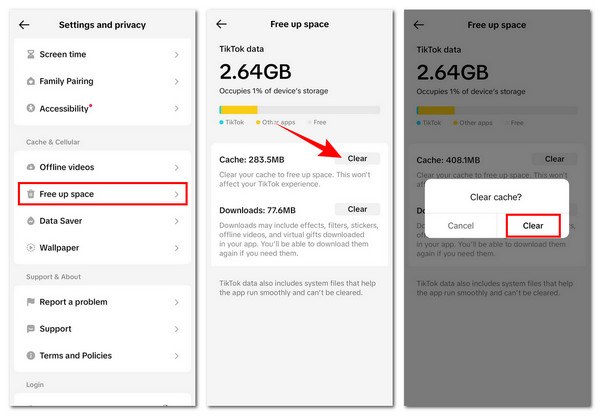
Except for the above junk files and browsers' cache, app cache may also take up some storage on your iPhone. You can use it to clear the cache without deleting different apps to get more storage on your iPhone. Apps like Facebook, TikTok, and WhatsApp all have this function. The next part will use TikTok as an example.
Step 1Launch TikTok, tap Profile, and find the three short lines pattern. Open Settings and Privacy, scroll down the page for "Cache and Cellular".
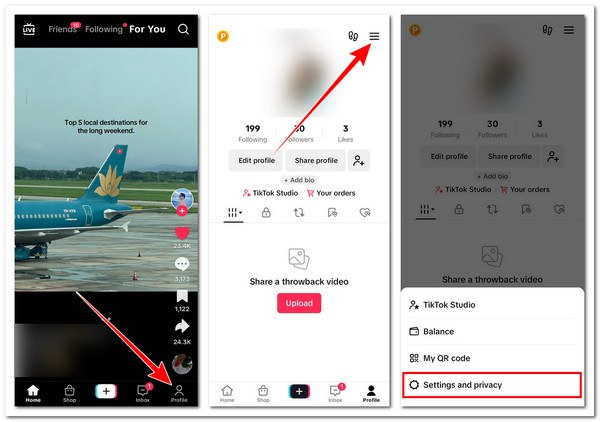
Step 2Then select "Free up space". TikTok will calculate the data that it occupies and find the cache on your iPhone.
Step 3Once done, tap "Clear" next to the "Cache" to clear it. Tap "Clear" once again to confirm the action.
Copy Files to External Devices to Free Up iPhone Space
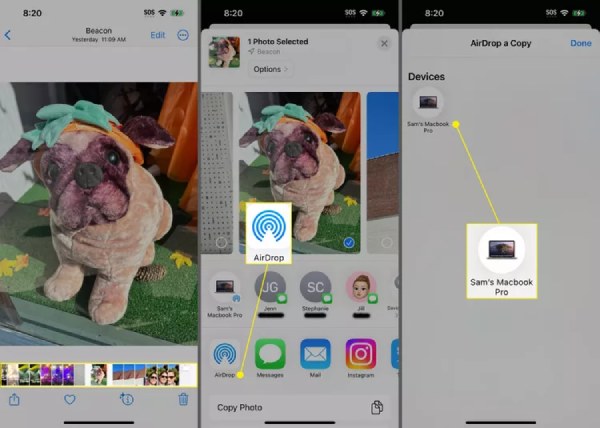
If you have too many necessary files, consider copying them to an external storage device or computer for backup. Then you can also free up some space on your iPhone. But this method may take a long time. For example, you can use AirDrop to transfer files to a Mac, utilize cloud storage, or use a USB hard drive.
Use Airdrop
Steps: Find the photos you need to transfer in the "Photos" app, open them, and tap "Share", select Airdrop to send these photos to your Mac.
Use USB Drive:
Step 1Copy the files from your iPhone to your Mac, then insert the USB drive into your Mac.
Step 2Copy these files to the USB drive again, then you can delete the files on your iPhone to get more storage.
Offload Infrequently Used Apps on iPhone to Get More Storage
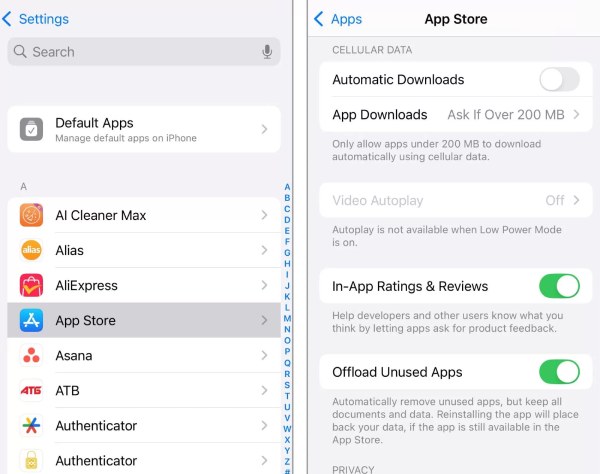
Have you often downloaded an application, just tried it, and never used it again? You have to delete these applications to get storage on your iPhone. They may also take up a lot of space on your iPhone. Also, iPhone supports periodically clearing out a batch of unnecessary or unused apps. All you need to do is enable this feature.
Step 1Open the Settings app and go to "App" and "App Store". Scroll down until you find the "Offload Unused App" option.
Step 2Turn this function on, and it will clear the unused apps' data periodically.
Conclusion
All the above methods can help you get more space on your iPhone. You can choose one or combine them to use. For the fastest and most clear one, 4Easysoft iPhone Cleaner is a good choice. It supports all iPhone models and has three clean modes for different needs. Download it now to let it help you organize your iPhone files.
100% Secure
100% Secure
