
Recover all data from your iOS devices, iTunes and iCloud backup.
Why Can't I Download Apps on My iPhone? Answers and 11 Fixes

Posted by Alvin Cantero to iOS Recovery Feb 13, 2026
"Why can't I download apps on my iPhone?" you might ask. Whether the app shows a download error or does not respond at all, you're not alone. This is a common issue that might happen to everyone for several reasons, and the good news is that it is usually easy to fix. This guide today will share the reasons why it happens and walk you through 11 solutions to resolve unable to download apps on iPhone. Get back to smooth downloading in no time!
Guide List
Why Can't I Download Apps on iPhone? 10 Ways to Fix Can't Download Apps on iOS 18/26 Still Can't Download or Install Apps? Try ThisWhy Can't I Download Apps on iPhone?
Have you tried downloading an app on an iPhone only to see it stuck on "downloading"? This issue is more common than you might think, and it happens due to several reasons, including:
- Unstable internet connection.
- Outdated iOS software.
- Not enough storage space. (You can delete duplicate photos on iPhone, as well as large videos, unwanted apps, and more.)
- Apple ID or App Store glitches.
- Restrictions under Screen Time
- Incorrect payment or region settings.
- System errors or temporary bugs.
10 Ways to Fix Can't Download Apps on iOS 18/26
Thankfully, these issues come with easy fixes. Below are the top ten simple ways to download and install apps on iPhone successfully.
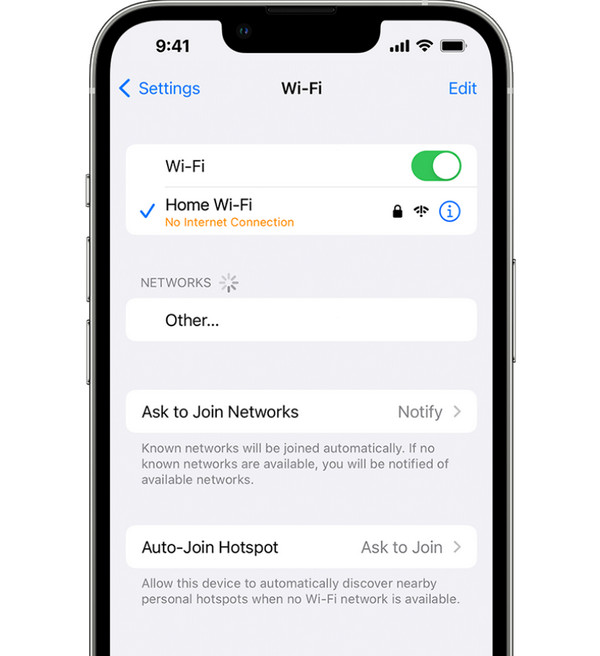
Fix 1. Check Internet Connection
A weak internet connection is the most common culprit for why you unable to install apps on iPhone. Downloading and installing apps requires a strong connection to be successful.
- 1.Go to "Settings", then tap on "Wi-Fi". Here, ensure you're connected to a stable network.
- 2.If not, try switching between Wi-Fi and data to see if the app download resumes.
Fix 2. Restart Your iPhone
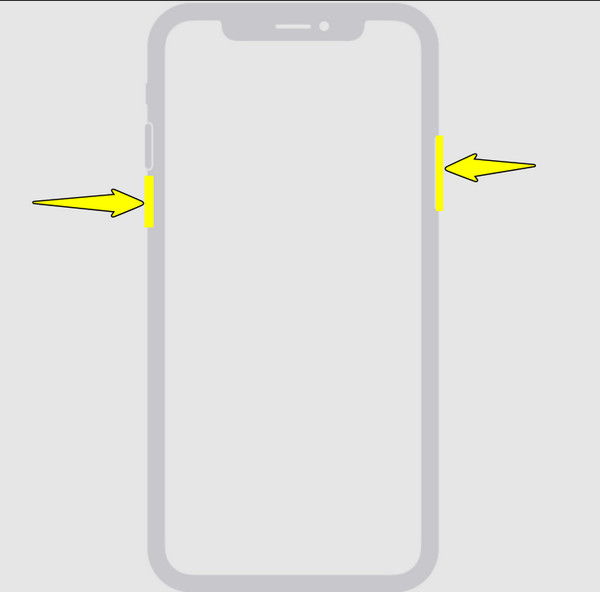
Restarting your device can fix temporary bugs that are causing you to can't download apps on iPhone. Doing so refreshes the system and eliminates any stuck processes.
- 1.Press and hold the "Power" and "Volume Up" buttons until you see the slider appear.
- 2.Slide it to power off your iPhone. Later, press and hold down the "Power" button again.
Fix 3. Check Available Storage
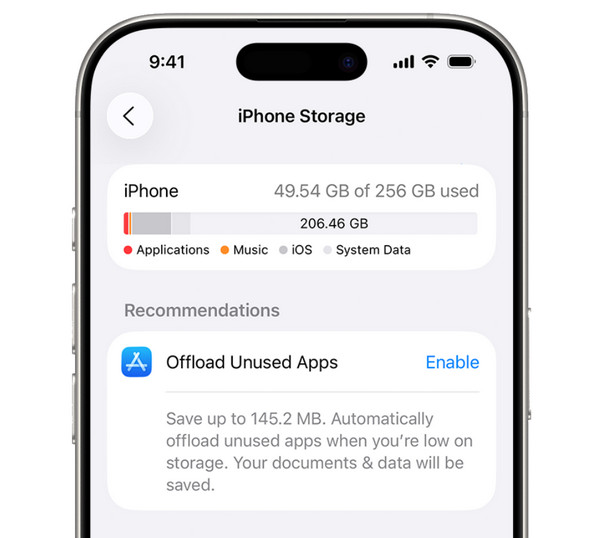
Suppose your iPhone is running low on storage. Due to this, new applications cannot be installed. You can delete unused files or some apps to free up space.
- 1.Launch "Settings", then "General", and tap on "iPhone Storage".
- 2.Here, check the storage bar to see how much room is available for new downloads.
Fix 4. Close Background Apps
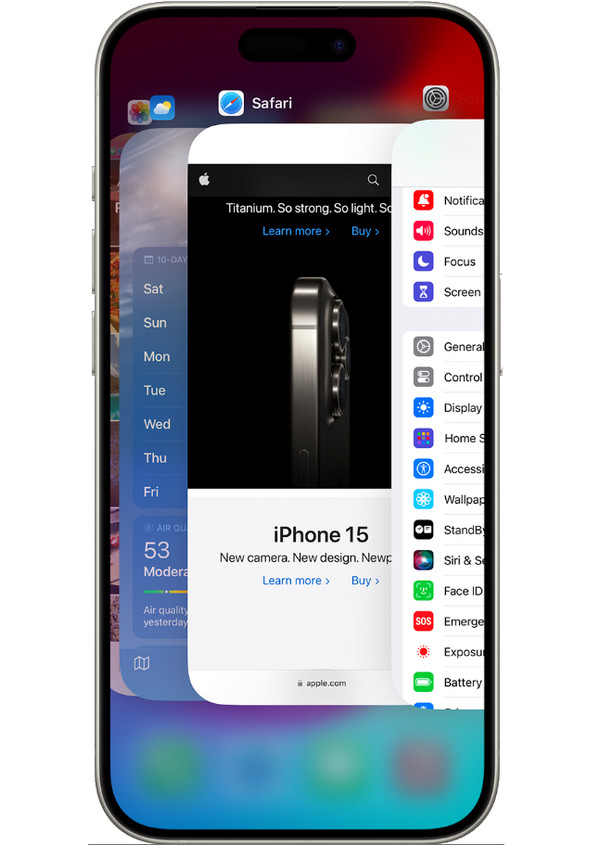
If there are too many apps running in the background, your iPhone might not have enough memory to process new downloads. Try closing these apps to fix can't download apps on iPhone. Or you can uninstall apps on iPhone from App Store and Settings.
- 1.Swipe up from the bottom of your iPhone to open the "App Switcher" (Double-tap the Home button).
- 2.Swipe up on the apps to close them, then try downloading one from the App Store.
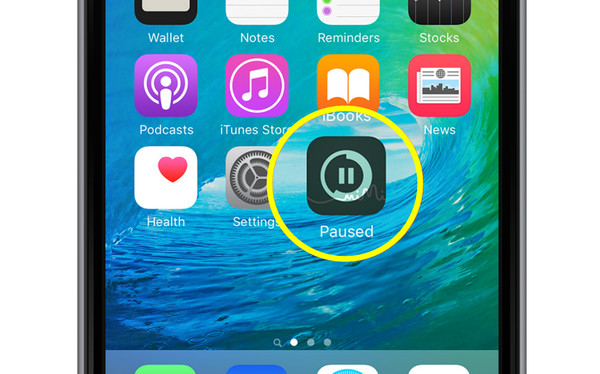
Fix 5. Pause and Resume Download
Sometimes, a downloading issue happens due to App Store errors. Pausing and restarting the app can restart the process and may help it complete successfully.
- 1.On your Home Screen, locate the downloading app. Tap on it to pause, then tap it again to resume.
- 2.If it does not work, delete the app and get it again from the App Store.
Fix 6. Update iOS to the Latest Version
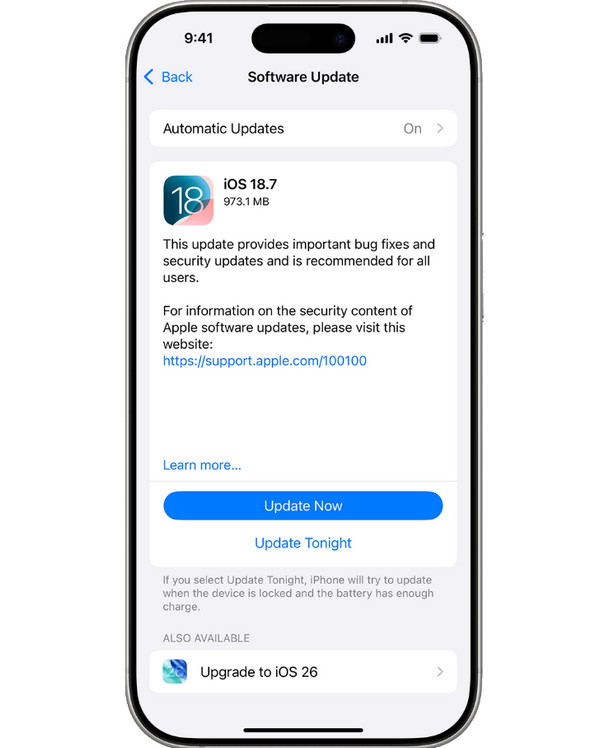
Outdated iOS versions have bugs that affect app downloads. So update the latest iOS version to fix can't download or update apps on iPhone issue.
- 1.In "Settings", tap on "General", then go to "Software Update".
- 2.If there's an update available, tap "Update Now" and follow instructions to completely update your iPhone.
Fix 7. Sign Out and Back Into Your Apple ID
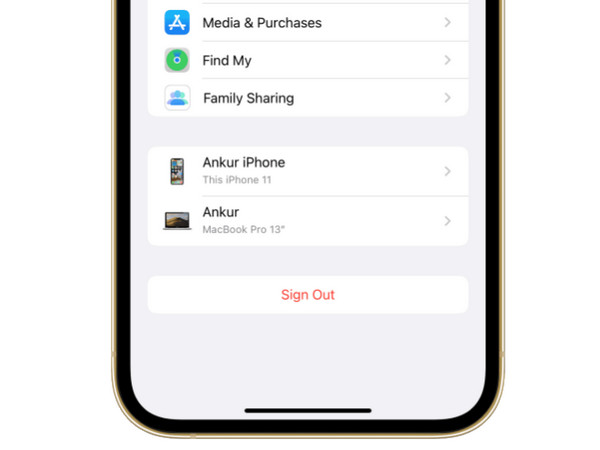
Apple ID issues block app downloads and updates. Try signing out and back in to refresh your account and resolve apps won't download on iPhone issues.
- 1.Go to "Settings", then tap on your "Apple ID", scroll down, and tap "Sign Out".
- 2.After a while, sign back into your Apple ID account.
Fix 8. Confirm Payment Method
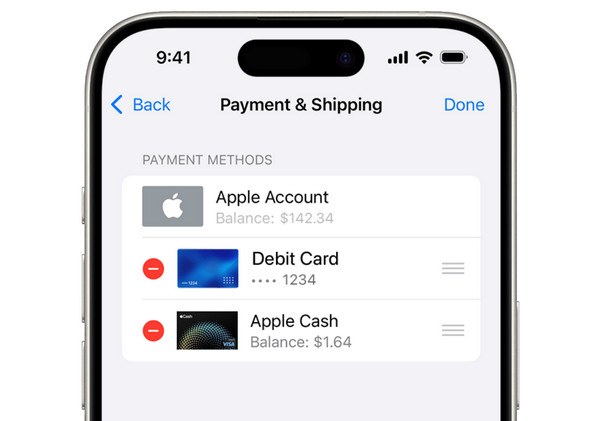
You won't really be able to download a paid app if your payment method is invalid. Thus, update it immediately to download new apps on iPhone.
- 1.Inside "Settings", tap on your "Apple ID", then head to "Payment & Shipping".
- 2.There, tap "Add Payment Method" or choose your current one to edit it.
- 3.Update all details and save.
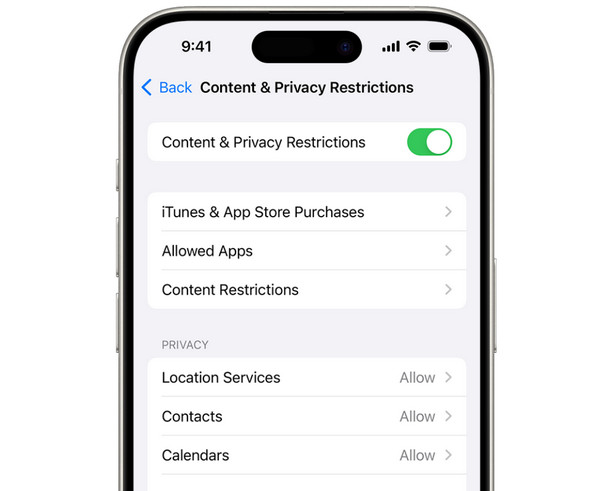
Fix 9. Check App Store Restrictions
Screen Time might have restrictions enabled, where app downloads might be blocked. So, ensure your settings allow downloading and installing apps.
- 1.Run "Settings", then go to "Screen Time".
- 2.Tap "Content & Privacy Restrictions" and make sure it is activated.
- 3.From there, tap "iTunes & App Store Purchases" to "Installing Apps" then "Allow".
Fix 10. Reset Network Settings
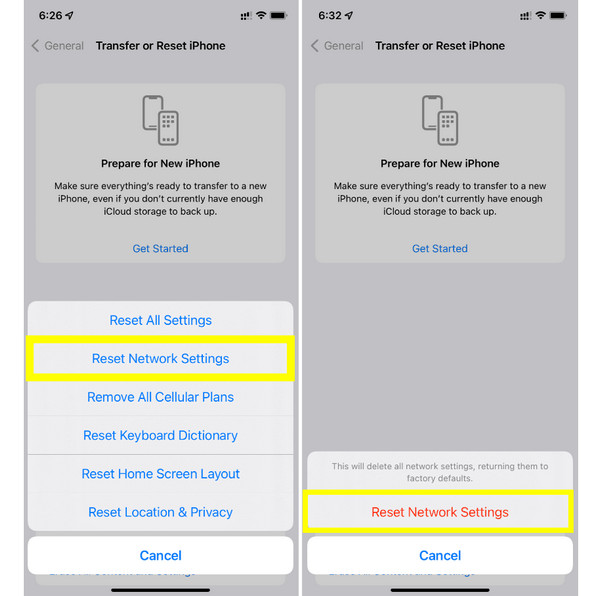
Incorrect network settings can prevent your phone from connecting properly, giving you issues like can't download apps from App Store. Here's what you can try:
- 1.Open "Settings", then "General".
- 2.Tap on "Transfer or Reset iPhone", then "Reset".
- 3.Tap "Reset Network Settings"; reconnect to your Wi-Fi and try downloading again.
Still Can't Download or Install Apps? Try This
None of the basic solutions works to fix can't download apps on iPhone? The issue might be due to deeper system problems. And in such cases, you will need a reliable solution like 4Easysoft iOS System Recovery. This powerful tool is made to repair your iOS system without losing data, covering 50 iOS related problems, including App Store errors, software glitches, stuck downloads, and more. Using this iOS System Repair tool, you can restore your device to normal right away, and it is perfect for users running whatever versions, including iOS 18 and iOS 26. It is an easy, no-technical fuss solution.
Repair download failures, system crashes, update errors, and more.
Offers two repair modes: Standard Mode and Advanced Mode.
Compatible with the latest iOS versions and iPhone models.
Ensure no data loss and privacy risk throughout the repair process.
100% Secure
100% Secure
Step 1Open 4Easysoft iOS System Recovery on your computer, and connect your iPhone via a USB cable. Once it is recognized, choose the "iOS System Recovery" option on the home screen, then click the "Start" button to start the process.
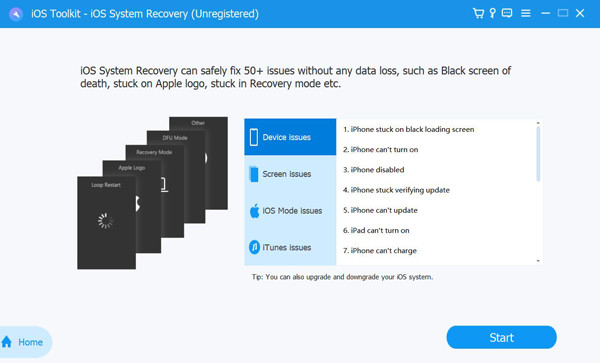
Step 2After the program detects your iPhone, try the "Free Quick Fix" for basic issues. For advanced repair, select "Fix" to continue.
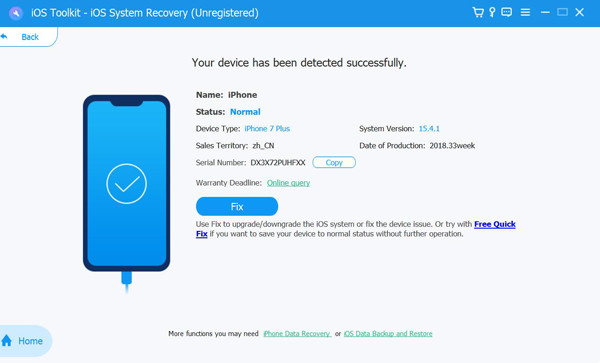
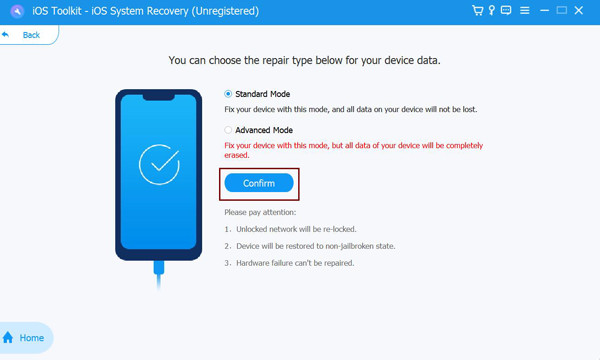
You will then be asked to pick between "Standard Mode" which fixes issues and keeps your data safe, or "Advanced Mode" which fixes serious problems but affects data. Click the "Confirm" button to move on.
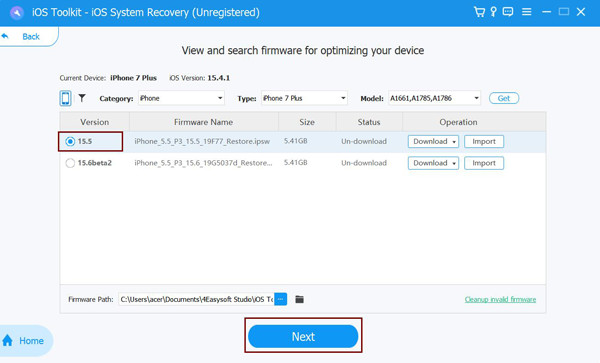
Step 3Next, verify your device details. The software will then suggest the correct firmware package, download it, and then click the "Next" button to repair your iPhone system.
Conclusion
Can't download apps on iPhone? No problem, as it is a simple issue that can be fixed with the right steps! From checking your connection to resetting network settings, most of these easy methods only take a few minutes. However, if the iPhone apps not downloading problem continues after everything, the 4Easysoft iOS System Recovery becomes your best option! This powerful tool fixes over 50 related problems, all without risking your data. With its friendly interface and secure repair process, you can count on this program to fix being stuck on "downloading" once and for all.
100% Secure
100% Secure
