
Convert, enhance, and edit videos in 600+ formats with high quality and fast speed.
MOV vs. MP4 in File Size, Quality, Compatibility, and More

Posted by Aira Lesly Escoto to Convert Video Feb 06, 2026
Can't open or upload your perfect shot from your iPhone or Mac to your editing software? On the flip side, perhaps you need high-fidelity metadata support for the MOV format, but you're stuck with the MP4. While both hold video and audio formats, here's the MOV vs. MP4 debate in today's guide to see which is best for your project. Plus, you don't need to choose one forever, as there are four ways here to convert between MOV and MP4 formats, desktop and online tools.
Guide List
MP4 VS. MOV: The Difference and Applications How to Convert Between MP4 and MOV Professionally 3 Online Methods to Quickly Convert MP4 and MOVMP4 VS. MOV: The Difference and Applications
The first stop is the .mov vs. mp4 battle. The main distinction between MP4 and MOV video formats lies in their origin and compatibility. So, to help you decide which format suits your specific project, it is crucial to look at the technical differences and the applications for each.
MP4 vs. MOV: Compatibility
MP4 is the universal standard that you can play on a game console, smart TV, or Android phone. Meanwhile, MOV was made for Apple's QuickTime Player and works great on macOS and iOS.
MP4 vs. MOV: File Size and Quality
MOV is a lossless or high-bitrate container, holding high-quality video for professional workflows, which makes the file quite large. On the other hand, MP4 has more compression that strips out extra data, resulting in a smaller file size. But you can still compress MOV videos to reduce file size and keep using the .mov file extension.
MP4 vs. MOV: Metadata and Tracks
MOV can hold multiple tracks like video, audio, text, and timecodes, making it a favorite for professional editors who need to enable subtitles or several audio tracks. MP4, however, is optimized for the finished user rather than the editor.
When to Use MP4 and MOV?
- 1.Use MP4 for online sharing, such as YouTube, Instagram, and TikTok.
- 2.Use MP4 for archiving home movies and saving hard drive space.
- 3.Use MP4 when sending a video to a friend on any device.
- 4.Use MOV when working in Premiere Pro or Final Cut Pro to maintain maximum detail.
- 5.Use MOV for high-definition broadcasts as it supports high-end codecs like ProRes.
- 6.Use MOV on iPhones, iPad, and MacBooks for the most seamless experience.
How to Convert Between MP4 and MOV Professionally
For those who love speed and output integrity of their MP4 and MOV videos, 4Easysoft Total Video Converter is the best desktop solution for you. This powerhouse software is made to handle more than 600 formats, ensuring that even UHD and 4K videos can be converted without quality loss. Plus, it uses advanced hardware acceleration to speed up the process, so you no longer have to wait for your large files. Its intuitive interface with customizable options is enough for anyone who wants an easy, powerful environment for all conversion tasks.
Preserves the quality of your MP4/MOV footage perfectly when switching.
Can tailor every aspect of your output, like resolution, bitrate, or codec.
Delivers a rapid and stress-free conversion process without quality loss.
Powerful batch processing engine to handle multiple MP4 or MOV files.
100% Secure
100% Secure
Step 1Open the 4Easysoft Total Video Converter on your desktop. To get started, use the "Add Files" button to navigate your computer folders, or simply drag MP4 or MOV videos into the workspace.

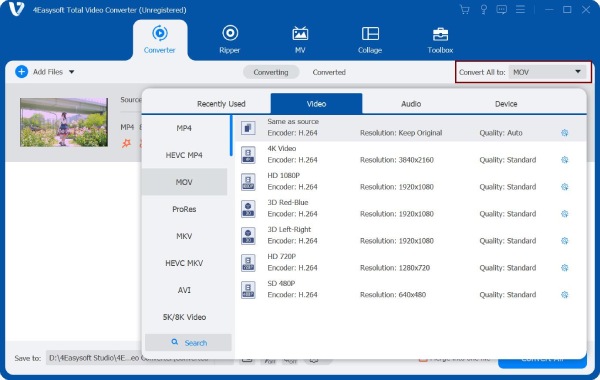
Step 2Access the "Format" selection menu to see the wide range of available formats. Inside the "Video" category, choose either "MOV" or "MP4" as your desired target.
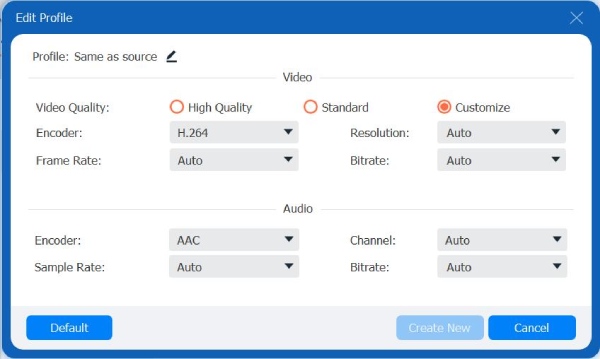
For those needing specific standards, click the "Custom Profile" button to change the frame rate, codec, or bitrate.
Step 3Once your settings are settled in, pick a save location at the bottom of the main window. Click the "Convert All" button to start the rapid conversion of MOV and MP4 videos.

100% Secure
100% Secure
3 Online Methods to Quickly Convert MP4 and MOV
While desktop software is undeniably perfect for all types of conversion, including QuickTime MOV and MP4, sometimes you prefer a quick fix for a single video without installing anything. Here are the top three picks for MP4 to MOV online conversion.
1. Zamzar
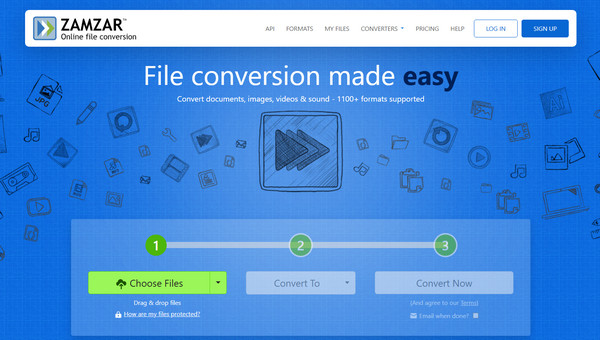
One of the oldest and most reliable names in the online conversion world, Zamzar offers simplicity with its three-step process. It is your ideal choice to convert between MP4 and MOV with a clean and ad-free experience.
Step 1Visit the Zamzar main site. There, click the "Choose Files" button to upload your MOV or MP4 file.
Step 2In the "Convert To" format, choose your desired format between the two.
Step 3Click the "Convert Now" button and wait for the process to finish before downloading it.
2. CloudConvert
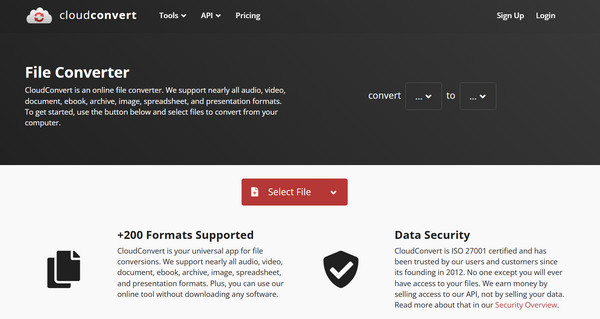
CloudConvert is your versatile online MP4 converter that works great for almost all file types, including .mov and .mp4. Besides that, it offers deep customization that most browser-based solutions lack.
Step 1From the CloudConvert official website, click the "Select File" button to upload your MOV or MP4 file from your computer or cloud storage.
Step 2Select your output format from the dropdown menu and click the "Settings" button to adjust settings if needed.
Step 3Click the "Convert" button and later, download the resulting file.
3. FreeConvert
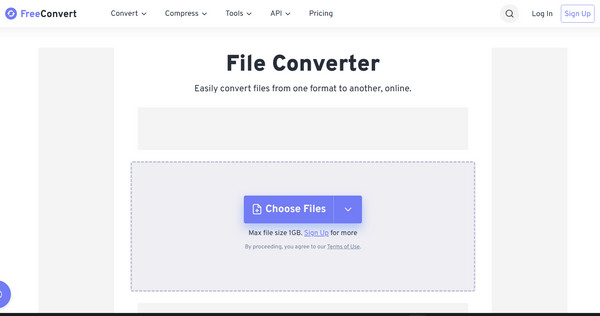
On the other hand, FreeConvert here stands out for its generous file size limits, letting you upload large files compared to its rivals. Here, you can also stabilize video or remove audio during the conversion process.
Step 1Inside the FreeConvert main page, tap the "Choose Files" button to select your MP4 or MOV file.
Step 2Make sure the output format is chosen correctly in the blue box.
Step 3Then, click the "Convert" button and save the file to your device or cloud storage.
Conclusion
Prioritizing the high-fidelity nature? Then aim for a MOV file. Or maybe you're looking for the lightweight convenience of an MP4. Choosing the right format now is not a headache, as you have learned in this MOV and MP4 comparison, the best one for which scenarios, and how to easily switch them. To ensure a seamless, high-speed conversion experience, enjoy using 4Easysoft Total Video Converter. With its robust features, batch processing, and ability to maintain the quality of your footage, it is the best place to be when transforming MOV, MP4, and other formats professionally.
100% Secure
100% Secure
