
Effortlessly fix various iOS system issues like iPhone speaker not working without data loss.

How to Fix an iPhone External Speaker Not Working Issue

Posted by Alvin Cantero to iOS Recovery Feb 27, 2026
If your iPhone speaker isn't working properly, you might struggle to respond to others promptly or miss your morning alarm. Typically, an iPhone speaker malfunction can stem from two causes: software glitches or hardware damage. To fix your iPhone speaker issue, this article outlines 7 quick and effective solutions. Let's dive right in.
Guide List
Why isn't the iPhone Speaker Working Properly? One-Click Direct Fix for iPhone Speaker Issues Check Your iPhone's Audio Settings and Bluetooth Restart Your iPhone or Update the iOS System to Fix the Speaker Contact Apple to Repair Your iPhone speakerWhy isn't the iPhone Speaker Working Properly?
Mute Mode or Volume Too Low
If mute mode is enabled or the volume is set to the lowest level, the speaker naturally won't produce any sound. Sometimes users accidentally press the side mute button or lower the media volume in Control Center, mistakenly thinking the speaker is malfunctioning.
Connected Bluetooth device
When your iPhone is connected to Bluetooth headphones, speakers, or a car system, audio automatically outputs to the external device instead of the phone's speaker. Even if the Bluetooth device is out of reach, the phone speaker won't produce sound as long as the connection remains active.
Speaker blocked by dust or debris
After prolonged use, dust, fibers, or particles may accumulate in the speaker grille, causing reduced volume, distortion, or static. This is a physical obstruction issue. Gently clean with a soft-bristled brush, avoiding sharp objects to prevent speaker damage.
Software glitches or system anomalies
System freezes, app conflicts, or failed iOS updates may cause audio module malfunctions. For instance, certain app crashes can disrupt system sound output.
Do Not Disturb Mode Enabled
Activating Focus Mode or certain notification restrictions may mute specific alerts. This typically manifests as silent calls or notifications while media playback remains unaffected.
Hardware Damage or Water Exposure
If the phone has been dropped, exposed to water, or suffered impact, internal speaker components may be damaged, resulting in no sound or intermittent failure.
Headphone Mode Stuck
Some older iPhone models may incorrectly detect headphones as still connected, causing the system to continuously output audio to the "headphone" channel and silence the speaker.
One-Click Direct Fix for iPhone Speaker Issues
To fix system errors causing your iPhone speaker to malfunction, the simplest and most direct solution is to use 4Easysoft iOS System Recovery. With just one click, it resolves over 50 types of iOS system issues. Your iPhone speaker problem will be quickly resolved without losing any data or storage capacity.
Effortlessly fix system errors causing your iPhone speaker to malfunction.
Support repairing over 50 types of iPhone issues without causing damage to your device.
Customize your iOS version when resolving iPhone speaker problems.
Compatible with multiple models and systems, such as iPhone 17/16/15 and iOS 26.
100% Secure
100% Secure
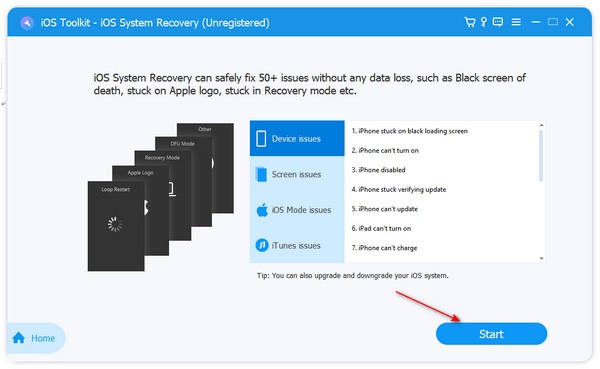
Step 1Install 4Easysoft iOS System Recovery and launch it. Connect your iPhone to your computer with a USB cable. Then, click the "Start" button.
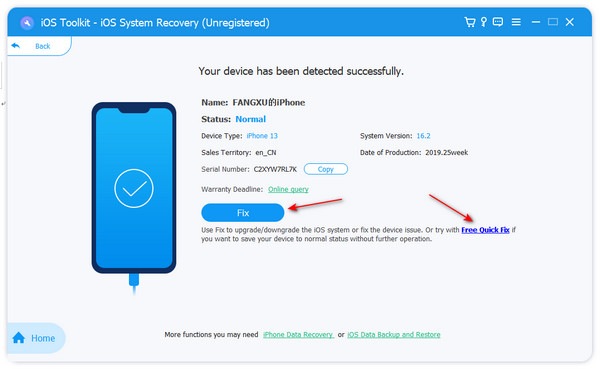
Step 2The program will detect your iPhone, and you can check the information. Click the "Fix" button to go on.
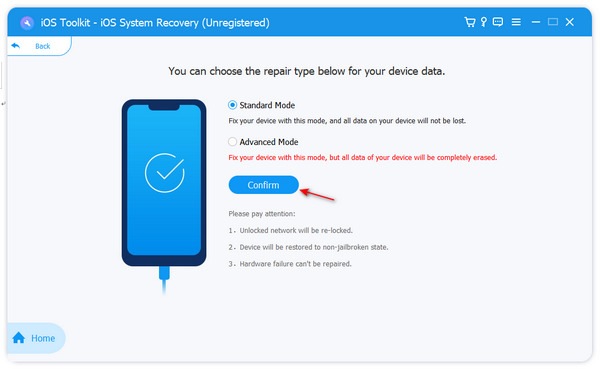
Step 3Here, you can click the "Standard Mode" button to fix your iPhone speaker not working. While the "Advanced Mode" will delete all app data and settings to solve all system errors. Make your decision and click the "Confirm" button to go on.
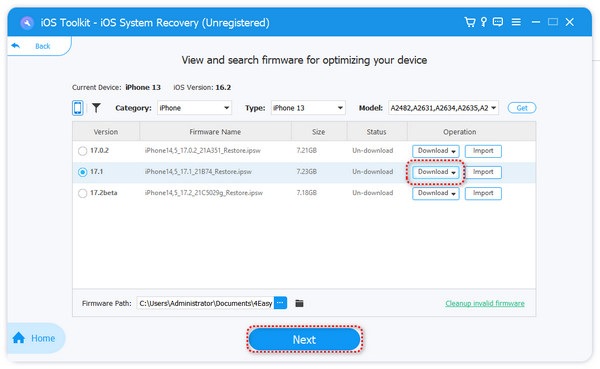
Step 4Choose your desired iOS system version and click the "Download" button to download its firmware package. When it finishes downloading, you should click the "Next" button to fix your iPhone speaker problem.
Check Your iPhone's Audio Settings and Bluetooth
Check the iPhone ringer
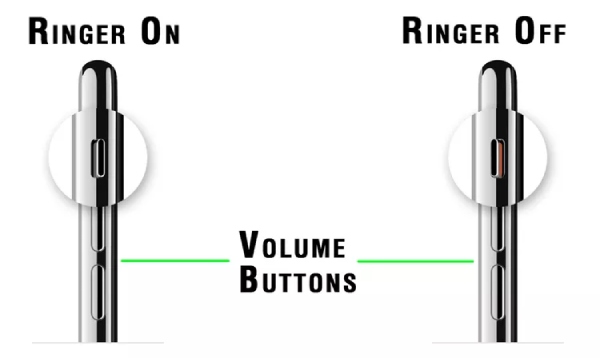
First, check whether the mute switch on the side is activated. For older models with a physical switch, you can simply look at it. For newer models with a button, you'll need to follow the on-screen prompts on your iPhone to determine its status.
Open the iPhone's volume
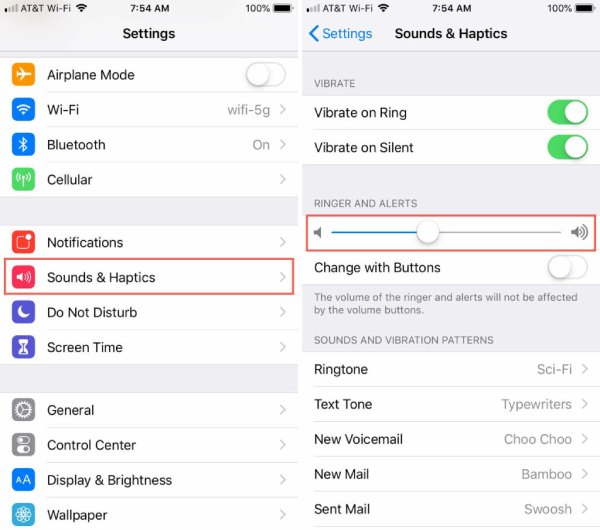
iPhone speaker not working issue could be that you turned off sounds related to certain functions of the phone, such as ringtones for incoming calls, notifications, or other functions.
Steps: Go to "Settings" and choose "Sounds & Haptics" and check the settings there. Then, adjust any one of the following: Adjust the volume slider, and move the "Use buttons to change" toggle switch to the ON/green position.
Turn off Bluetooth
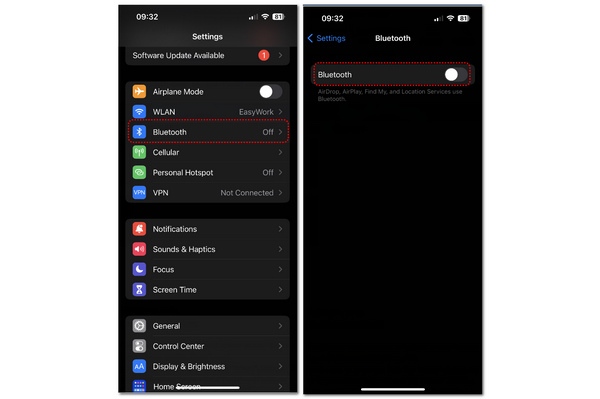
If audio is sent from your iPhone to another device, the iPhone speaker will not play sound. You may not hear any sound because your iPhone is sending the audio to another speaker.
Steps: Open the Settings app, then tap the "Bluetooth" button. Next, manually turn off the Bluetooth feature to disconnect.
Restart Your iPhone or Update the iOS System to Fix the Speaker
Restart Your iPhone
If none of the above methods work, the iPhone speaker may also be malfunctioning due to a temporary software glitch. In this case, restarting your iPhone can resolve these temporary issues.
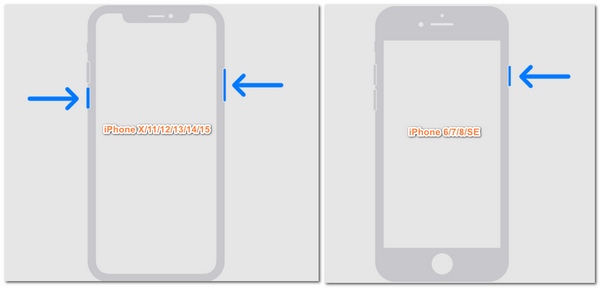
Step 1For iPhone 6/7/8/SE models, you only need to press and hold the "Power" button; For iPhone X/11/12/13/14/15 models, you need to press the "Volume" button and the "Power" button.
Step 2Slide the "power-off" slider to the right to shut down your iPhone. After about 30 seconds, turn on your iPhone.
Update the iOS System
Updating your operating system can resolve software issues. Software updates also fix vulnerabilities that occasionally arise. If your iPhone speaker isn't working, it may be due to a vulnerability present in the current iOS version. Timely updating to the compatible system may help resolve the issue.
Contact Apple to Repair Your iPhone speaker
If none of the methods you've tried resolve the issue and your iPhone still has no sound, consult an Apple expert. Your device likely has a hardware problem that requires repair. You can bring your iPhone to the nearest Apple Store retail location or get support over the phone.
Conclusion
You've now learned why your iPhone speaker isn't working and how to fix it. This article also offers several viable solutions for you to try. However, if you don't have time to search for the most suitable fix one by one, 4Easysoft iOS System Recovery is the best way to quickly resolve iPhone speaker issues and clear all system problems. It takes just seconds to complete and is completely safe.
100% Secure
100% Secure
