
Convert, edit, and compress videos/audios in 1000+ formats with high quality.
Detailed Guide to Rotate Videos in WMP and Fix Orientation

Posted by Paula Pailaga to Edit Video/Audio Jul 25, 2025
There are moments when you record a good video, only to look at the file and realize the video is playing sideways or even upside down, which is frustrating. You may wonder how to rotate a video clip in Windows Media Player. While most of us associate Windows Media Player with the option to watch videos on a PC, no tool allows users to rotate clips directly within the player itself. Do not panic; this tutorial will show you exactly how to get beyond this obstacle. Part 1 will provide step-by-step instructions on how to use Windows Media Player to rotate a video and approach the motion you want to take.
Guide List
Detailed Steps to Rotate Videos in Windows Media Player How to Use Powerful Windows Media Player Alternatives to Rotate VideoDetailed Steps to Rotate Videos in Windows Media Player
Let’s be real—Windows Media Player is great for watching your favorite videos, but when it comes to editing, especially rotating a video, it doesn’t give you that option directly. So, if you’re looking up how to rotate a video clip in Windows Media Player, here’s the truth: WMP alone can’t do it, but there’s a simple workaround using a built-in Windows tool called Video Editor (part of the Photos app). This feature allows you to rotate your video before playing it back in Windows Media Player—super helpful if your video appears sideways or upside down.
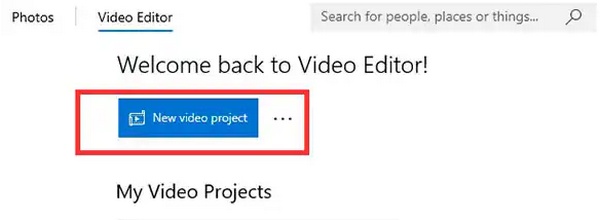
Step 1Open the "Photos" app (search for it in the Start menu), then click on the "Video Editor" tab. Click "New video" project, name your video, and click "OK".
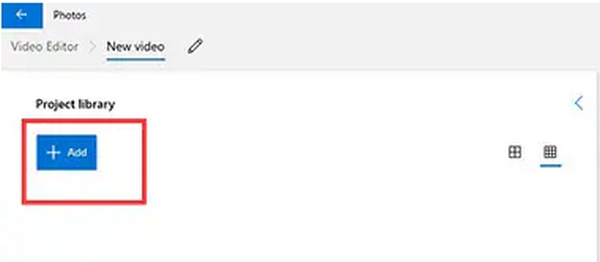
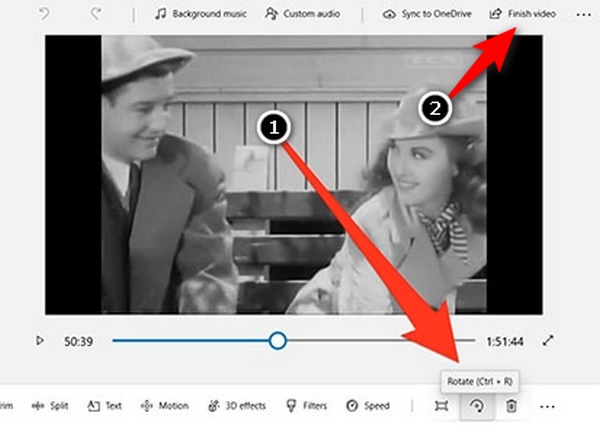
Step 2Add your video by clicking "Add" and then dragging it to the timeline at the bottom. Select your clip in the timeline and hit the "Rotate" button until it’s properly aligned.
Step 3Once you're satisfied with the rotation, click "Finish video" to export it. This quick method is especially useful if you're trying to figure out how to rotate a video in Windows Media Player without needing to download third-party software.
How to Use Powerful Windows Media Player Alternatives to Rotate Video
Method 1: Rotate Video Using 4Easysoft Total Video Converter
If you're still stuck figuring out how to rotate a video clip in Windows Media Player, don’t worry—you’re not alone! Since WMP doesn’t offer built-in rotation tools, the easiest solution is to use a more capable alternative. One of the best tools is 4Easysoft Total Video Converter. It has a handy video editor that can help you easily rotate videos in just a few clicks. It can be helpful if you ever get a sideways MP4 or how to rotate a MOV video in Windows Media Player too.

Use a live preview to rotate or flip videos to any angle before exporting.
Almost every format is supported, including MP4, MOV, AVI, MKV, and others.
Using batch editing to simultaneously rotate several movies quickly.
Integrated cropping, effects, and trimming tools for complete control.
100% Secure
100% Secure
Step 1Open 4Easysoft Total Video Converter, click "Add Files" in the top-left, and choose the videos you want to rotate. You can also drag and drop files into the window. Then, click the "Edit" button.

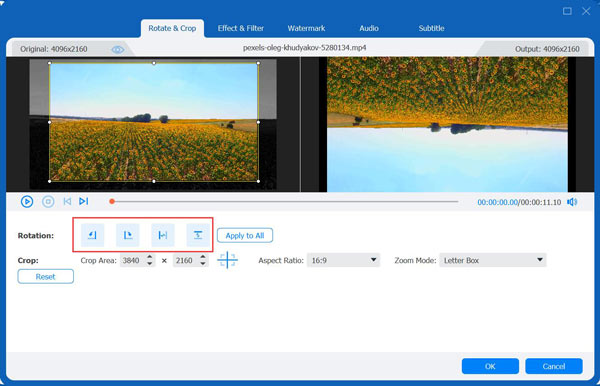
Step 2In the "Rotate & Crop" section, you can flip or rotate videos without Windows Media Player easily. Just click the "Rotate" button to 90, 180, and 270 degrees.
Step 3Choose where to save your file using the "Save to" menu, then hit "Convert All." Check "Merge into one file" if you want to combine multiple videos.

With this tool, you won’t have to stress regarding how to rotate a video in Windows Media Player anymore. It's a simple, smooth, and much more flexible way to fix your video orientation—without the frustration!
Method 2: VLC Media Player To Rotate Video Orientation
If you're getting frustrated trying to figure out how to rotate a video in Windows Media Player, you're not alone—it’s a common issue since WMP doesn't have a built-in rotate function. That’s where VLC Media Player comes in! VLC is completely free, extremely lightweight, and more than just a video player. It actually allows you to rotate videos at any angle and save them in that orientation. Whether you're trying to fix a sideways clip or wondering how to rotate a MOV video in Windows Media Player and need an alternative, VLC has your back.
Step 1Open 4Easysoft Total Video Converter, click "Add Files" in the top-left, and choose the videos you want to rotate. You can also drag and drop files into the window. Then, click the "Edit" button.
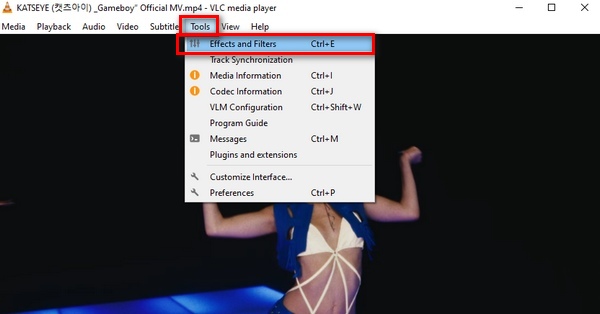
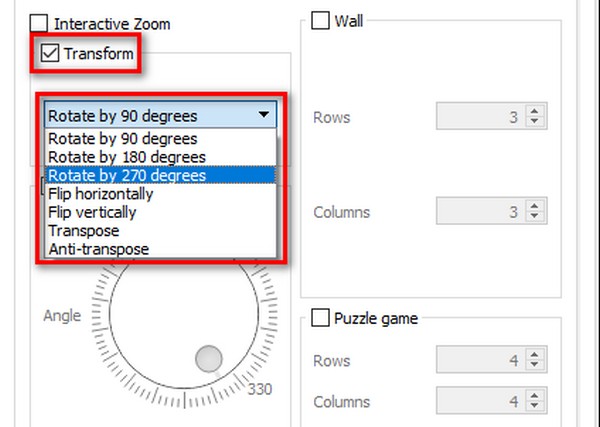
Step 2In the mini window, go to the "Video Effects" tab, then click on "Geometry". Check the "Transform" box and choose the rotation angle (e.g., 90°, 180°, etc.).
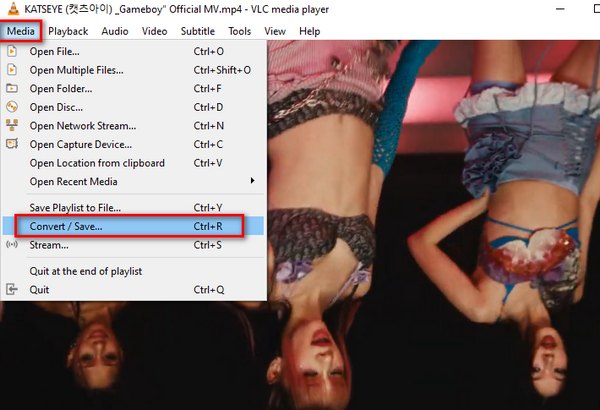
Step 3Click "Close" to apply the rotation. To save the rotated video permanently, go to "Media" and then "Convert/Save", add your file again, and follow the prompts to export it.
Here’s how to rotate videos in VLC, especially if you're stuck with a clip and wondering how to rotate a video clip in Windows Media Player with no success. It’s simple, free, and works on almost any format!
Method 3: Clipchamp - Online Tool To Rotate Your Videos Without WMP
Clipchamp is also a great online tool that easily rotate videos without Windows Media Player, even if you’re new to video editing. It’s a Microsoft product, so it works smoothly on Windows, and you don’t need to install anything. Clipchamp is a straightforward drag-and-drop editor that can repair any issue in a matter of steps, whether you're trying to figure out how to rotate an MP4 video in Windows Media Player or editing a short MP4 for social media.
Step 1Enter your account information to log in to the Clipchamp site. Upload your video and begin a new project. Drag the video to the bottom of the timeline.
Step 2To change the angle, click the video in the timeline and then use the "Rotate controls" in the editing box. Click "Export" if everything appears to be in order, and then select the desired video quality.
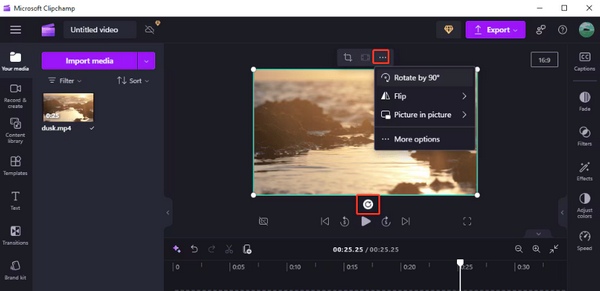
That’s it! With Clipchamp, you don’t have to stress over how to rotate a video in Windows Media Player—just a few clicks, and your video is ready to go.
Conclusion
Rotating a video should not be such a hassle, especially when you're working with clips that seem like they won't display correctly. While it can be challenging to learn how to rotate a video in Windows Media Player due to its limitations, many alternatives are dependable and worthwhile. Of those alternatives, 4Easysoft Total Video Converter is the number one video editing tool for video rotation. The tool is easy to use, powerful, and supports many video formats for input. Additionally, it offers other video editing options beyond just rotation. Whether you need to fix a sideways video or edit for content creation, this tool provides complete control, making video editing simple and easy for everyone.
100% Secure
100% Secure
