

Reliable video converter, editor, and compressor for daily tasks.

Reverse Video Anywhere! 6 Best Tools You Must Know in 2025

Posted by Paula Pailaga to Edit Video/Audio Dec 19, 2025
To create that dramatic rewind effect, fun social-media clip, or new cinematic effects, reversing a video is the editing trick you can use. The best part? You won't need any professional skills to reverse videos, since today's tools make it very accessible across all devices. This guide introduces the 6 best tools that let you add a reverse effect effortlessly on desktop, online, and mobile. Whether you want speed, convenience, or more exciting tools, there's one here for you.
Guide List
Create Fun Reverse Videos with All-in-one Tools Reverse Videos Using Professional Premiere Pro Clideo - Quick Video and Audio Reversal Ezgif - Web-Based Reverser with Format Flexibility Reverse Video Editor - Simple Backwards Playback on Android Reverse Movie FX - Special Effects Reverser on iOSCreate Fun Reverse Videos with All-in-one Tools
4Easysoft Total Video Converter provides a built-in video reverser in its Toolbox. You can play your video clips backward, creating a fun rewind for your vlogs, social media, or creative projects. Beyond video reversal, you can trim, crop, merge, rotate, remove watermark, compress, and apply more editing effects within the program.
Reverse videos instantly using the built-in Video Reverser tool.
Cover ranges of formats including MP4, MOV, MKV, AVI, and more.
Customizable output settings tailored to social media, mobile, and desktop.
Hardware acceleration for faster processing, no longer waiting time.
100% Secure
100% Secure
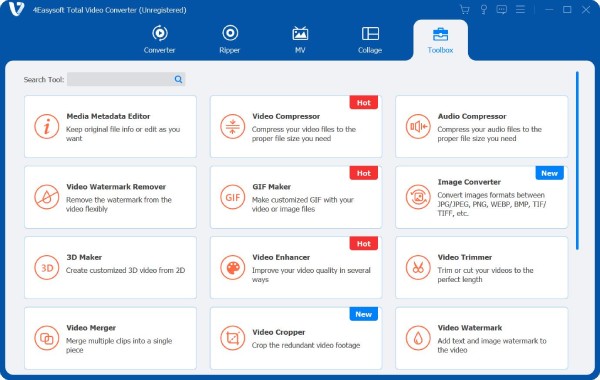
Step 1Launch 4Easysoft Total Video Converter and navigate to the "Toolbox" tab in the top menu. Scroll through the options and pick the "Video Reverser" to start the reversing process.
Step 2Click the "Add" button in the center to add the video you wish to reverse. Keep in mind that this tool only reverses video content; any audio in the clip won't be kept after exporting.
Step 3Once your video is loaded, adjust the "Progress bar" to choose the section of the video you want to reverse, or manually set a "Start/End" time for precise control over the reversed parts.
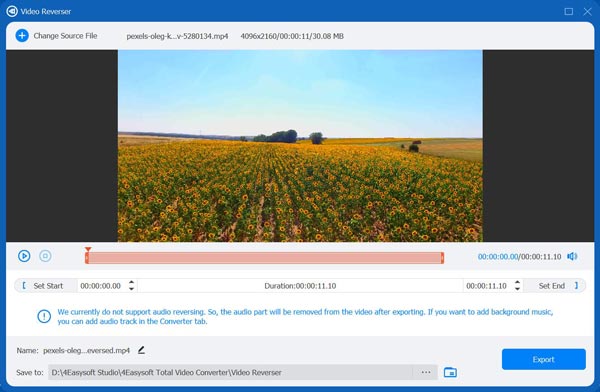
Step 4When you are happy with the preview, select a file name and destination folder at the bottom, then click the "Export" button to save the reversed video to your computer.
100% Secure
100% Secure
Reverse Videos Using Professional Premiere Proe
For those who want more advanced editing features, Adobe Premiere Pro is one of the professional-grade solutions you can get to make a reverse video. It is great for content creators, filmmakers, and anyone working with high-quality footage who wants complete control over timing, transitions, and effects.
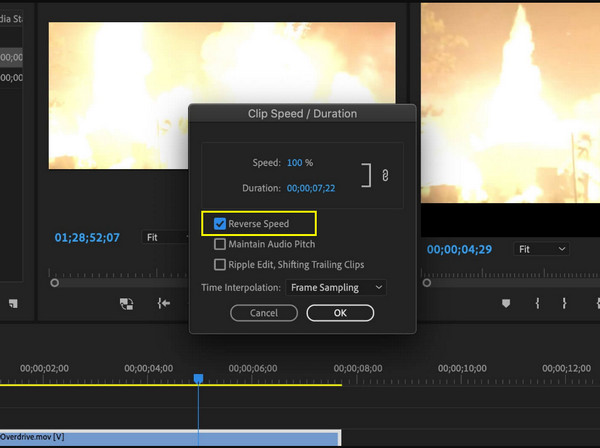
Step 1Inside Premiere Pro, create a new project, then add the video you wish to reverse. Drag the video onto the timeline, and right-click on it and select "Speed/Duration".
Step 2In this window, check the box "Reverse Speed", and then click the "OK" button. Preview the reversed video, make additional edits as needed.
Step 3Now, export the reversed video by clicking the "File" menu, selecting "Export" and then "Media", choosing the desired format, and clicking the "Export" button.
Clideo - Quick Video and Audio Reversal
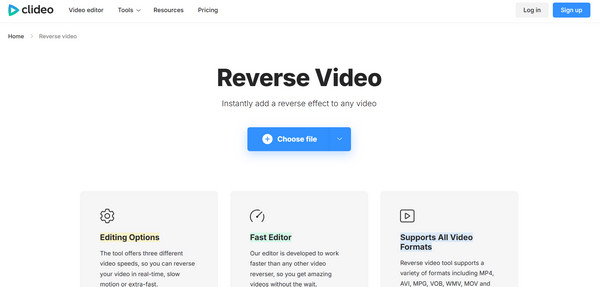
If you wish for a fast, no-installation solution, Clideo is a user-friendly web platform that can help you rewind any video and audio online. It is great for quick edits or social media video clips when you don't need full-scale editing software.
Step 1Search for Clideo's Reverse Video website.
Step 2Upload your video file by clicking the "Choose File" button or dragging it into the browser window.
Step 3Next, click the "Reverse" button to start processing.
Step 4Once it is done, download the video to your device.
Ezgif - Web-Based Reverser with Format Flexibility
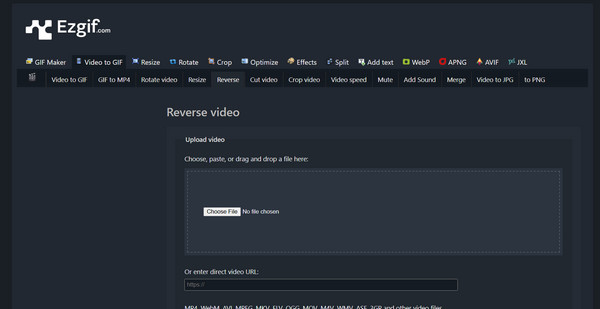
Another web-based tool for reversing video, Ezgif supports multiple formats like MP4, AVI, and MOV. It works perfectly for casual users who wish to quickly reverse video without any software installation.
Step 1Go to the Ezgif Reverse Video main page.
Step 2Click the "Choose File" button, then "Upload video" to import your video to be reversed.
Step 3After that, choose the portion you want to reverse or the entire clip.
Step 4Click the "Reverse video!" button to begin reversing; click the "Save" button to download it.
Reverse Video Editor - Simple Backwards Playback on Android
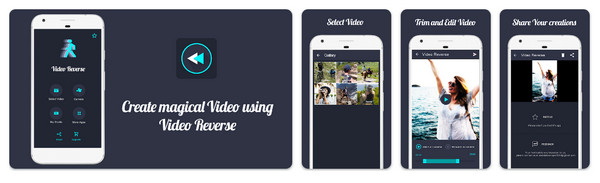
For Android users, you can have the Reverse Video Editor app for a straightforward process to reverse videos on Android directly. It is ideal for creating short clips or fun video effects without a computer.
Step 1Open Reverse Video Editor on your Android device.
Step 2Tap the "Select Video" to import the clip you wish to reverse.
Step 3Use the sliders or set the start/end points for the part you want to reverse.
Step 4Then, tap the "Reverse" button and wait for it to process.
Reverse Movie FX - Special Effects Reverser on iOS
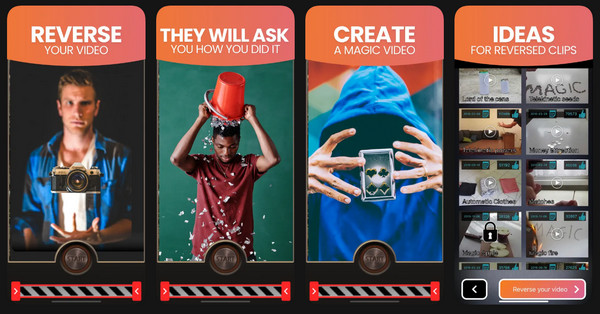
Finally, Reverse Movie FX is a well-known iOS app for reversing videos while applying special effects, slow motions, looping, and more visual enhancements. You can then share the output on TikTok, Instagram, or save it to your projects. Here's how to turn videos backwards on iPhone:
Step 1Launch Reverse Movie FX on your device. There, tap the "Record Video" or "Choose Existing Video" to import your video clip.
Step 2Choose the section to reverse and apply effects, like slow motion or loops. After that, tap "Reverse" and wait for it to make video backwards.
Conclusion
As you explored, multiple tools available across different platforms are here to help you reverse videos across different platforms. You can use Premiere Pro, or online tools like Clideo, perhaps mobile apps like Reverse Movie FX; each tool gives you flexibility depending on what you need to acquire the reversed result you want. But for those who wish to make a video reverse quickly with powerful features, use 4Easysoft Total Video Converter. Regardless of your expertise, this versatile tool ensures that all reversing and editing is fast, simple, and high-quality.
100% Secure
100% Secure
